gillycat
Members
-
Joined
-
Last visited
Everything posted by gillycat
-
Exactly and it always showed roads as you were driving, straight up ahead and now they are horizontal when you're driving straight ahead as if you need to turn
-
Hi Kenny R I'm not even sure my 2013 Yeti had a card? I have been refunded for the new SD card which seems to have completely messed up the brain of the sat nav. Can you go backward or is it like an iphone once updated can you only go forwards? Gill
-
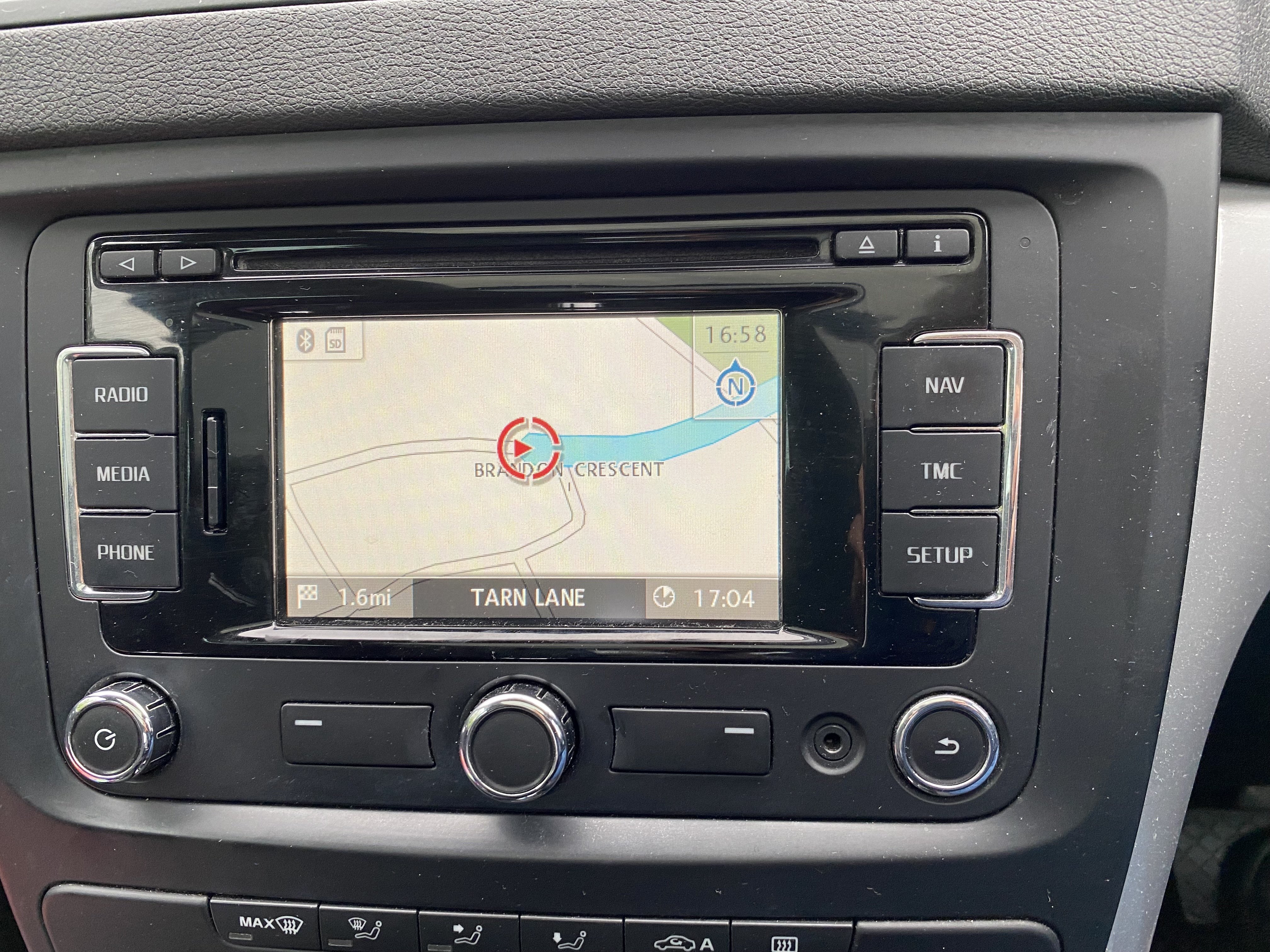
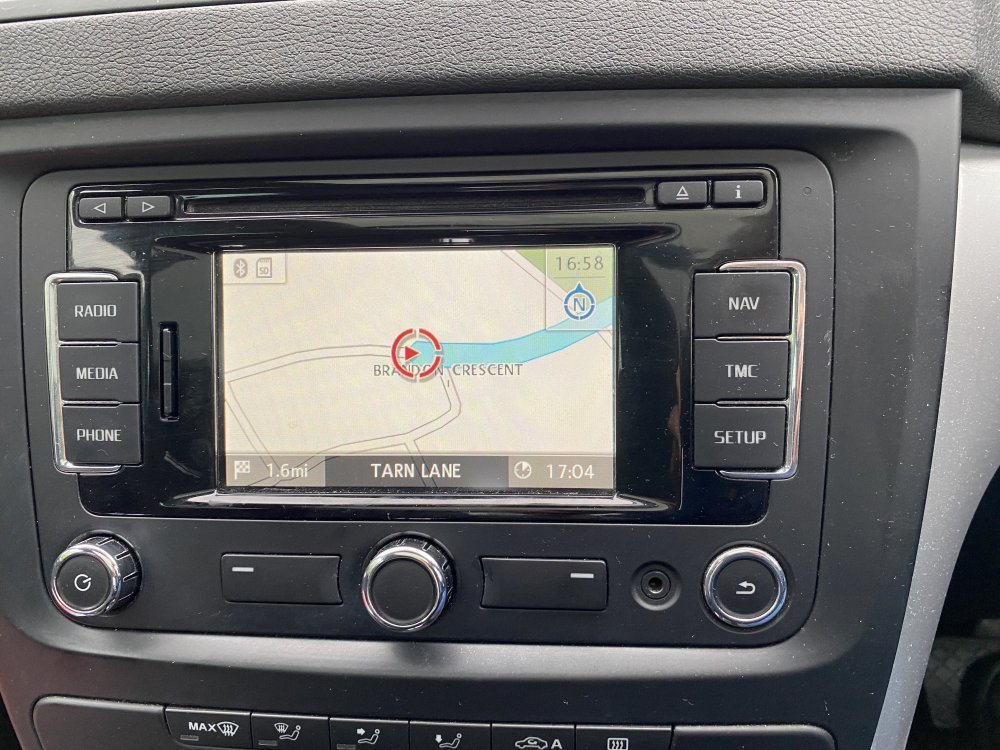
Hi Rusty Nuts Here is an image of the unit. Skoda in Leeds are wanting to delete all the info again and reinstall failing that they are suggesting a 'Kenwood' unit? At present it will not allow most post codes and shows on the screen a road going horizontally when it's straight ahead. They have refunded for the SD card but I just would like a working sat nav. Thanks Gill
-
The sat nav which came with my lovely 2013 Yeti in started not to recognise new speed zones in Central London where it went from 30 to 20mph. I asked my local Skoda dealer if they could update. They ordered a new SD card which cost £200. After the update it was worse than the original system. It still didn't completely recognise those 20 mph zones but it also didn't accept 3 out of 4 post codes, you couldn't input them. So when I took it in yesterday for a service and MOT I asked them to try to resolve this. There is a more up to date SD card (which apparently isn't compatible) but I knew this wasn't the problem. They have tried various things but now the sat nav is even worse than at any time, the maps are the wrong way round and it won't accept any post codes. The dealership have said I need a Tom Tom which has infuriated me. Firstly I have an iphone so don't need a Tom Tom but would like to at least get my sat nav back to where it was initially when it just didn't recognise speed limits in Central London! Any suggestions?