JimHearne
Finding my way
-
Joined
-
Last visited
Everything posted by JimHearne
-
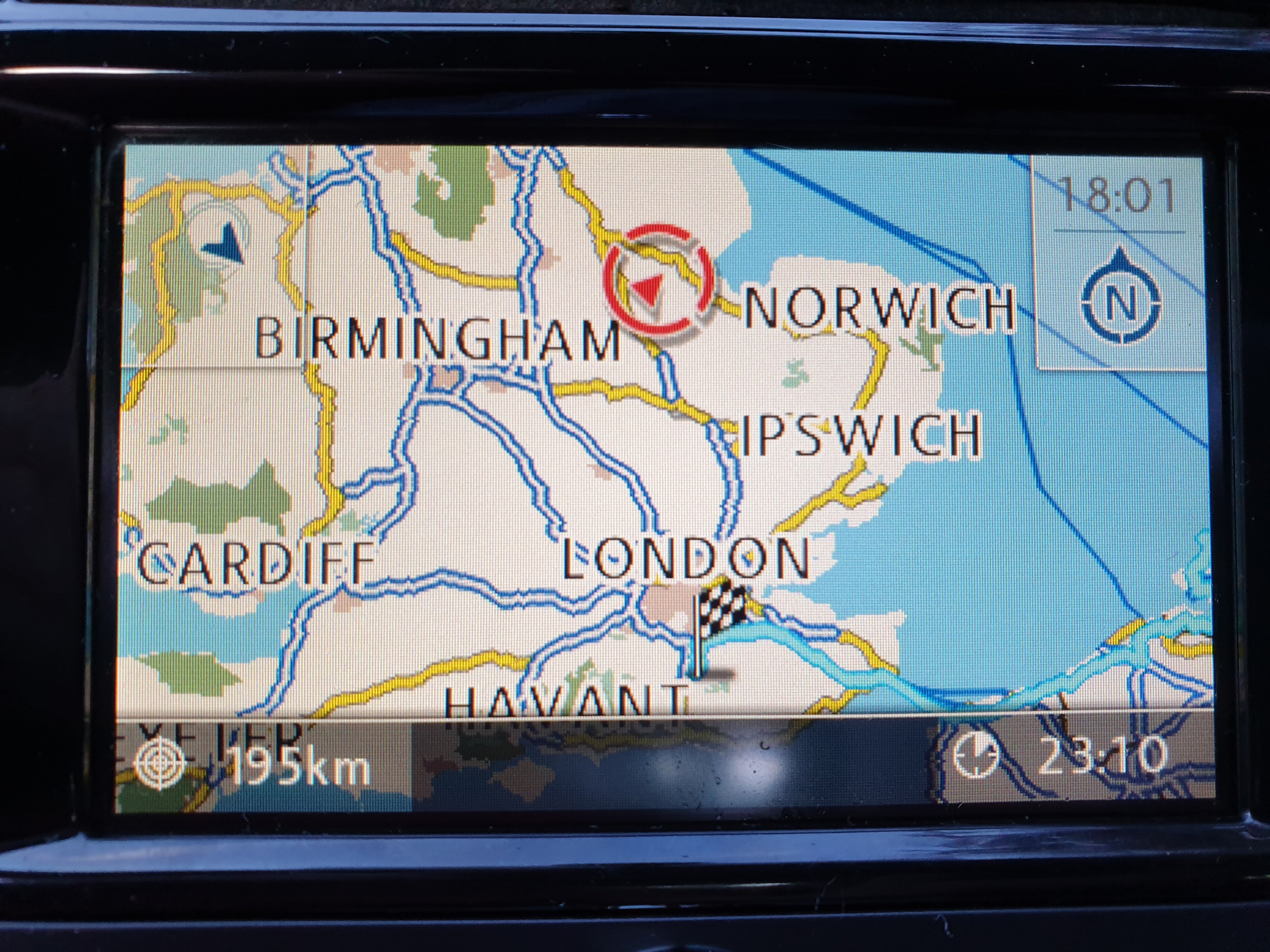
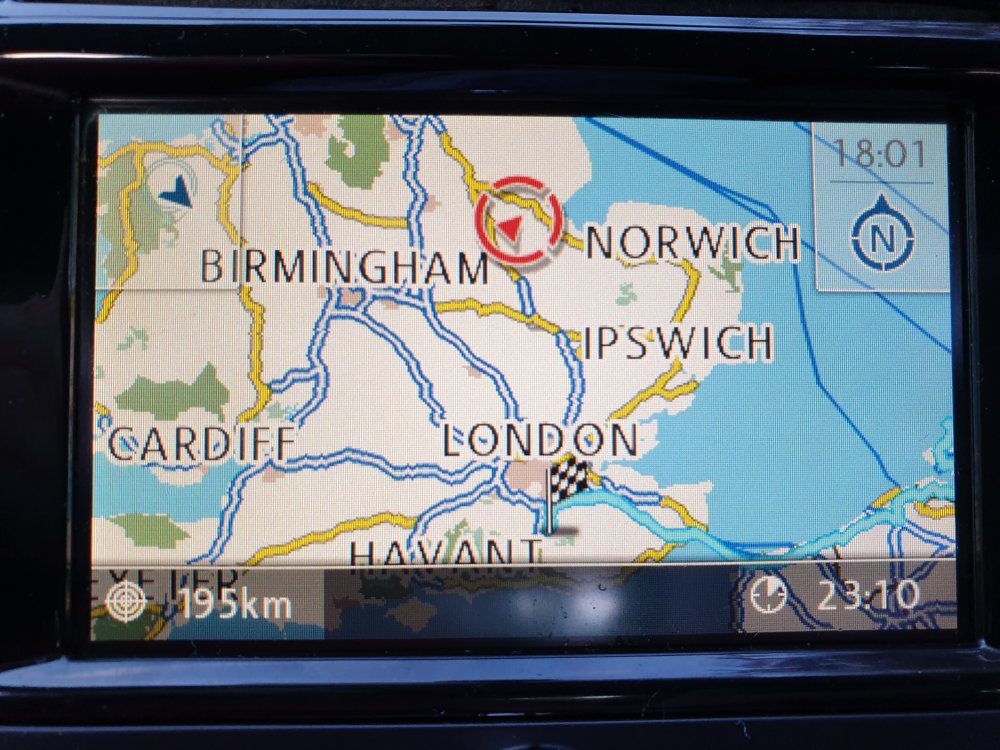
So, i plugged in the new GPS receiver and gradually in the space of 10 mins the cursor homed in on my correct location. But, it's still being weird as if i put in a destination it always routes it from somewhere in the sea near Holland. This is the overview map from my current location of Bourne in Lincolnshire to a destination Crawley in Sussex, it doesn't start from the current location dispite the cursor being there. Is there some setting i'm missing that tells it to use somewhere else as start location, rather than the current GPS location. Many thanks, Jim
-
Hi Kev, Thank you, i got that to work. It says: Part number: 3T0035191A Software version: 0357 Hardware version:H19 So i've got a RNS 310 I tried zooming right out but it just stays blue, must be in the middle of the sea somewhere. ! Thank you for the link, i've ordered one of those receivers, just to prove it's the one of the roof but i will probably replace that one if it's proved faulty. Thanks again, Jim
-
Hi Kev, Thank you very much for that. I've now plugged a fault code reader into the car and it says there is no communications with the GPS receiver so i guess that is the cause. I'm surprised the radio didn't come up with any error though. Thanks again, Jim
-
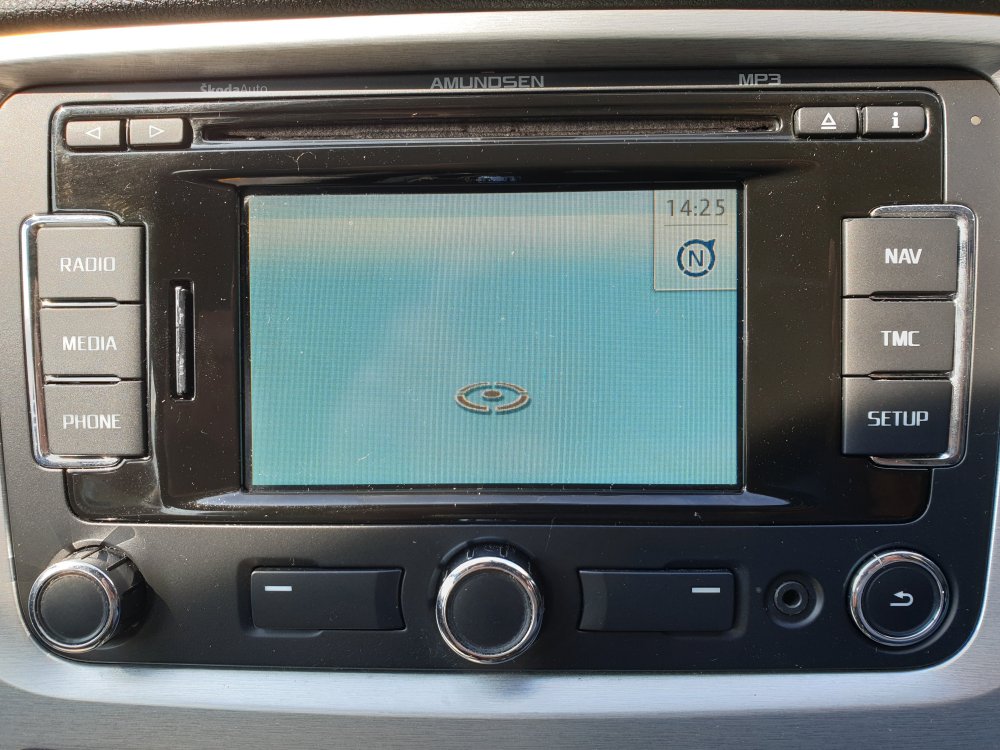
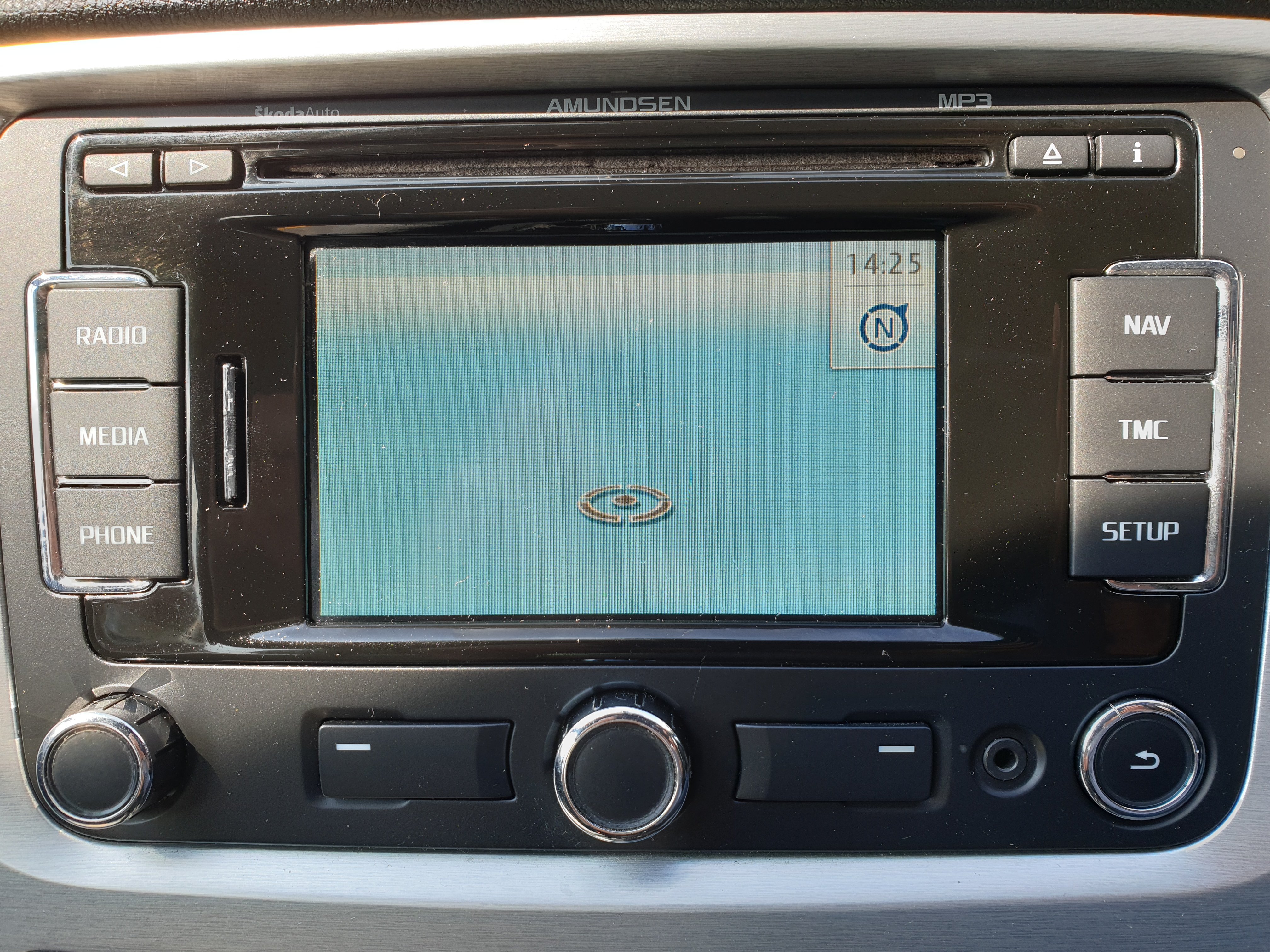
Hi All, I recently bought a 2012 Octavia Vrs. I believe the Satnav system in it is a Amundsen RNS310 It came with a couple of map CD's but no SD Card. It always displays the screen below. I tried a factory reset and i bought a SD map card for the RNS310 but it's still the same. It seems to install the maps from the SD card ok. Looking in the menus it seems to list all the maps correctly and i can even try and enter an address but the map stays as it is. No errors saying it can't see any satellites. I've tried to find any sort of info or service menu screen but can't. Anybody had this problem ? Or is this system actually a Amundsen+ RNS315 ? Many thanks, Jim