adambrownb
Members
-
Joined
-
Last visited
-
Thanks for your time in posting mate
-
I’d be interested too. I want to activate full KESSY if possible. I added the free calendar option in the shop in the infotainment system.
-
Thanks mate
-
I just mean having different map options. My last VRs showed buildings in 3D etc
-
It’s a sad world we live in! I do love the car though so they are only minor niggles after owning two VRs’ back to back.
-
What I don’t understand is the spitefulness of it. A lot of these things are fitted and wired up, just not activated!
-
No offence but they are basic features these days! It’s a 2 day old car not a twenty year old one 😂 🏴
-
Just a bit disappointed to be honest. It’s hardly a “technology” model when they miss the basics. But my question is: can the full keyless features be unlocked?
-
All! Is it me or have they removed a lot of the map features compared to my previous Columbus in my MKIII vrs facelift? Things such as 3D map options?
-
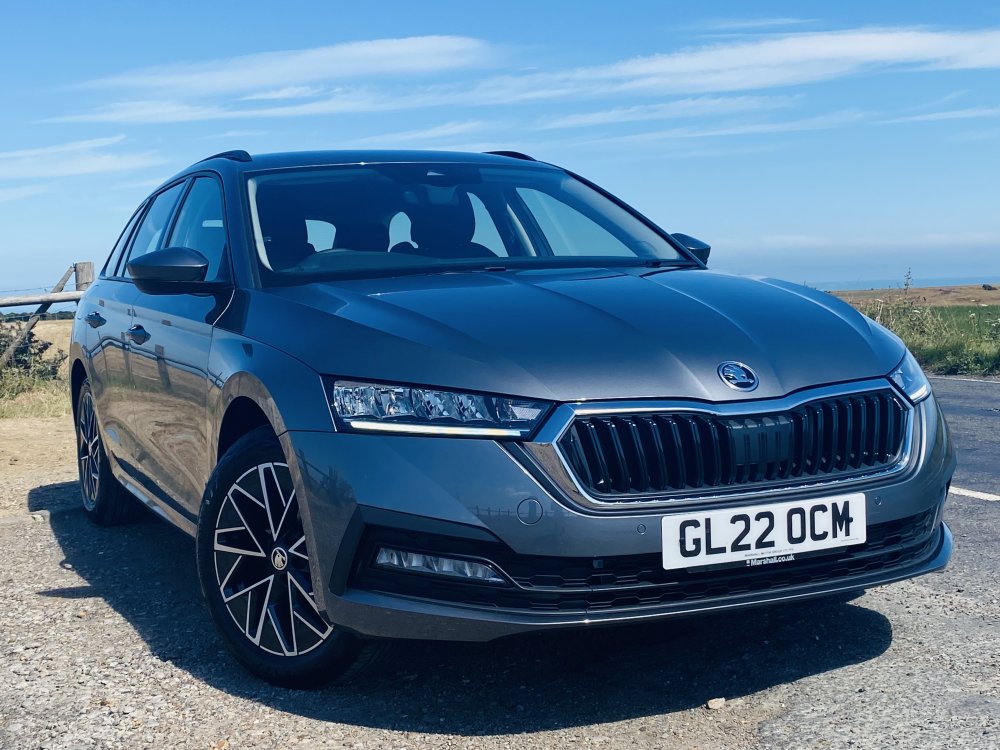
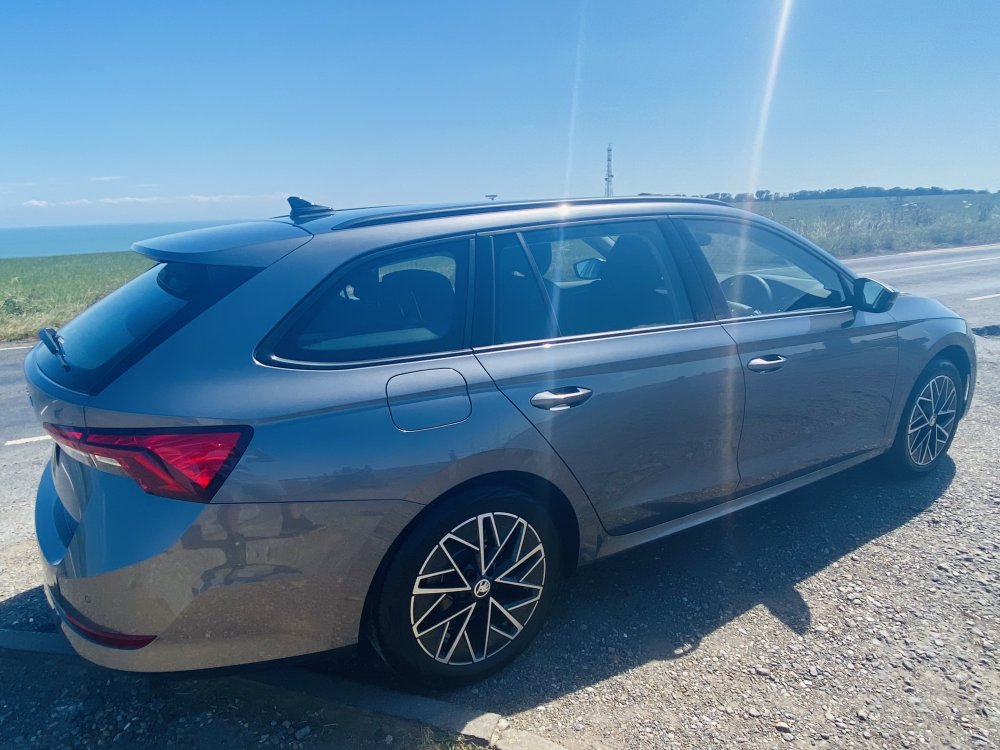
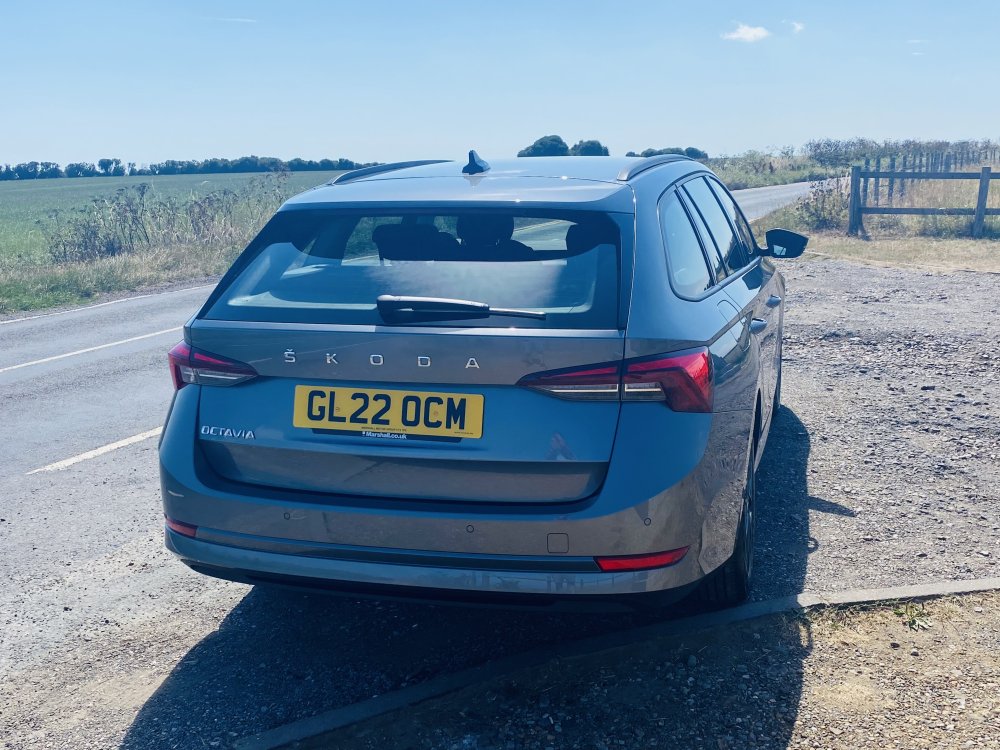
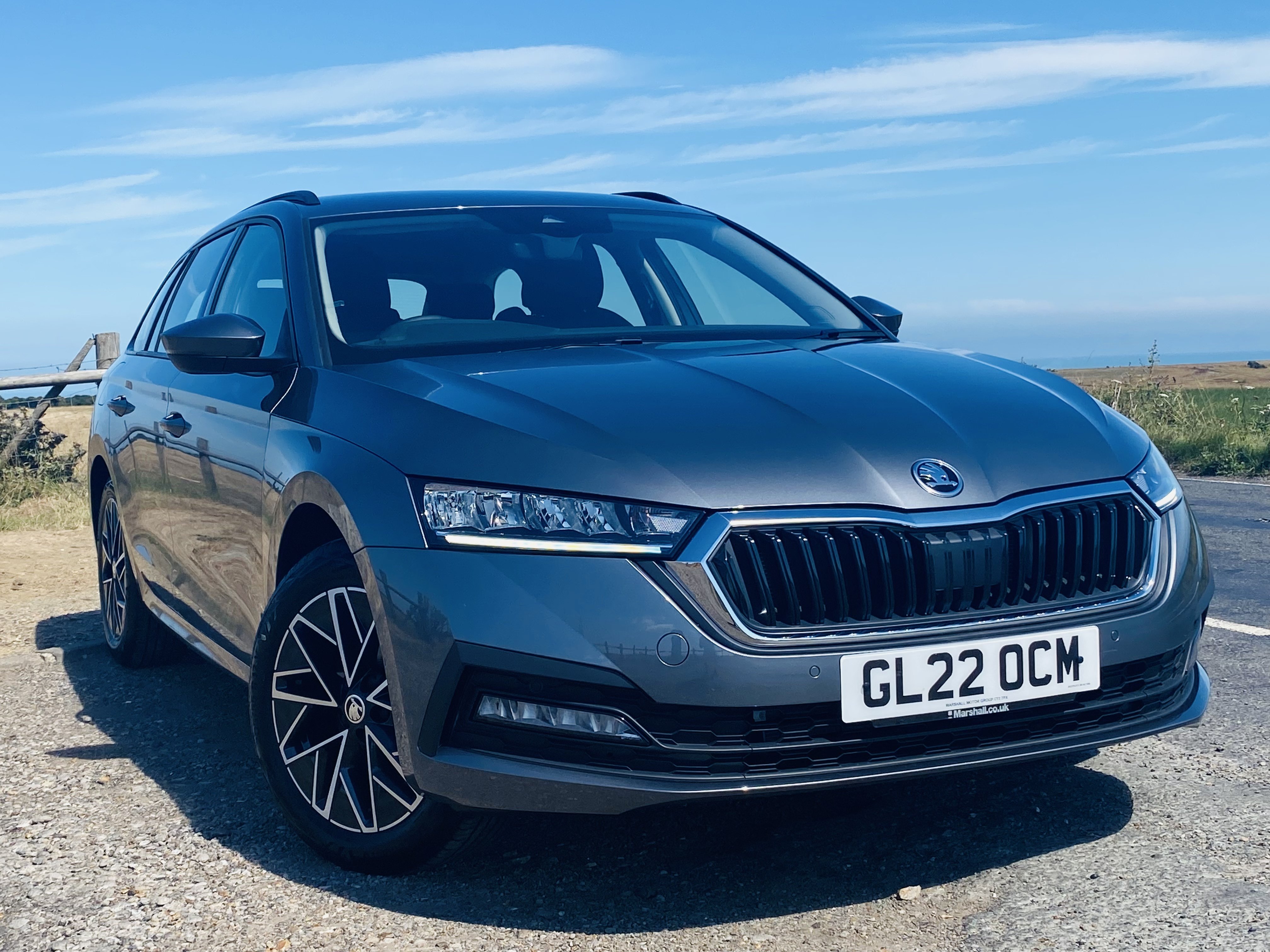
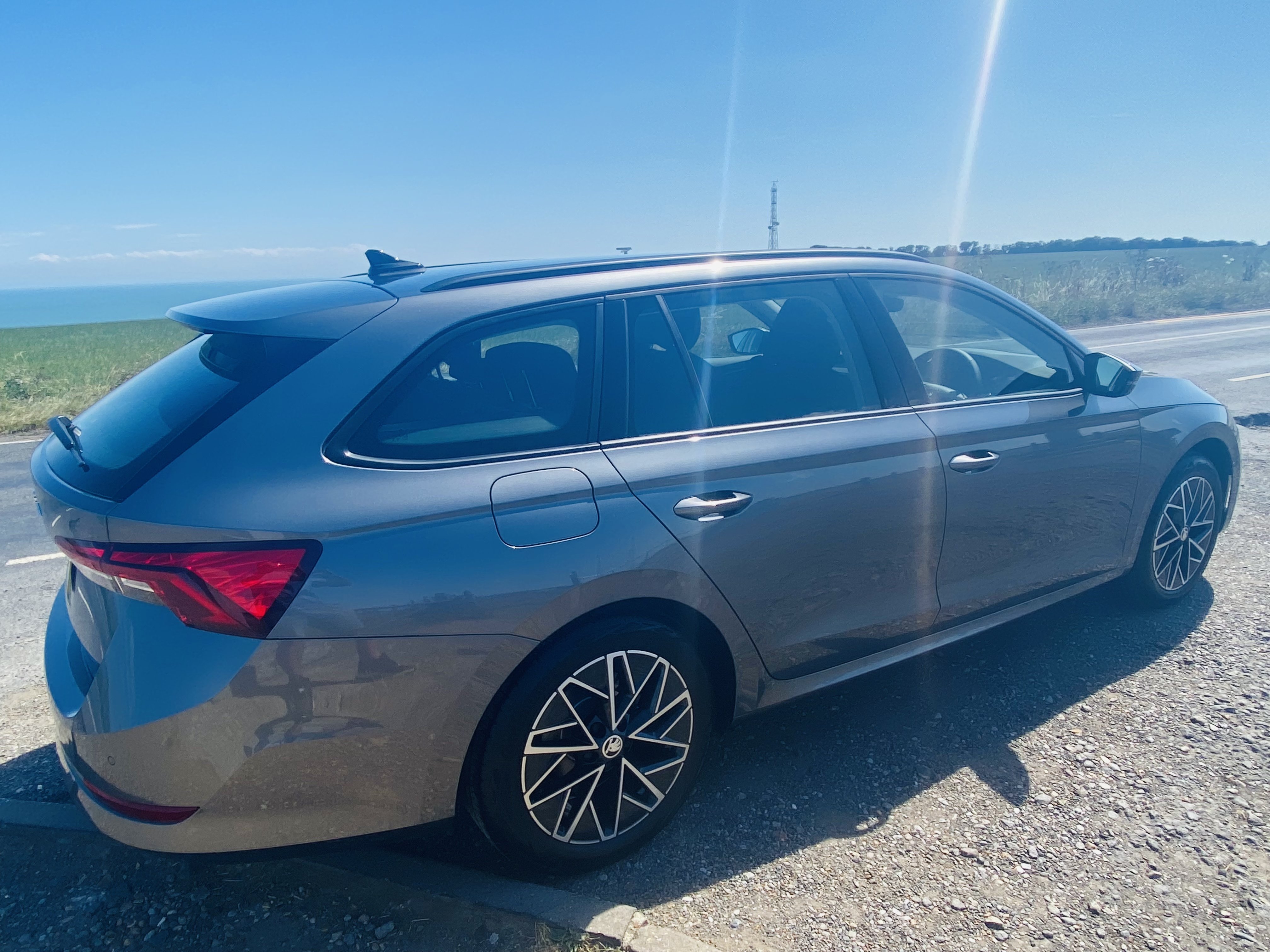
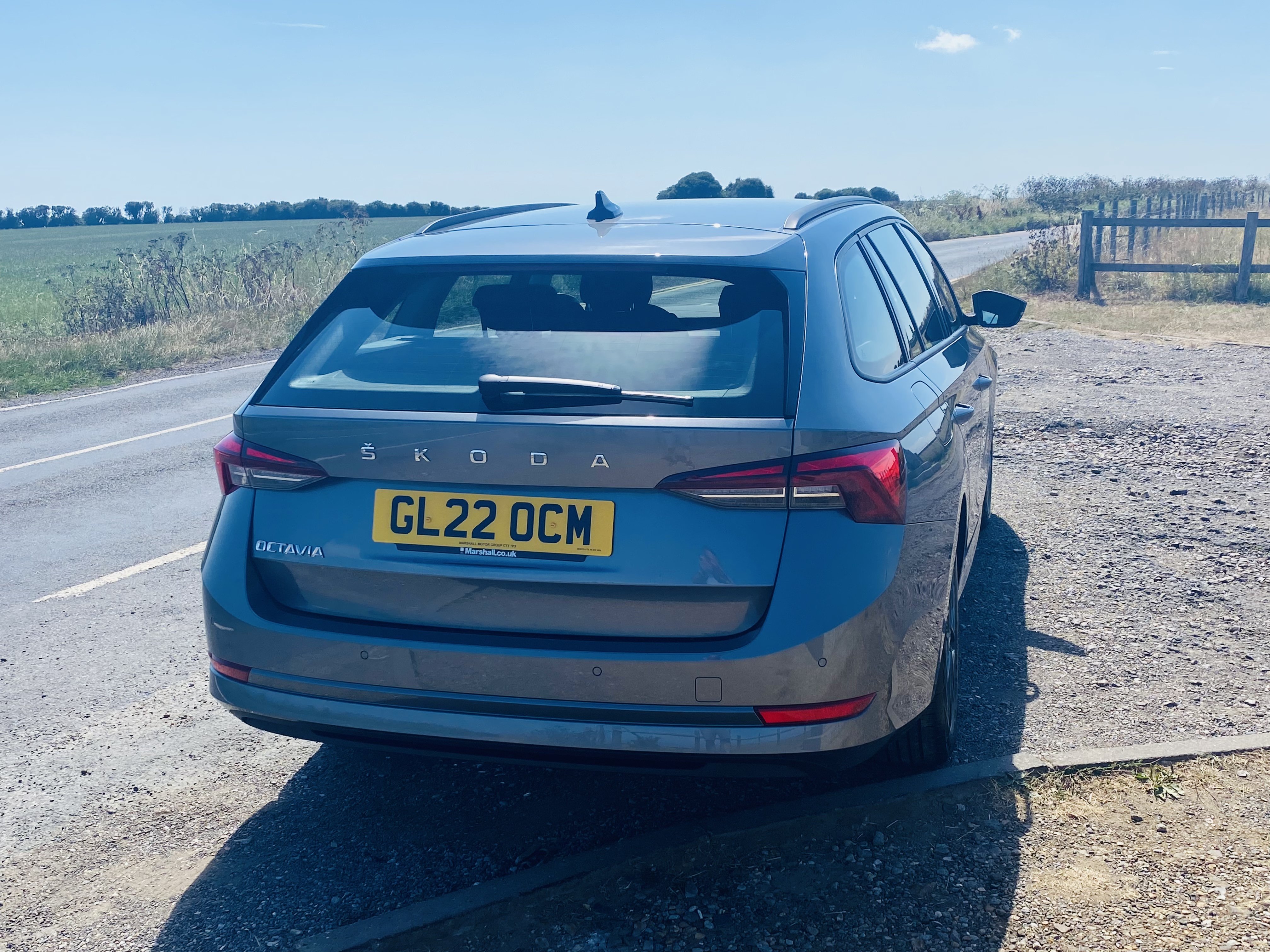
My Octavia arrived Friday and I’m largely pleased with it however Skoda have been tricky in the wording of the spec of my model: KESSY - can only be used to start the car! Needs the fob to lock/unlock the vehicle even though the little dimples are fitted to the door handles. Does anyone know if this can be coded now? Electric mirrors - only electrically adjustable but not foldable which is mega annoying. Bit annoyed Skoda have cut such small corners 😞
-
It honestly won’t let me lock/unlock doors without the fob. It says so now I’ve looked at the SE technology spec compared to the SEL. Rip off! No idea haha
-
Hi mate. Thank you 😊 No they were taken near St Margaret’s just outside Dover.
-
So I took delivery of this yesterday!! Only waited 14 months nearly! 😬. Gutted the mirrors don’t fold and that “KESSY” is pointless because I can’t lock or unlock the doors without pressing the button on the fob. Can this be coded afterwards?