halfv8
Finding my way
-
Joined
-
Last visited
-
Open to any reasonable offer!
-
Price drop £50 delivered
-
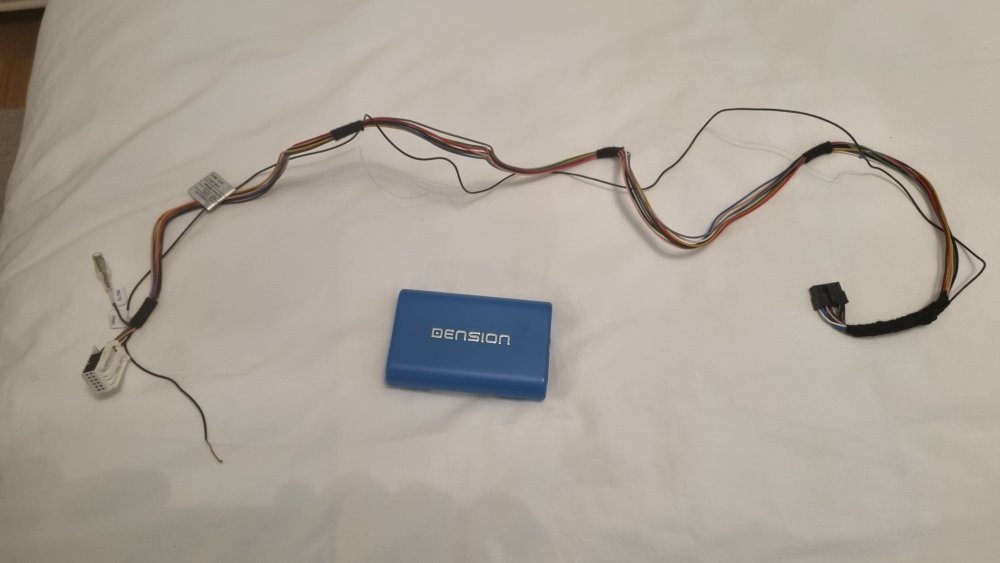
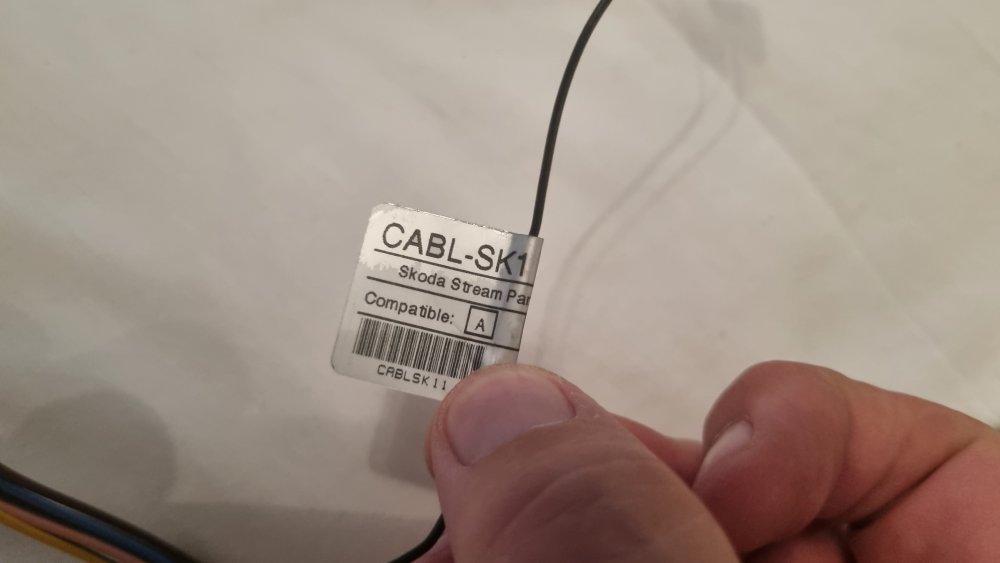
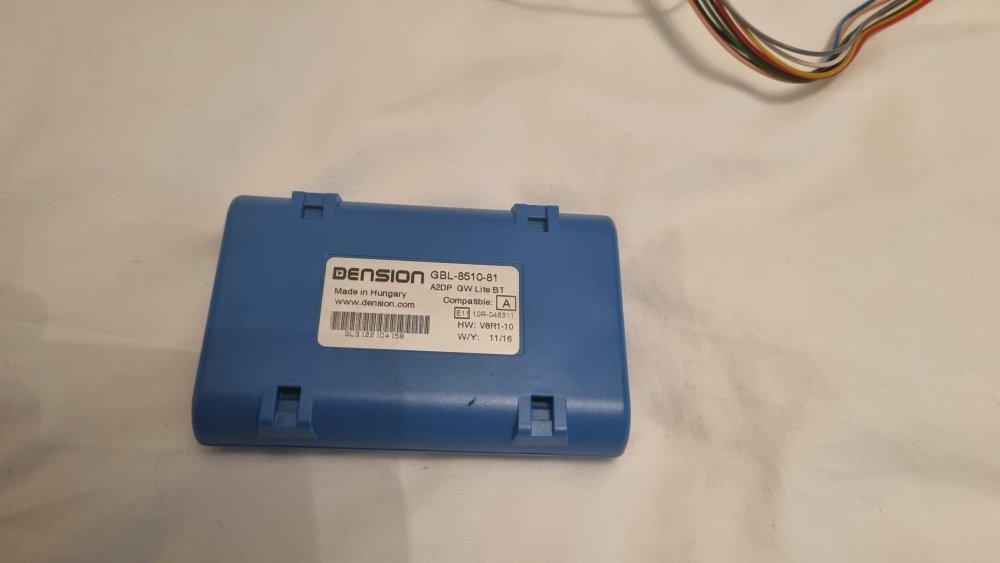
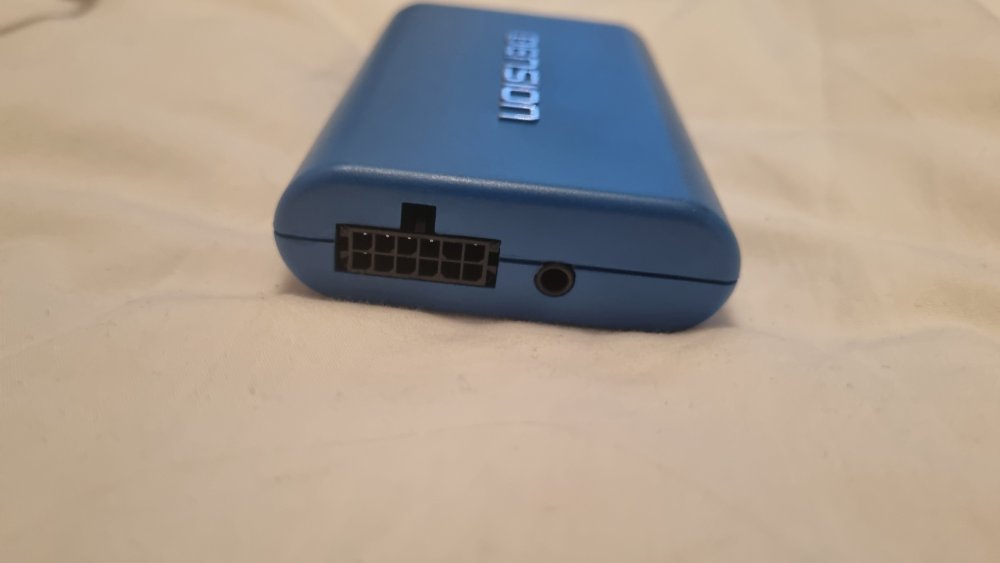
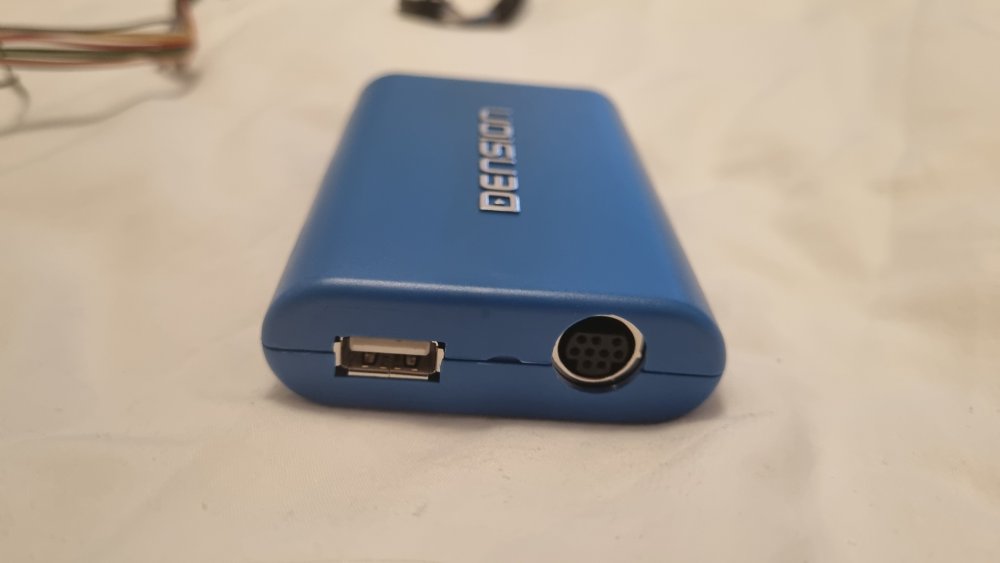
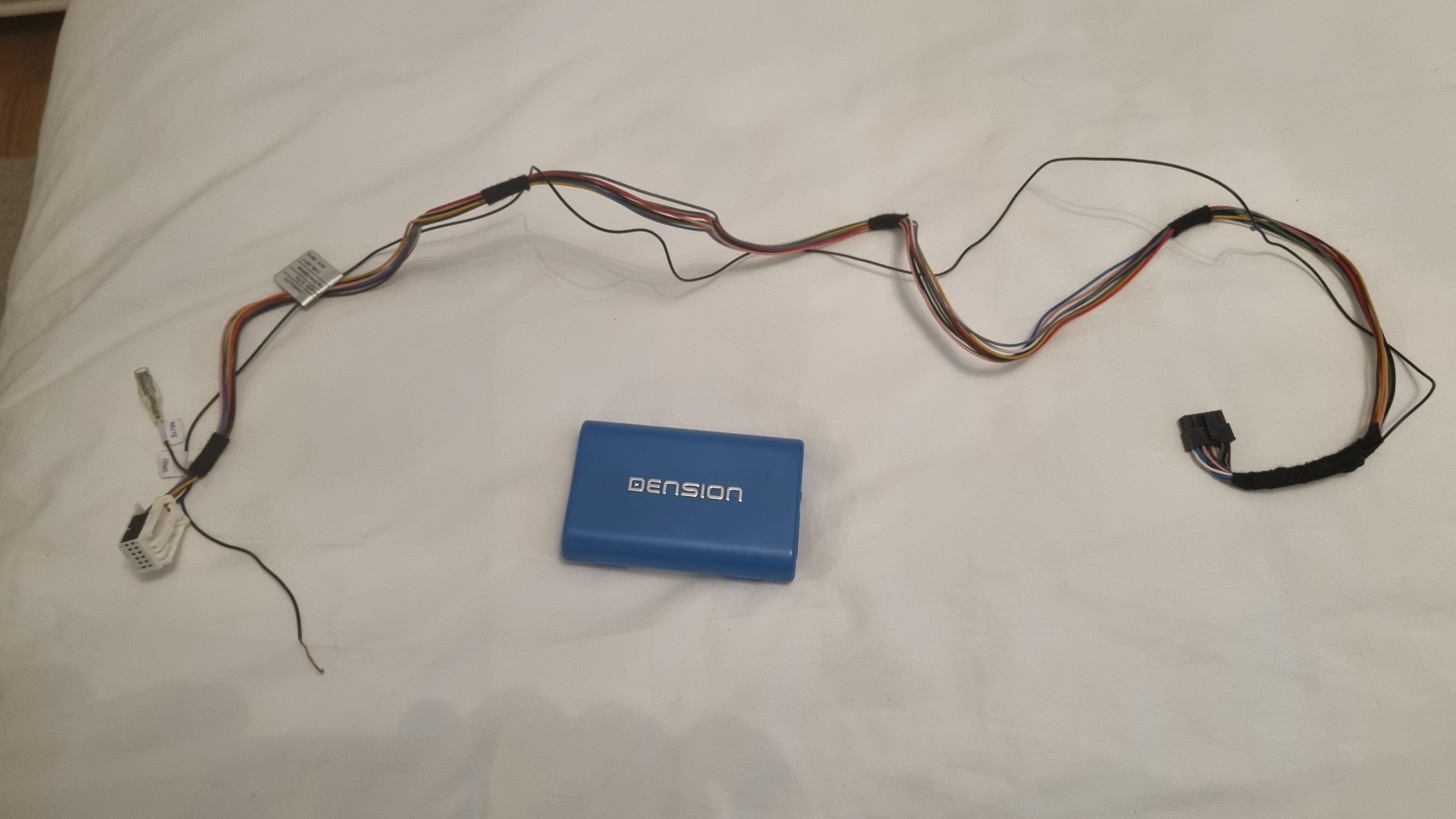
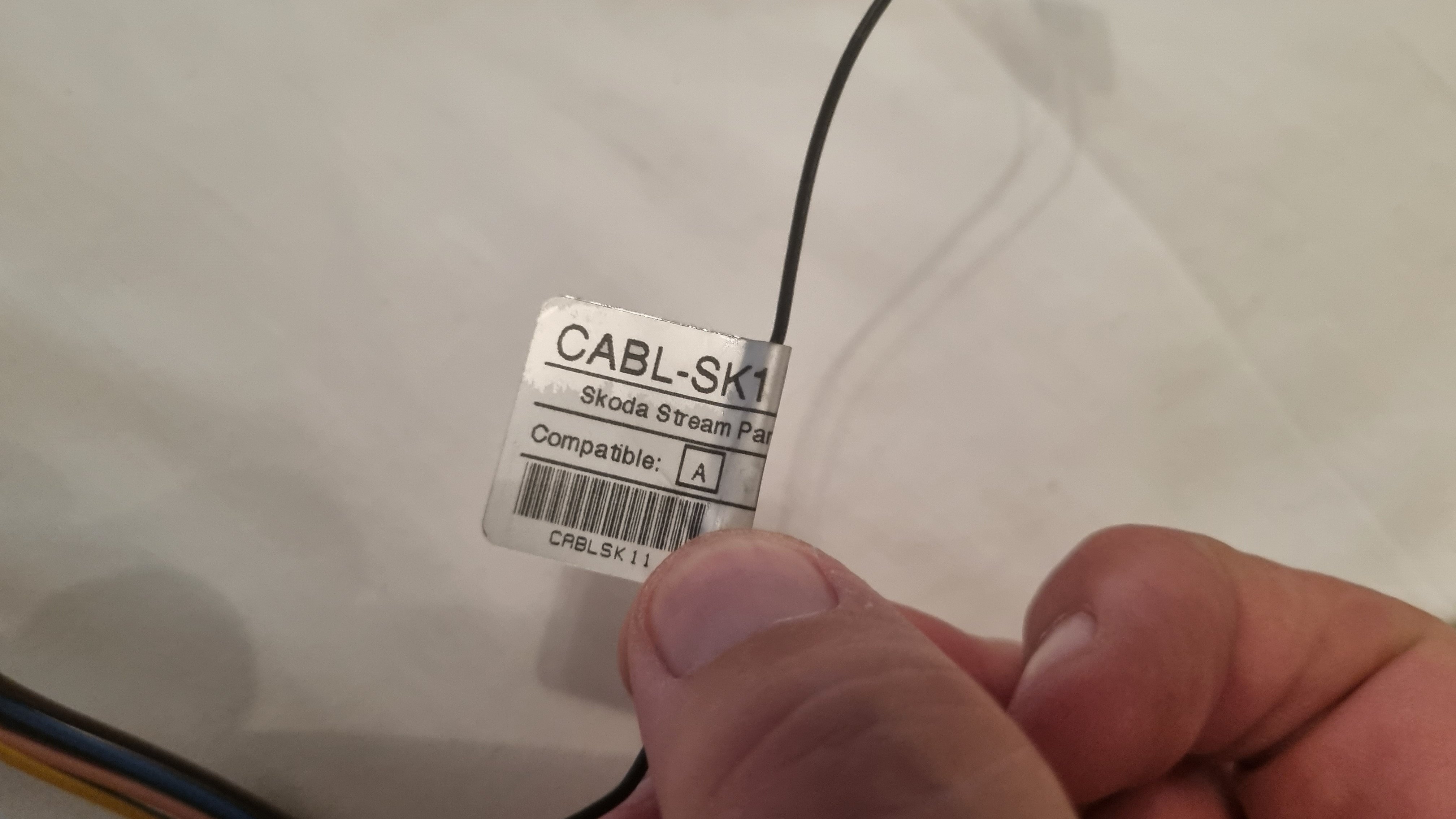
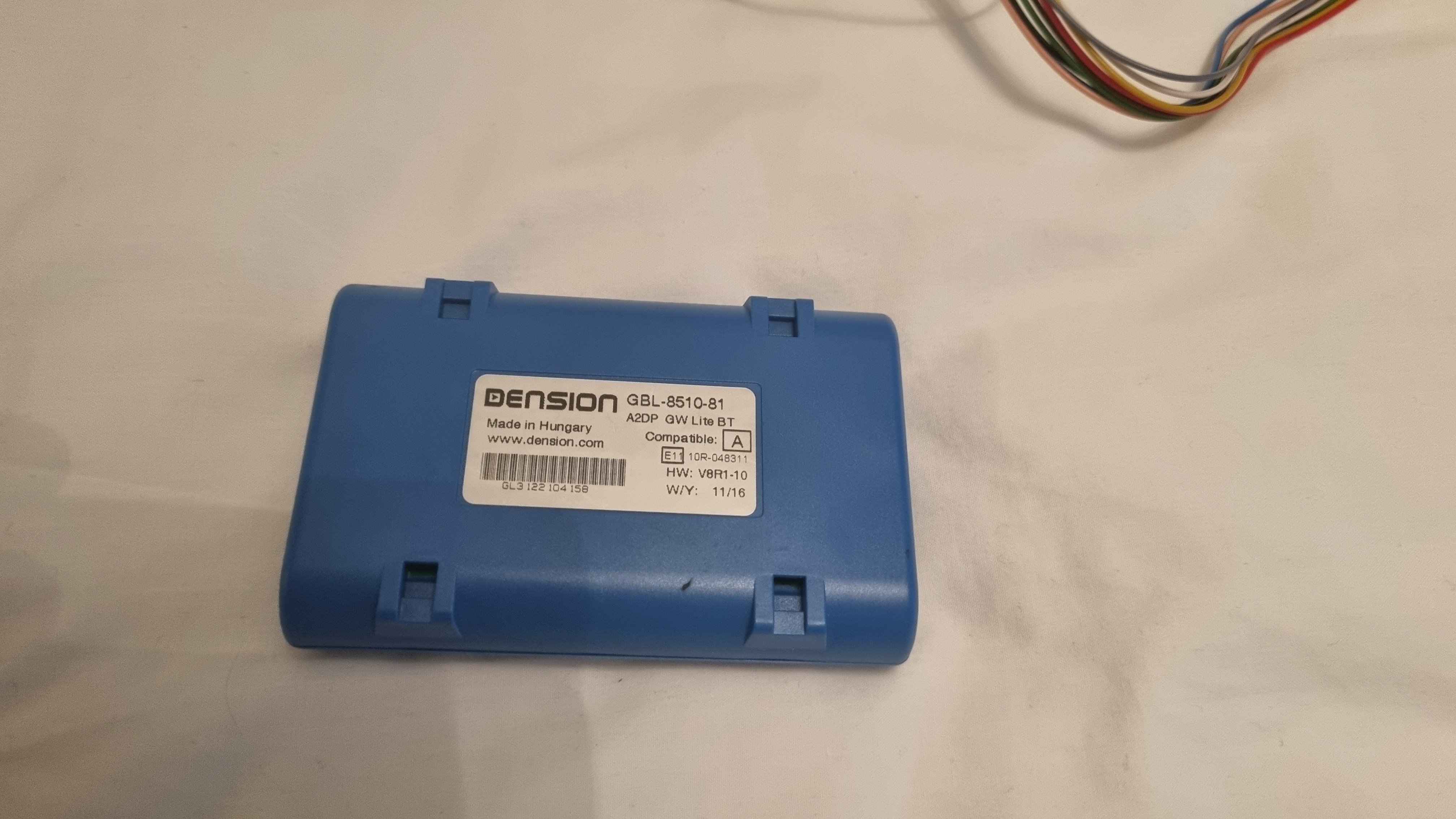
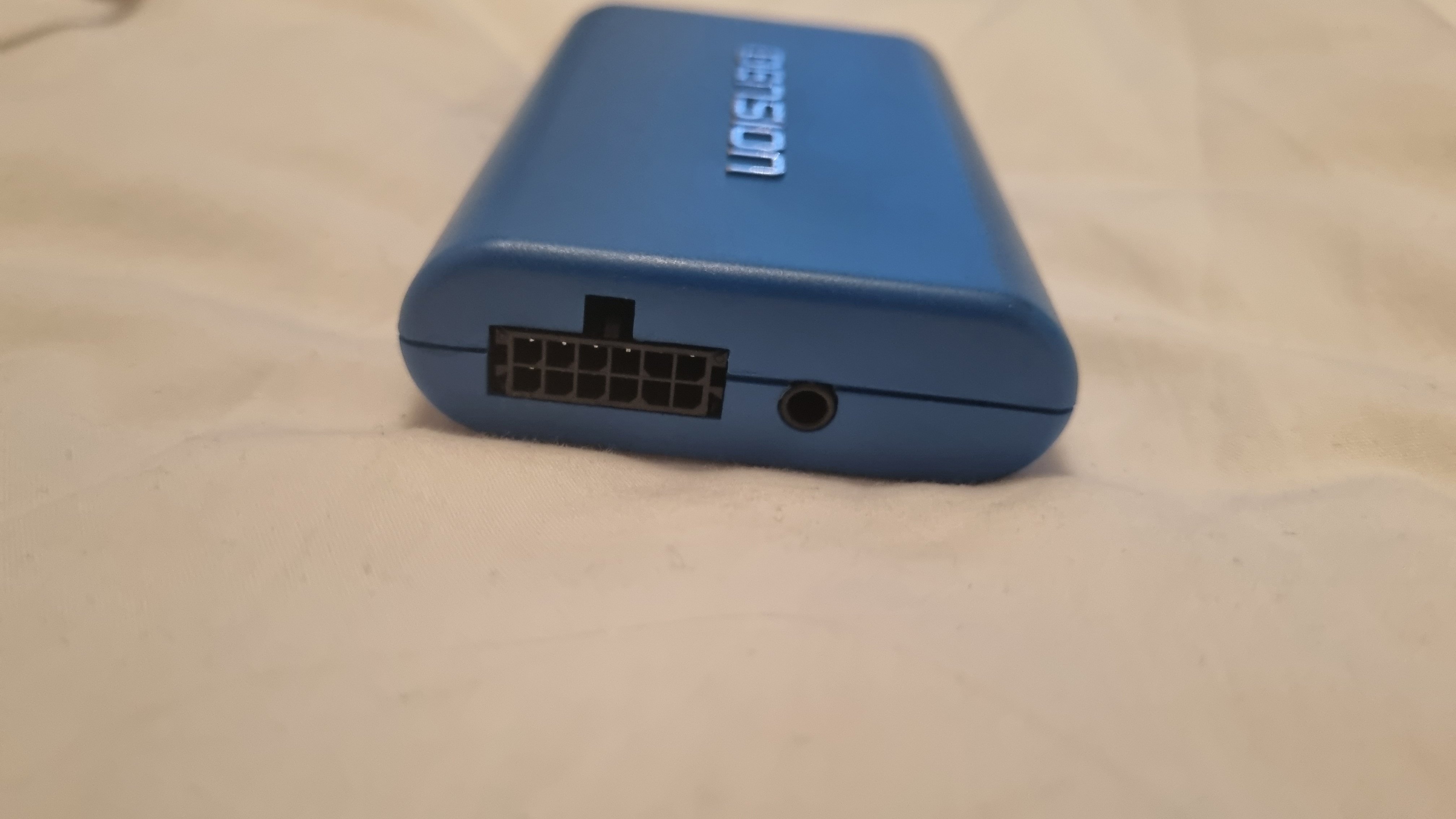
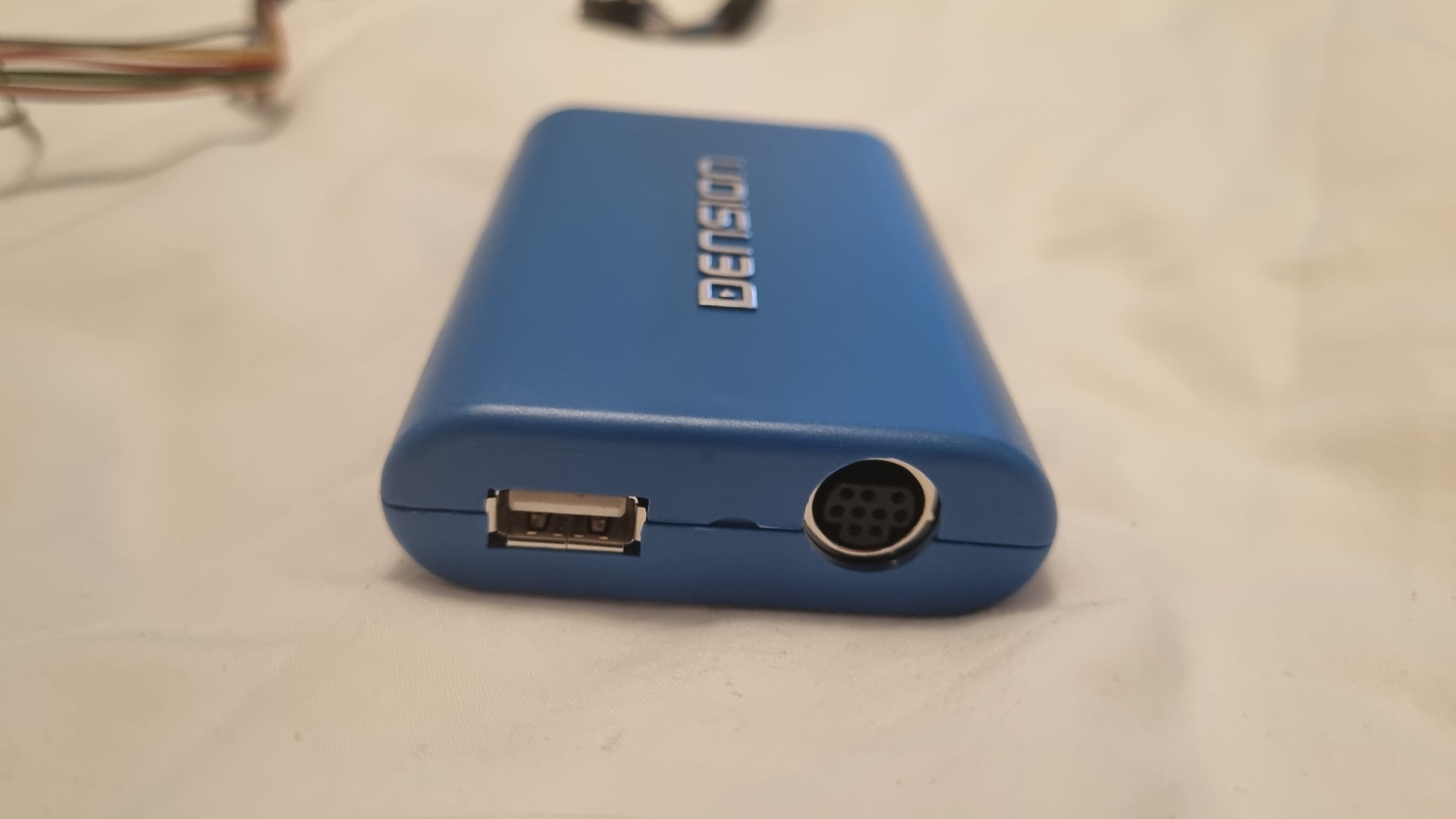
Treat yourself for Xmas! I'm open to offers on this, no reasonable offer refused so get in touch! I'm selling my Dension Gateway Lite BT unit. It connects to the Stream audio head unit and allows bluetooth connectivity with your phone, I used it in my 2005 Octavia 2 for streaming audio via bluetooth from my phone (Amazon music, BBC sounds etc) through the car audio system. Essentially it plugs in where the CD changer would normally connect on the back on the head unit, so the the headunit is folled into thinking it's playing a CD. It's an easy DIY to install, and once the connection is set up to your phone it will reconnect automatically each time you get in the car and start the ignition. A brilliant piece of kit if your Skoda doesn't have bluetooth built in. When I bought it from Car Communications, it was listed as model number GBL3SK1/A2DP. The unit itself shows the number GBL-8510-83 and it came packaged with cable CAB-SK1-1, which I believe is what makes it specific to Skoda's Stream head unit. More info at the link below: https://www.carcommunications.co.uk/dension-gateway-lite-bt-gbl3sk1a2dp-non-text-skoda-ipod-iphoneusbauxbluetooth-interface-adaptor Installation guide User guide It originally came with a microphone which I never used and have now misplaced (I only wanted audio streaming, I never set it up for hands free phone calls). If you wanted to use it for calls, you'd need to get a mirophone, but it's a standard jack connector so any generic mic should do the job. I also have the optional ipod/Iphone connector cable IPDC1GW (the old style wide Ipod classic type connector), which I'll include in the sale. Reason for sale is that I no longer have the Octavia, otherwise I would not be parting with this brilliant piece of kit. Price delivered £65 I'm open to offers on this, no reasonable offer refused so get in touch! Thanks for looking!