
rmahon999
Finding my way
-
Joined
-
Last visited
Everything posted by rmahon999
-
It’s quite small so fits in the tray under the cover. It doesn’t effect the use of the wireless charger.
-
They seem to come with all different makes from the factory, it must be what ever they have delivered at the time. My MY21 Superb came with Bridgestone tyres but I’ve seen others the same age and tyre size that have had Pirelli/Continental or Goodyear tyres fitted.
-
Let us know how you get on with it..
-
The best aftermarket device to use to add wireless CarPlay is the Cplay2air adapter. It’s on offer on there website for £96 at the minute.
-
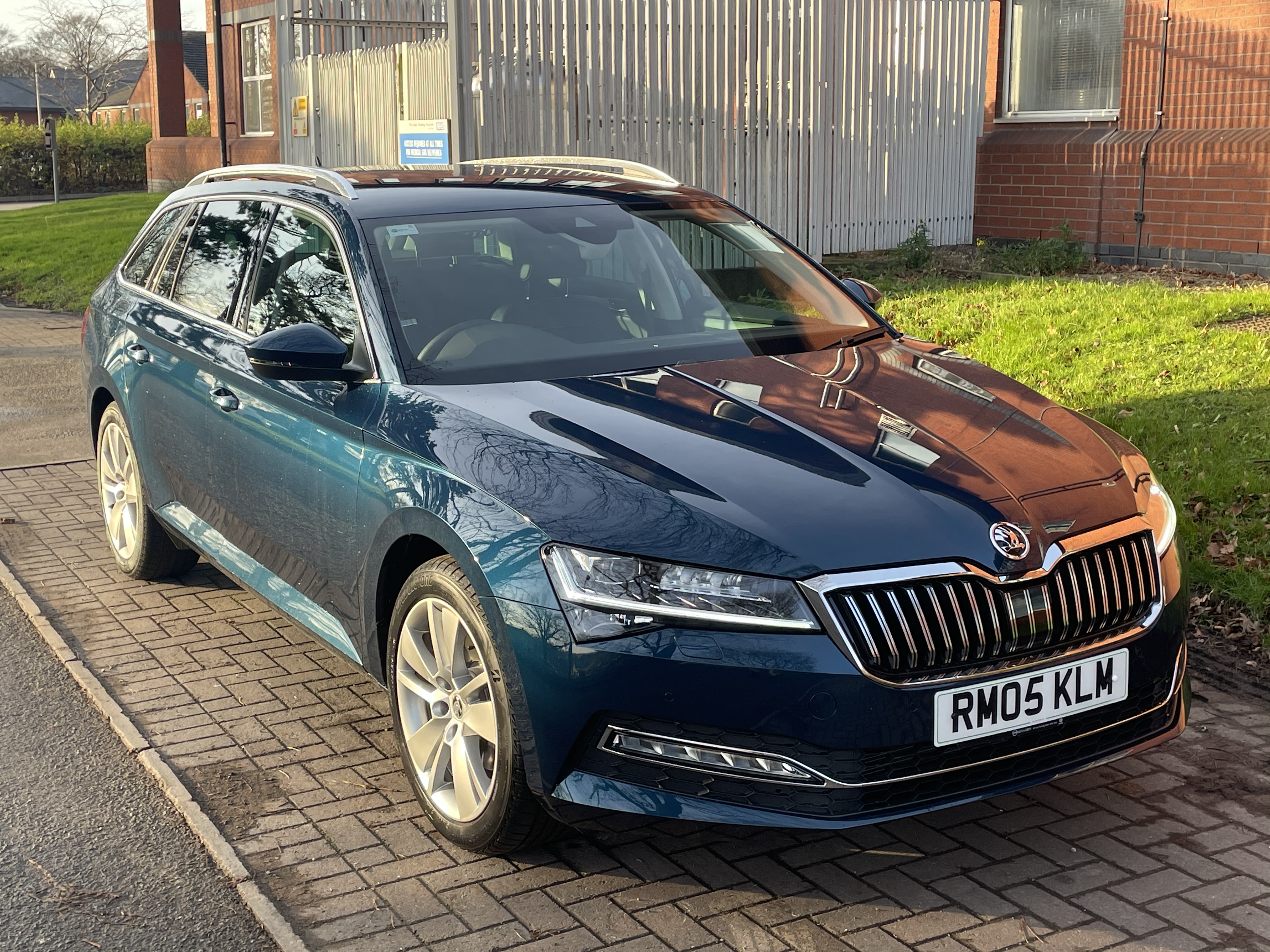
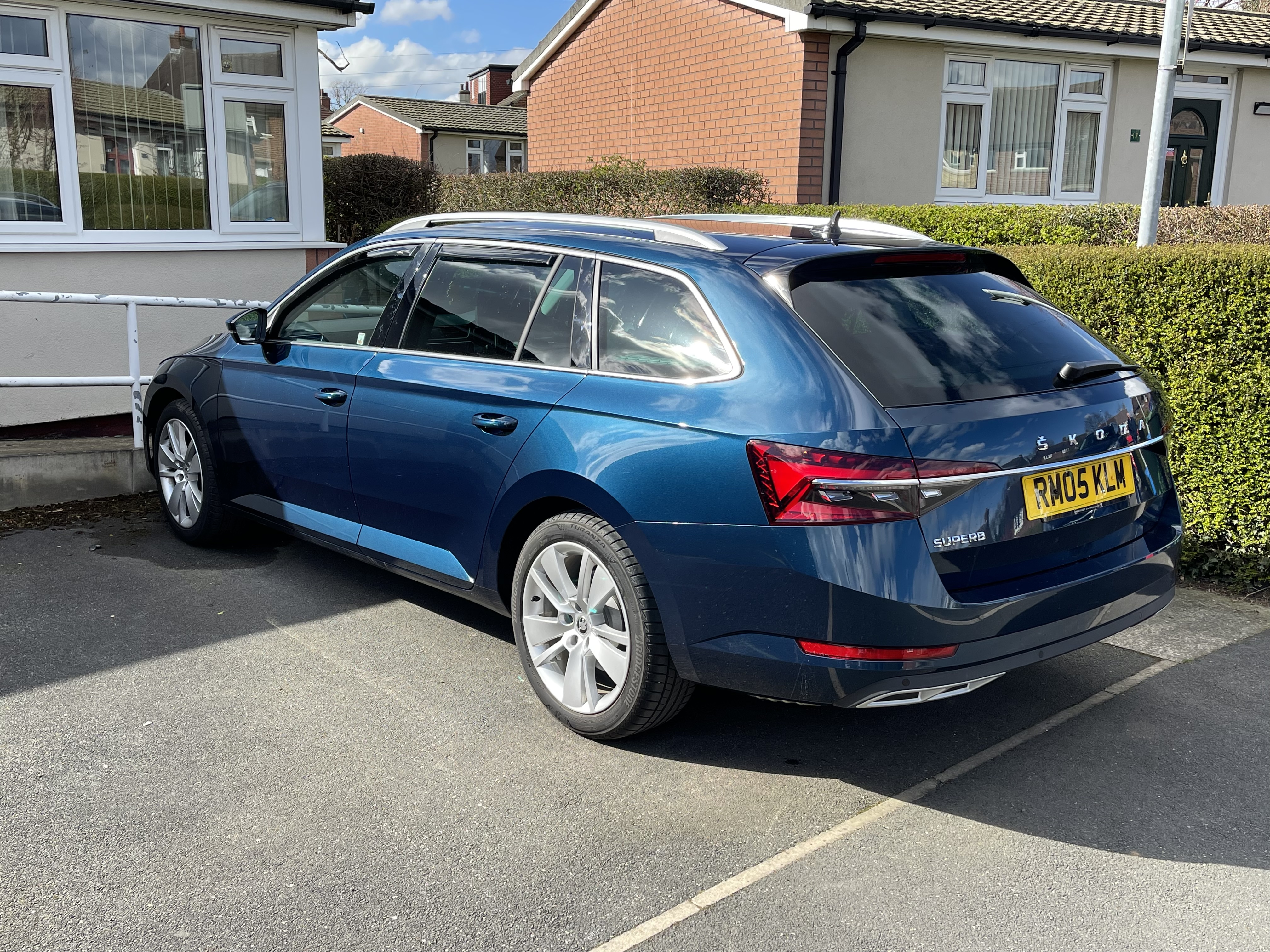
My New Superb 1.5 TSi 150 DSG SEL Estate in Petrol blue. It’s the 2nd Superb I’ve had, the previous one being an identical specification 2019 pre facelift Model in Candy White. I specified the following options- LED Ambient interior light pack Heated Steering wheel I did also Specify The Beige leather instead of black and also Traffic sign recognition but the Factory misbuilt it and these were not fitted! I didn’t want to wait months for another built so I accepted the car as it was. Does anyone know if the Traffic sign Recognition can be coded in with something like Carista or similar?...
-
If it was me I’d get a slightly higher mileage SE Business Or SE Technology rather than the bottom of the range S Specification as they are very basic specified. The Superb is a well built reliable car so don’t worry about a bit higher mileage. If your going to be keeping the vehicle for a good while you will appreciate the higher spec models.
-
-
The Superb SEL specification has pretty much everything you would need.