




davalarr
Finding my way
-
Joined
-
Last visited
-
davalarr changed their profile photo
-
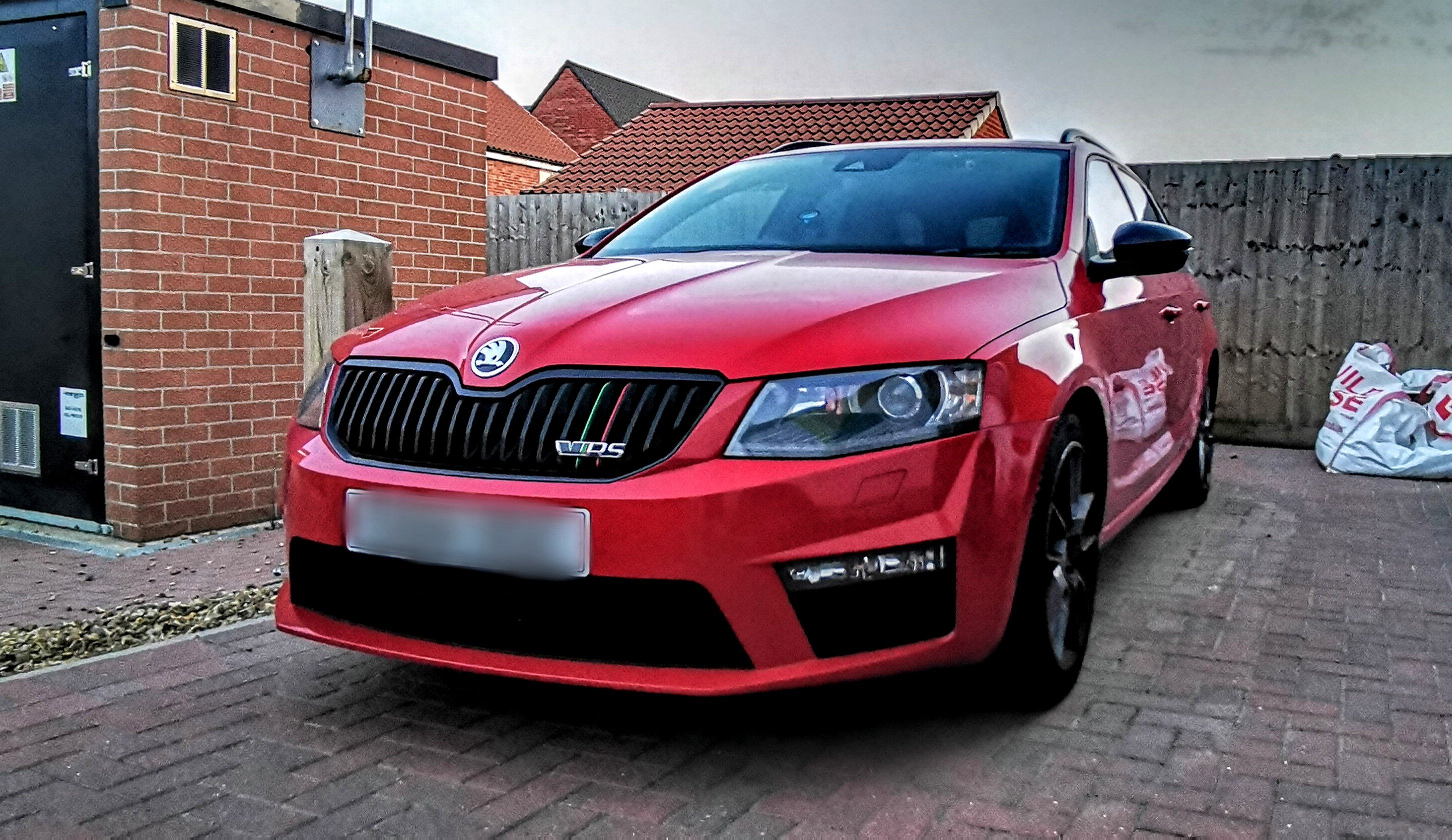
Following on from my post last week, I ended up buying a VRS Estate yesterday and get to collect it in just under two weeks. Excited is an understatement an I've already spent an unreasonable amount of time on this site looking at options for my car. However, I would be lying if I didn't admit that I feel completely out of my depth when it comes to the different head units and screens that are available across the range so was hoping that somebody could possibly clear the following up for me: The box in the glovebox and the screen go by which names, respectively? I have what I believe is an Amundsen MIB 1 - I would like to gain a bigger screen and the potential to add a reversing camera and possibly Android Auto features in the future - what could I buy, compatible with my current car, that will give me those features and is it a straight swap of the screen of the unit in the glovebox too? Having done some Googling of Amundsen/Columbus etc head units, I'm really struggling to get results. Where should I be looking? eBay? Any Skoda specific aftermarket websites? I'm used to shopping for my MK1 MX5 which has thousands of different aftermarket sites and parts. Are these names (Amundsen/Columbus) VAG specific part names or are they parts developed by other companies? From what I've read, once I get the right head unit, I'll have to have Component Protection removed (what does this mean?) and have to send something off to somebody to have it coded (is this a company? An explanation to what this is all about would be appreciated too) Lastly, I need a USB? Where does this go and what is it for? I hope it's OK to post these questions - like many car forums, this one is full of some incredibly knowledgeable people and information but sometimes you just need this sort of thing spelt out in black and white! Many Thanks.
