Maddjc49
Finding my way
-
Joined
-
Last visited
-
PetrolDave Thank you so much!! I re downloaded the file again and used a different unzipped. Formatted the card and copied the new files over. It now works......yippee!!!
-
PetrolDave yep I can overthink things at times.......
-
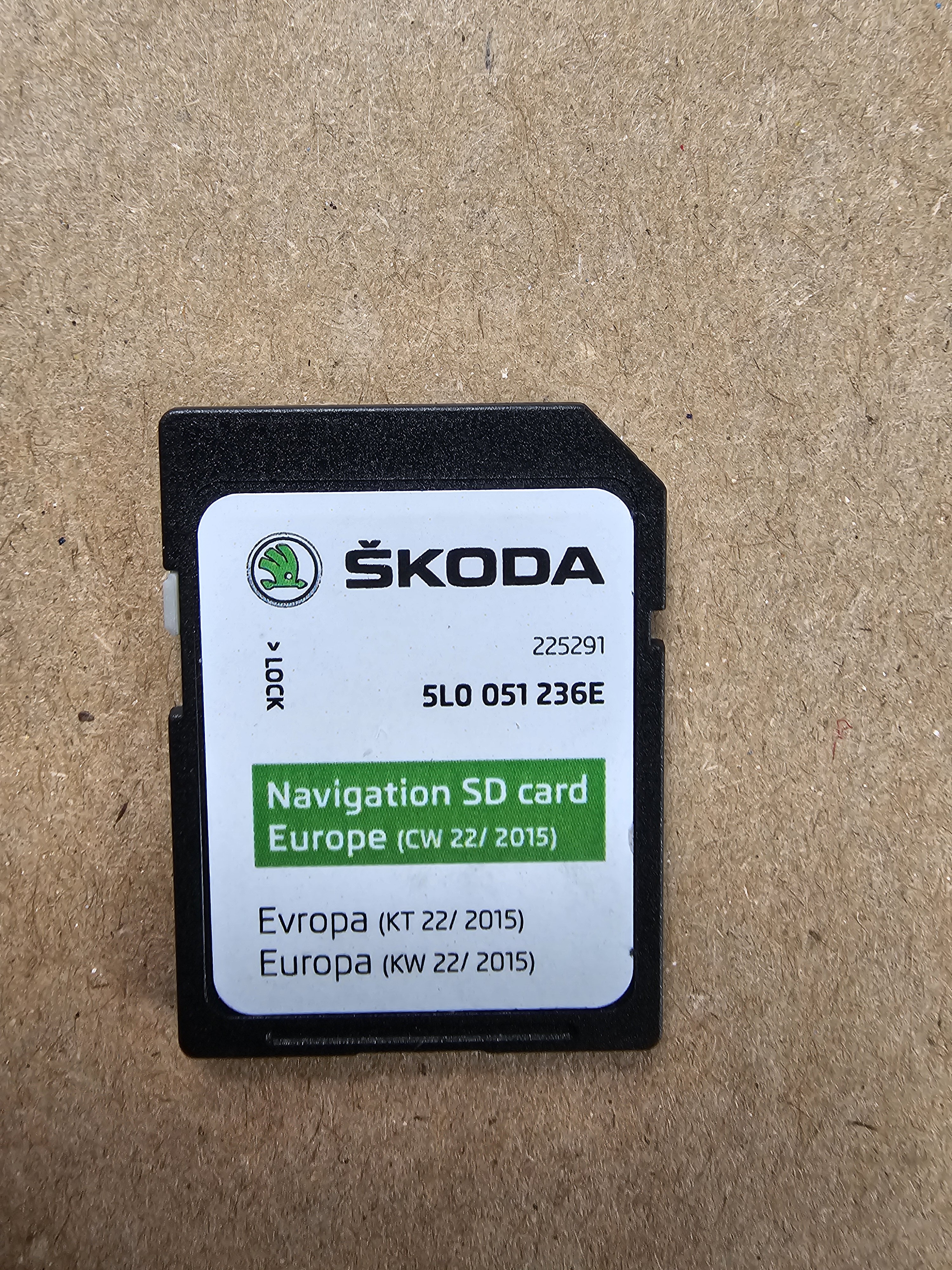
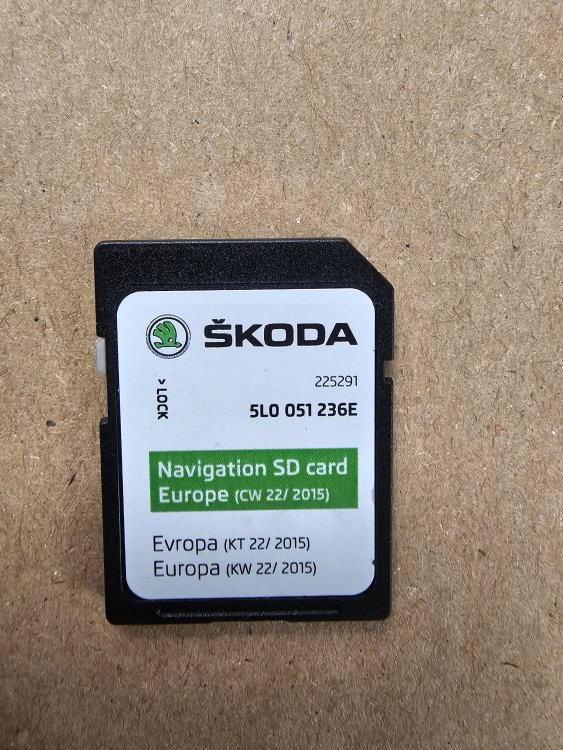
There doesn't seem to be any software to display the maps. I actually have one of the mib1 sd cards I bought off Ebay but when I got it it was nearly full [14+gb]. The download from the Skoda site is only half that when unzipped. Both lots of software only produce an error message on screen. " Please insert data media with navigation data". But the unit has no problem in reading music or radio station logo data from other sd cards. Because it's reading the other cards I suspect a software issue with the nav data. Or am I wrong.....???
-
PetrolDave what links did you use please? I've downloaded from the skoda update site but that just seems to give maps and nothing else....???
-
Thanks Blue6793841. I've been onto that site and input the SW details. It identifies the unit as mib1 standard. When you say "new cards" where would I get one please? I have what purports to be a mib1 card but the car won't read it. I can open it on my laptop to see there are files on it but the car unit just won't play the game......!!!
-
Hi all. Can anyone tell me how to identify which version of Amundsen infotainment is fitted to an Octavia I have just bought for my daughter please. I need to order an SD Sat Nav card to see if the Sat Nav still works on the car, but don't know if I need to order a version 1 or 2. If it helps I found the following in the System Info Device Part Number: 5E0035874A Hardware: 040 Software: 0407 Navigation database: [this is blank] Media codec:N/A Any help gratefully appreciated.