
Wladaaaaa
Finding my way
-
Joined
-
Last visited
-
Thanks for your reply. Please give us the info once you get more details, if you get any. I got the same answer. Check my previous post. In the end, I don't use internet radio option at all. Need to create a hotspot from my phone and to connect then car to the hotspot. It's a process which I don't want to do every time when I enter the car. Now I use Spotify with AA and my phone data. The phone connected via USB cable because my phone doesn't support wireless AA.
-
-
I managed to run internet radio when the car was online and connected via my mobile phone hotspot. Also, I contacted the support and here is the response. I'm 100% sure that internet radio worked for me in the first couple of days without any subscription. Unfortunately, cubicetelecom service is not available in Serbia, so I will continue to share network connection via mobile phone. Information about my system: Hardware: H22 Software: 0270 Navigation database: 20.10 Radio Database:1.30.16
-
-
-
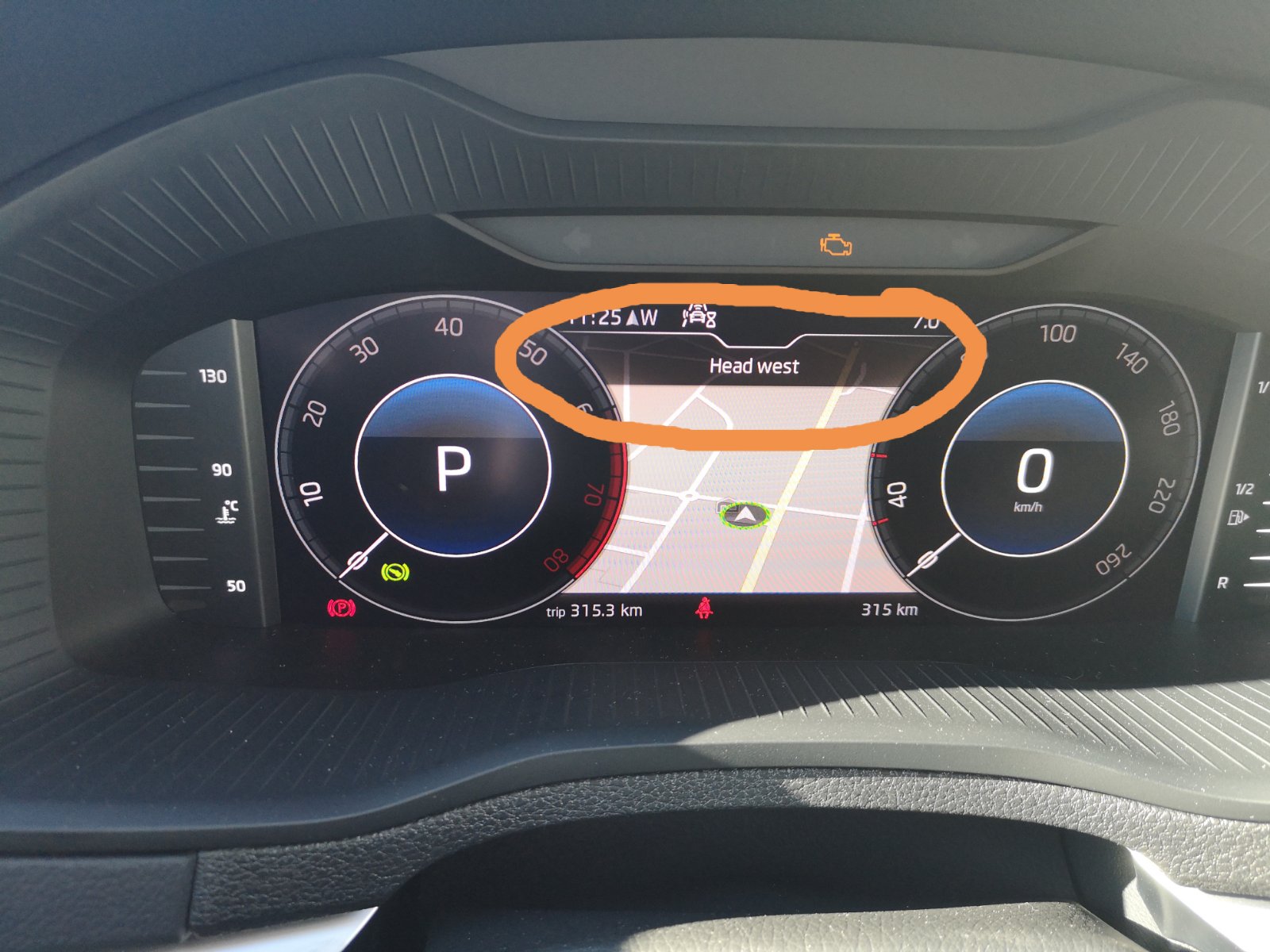
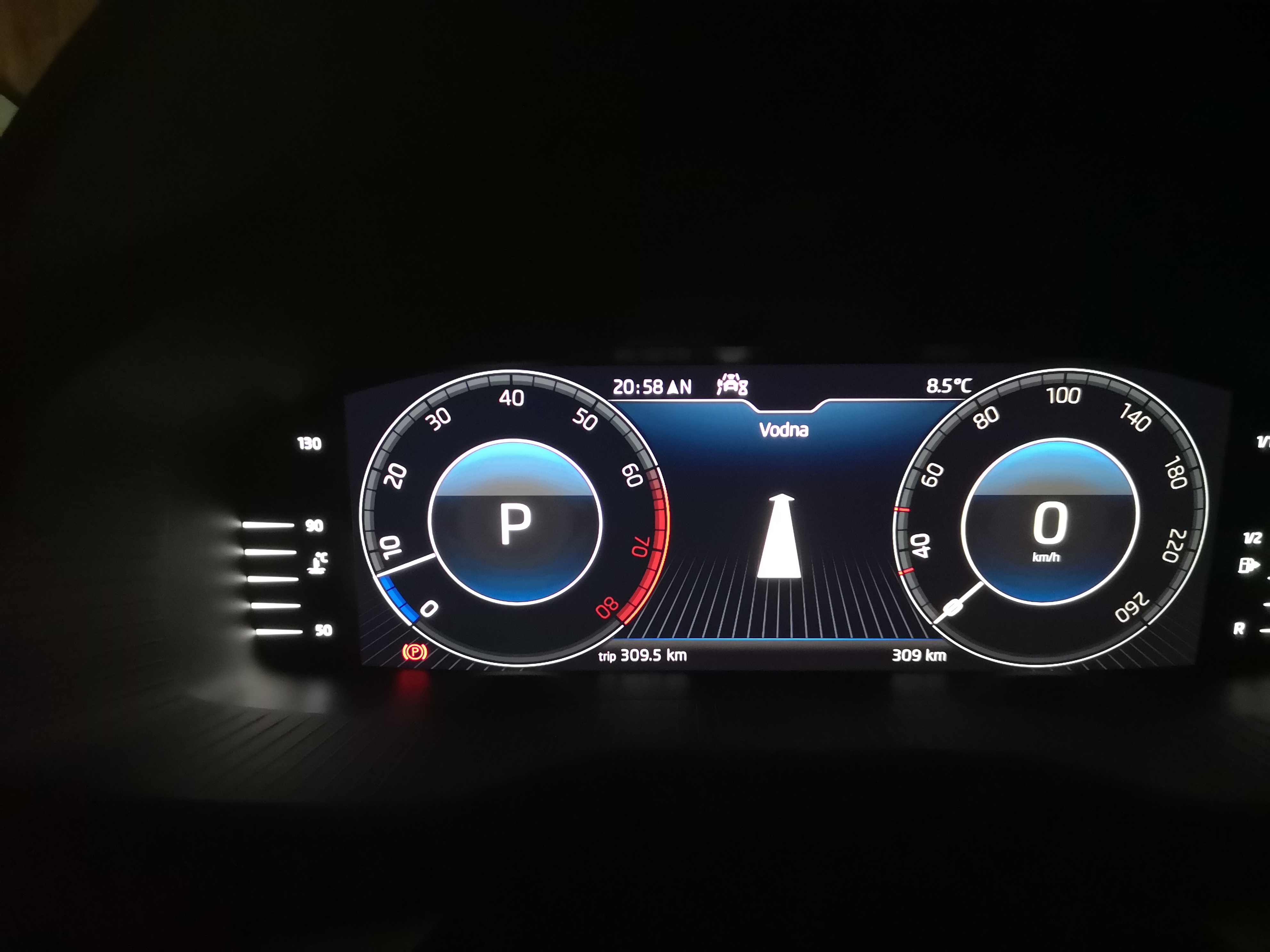
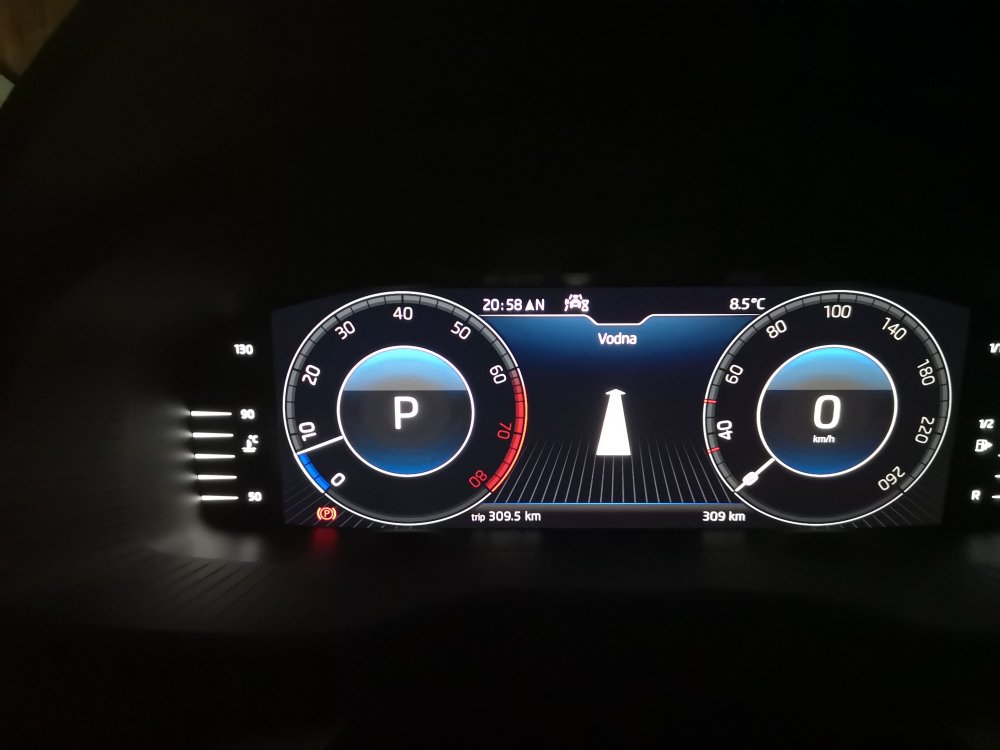
It worked for me without any configuration. When I activate route guidance on AA (google maps) it automatically shows turn-by-turn arrows. Yes, I have a navigation view selected in my VC. Also, view map on the VC option needs to be deactivated (native map). With that ON I can't see directions from AA.
-
-
-
Hopefully, that is because of the update. For me, the internet radio worked just fine for a couple of days, and I was really happy. But, now stopped. Let's see, maybe after the updates problem will be resolved.
-
After a couple of days with good music, my internet radio stopped working. Does anyone have the same problem? I tried to find some server status information for Skoda radio but without success. Having a problem for 3 consecutive days. Getting the information that service doesn't work and to try later or to contact service support.
-
I got my car a couple of days ago with the latest software. You probably need to update the software firmware. Probably someone in car service can help you with that.
-
Did you try to click on the search icon and to select for example one station from the top 100? That's how I started an internet station. Just choose one from the preset list or search some. By selecting internet radio from the source, and clicking on next, it won't start the iRadio. You need to choose it from the list. I had the same problem as you, and that is how I fixed the problem.
-
Wladaaaaa changed their profile photo
-
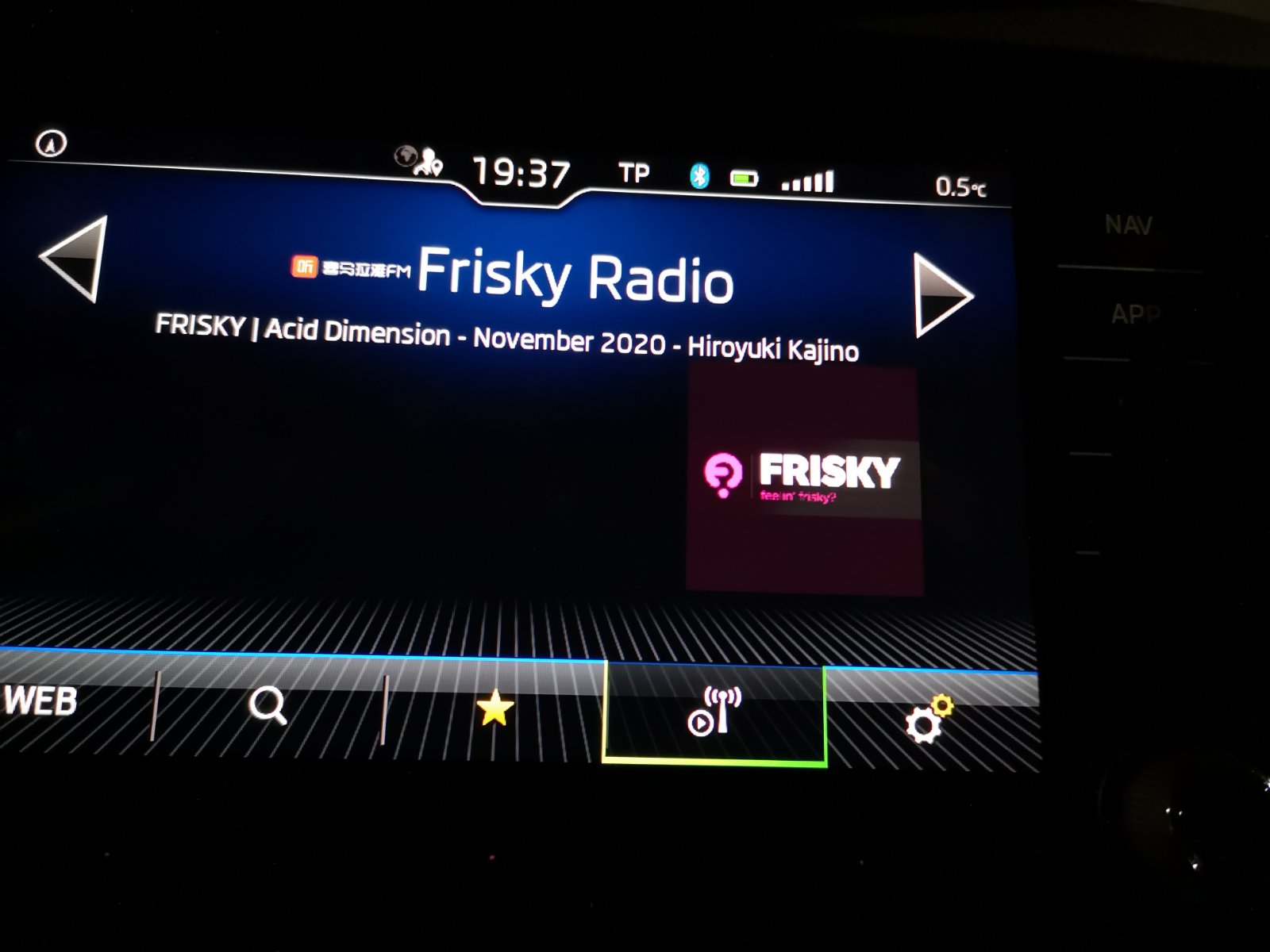
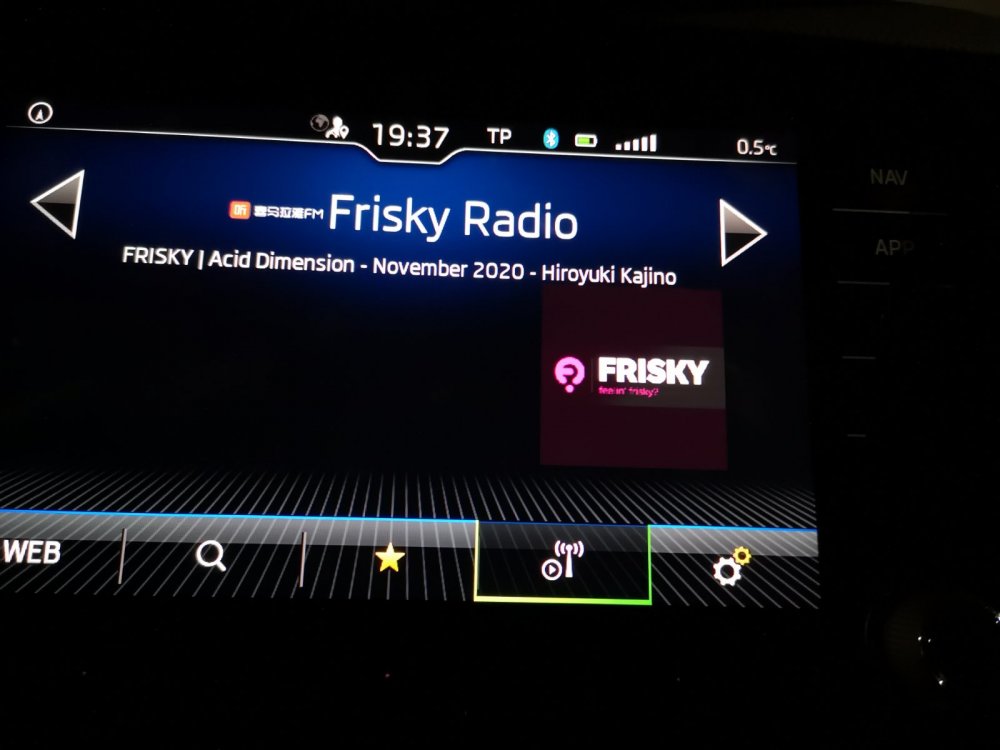
Also, does anyone knows what this Chinese signs in the radio title represent?
-
I must say that I'm super happy that Skoda provided an internet radio solution for my new Karoq (MY 2021). It is a perfect solution for fresh music in the car. Is internet connection provided via Skoda Connect package? Do I have some limitation in data transfer via an integrated SIM? Is it possible to share that via car hotspot, and again does some limitations exists?
-
Thank you Skodaboy, Hopefully I will find lot of good informations on this forum, and that I can help to other people.