LR75
New here
-
Joined
-
Last visited
-
Great, thank you, James! I will contact the local Skoda-dealership tomorrow. Thank you for your very fast response and help! :-)
-
Thank you, James... Yes, I am certain, you are right. Can you tell me, what is the difference between Smartlink and Smartlink+? I am in Denmark, and here we have a 'local' app called MinSKODA (MySKODA in Danish). On the Danish Skoda webpage it says, that in order to use the MinSKODA-app, I need to have a dongle installed. And they say, it is free to have installed Do you think, that is the same dongle, as the one you wrote about?
-
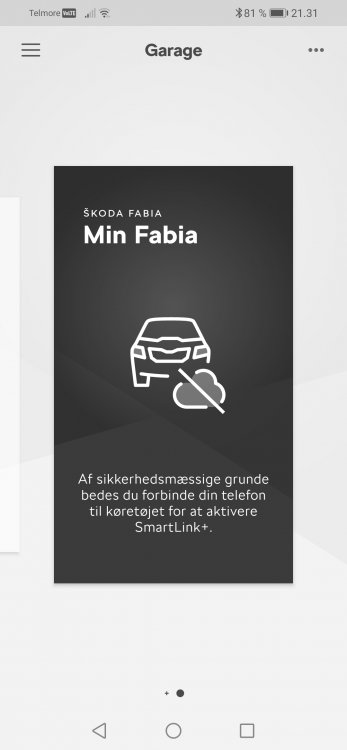
Ok, I recently bought a 2016 Fabia. I am very pleased with it, and I want to connect it to the MySKODA-app. I have entered the VIN-number in the app, and then it tells me to connect the phone to the vehicle to activate SmartLink+. But when I connect to phone using an USB-cable, Android Auto just starts, and the MySKODA-app just keeps staying on this picture... What's wrong with me? :-) Why can I not get this to work?
-
Hey guys I recently bought a 2016 Fabia with a Webasto auxiliary heater with GSM module. I received my SIM-card yesterday, and after a few tries and headaches, I finally got the thing working. However, the Webasto is not blowing any hot air into the car. The water is heating OK, but no hot air is coming in, until I turn on the ignition, and the climatronic is powered on. As soon as the ignition is on, plenty of hot air is pouring in. When the Webasto is turned on, the fan in the car is on almost full throttle, but it is only cold air coming in... Does anyone have any suggestions for this problem? I have tried putting the climatronic to max heat before turning if off, but that does not help :-(