




LeonardoLj
New here
-
Joined
-
Last visited
-
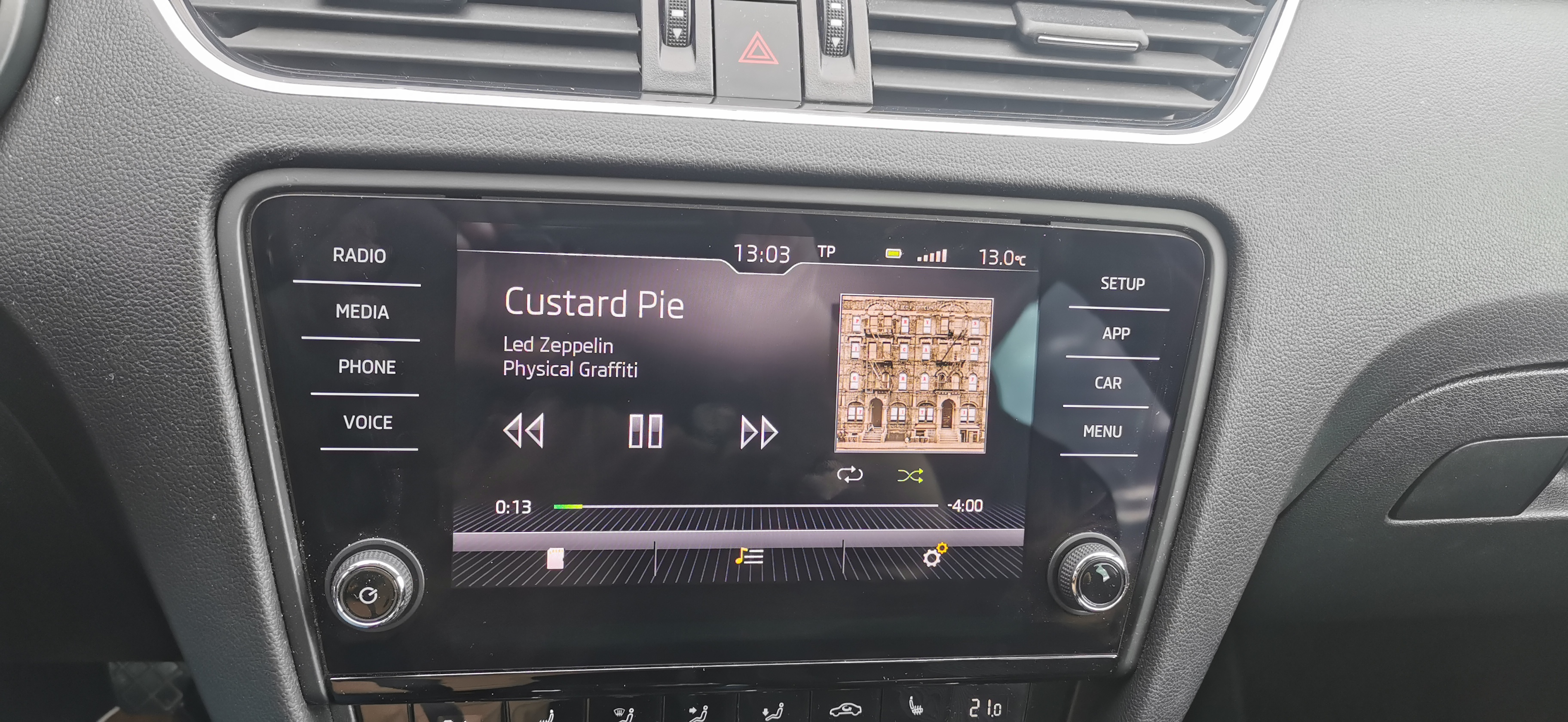
Yeah, seems like software glitch - solved by detaching the card in setup. I am not sure about the IT system, iirc it was the middle one in the range, Bolero. In fact, here in Croatia, it was connected to the kind of engine you bought, i.e. 1.6 engine did not come with Bolero, but only with Columbus (but don't take my word for it). All I know is this is such a great car, and unbelieveable value for money.Sorry, new to this forum so not sure how to reply one by one: - I don't have 2nd slot, just one - my cards are 64 GB (old one) and 128 GB (new one) - really not sure about the infotainment system; the one that comes with 2.0 TDI anyway - it would appear I am the laziest person in the world: I reset the reader (menu-detach device safely-then re enter the card) and it works just fine! So sorry to have bothered you, and thanks!Hi, I've used the same memory card to play music in my Škoda 2017 for ever since I had it, and recently, and during play, it just stopped working. I tried reinsert, and the panel shows it is checking the card for a brief moment, but then just nothing. I checked the card on my home laptop, and it works just fine. I bought a new memory card and tried it in memory slot of the car, still nothing - brief check and as if does not exist. I suspect failure of the card reader. Can anyone confirm or advice what to do? Can servis people remedy this, or do I have to purchase new reader device? (this is the one - it's not cheap mind you): Škoda Octavia card reader Thanks in advance!
Important Information
Welcome to BRISKODA. Please note the following important links Terms of Use. We have a comprehensive Privacy Policy. We have placed cookies on your device to help make this website better. You can adjust your cookie settings, otherwise we'll assume you're okay to continue.