mshk
New here
-
Joined
-
Last visited
-
Thank you for the reply Yes, protocol box is connected and transfers all information from the car to the tablet radio like open doors, fuel level, battery charge and etc Everything is working apart from the sound ... I will contact manufacture to get in to factory settings
-
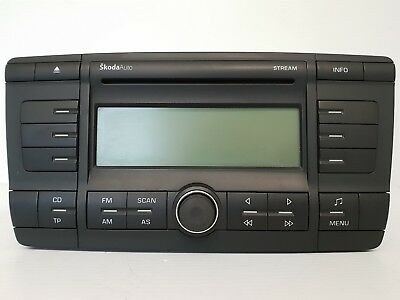
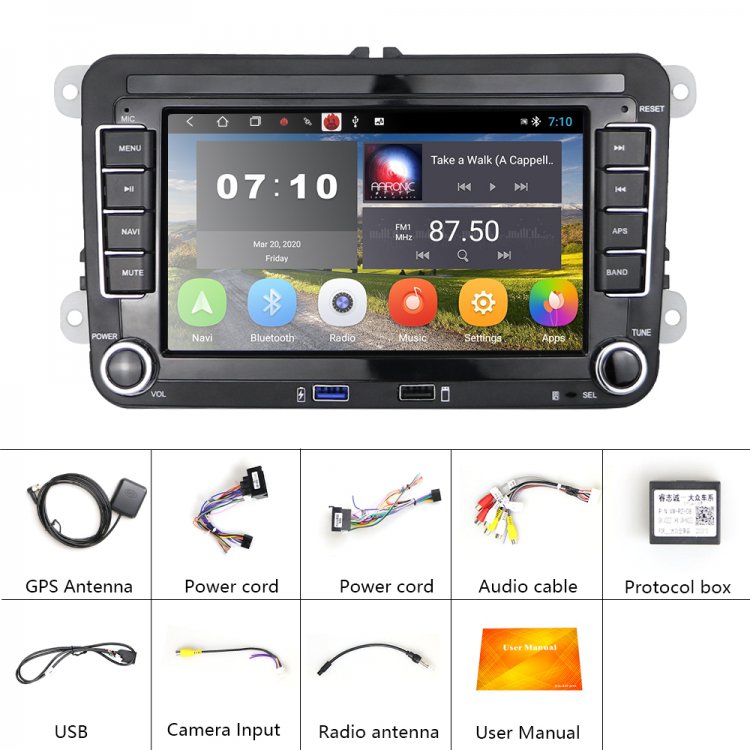
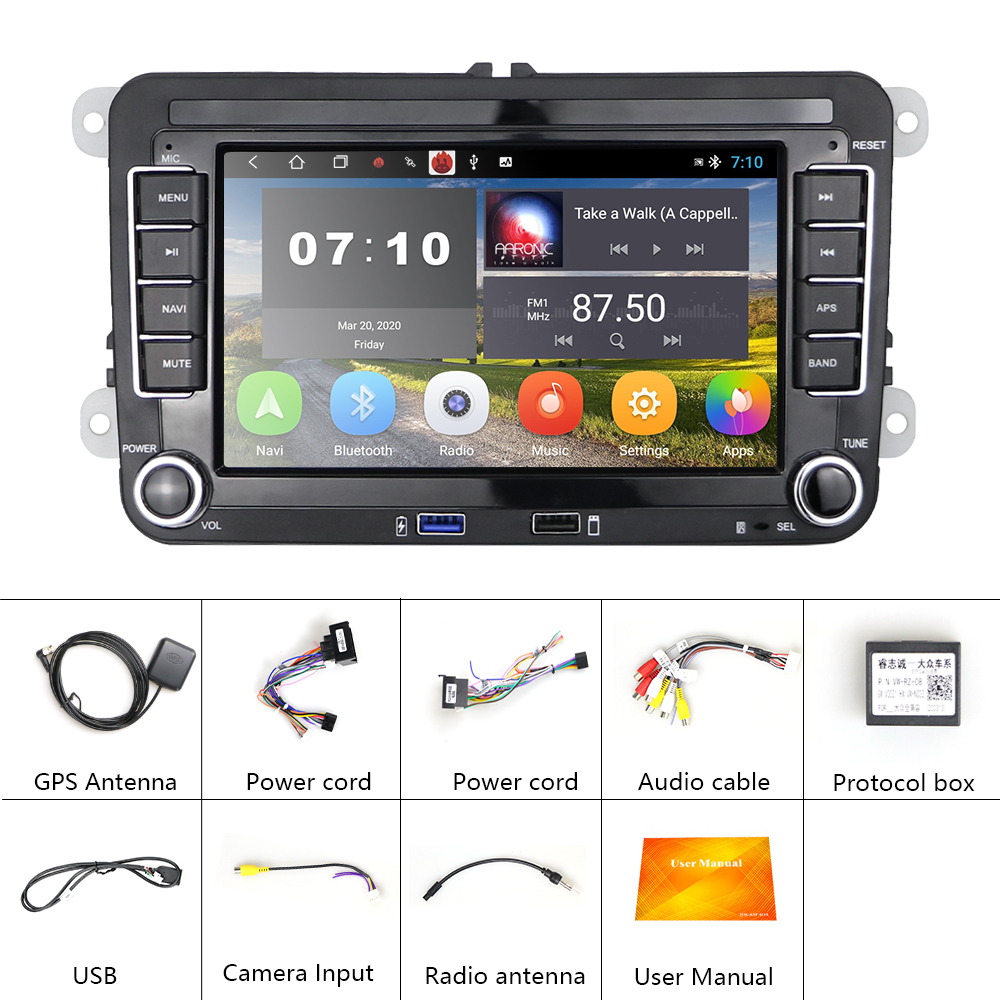
Hello friends, I bought my first car: Skoda Octavia 2.0 diesel, 2005 and decided to get aftermarket radio fro Aliexpress When I read through item description and characteristics I decided to buy and faced an issue with sound. After hours on YouTube I almost gave up and before sell it or go to the car service want to ask question here. Lets hope that someone can help me out. Here is my troubleshooting: 1. I took "test speaker" and connect it to aftermarket harness - Sound coming from test speaker 2. Connect "test speaker" to factory harness - Sound coming from test speaker Therefore the aftermarket radio is working and signal travels from aftermarket to car harness 3. I took the multimeter to go through with all 8 pins on factory harness which responsible for speakers in the car All eight speakers pins shows around 100 Ohm each which means there is an factory amplifier somewhere but aftermarket radio ain't triggering it If there was a speakers without amplifier the resistance would only 4-8 Ohm (i am not electrician) 4. Measured voltage for 12v "Accessory" - all good in there I do have blue/white wire with "AMP CONN" label on it but no idea where to connect it Below I attached screenshot of my radio and after market radio On after market radio you can find "Audio cables". The "AMP CONN" is located on it QUESTION: Please tell me how to turn on amplifier? Where to direct supply voltage or activate it with a command on the can-bus? Thank you Regards, Vik