positive-orgones
Finding my way
-
Joined
-
Last visited
-
Hey all, I was wondering whether anybody else has had issues with using iPhone with their Citigo Garmin Bluetooth system? My girlfriends Android is completely fine, but my iPhone stops and starts then eventually the system totally freezes up and no music plays. It also doesn’t update the screen depending on which song it’s playing, it pretty much gets stuck showing what was last played via android even as it stutters through my iPhones music. any advice would be appreciated!!
-
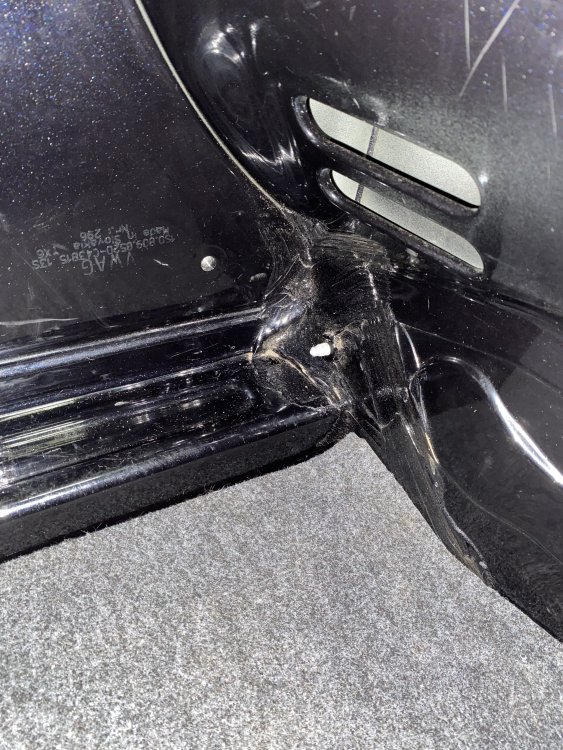
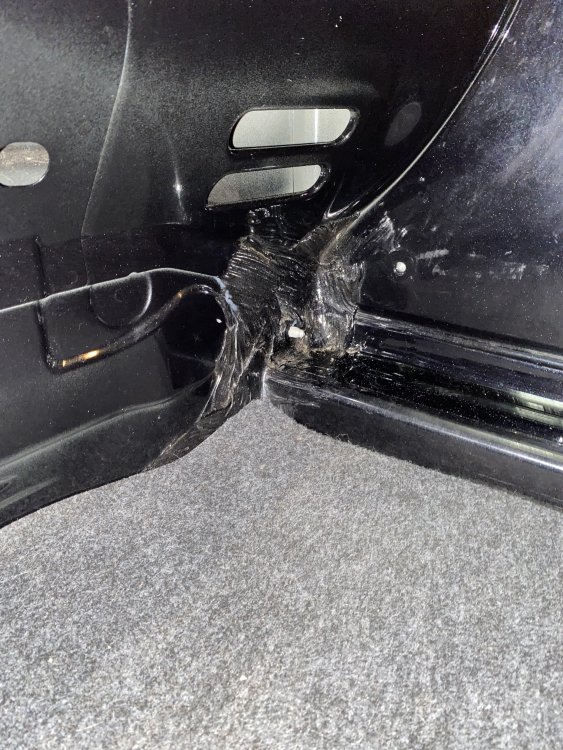
I’m trying to work out whether my car has been involved in an accident or whether it is just standard sealant. Ive attached photos of how mine looks, but it doesn’t quite look ‘factory’. cheers!
-
Haha yeah I’ll continue with that approach!
-
It’s great! Now to see if it has the under 19mph radar anti collision feature! 😅
-
Gave it a go yesterday, I can confirm that it does have it and it’s brilliant!
-
Hi all I have recently bought a Skoda citigo 2016 colour edition and unfortunately I am unable to update the maps on the Garmin satnav due to the Skoda fresh Garmin link not working it does not work on any of the Volkswagen or say that websites so I do not know how I will be able to update the maps even using third-party files since I don’t have the fresh software. For example, I’ve tried to download from here: https://skoda.garmin.com/skoda/site/fresh Any ideas how I can circumnavigate this software in order to download updated maps? Cheers!
-
I’m picking up a 2016 colour edition (manual) today and I can’t for the life of me find out beforehand. Cheers!
-
Thanks @Pagan-Image! I thought that was the case, but wanted to make sure! Also, love that colour - makes my all black look a bit dull in comparison!
-
I’m just hoping I don’t need to add them as a factory fitted optional extra with my car insurance! Cheers! I should mention that it is the 2016 model