mkvassh
New here
-
Joined
-
Last visited
-
@PetrolDave I bought a new one, not for park assist as you suggested. My car does not have park assist. It worked well. All error messages disappeared. Thanks a lot.
-
Thank you. I will try that to find the other sensor. It is not park assist on my Octavia.
-
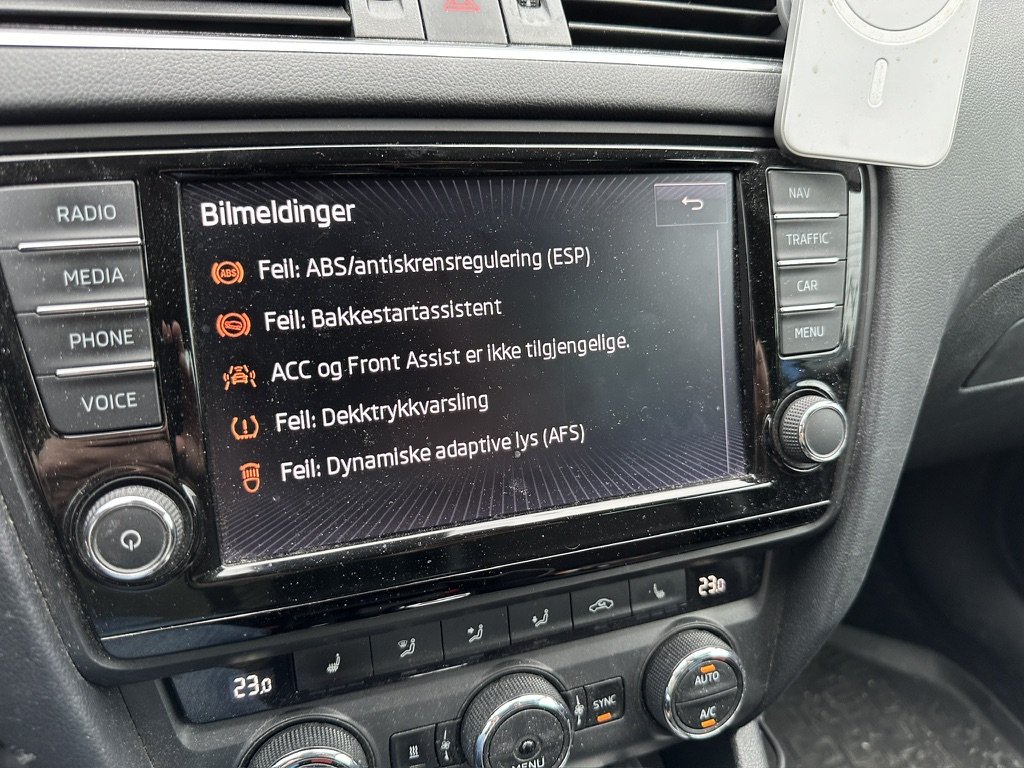
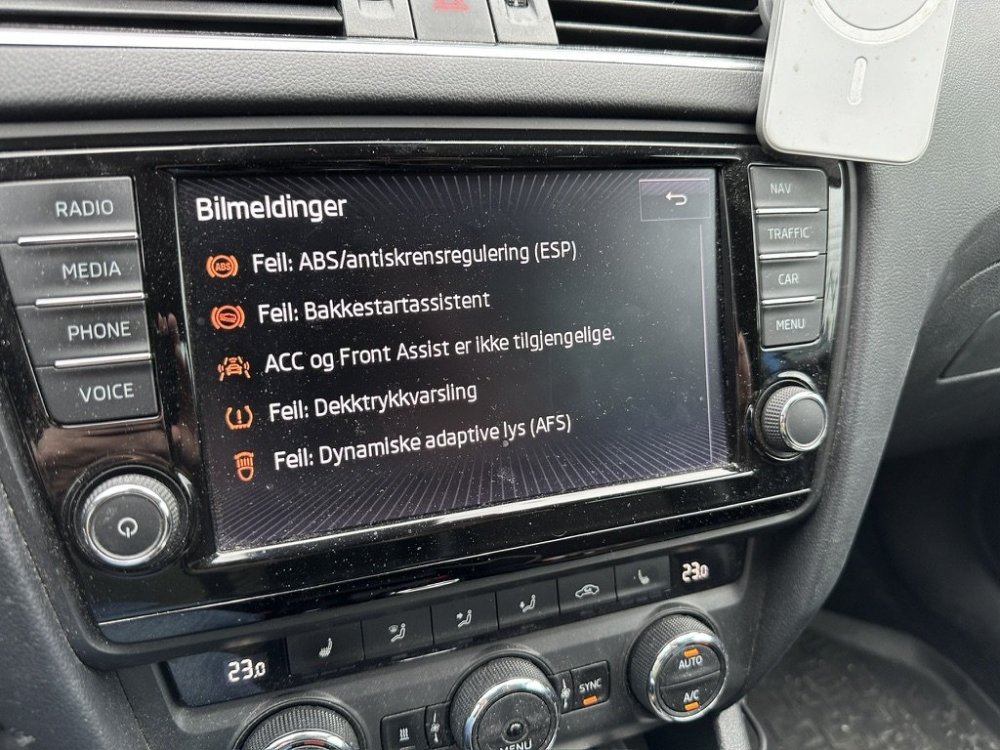
I have had problems for a long time with a number of error messages appearing on the screen. After some searching on the web and an OBD scan, I have concluded that it is the ABS sensor on the left side at the rear that is causing the problem. The error message I got was this: C101C07 - Passive/Abiogenesis. Left rear ABS wheel speed sensor - Mechanical malfunction I then replaced the sensor myself with this one, which came up when I searched on my car reg.no. at T. Hansen: https://www.thansen.no/bil/bildeler/abs-sensor/sensor-abs/n185661/pn1038144 The part looks the same in appearance and it went well to install. Unfortunately, all the error messages appeared on the screen again and I did another OBD scan and I got a new error.: C101C4A - Left rear ABS wheel speed sensor incorrect component installed Did I simply get a wrong part or do I have to tell the car somehow that it got a new part? What do you advise me to do? It would be nice to get rid of this problem.
-
I get message "Front assist and acc not available" very often now. When the car is restarted, it is OK for a while. This has been going on for a while, but now it happens almost every time I drive, whatever the weather. Sees no damage to sensor or camera. Have also had the car checked. They found some dirt by the sensor in the window which they removed. Unfortunately, this did not resolve the issue. Does anyone know what this could be and is there anything I can do to reset it? For example, by disconnecting the battery. I will try to prevent the replacement of the sensor since it has exceeded the warranty. Thanks in advance for any answers.