MrAngryPants
Finding my way
-
Joined
-
Last visited
Everything posted by MrAngryPants
-
What part of my post complained? I am now ‘complaining’ though, as I still don’t even have the car
-
If you contact the dealer they can add the car to your app account.
-
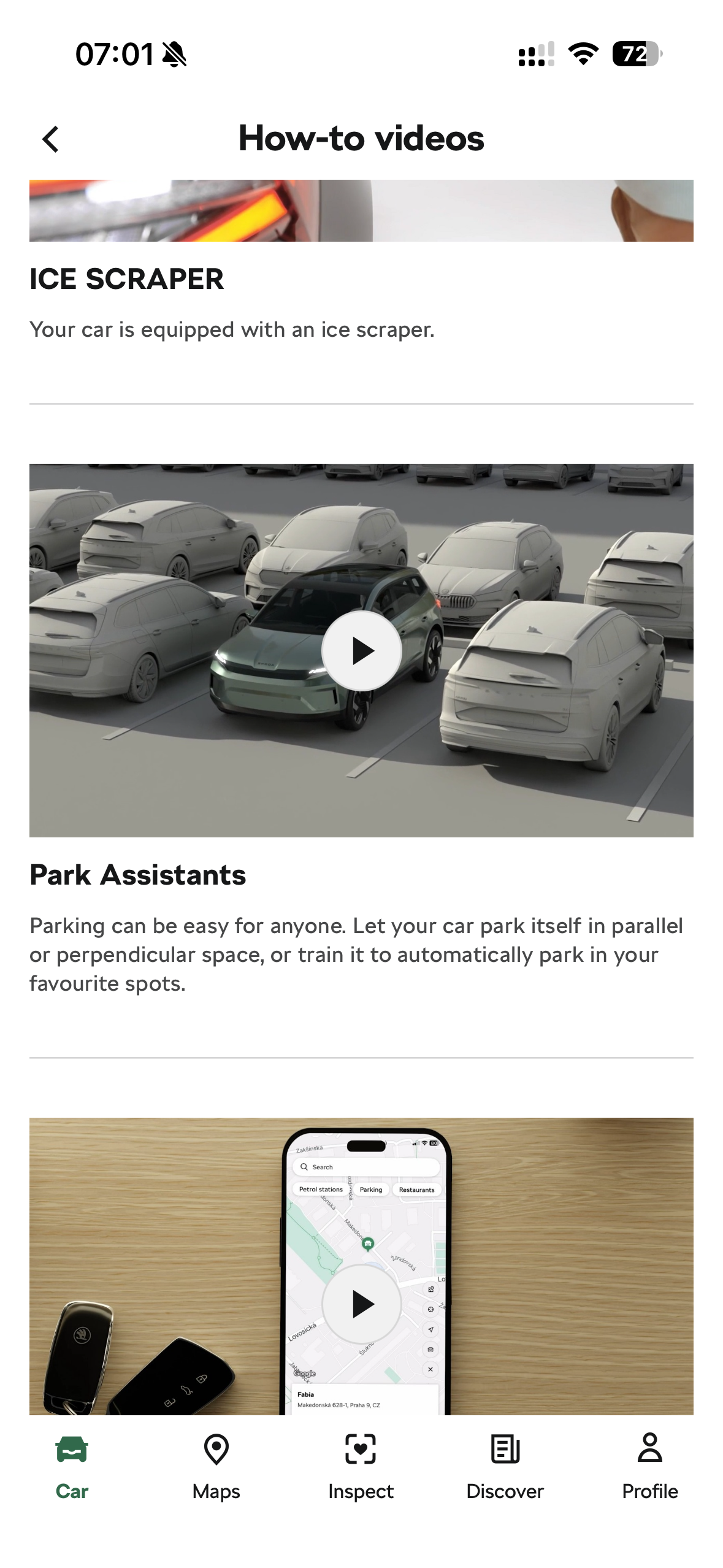
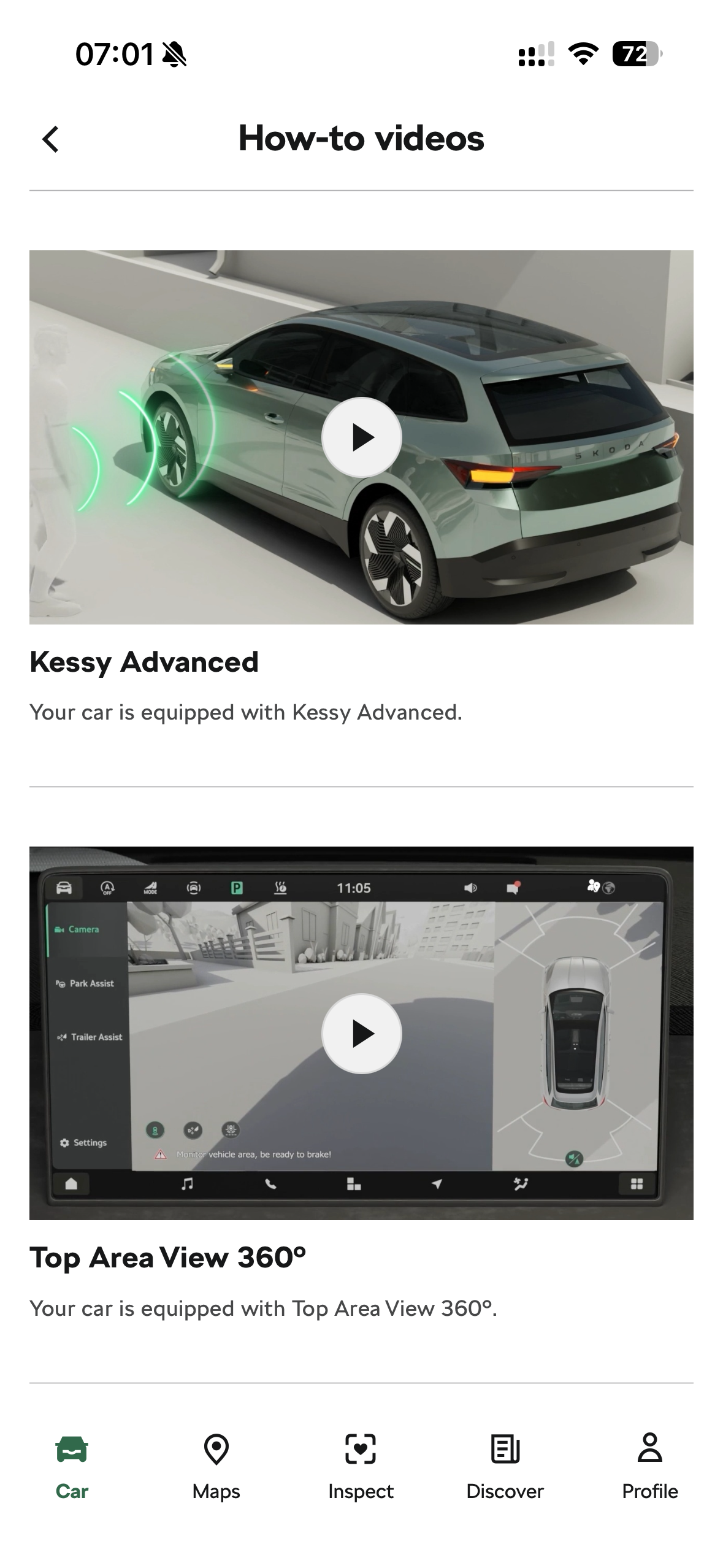
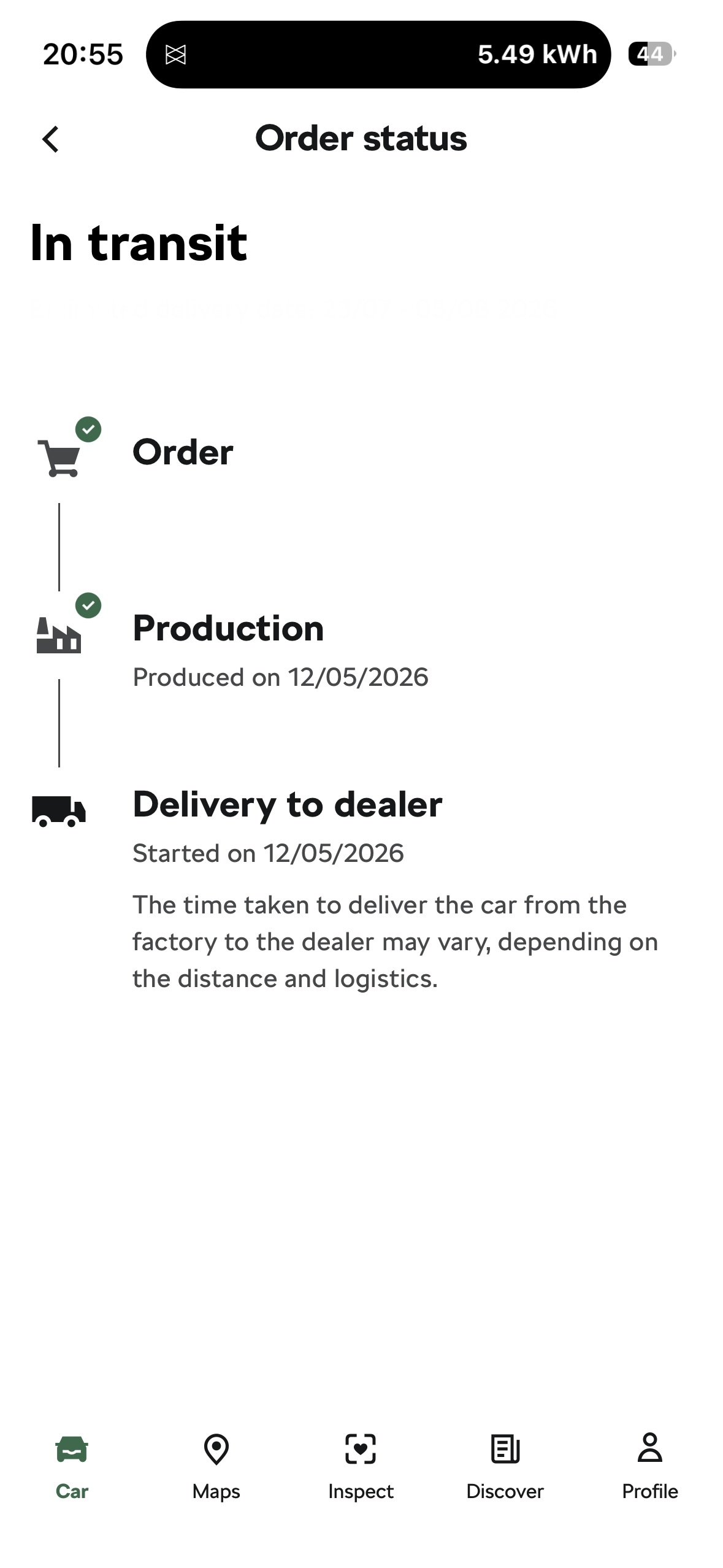
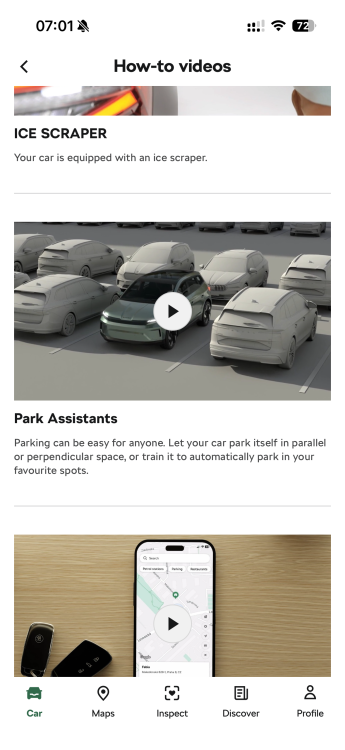
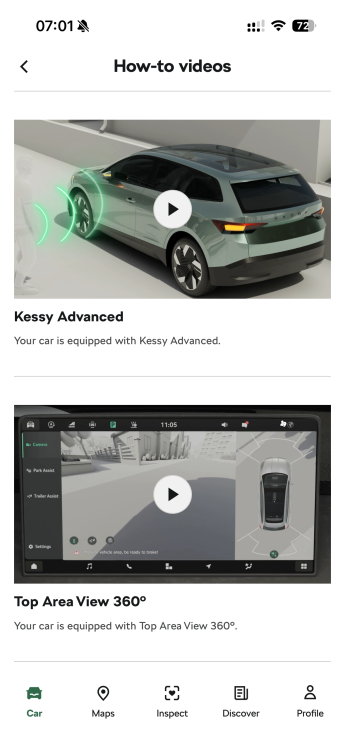
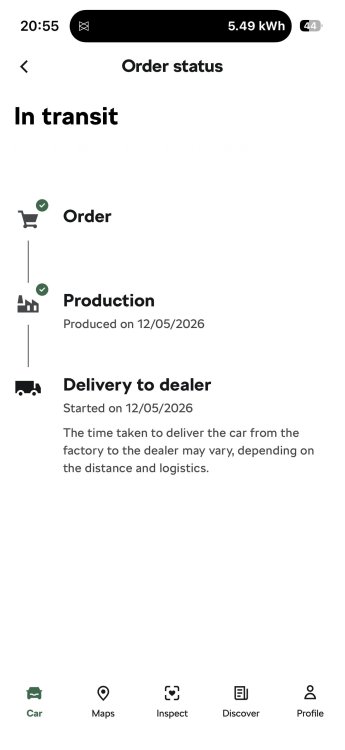
I am like a kid at Christmas as I am 3 or 4 weeks away from taking delivery of a new Kodiaq. I have the car on my app to track its delivery, and the ‘Learn About Your Car’ videos show options that I didn’t realise I was getting. I added the Winter Pack and Driver Assistance Pack, but the videos show the 360 camera and Parking Assist, which is seemingly part of the Plus package. It even shows under the video ‘Your vehicle has….’ Have ŠKODA changed the packages/spec for SE L models since it was ordered in February? It was literally built and out of the factory on 12th May. One of the videos even shows massage seats, which again is part of a package I didn’t ask for.
-
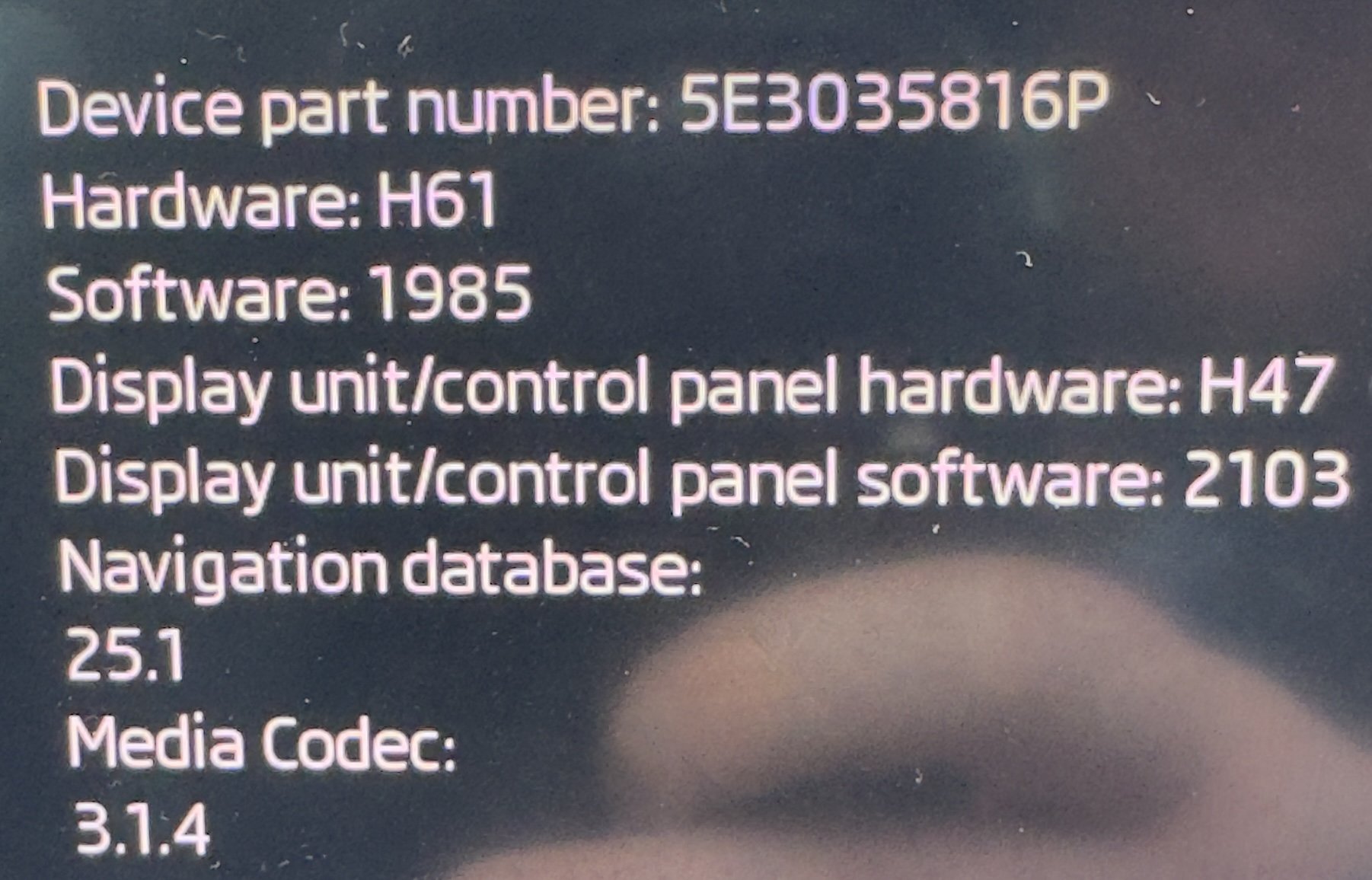
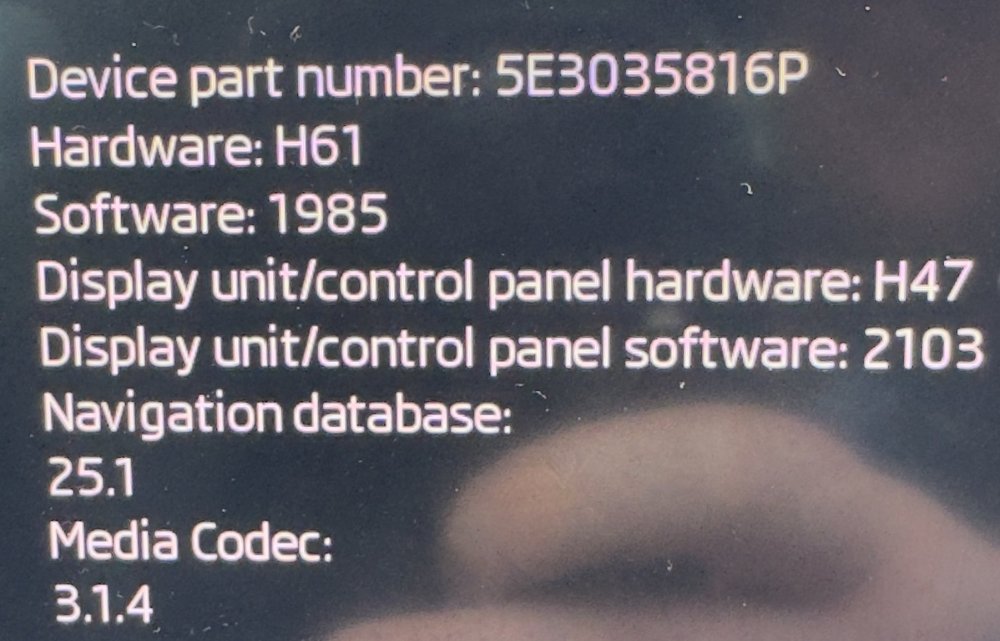
I’m really hoping someone else has had this issue and has resolved it, as my local SKODA garage are scratching their heads. If I access the car more than a couple of times, and don’t start it and drive, the 12v battery seemingly dies. It also does it if I turn the car off and sit in it for circa 20 minutes. The only way to get it started it to obviously jump/boost start it. There is a tracker fitted (it’s a company car); however, I had this removed and it still played up so it can’t really be that. The last time it was in the garage they decided to just charge the battery over night and give it a clean bill of health. The next day I had the same issue. Video link below. Image attached of system versions. Please help; other than this I love this car. 😭 https://imgur.com/a/vh66OiF
-
Where’s the fun in that 🙄
-
That just makes the picture disappear 🤷♂️
-
Nothing at all
-
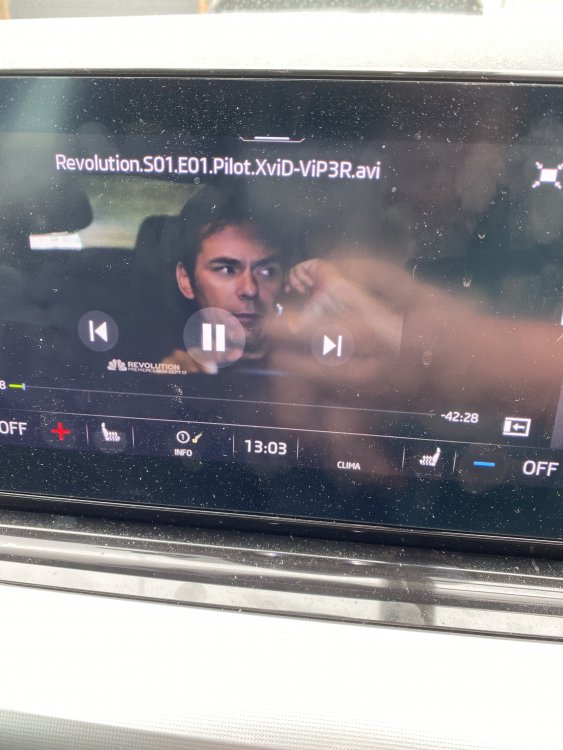
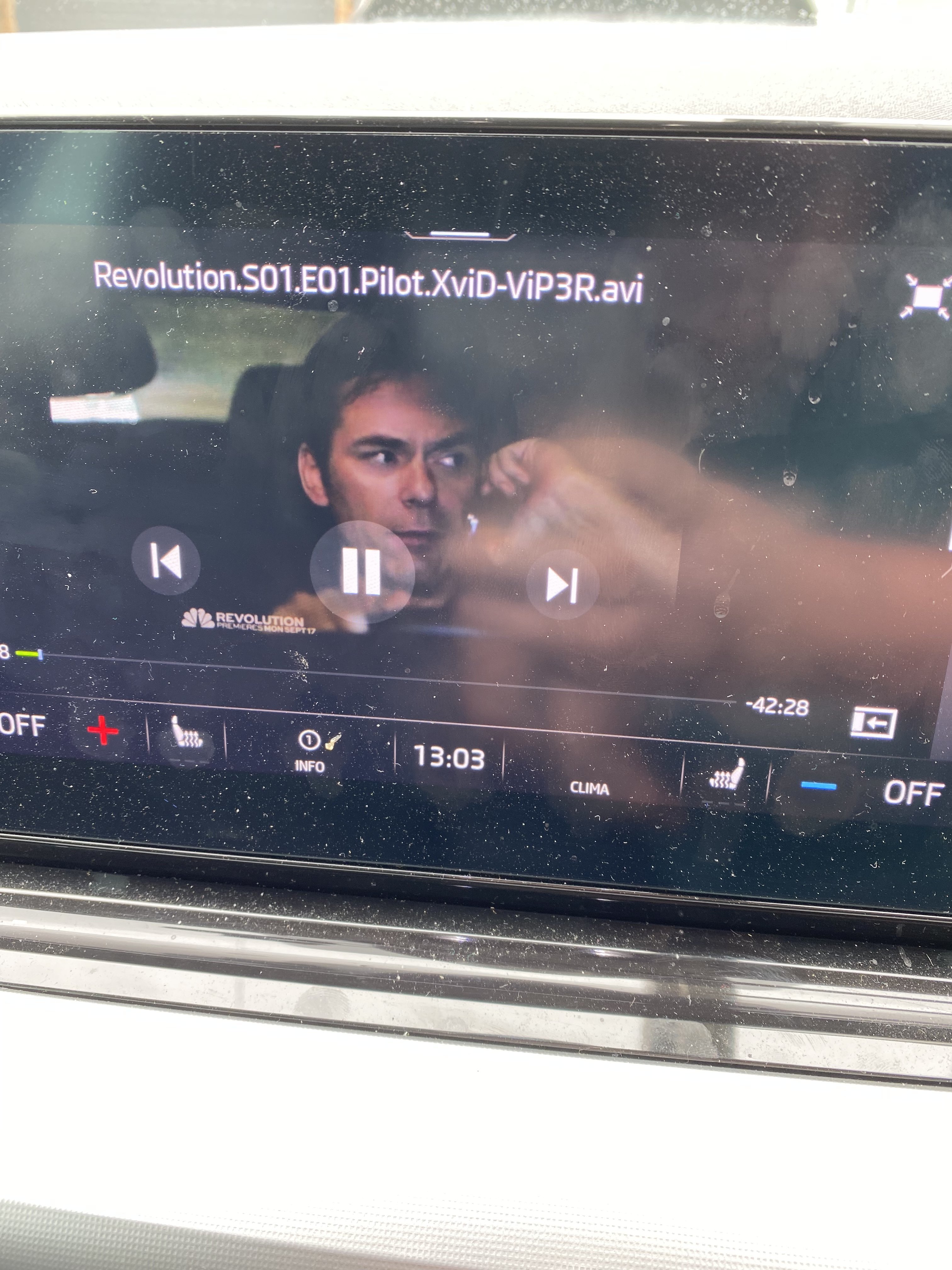
Anyone know why the file name and pause/rewind/fast forward buttons stay on the screen whilst watching something? It did it when I first got the car but randomly stopped. Now I’ve just put more files on the drive it’s started doing it again and it’s annoying as hell. Someone help 😭