buron
Finding my way
-
Joined
-
Last visited
-
I have created a new post under the Kodiaq section with more detail here: https://www.briskoda.net/forums/topic/497882-nav-on-virtual-cockpit/ Thanks.
-
Sorry, I messed the images on this post. please see below.
-
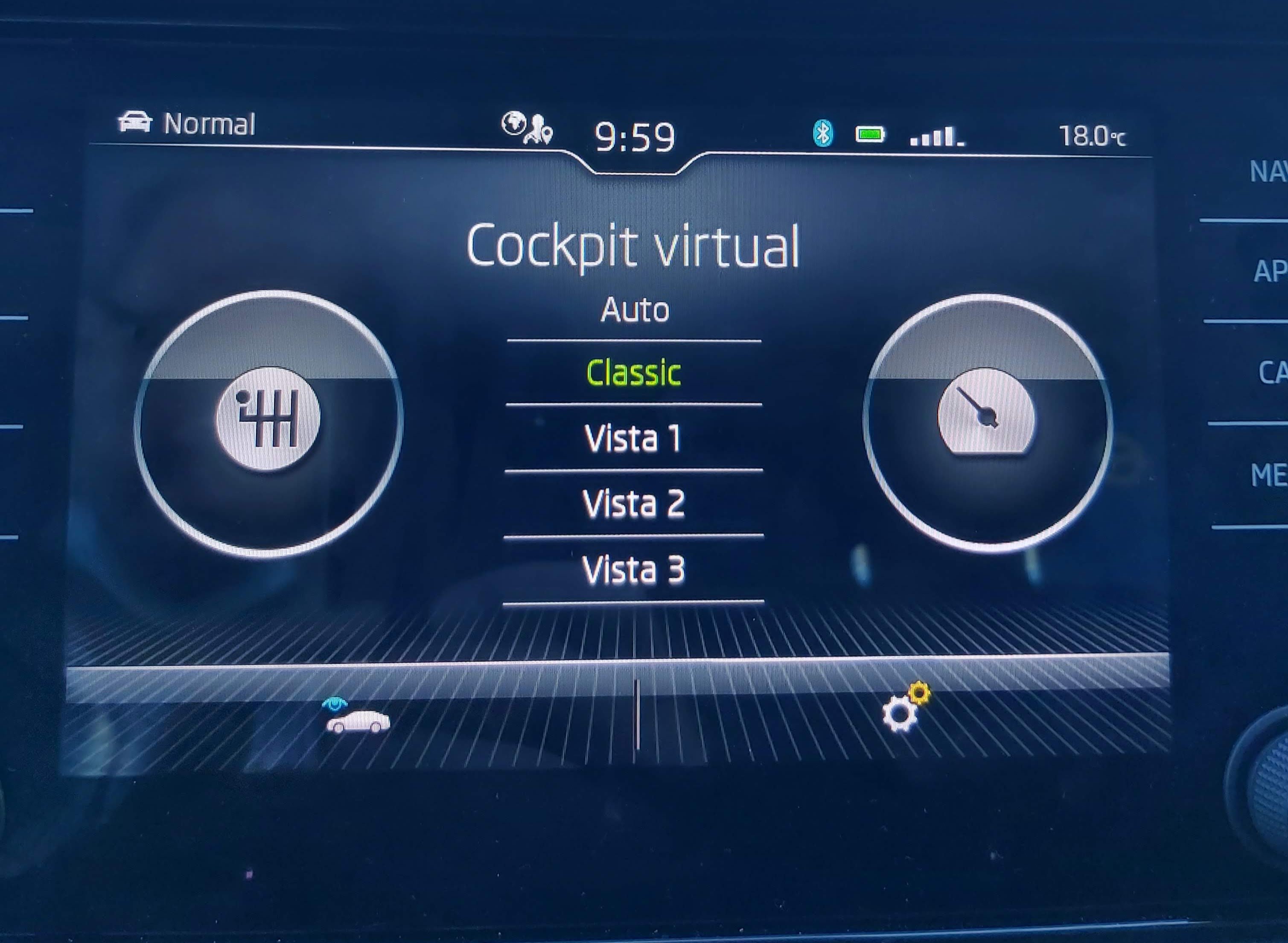
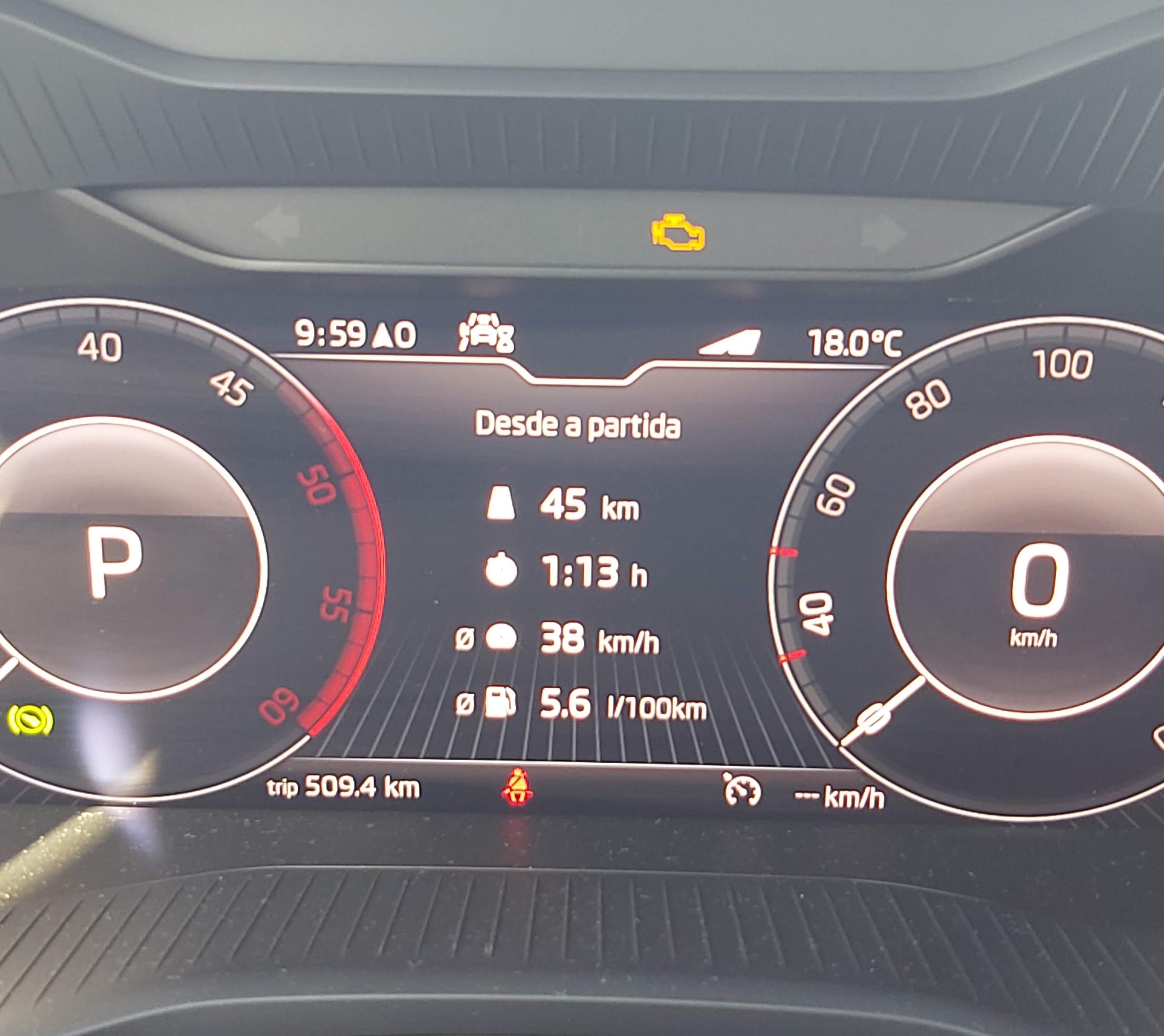
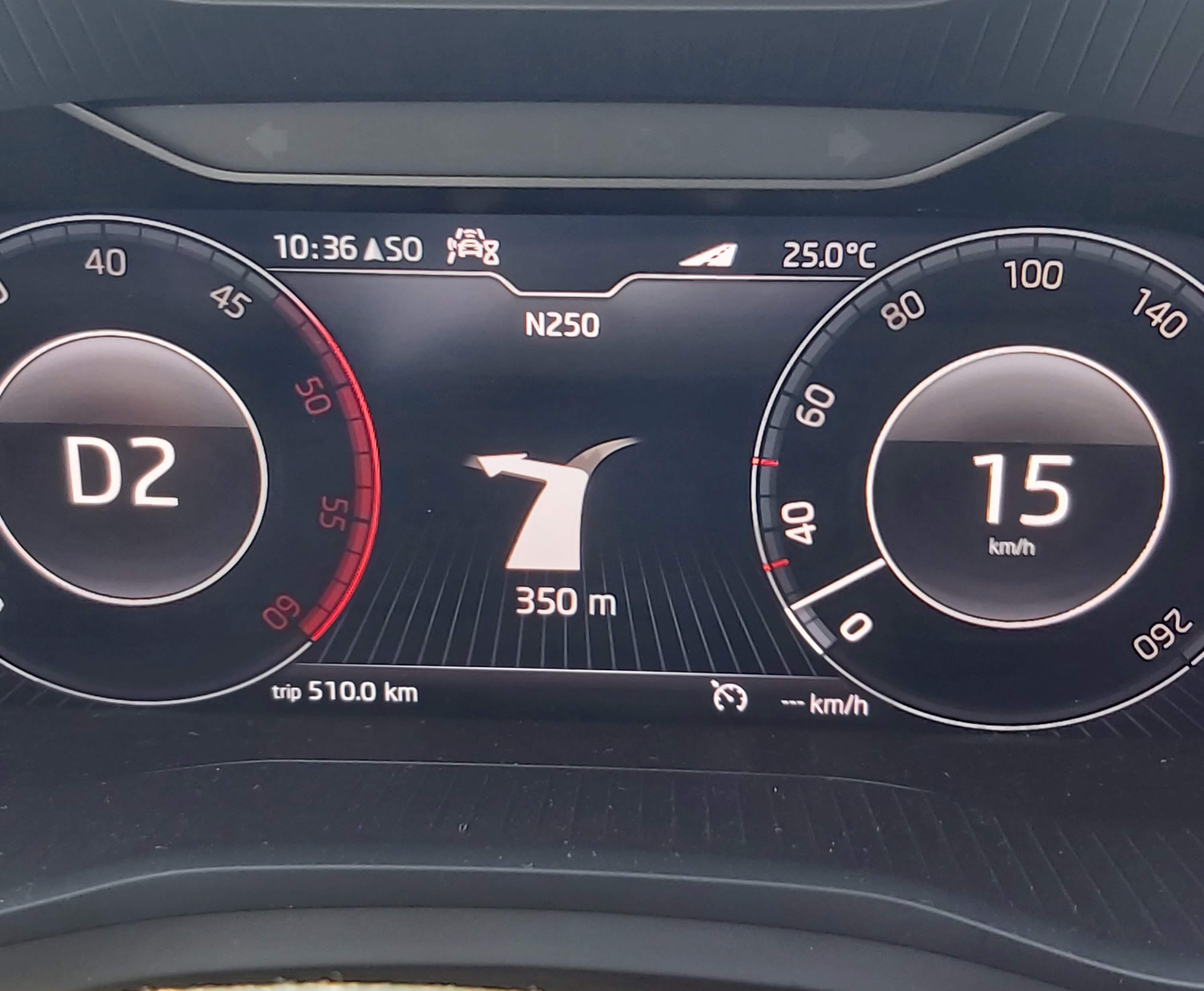
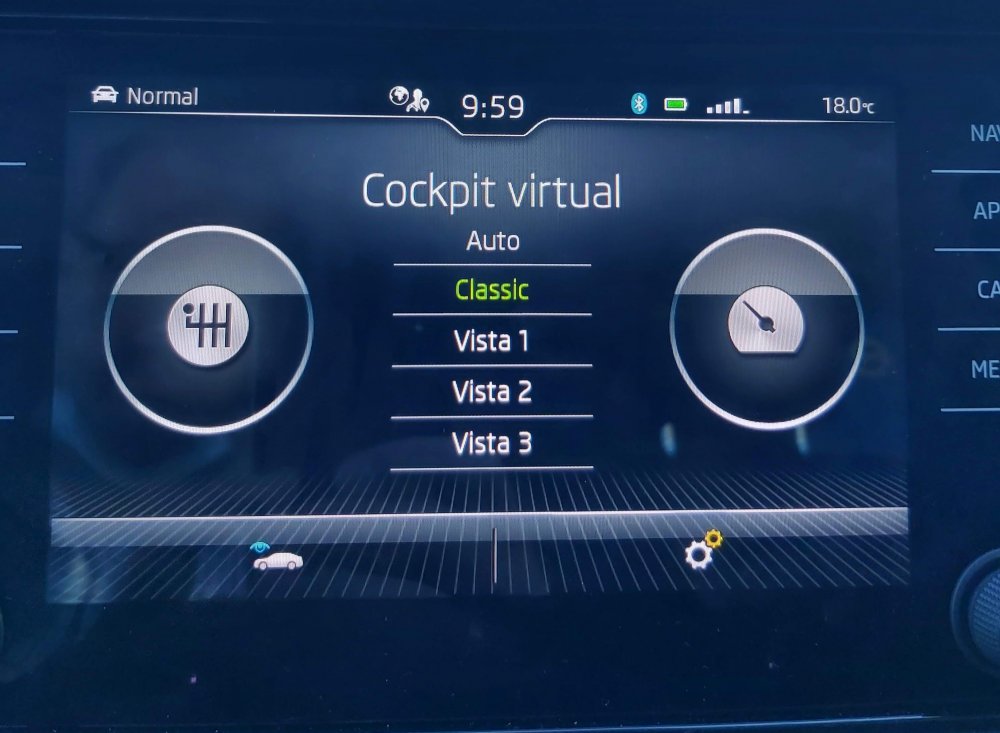
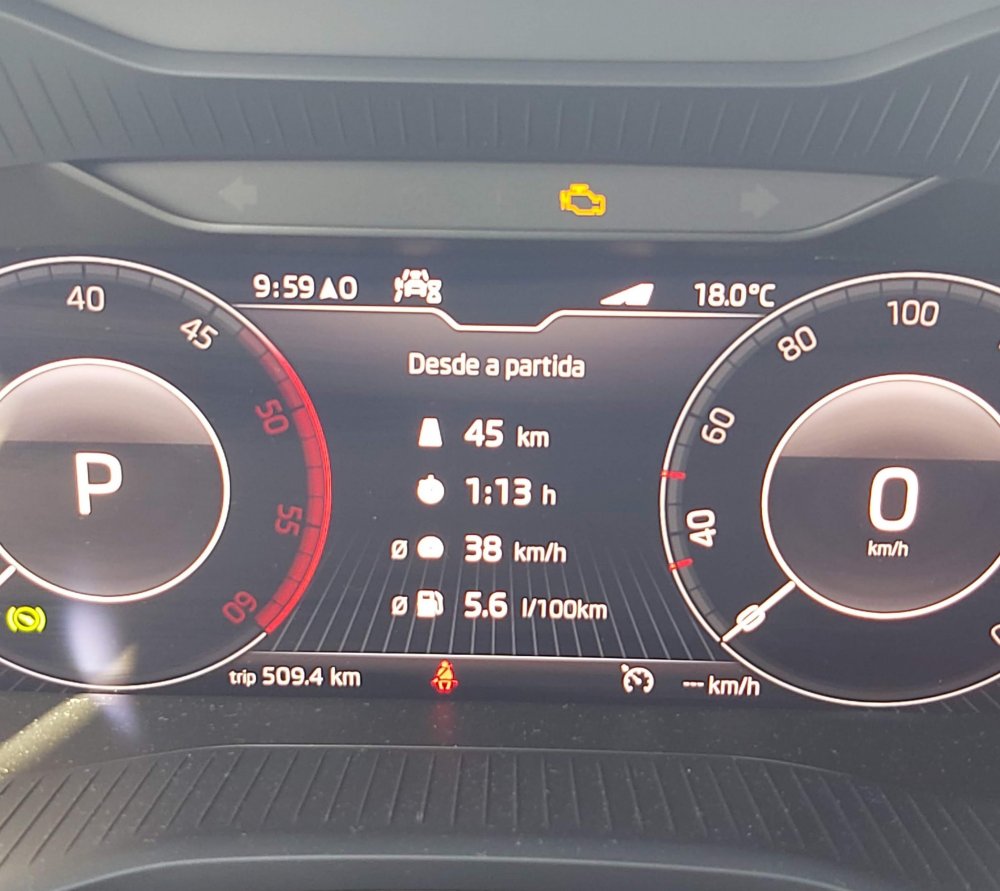
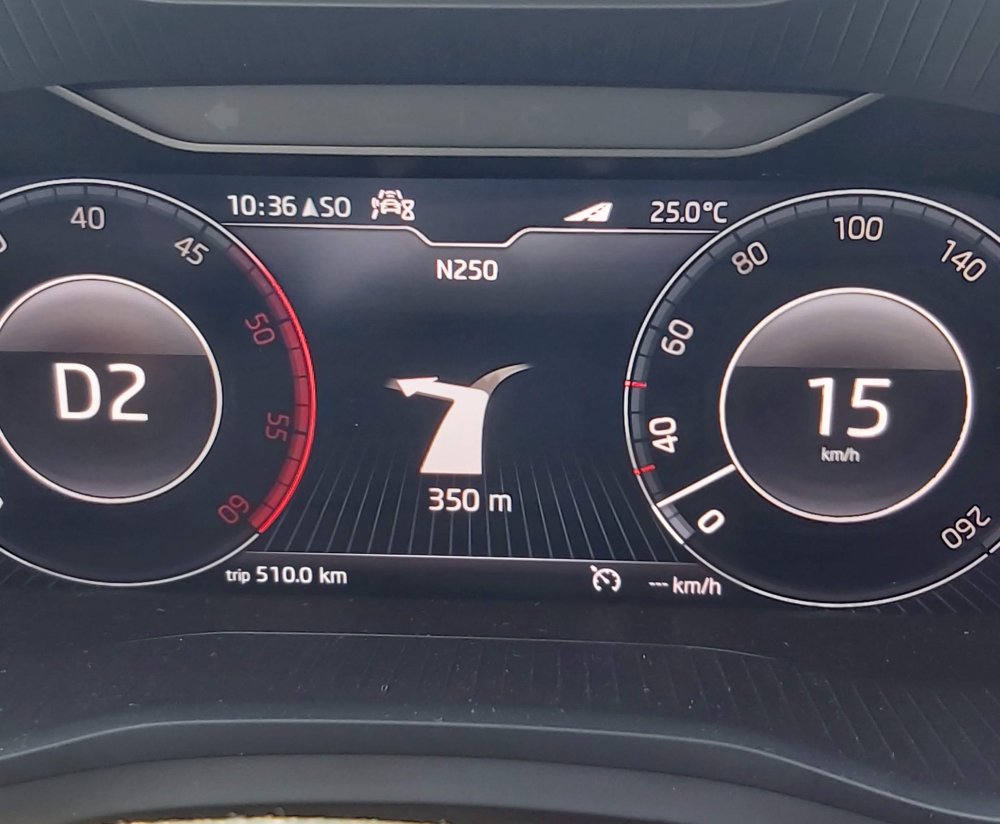
Just for visual clarification. This is the configuration available: [url=https://ibb.co/NLHmhJX][img]https://i.ibb.co/0fdFN6k/20210928-095930.jpg[/img][/url] This is the way I would like to always be in: [url=https://ibb.co/zm81HXC][img]https://i.ibb.co/mRvmF9d/20210928-095946.jpg[/img][/url] And this what it changes to every time I set a destination on Android Auto: [url=https://ibb.co/LzDJC1F][img]https://i.ibb.co/kgV9hX7/20210928-103642.jpg[/img][/url]
-
Mine is on classic, and it changes to nav. I want it to stay on the stats, not change.
-
Hi all, I am the happy owner of a 2021 Kodiaq (pre-facelift) with Amundsen infotainment and Virtual Cockpit. I'm happy with all the "bells and whistles" of VC but there is one small issue that's starting to get under my skin, and it is that every time I set a destination on Waze or Maps (via Android Auto) the cockpit information changes to the NAV/MAP setting and I have to go back to the stats manually. I like my travel stats ( distance, fuel, time, etc) there! in the middle! so is there any way to configure VC to stop doing that? To keep the travel stats instead of changing to the NAV? Thanks in advance.
-
Hi Guys, sorry to hijack this thread but I have a similar (although different) question. I own a 2020 Kodiaq with VC and Amundsen and the thing that is really bothering me is that every time I set a destination on Android Auto, it changes the centre of VC to that map/nav instructions. Is there any way to make it stop? I want my driving stats and not the map or directions. Thanks in advance.