bben
New here
-
Joined
-
Last visited
-
Yes it is, it's an obdeleven i bought about a year ago when i got the car so I can at least have an idea if some errors pop up. I am aware that it should be able to do such modifications just never did it and there's always arguments for 'factory' devices vs 3rd party, differences in the detail level they see, so it seems like doing brain surgery based on youtube guides. What I carefully meant I need to read up on the different modules, enabling / disabling stuff and how it all works and if I feel comfortable enough I may do it. but mainly just satisfied that this is a 'normal' thing (I was assuming car may detect original head unit missing but didn't really know, these newer cars are complicated).
-
Thanks for the explanation, i will look into fixing it or ask someone, so it doesn't look like a problem at least.
-
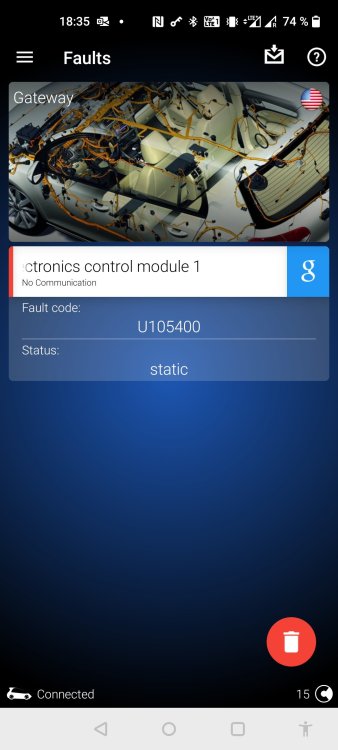
Hi, I replaced my head unit on my 2017 octavia estate today. As instructed I disconnected the battery ground while doing so. I replaced the Bolero unit (touch screen unit with touch buttons on the side, smartlink+) with an Alpine x903d-oc3. I had a christmas tree on the dashboard when reconnecting the battery after installation, so I used my obdeleven reader and mobile app. I had many different errors with park radar, start/stop, esc and whatot (about 5 or 6 total) which was pretty scary. I erased errors (I think I had to recalibrate steerign wheel 'centre' as well) and one error remained: category 'Gateway' -> Information electronics control module 1 -> fault code U105400 (static). I imagine this may have something to do with replacing the head unit. I'm not sure what this error means and if there is an 'official' (or semi-official, so solution, not workaround) way to solve it, if any. Maybe the car just detects there is no original head unit, or there is some compatibility issue, google didn't help (probably error too generic?). Anyone has any explanation and/or suggestion please?