Stevecollett
New here
-
Joined
-
Last visited
-
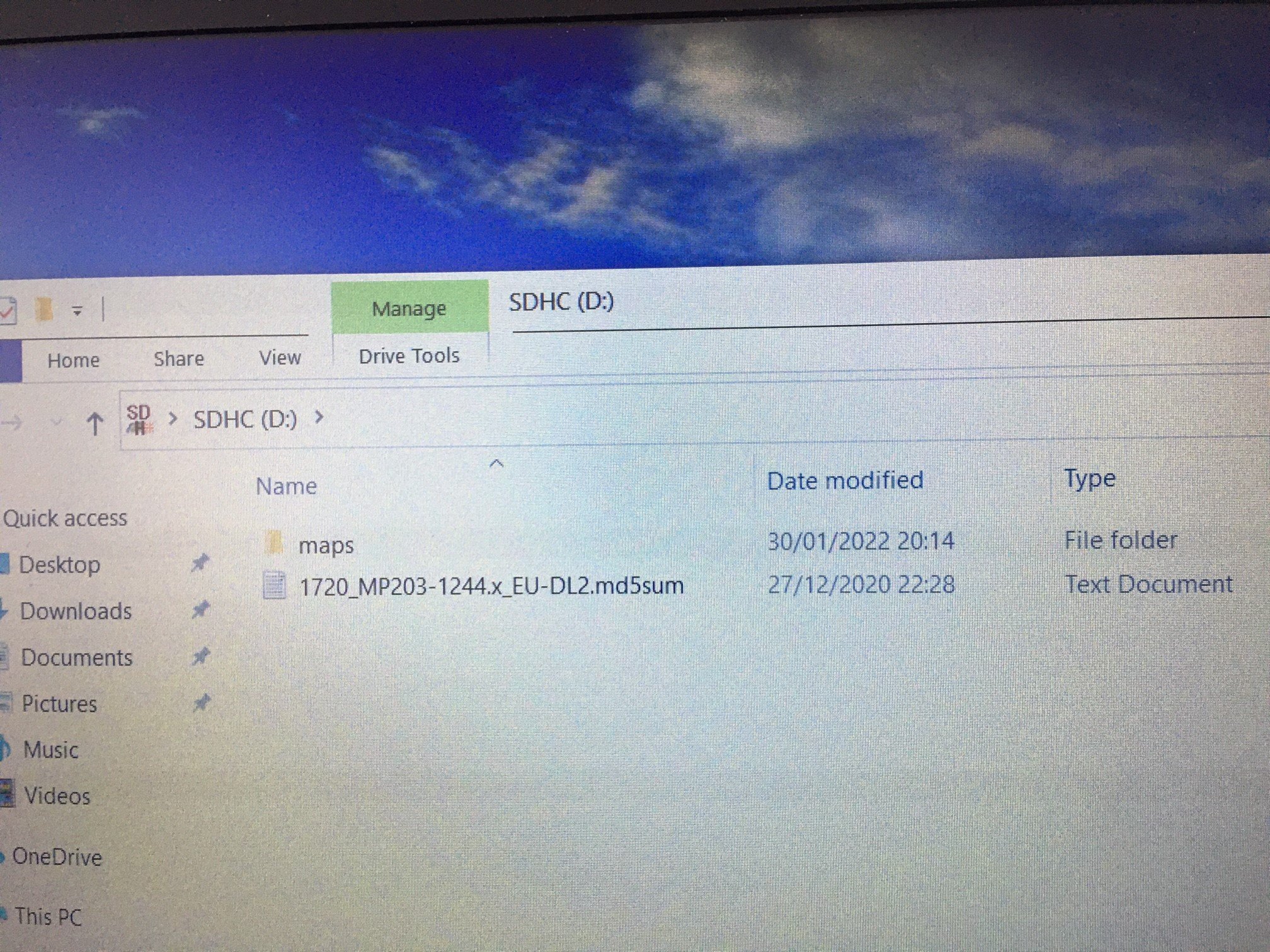
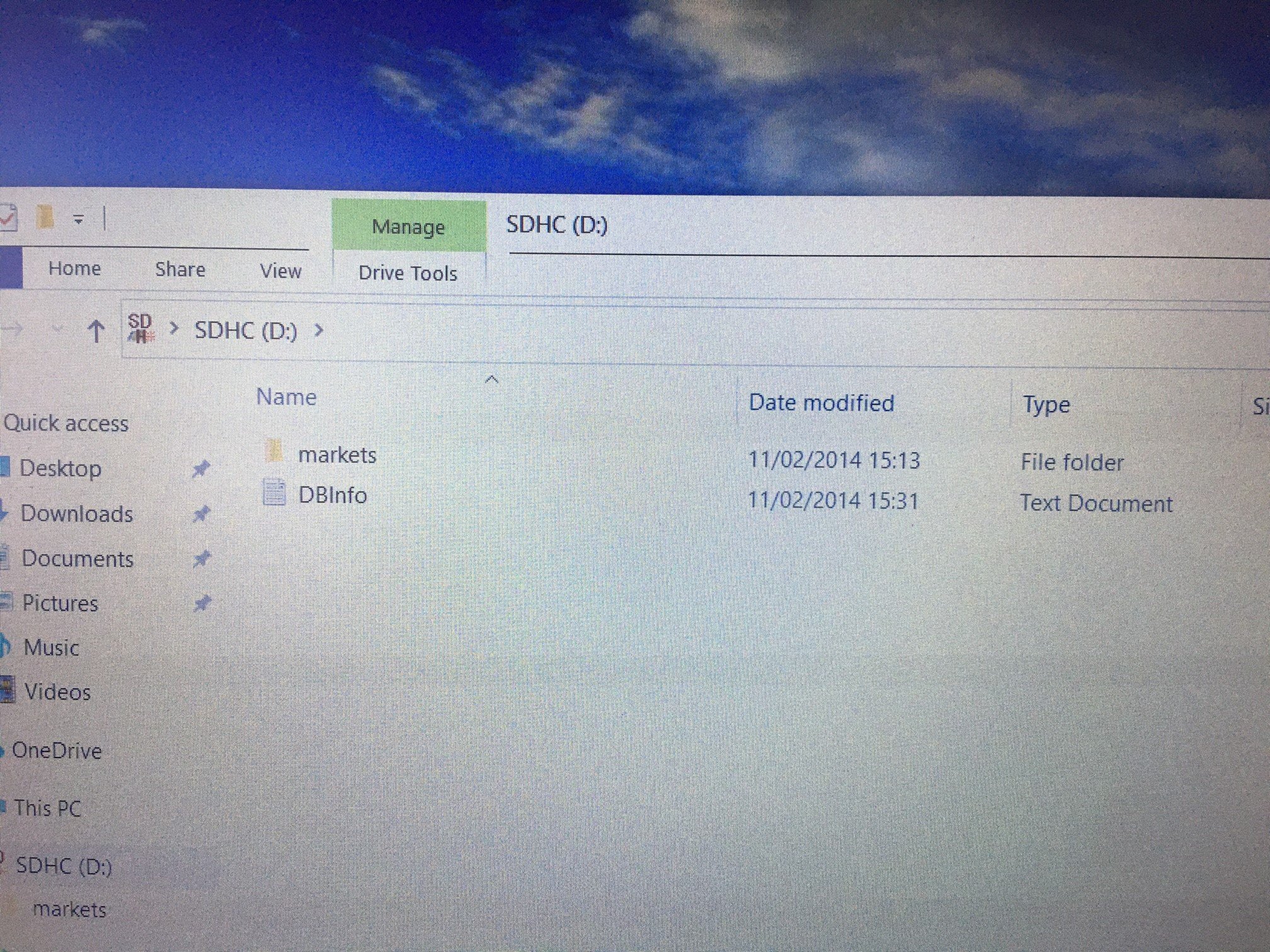
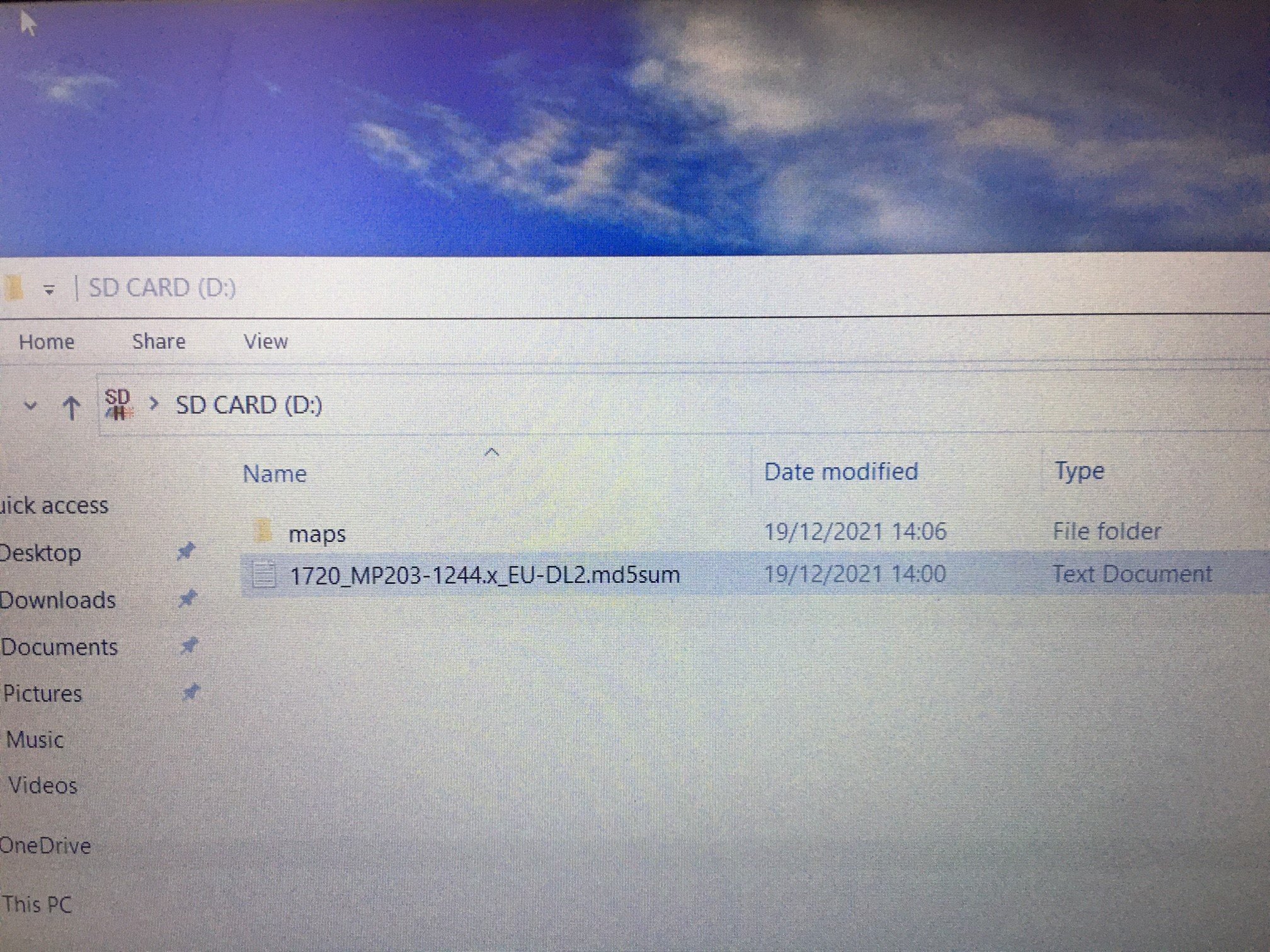
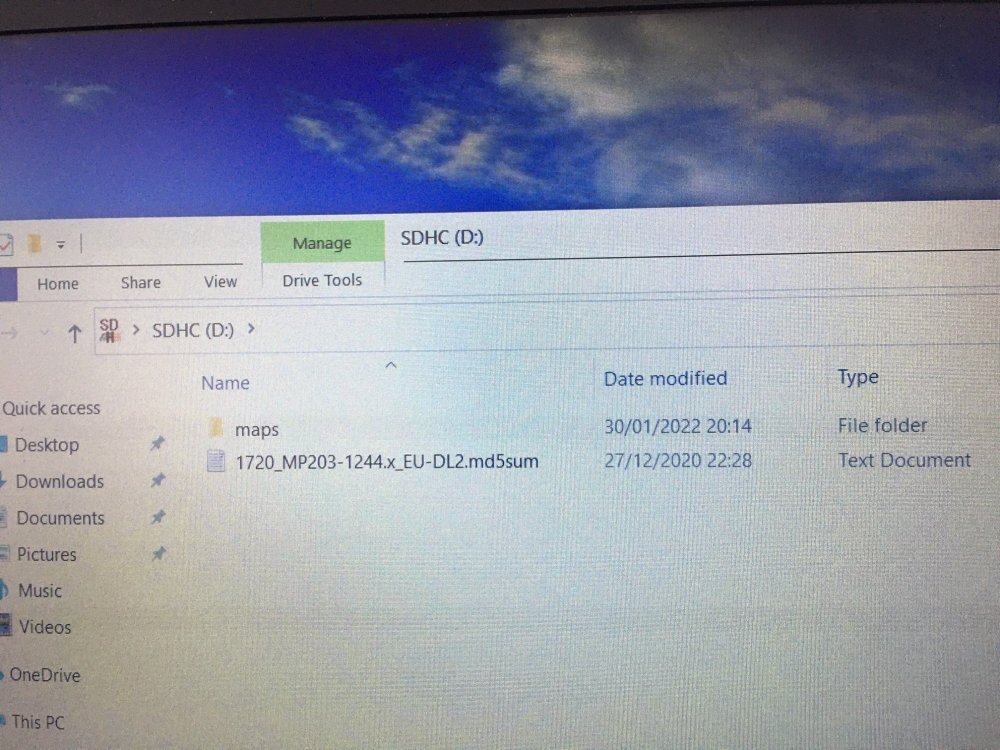
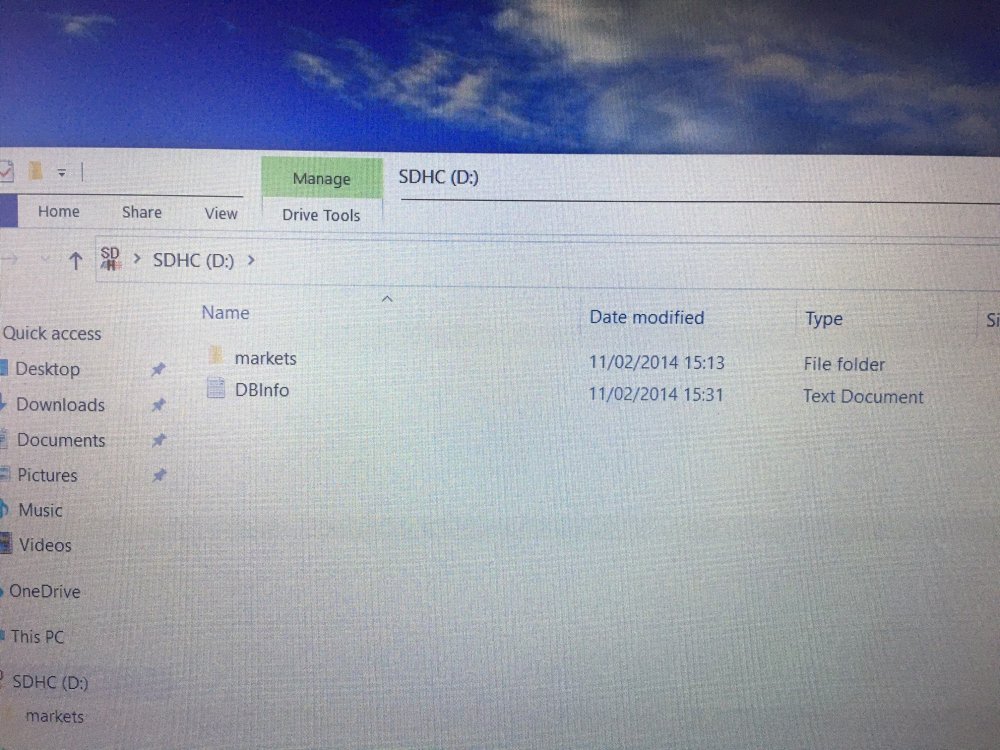
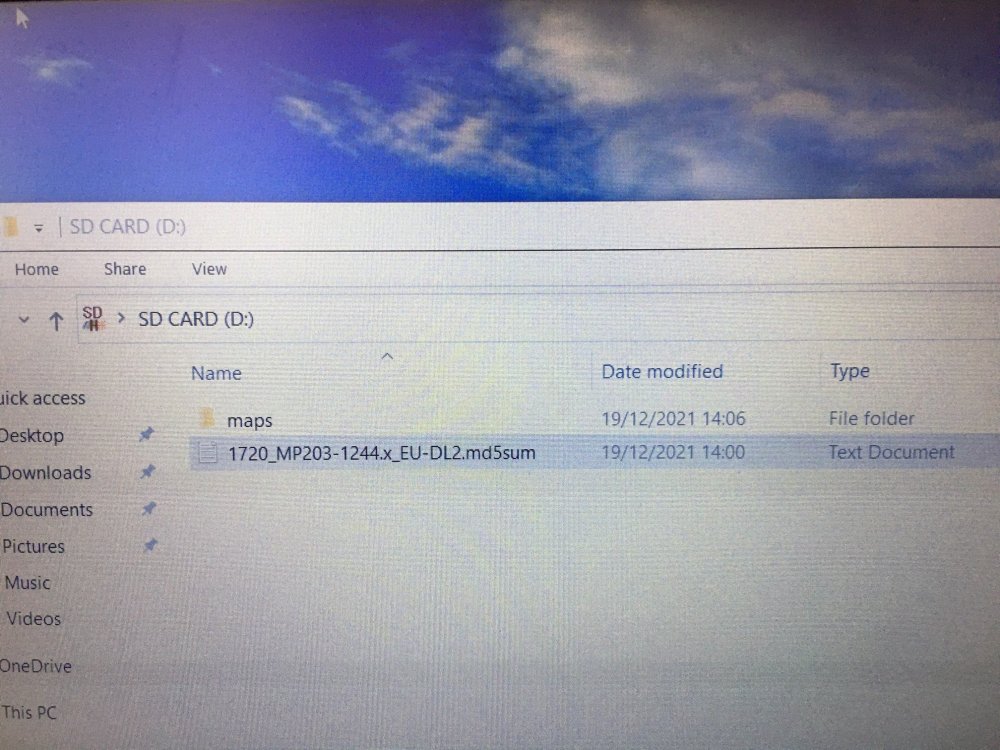
Hi Thanks for replying. I have tried various version of maps, and I have downloaded the correct maps from Skoda's portal, I use the VIN number from the donor car that I got the head unit from so I know the maps are correct. I have also tested both SD readers with music and photo's so I know there OK as well. I use a Windows 10 laptop to copy the map data to the SD card. Attached are 3 of the SD cards I have showing a snap shot of the roots of each one, I have another one in the car but my wife has the car at the moment, I am just out for the day now, so I won's be able to reply until tomorrow. Cheers Steve Collett
-
Hi, I have a Skoda Yeti (2015) and I purchased from a breakers yard a Amundsen MIB2 (5L0035680A) head unit (also from a 2015 Yeti) as mine did not have Sat Nav. I installed it OK, upgraded the antenna for SAT Nav and DAB capabilities. But after many attempts including taking it to 2 Skoda Dealerships and paying an ODIS engineer, I still cannot get the Sat Nav to work, it opens and you can see the location where you currently are and then it’s says, "Please Insert Medium with Valid Navigation Data". I have purchased 2 SD cards 5LO 051 236 BR from different suppliers but they both show the same error. All other features Phone, Bluetooth DAB and FM radio all work. I have also had installed the “Green Engineering Menu” by an ODIS engineer who has disabled the feature which checks the Sat Nav SSD card for a CID activation code. But the Sat Nav still won’t load, it still states "Please Insert Medium with Valid Navigation Data" From what I have picked up from the Web, the head unit I have must have a EEPROM security chip built in, looking at YouTube videos I’m not sure what you have to do, remove it, or does it need reprograming? or in fact where it is actually located. Does anybody know of anyone or a company that deals with EEPROM security chip’s, I live in the West Midland’s, but I would be willing to travel. Any help would be very much appreciated.