
TrevW
Finding my way
-
Joined
-
Last visited
Everything posted by TrevW
-
Hmm still didn't work - the FECs I added still didn't get patched in.
- 155 replies
-
- columbus
- discover pro
- maps
- mib
-
Tagged with:
-
I used the previous version - v3.3.0. I will have a go with this version then! Hopefully it will patch the Fecs I manuall add this time.
- 155 replies
-
- columbus
- discover pro
- maps
- mib
-
Tagged with:
-
Yep i did use MrFixit's video to do it. I didn't have those Fecs ending with "ee" and they are there after patching through the Incredible Bash Tool, so i assume that it recognised the firmware if it patched the first time. Now it just didn't patch the Fecs i manually added in the txt file.
- 155 replies
-
- columbus
- discover pro
- maps
- mib
-
Tagged with:
-
Hmm none of them was taken in. I wonder if I should add Fecs in another file rather than just that txt file?
- 155 replies
-
- columbus
- discover pro
- maps
- mib
-
Tagged with:
-
I just added those keys in all the fec txt files I could find under "patches" folder. I guess when patching it will at least take in one of them?
- 155 replies
-
- columbus
- discover pro
- maps
- mib
-
Tagged with:
-
Do I add the FECs in the "ER" folder? I added them in the addFecs.tex in "MHI2_ER_AUG22_S2148_MU0442_PATCH" folder under "patches" folder, but it didn't get patched in. So i was wondering if I had added those Fecs in the wrong txt file....
- 155 replies
-
- columbus
- discover pro
- maps
- mib
-
Tagged with:
-
Thanks. I have manually added in those two FECs in the text file. going to try to patch it via the green screen. Are those FECs case sensitive?
- 155 replies
-
- columbus
- discover pro
- maps
- mib
-
Tagged with:
-
so I need 023d00ee and 023600ee in my FEC, right? If so, how can I do that? I just used the Increadible Bash to do a patch and got the "ee" FEC.
- 155 replies
-
- columbus
- discover pro
- maps
- mib
-
Tagged with:
-
Hmm don't think I can extract .7z file using windows unzipping programm
- 155 replies
-
- columbus
- discover pro
- maps
- mib
-
Tagged with:
-
I am using Windows. So I think I might have to update my firmware which sounds like a lot involved...
- 155 replies
-
- columbus
- discover pro
- maps
- mib
-
Tagged with:
-
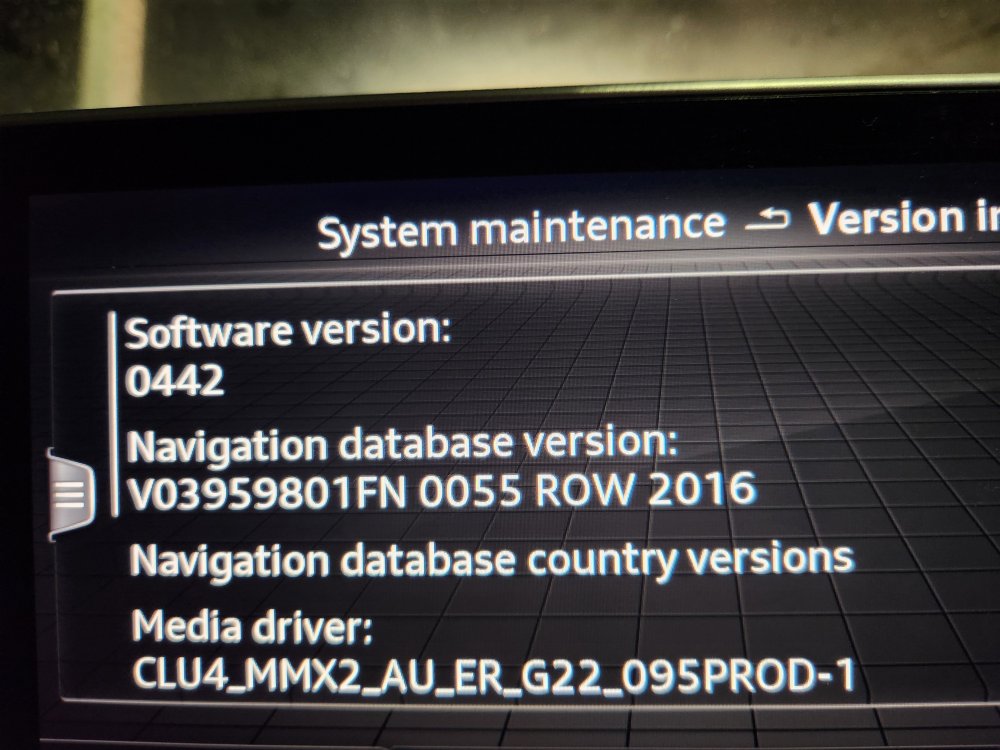
I have patched my unit with the Fec 023000ee, but tried a few different SD cards and kept getting the serious saying no valid maps data found on the medium. Tried FAT32 EXFat on a 32G SD, NTFS on a 128G MicroSD in an adaptor. I am using ROW maps for Austraila. A4 2016 Model. Anyone can help out please?
- 155 replies
-
- columbus
- discover pro
- maps
- mib
-
Tagged with: