JamesParry
Finding my way
-
Joined
-
Last visited
Everything posted by JamesParry
-
Thanks, it’s a manual
-
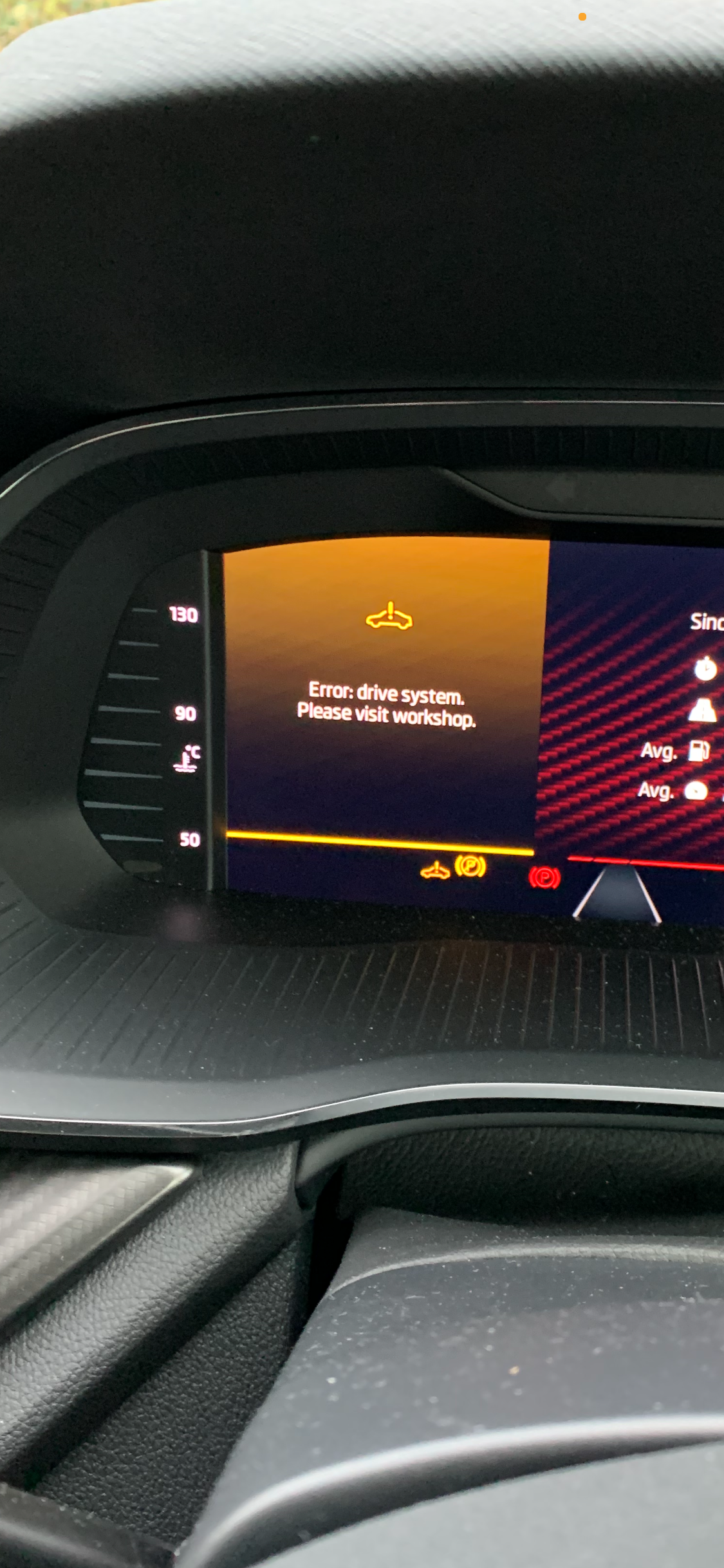
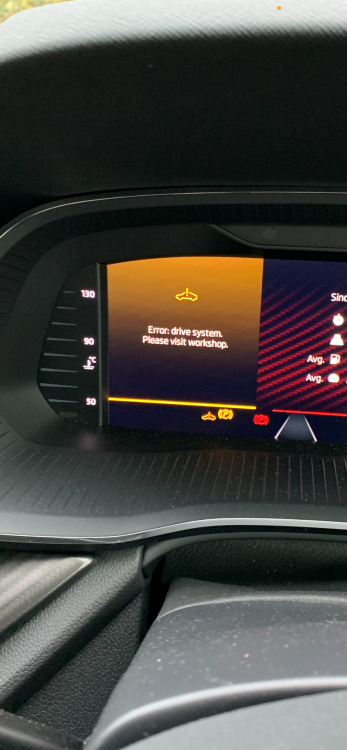
Since I bought my Cctavia 2.0 TSi VRS in October, I've had a couple of occasions where the car will not start. It comes up with the following errors on screen: Error: drive system. Please visit workshop Error: Auto Hold I've taken it to my local dealer, they have done a factory reset and software update but it continues to happen. Has anyone else had this problem or have any information that might help me resolve this?
-
Great thanks. I've since emailed Customer Services, who contacted my dealer and they have said the same now - I'll get an engine cover as soon as they're available. Originally they just told me "That's how it is now" so I'm glad I looked into it further. Enjoy your new car too!
-
Yes, maybe I'll keep one in the glovebox instead 😂
-
Thank you. They certainly didn't mention that I'd get one at a later date. I've since realised what the reason for the missing engine cover is, only after searching this forum, but it came across as though it didn't have one due to parts shortages - clearly the salesperson didn't know the real reason. I've emailed Skoda UK Customer Services to check with them anyway. It also didn't come with the ice scraper inside the fuel filler cap either but I'll get over that and order one off eBay - you can't have it all! Thanks James
-
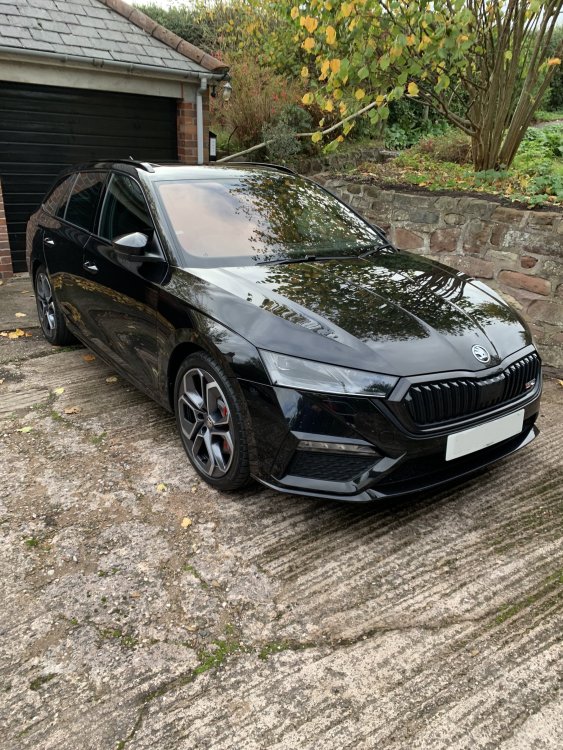
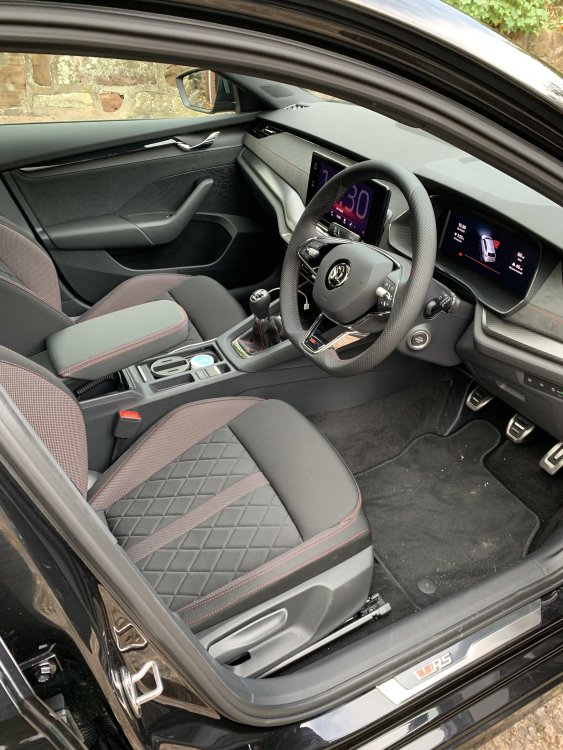
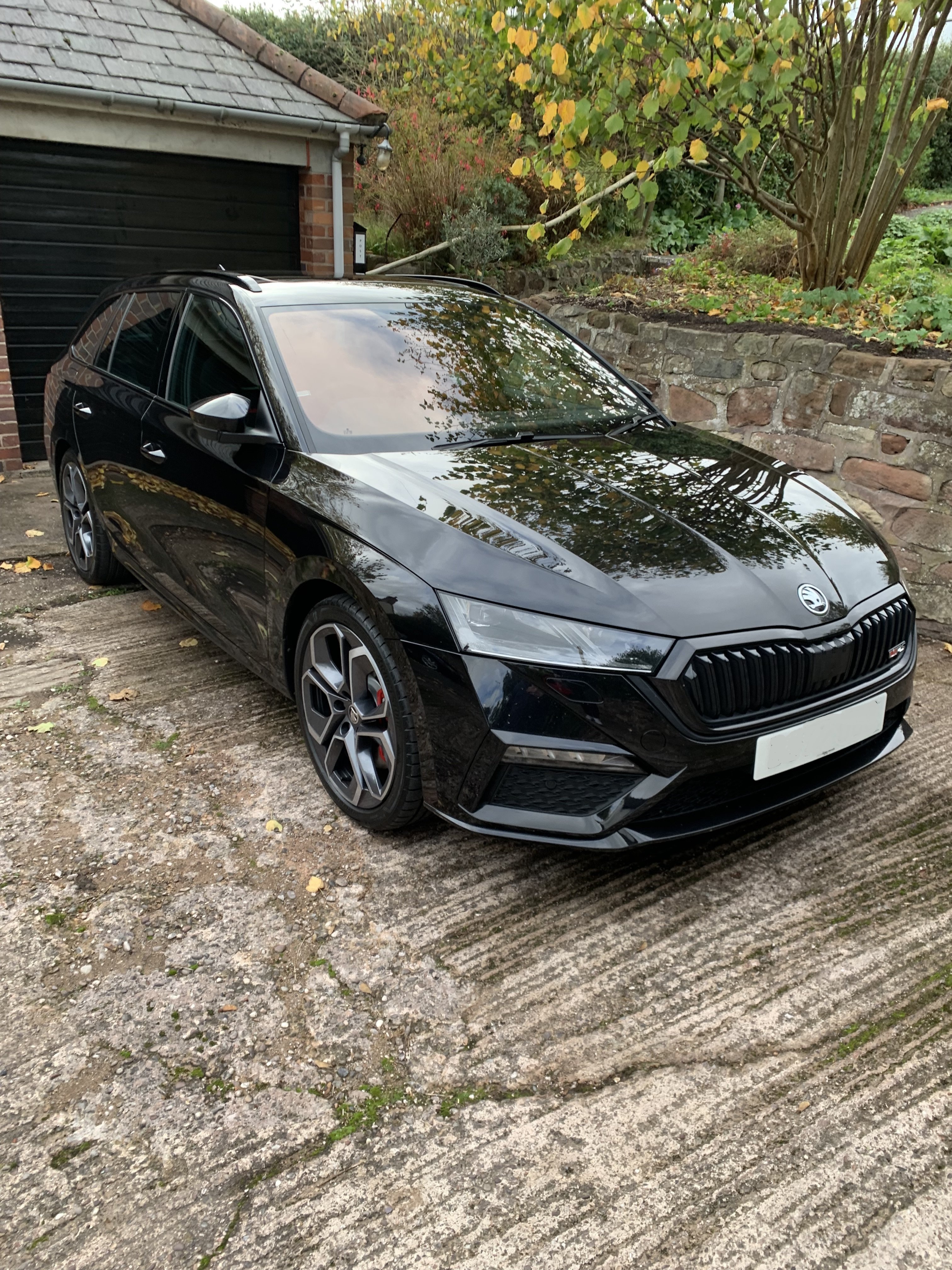
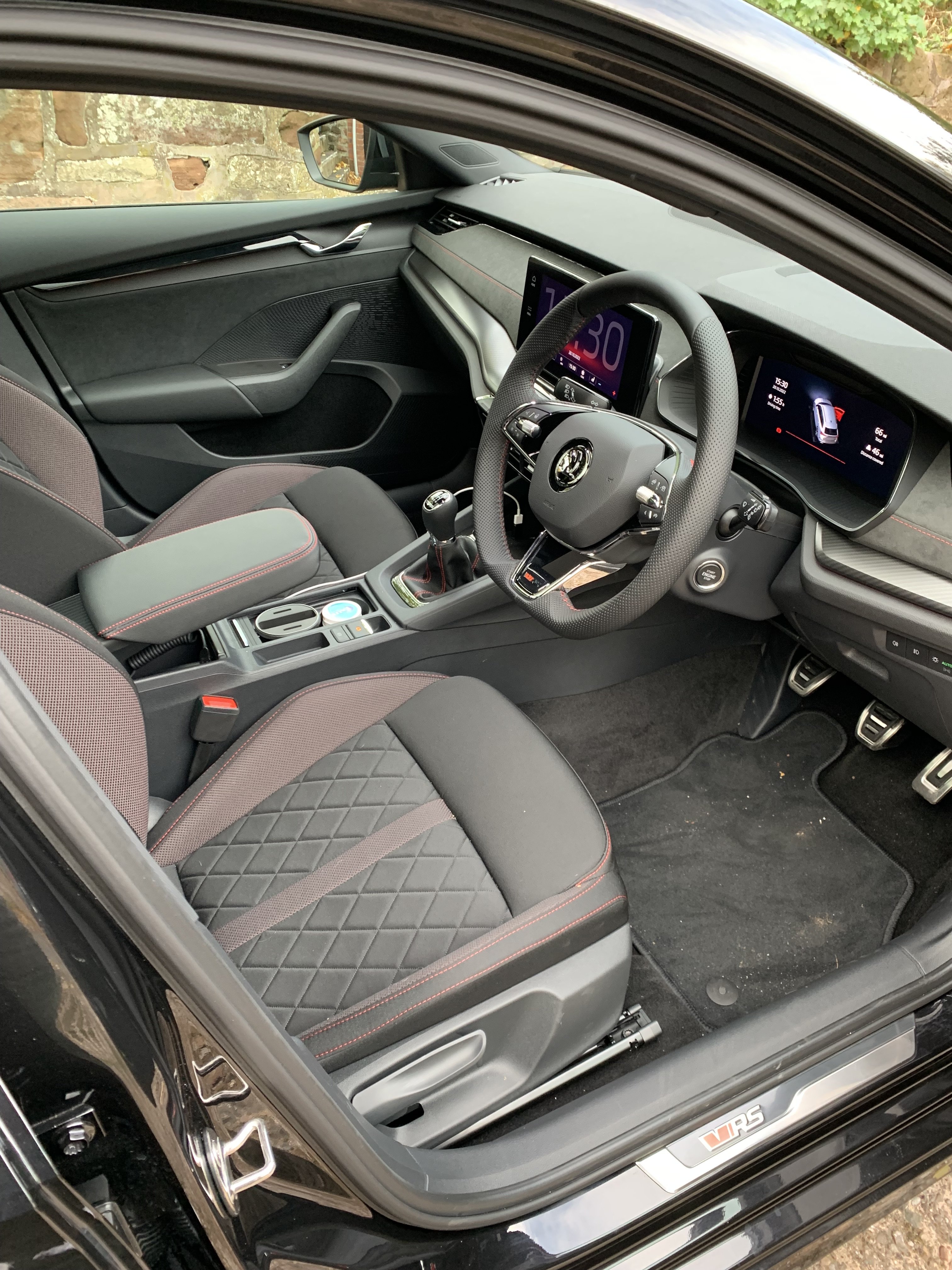
Hello - I've just collected my brand new Skoda Octavia VRS Estate 2.0 TSI 245PS 6G Manual. What a brilliant car, well worth the 11 month wait! My first manual car in 7 years but I'm loving it. I added the following options to my car: Black Magic Pearl Paint Dynamic chassis control Panoramic sunroof Wireless charging Rear view parking camera with LED lights Winter pack Simply Clever (double sided boot floor, media holder and waste bin) A couple of surprises on collection, I was given 3 keys which was nice, and the car doesn't come with an engine cover anymore - both of which my dealer told me is normal nowadays....