Bonnez
Finding my way
-
Joined
-
Last visited
Everything posted by Bonnez
-
For me it worked after skoda did some backoffice work. Skoda connect support solved this vin problem
-
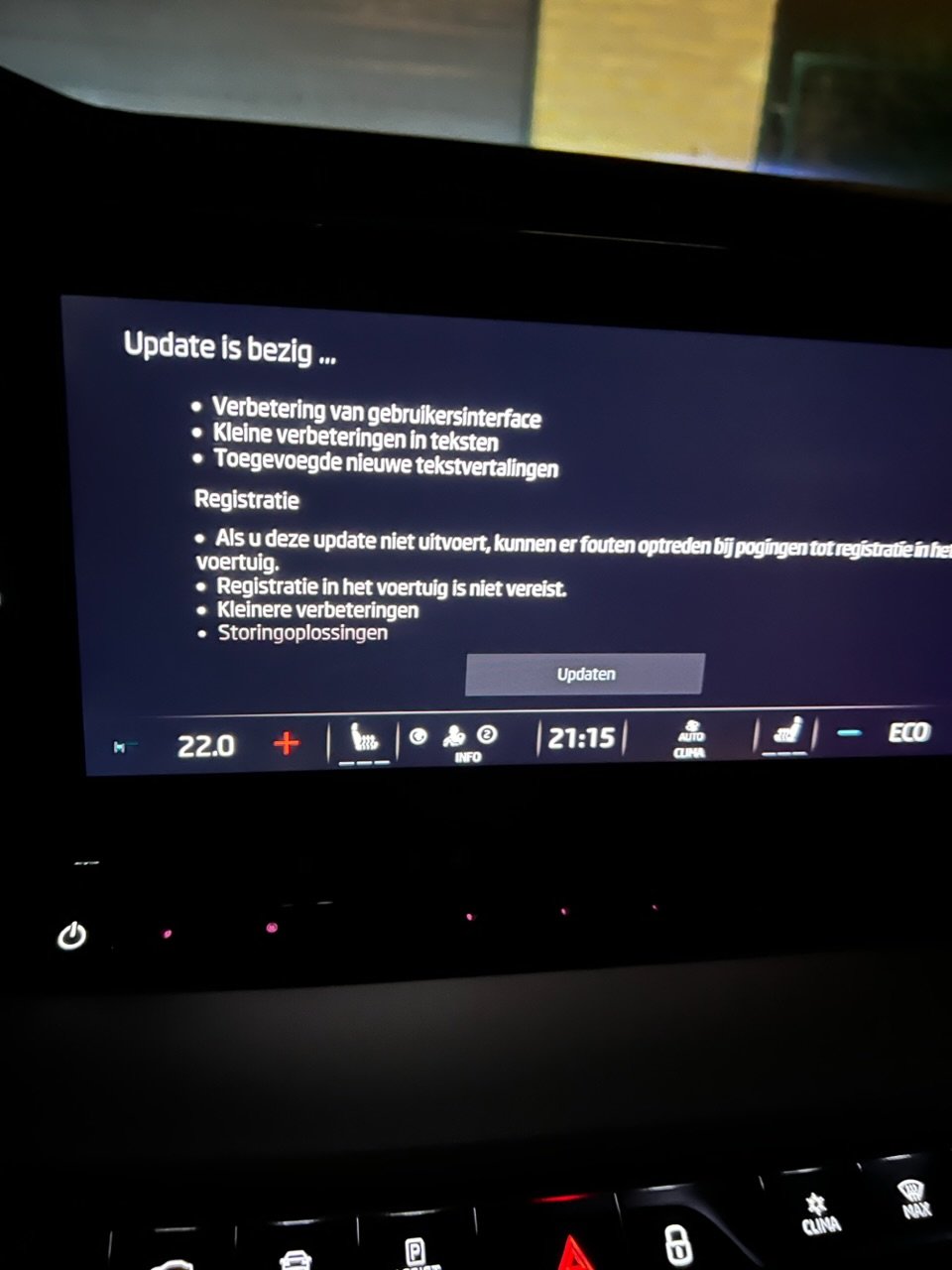
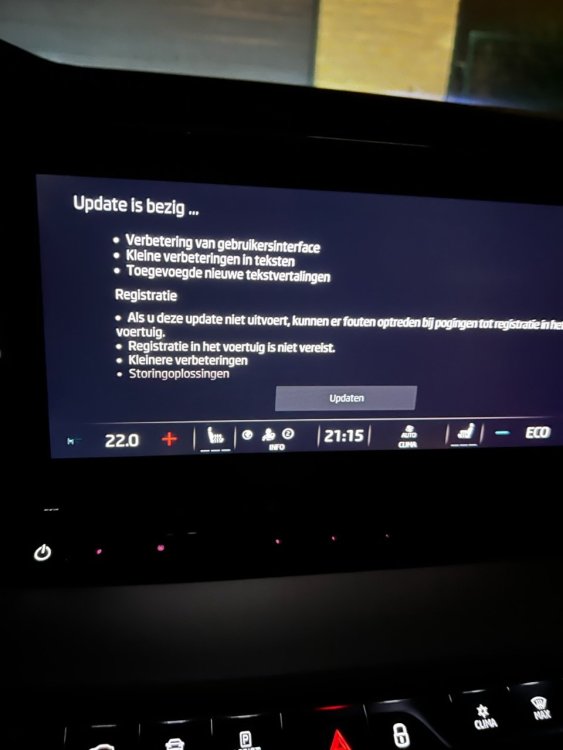
There was an update notification pop up. if you don’t update. There could be registration errors… 😆 still got the problems after factory reset and update. Will try tomorrow again.
-
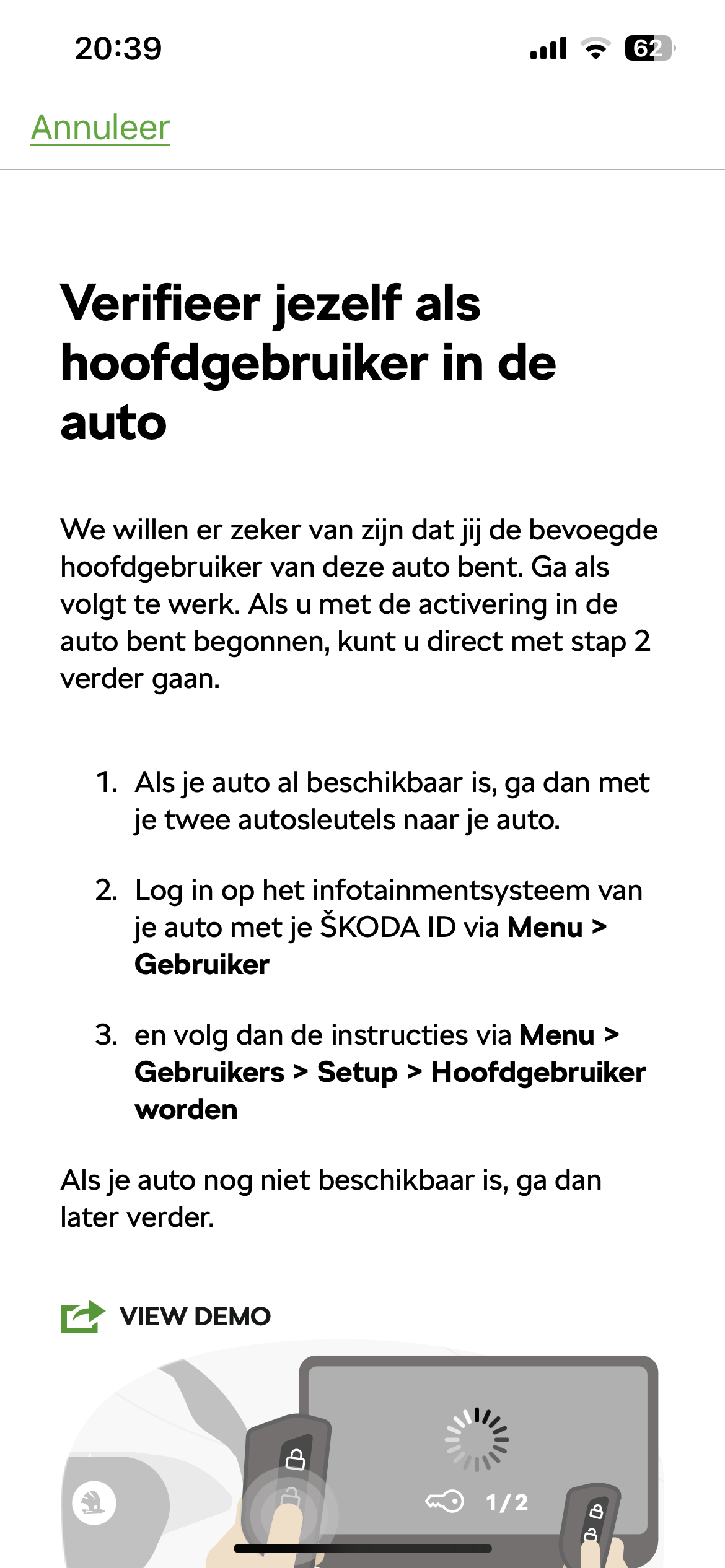
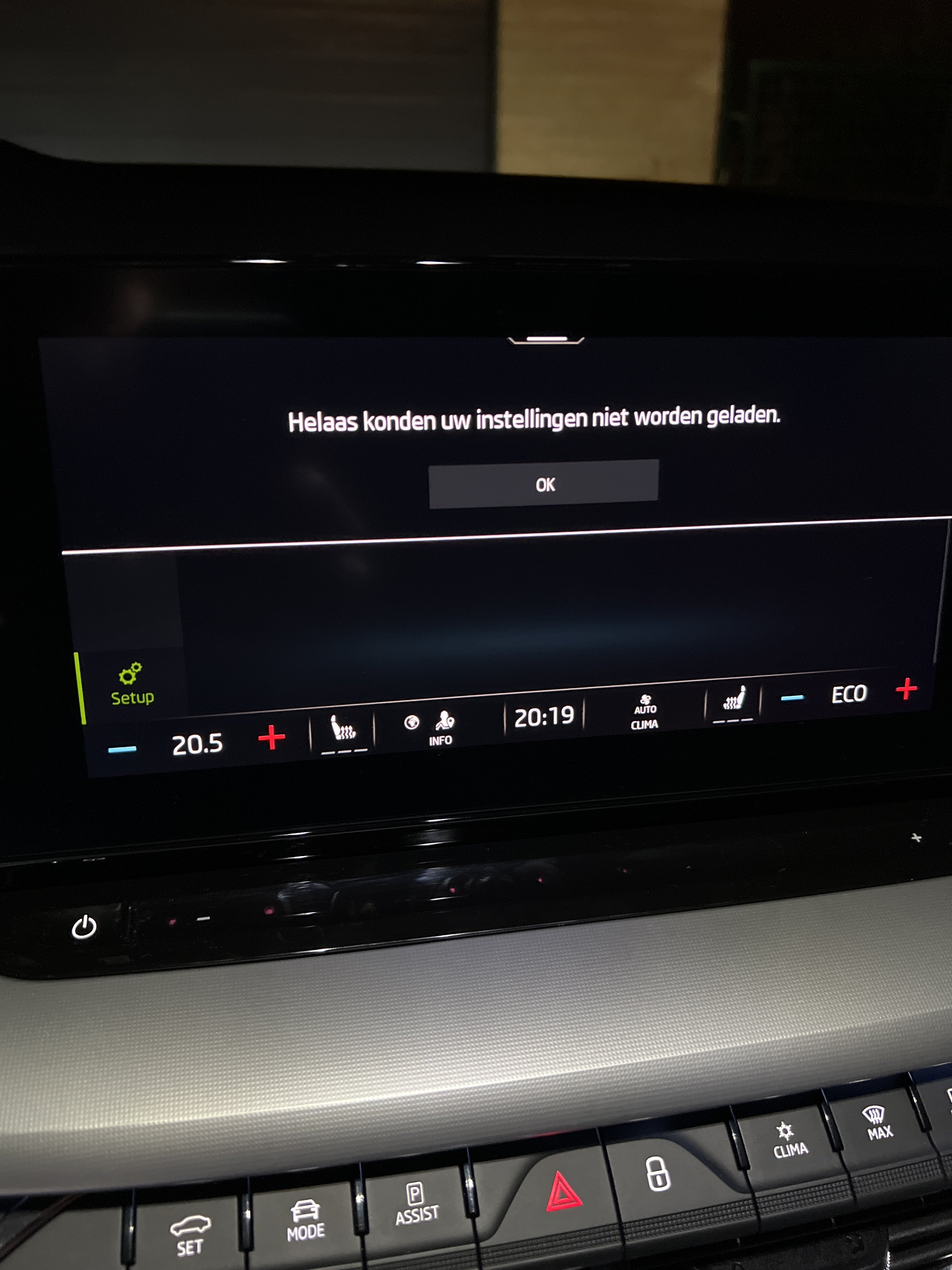
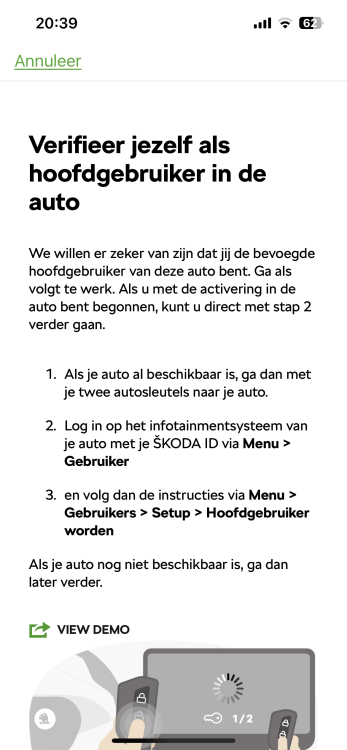
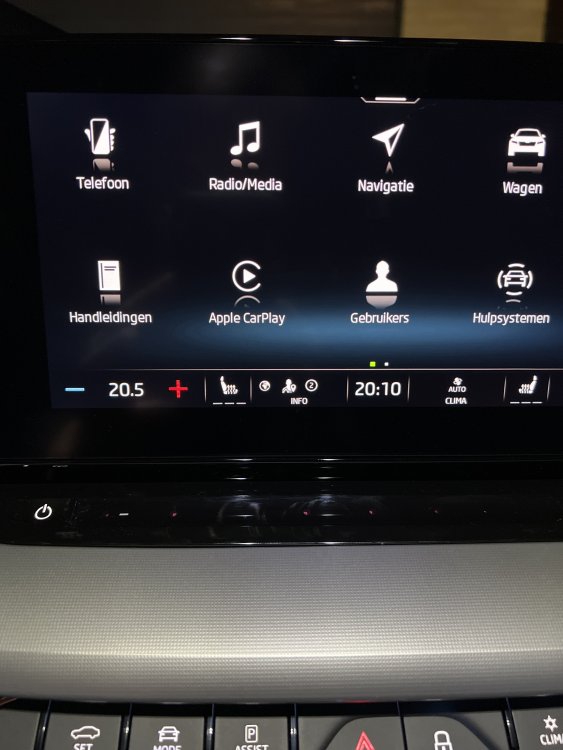
Yes i followed the steps on my phone. i will factory reset the settings and try again. the system was offline after the update. Now back online yes i tried to configure users. Also primary user. "settings could not be loaded"
-
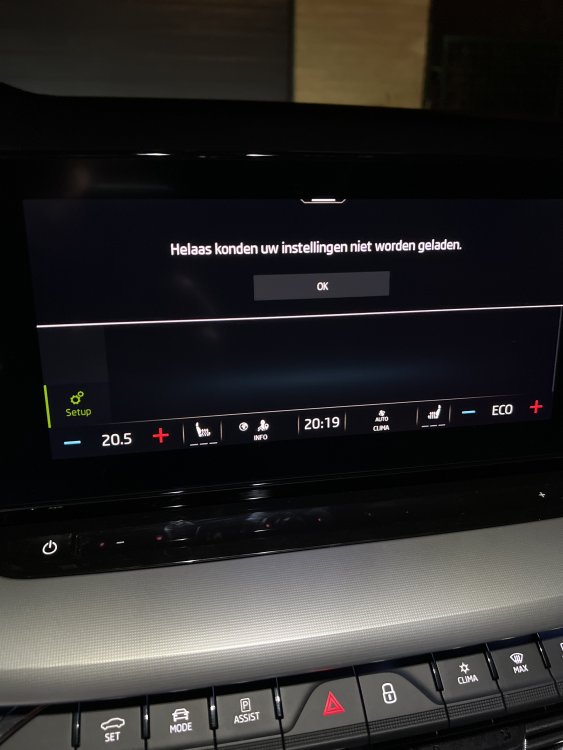
Only error is still when trying to login in (Unfortunately your settings could not be loaded)
-
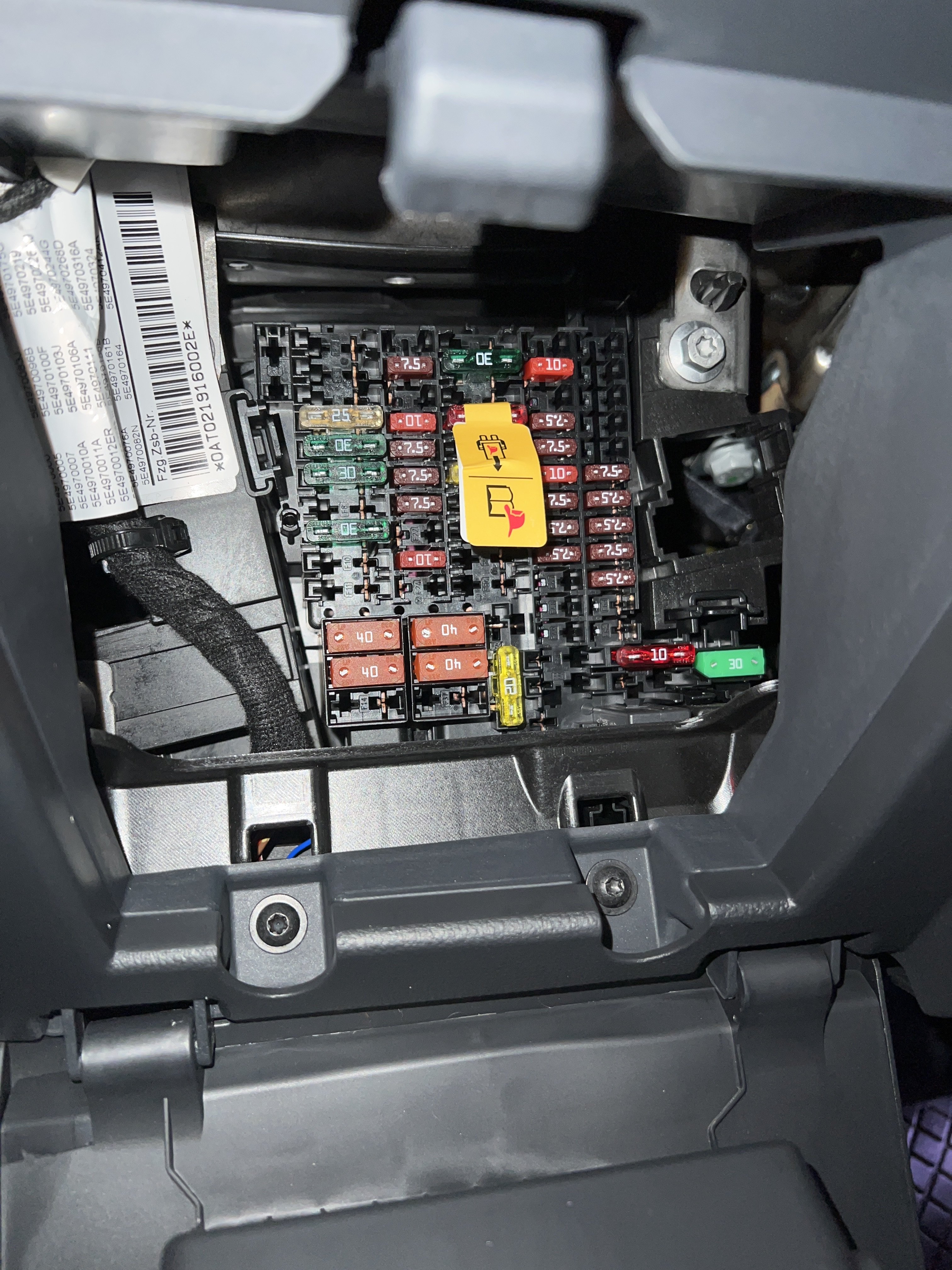
Took it out for 10 min. And it worked!
-
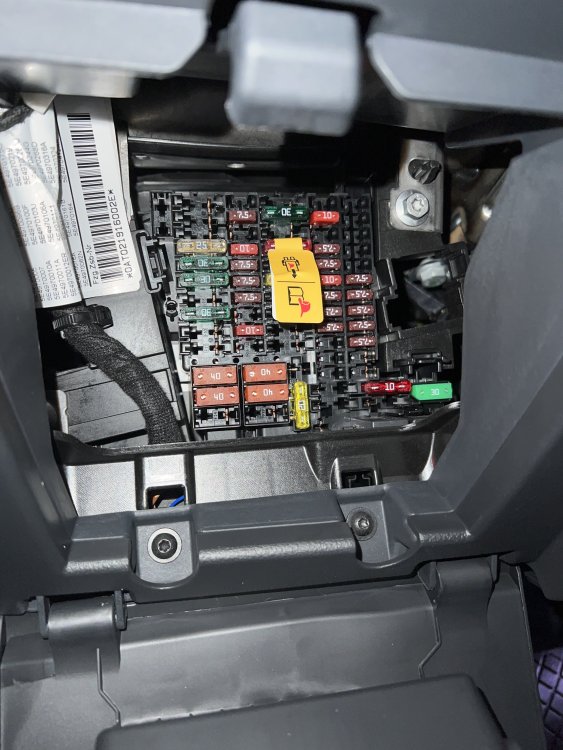
Thanks! Got it! Do you use your fingers? Or a little tool?
-
I can’t really see where 19 is? 😅
-
Hi thanks for your reply yes i see the car in the app (not activated) I can’t login as primary user because services offline.
-
Will this void any warranty? is this dangerous?
-
I guess it’s not allowed to manipulate the car without official support? i don’t know what fuse 19 is.
-
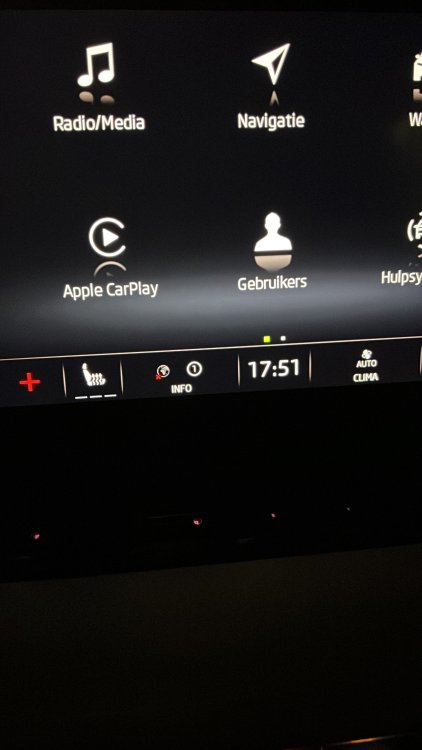
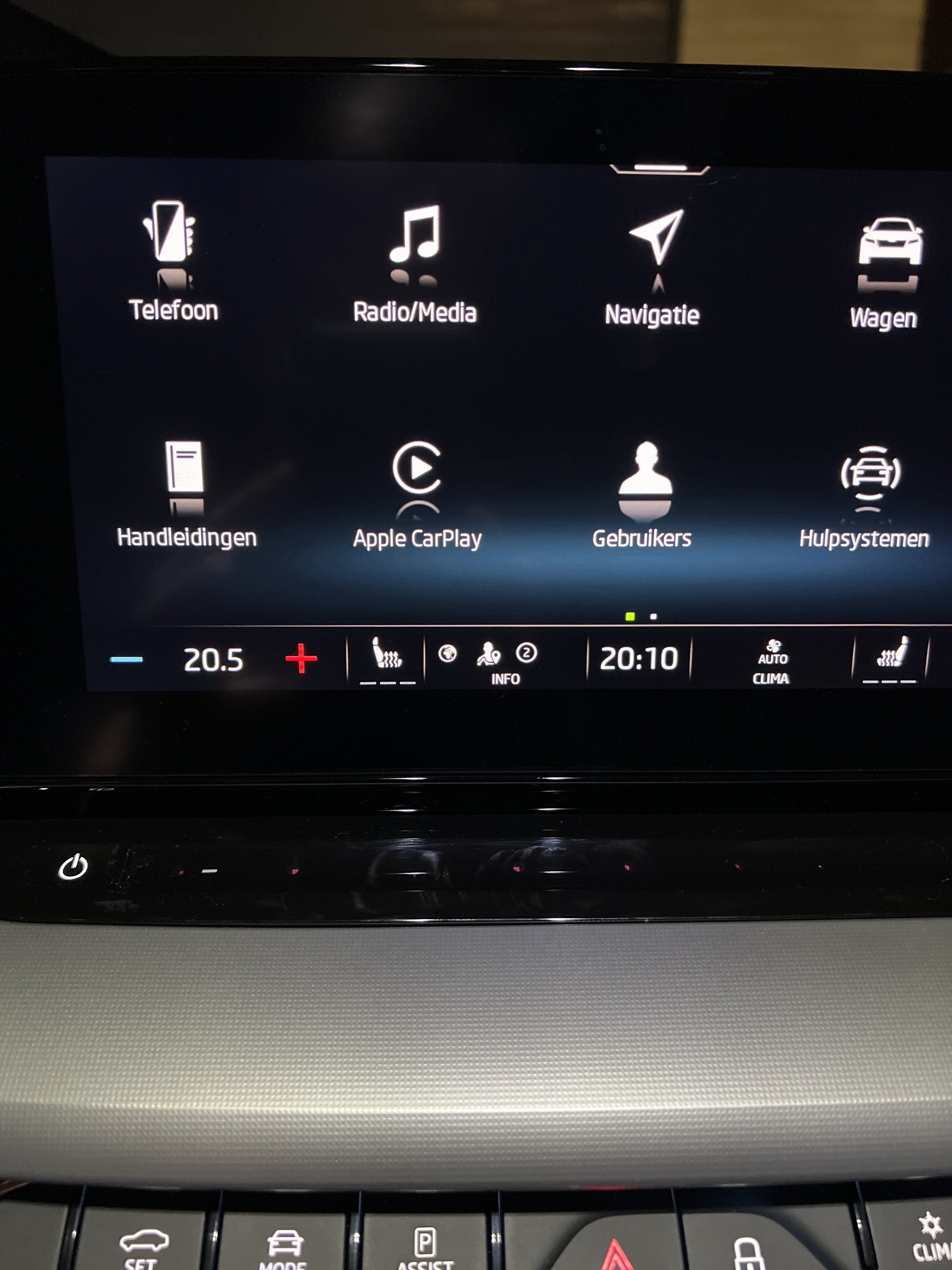
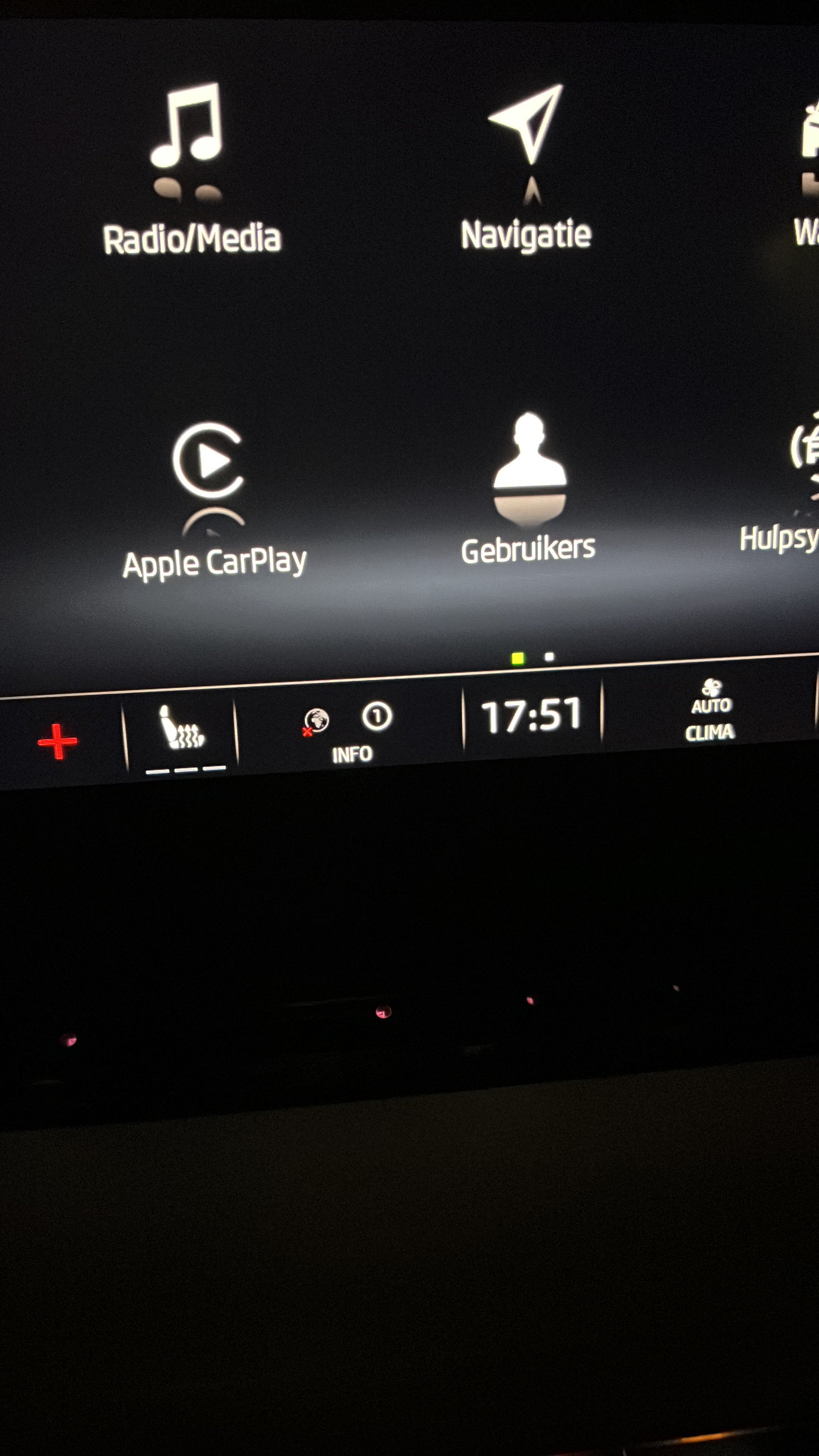
Hi. 2 weeks ago i bought my first Skoda. i had problems to login with the my connect services. Made login on my phone. Registration was completed with VIN. But no succes in the car. WLAN or e-SIM. Then went to the dealer to update from 1806 to 1896. After the update there is no connection with the skoda servers ( greyed out) . Now they are searching for solution in the mean time 😅 . Any one also have experiences with this?