RBolt
New here
-
Joined
-
Last visited
-
I need to replace my Octavia MkII 1.8TSI engine. It seems that last November I bought a pup! (it drives beautifully, but oil consumption is heavy). At least I have 1 year's WarrantyWise cover, limit £2k, and I want to limit my expendture above that. There are so many stories about badly reconditioned engines, does anyone have any recommendations for good sources of reliable engines? I live in Suffolk (if that makes any difference).
-
Simon, a very belated thank you for your reply. My maps are now updated with a new SD card, thnks to you. I think I give up on the 'phone connection. I have tried, unsuccessfully, to identify suitable Bluetooth kit and it sounds way above my competence level to fit it. Thank you anyway.
-
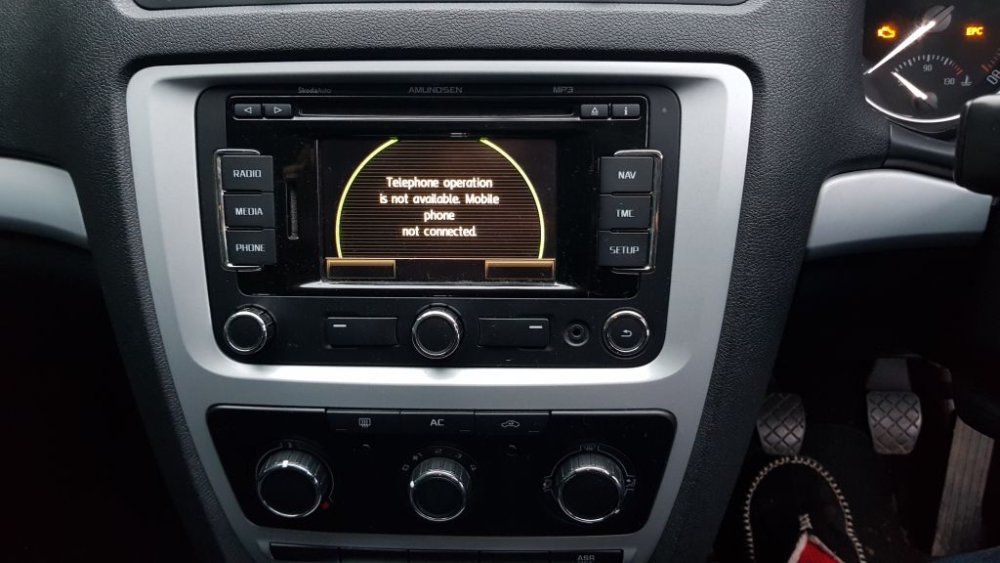
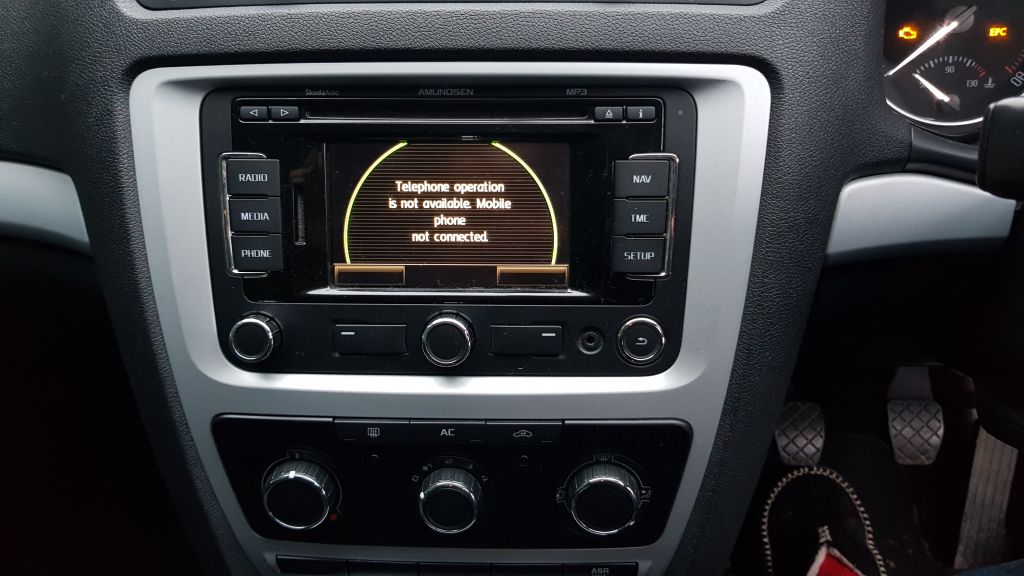
I am very pleased with my newly acquired Octavia Mk II Estate, but there are a few of failures of the Amundsen system that are annoying me. The SatNav works fine with the CD in the slot, but there was no SD in the car when I bought it, so I cannot play CDs etc. There seems to be no way of updating the maps on this version of the SatNav, as Skoda no longer support it. Moreover, I cannot connect my Samsung Galaxy phone as no Phone Search facility appears when I press the Phone button; I just get a "Phone operation not available" message (see attachment). So I have 3 questions: 1. Is there any way I can update the maps? 2. How can I get my phone connected? 3. Would the acquisition of an SD card help either or both of these problems, and must that be a Skoda original SD card? I suppose there is a fourth question....am I wasting my time trying to solve these issues?!