Rodger
Finding my way
-
Joined
-
Last visited
Everything posted by Rodger
-
-
-
Yes, I am ok to merge. Not sure how to merge or delete this one.
-
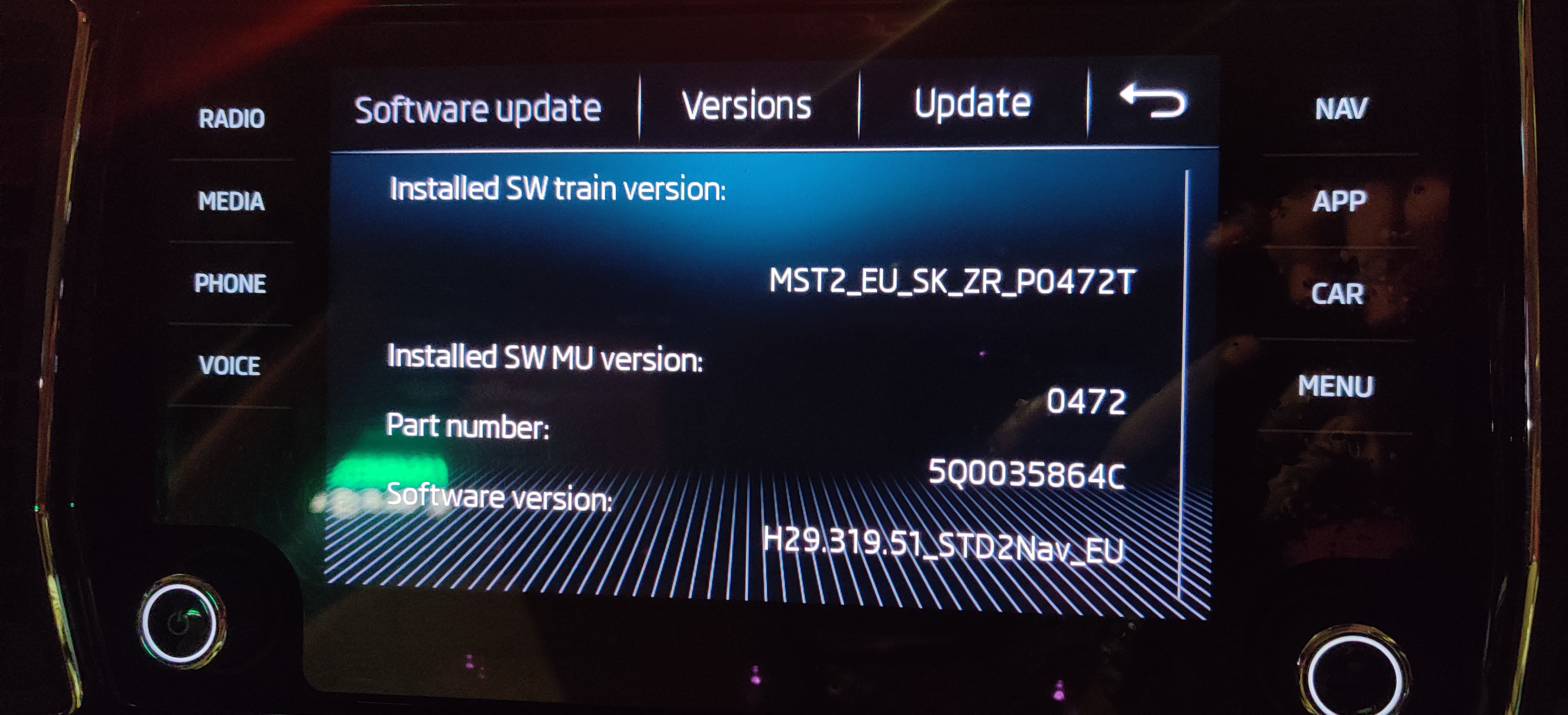
I have Skoda Kodiaq 2018 TDI L&K version. I lost the Tire Pressure Monitoring System option in vehicle settings. I have OBDELEVEN Pro. Can anyone share me steps to enable Indirect TPMS in skoda kodiaq.
-
Hi All, I have a skoda Kodiaq TDI 150PS 2018 model and clocked 34500kms. I get little more vibration while driving. This vibration is little more than other few cars that I have driven in the past. Few of my friends who has driven my car also feel the vibration is little more on this car. Since I bought this as a used car and using it for past 5 months, I am not sure this the usual vibration. I am trying to understand is the engine bed is weak or gone bad. I have attached engine start video. Need other Kodiaq owners to comment is this expected shake while starting the 2.0 TDI engine in Kodiaq VID_20230412_115011~4.mp4
-
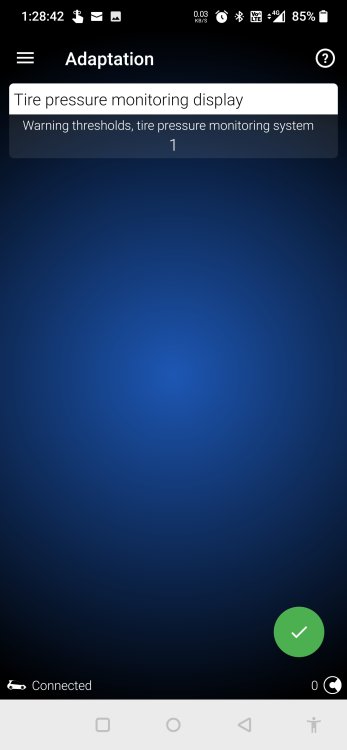
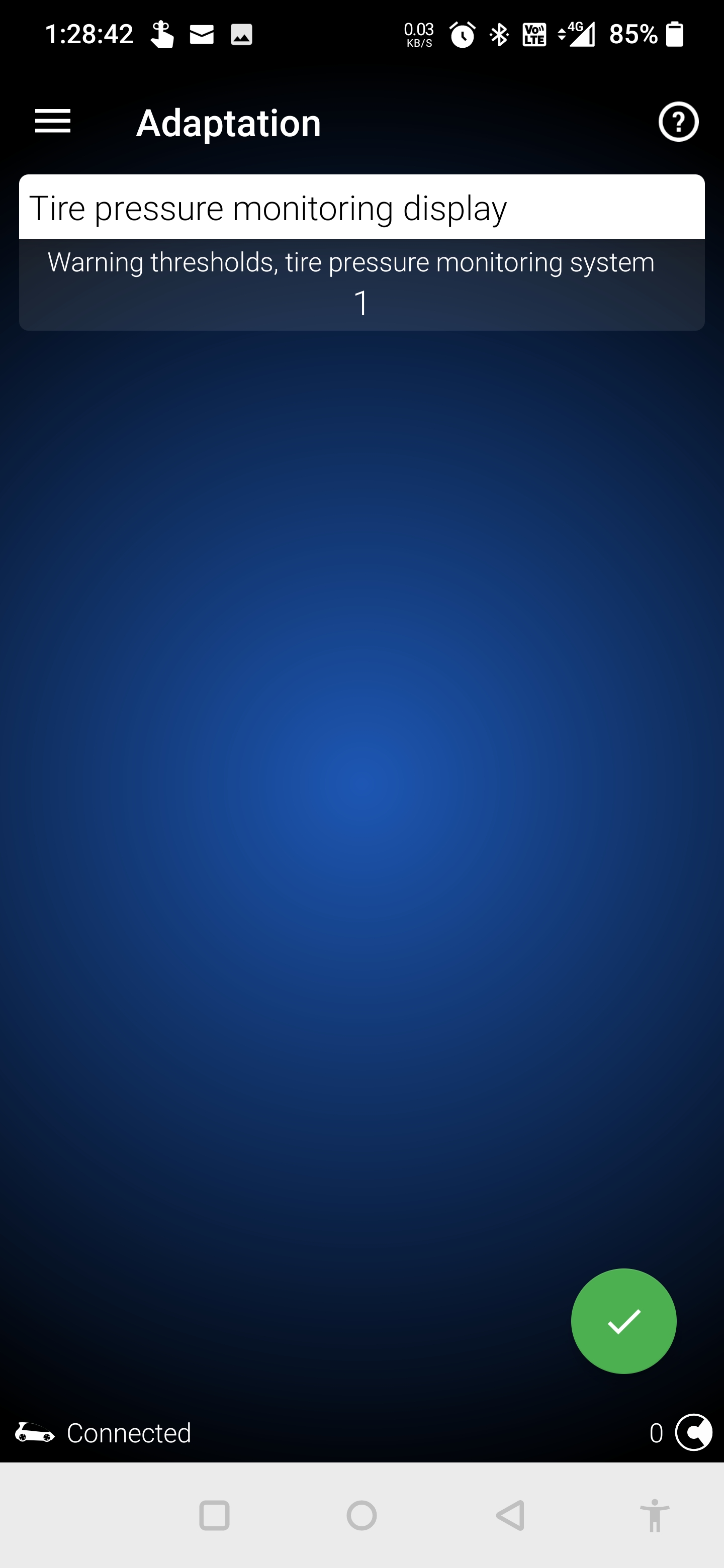
Thank you @Freedom for those code. When I try 31857, 24990, 20103, I did not get authorization failed error. However, I was keep getting the page to type security code. Couldn't move to next screen to apply my value in "Warning thresholds, tire pressure monitoring system"
-
Hi, I have a Skoda Kodiaq 2018 L&K Variant. I am trying to enable Tyre Pressure Loss Indicator feature in it. Since it was disabled by previous owner. When I try that on OBDELEVEN Control Unit-->Brakes(03)-->Adaptation--> Tyre pressure monitor display--> Warning thresholds, tire pressure monitoring system--> value is 0 and I am changing that to 1. I am asked to enter 5 digit Security code. Can someone help me what would be the code?