SaintSkoda
New here
-
Joined
-
Last visited
-
Thanks pab567. Sounds like mib 1 is limited to what I have at the moment. To be honest, video or cd playback not that important to me. I would have liked to have kept OEM maps and associated in-instrument directions but I think I may well sacrifice this in favour of one of the cheap Android based 10” displays that will retain the car menu options whilst providing onboard Nav apps, phone menu, DAB etc etc. I think a solution like that gives me the Carplay access I want, a large hi-res screen and all for less than £200. I’m guessing that upgrading to mib 2 with a larger display is going to cost 2 or 3 times that?
-
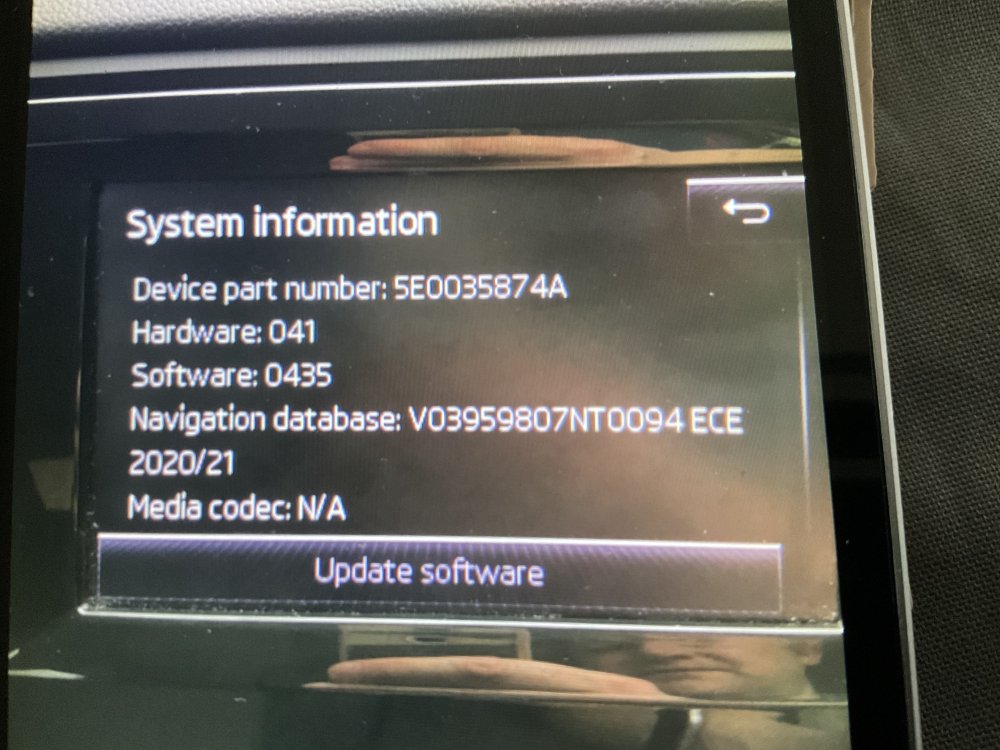
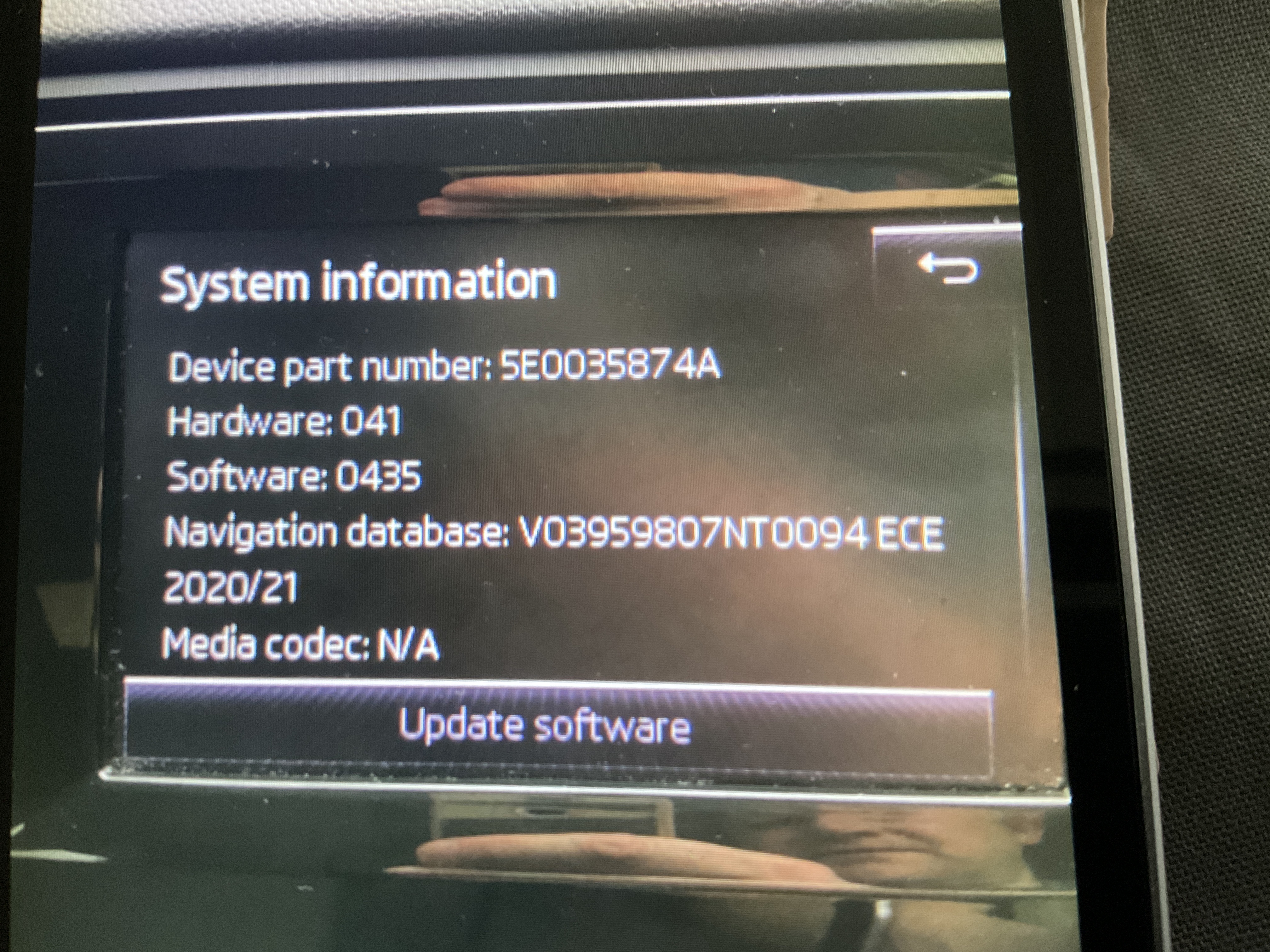
Hi Guys. New to Skoda and the forum. I’ve acquired a used 2015 Octavia 3 (Greenline) Estate with mib 1 Amundsen. There appear to be no smart link or mirror link or CarPlay options from default menu. Is there anything I can do through updating that will introduce this functionality? I’d like to get into tinkering with this system but also appears to be no green testing mode (tried long push on menu button). Is this testing mode something I can switch on via OBDeleven (which I don’t have but am considering) or is it only an mib2 function? Incidentally my old basic OBD2 (elm) Wi-Fi dongle refuses to connect to ECU on this vehicle - is that something I should be concerned about? Finally I’ve attached a pic of my update status below - what improvement/added functionality is possible with the latest updates? Thanks in advance for any help. Sorry to go on a bit. I’m just excited to be here! Mark.