MJA81
Finding my way
-
Joined
-
Last visited
-
Massive thank you to varooom for the assistance.
-
Just messaged you again bud.
-
Just messaged you back
-
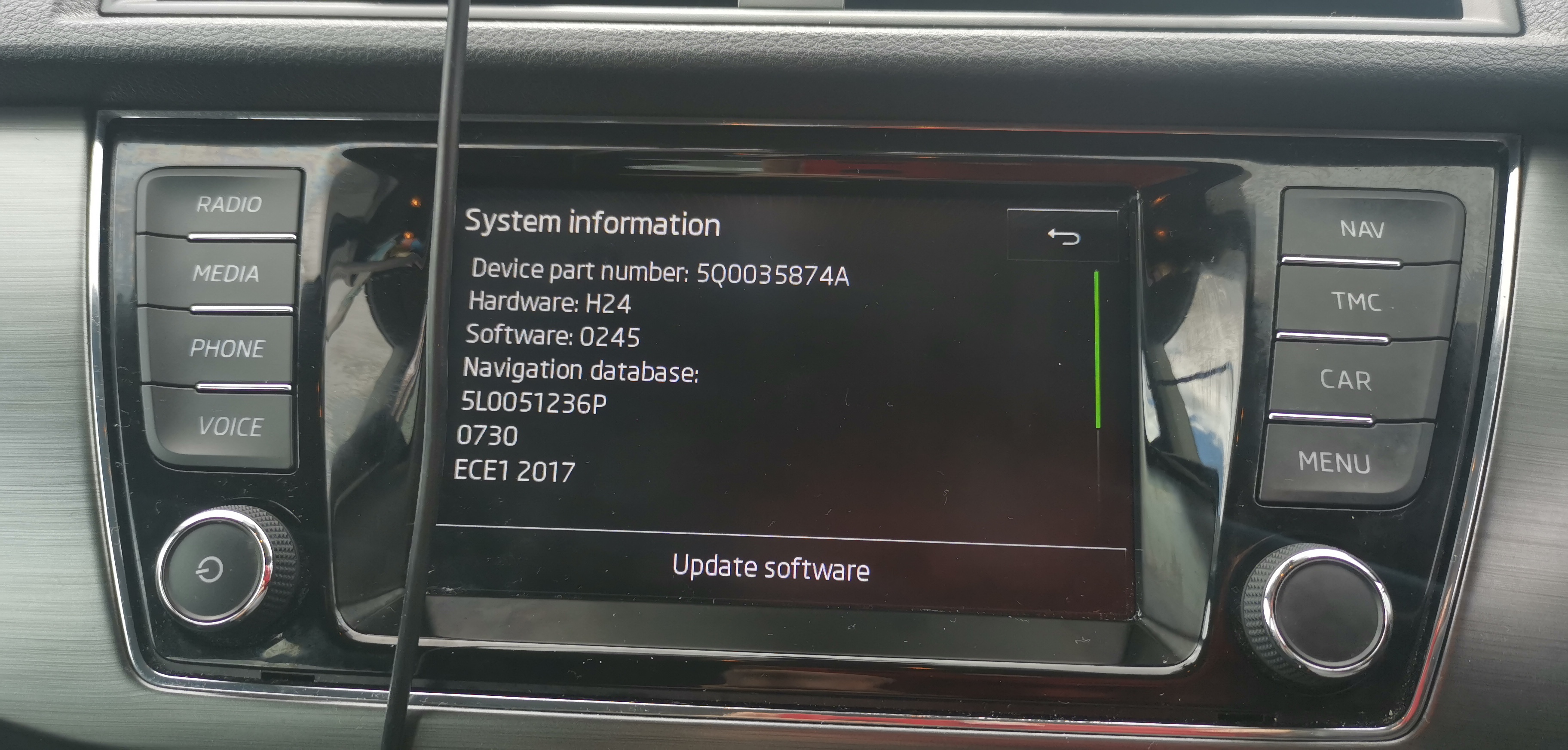
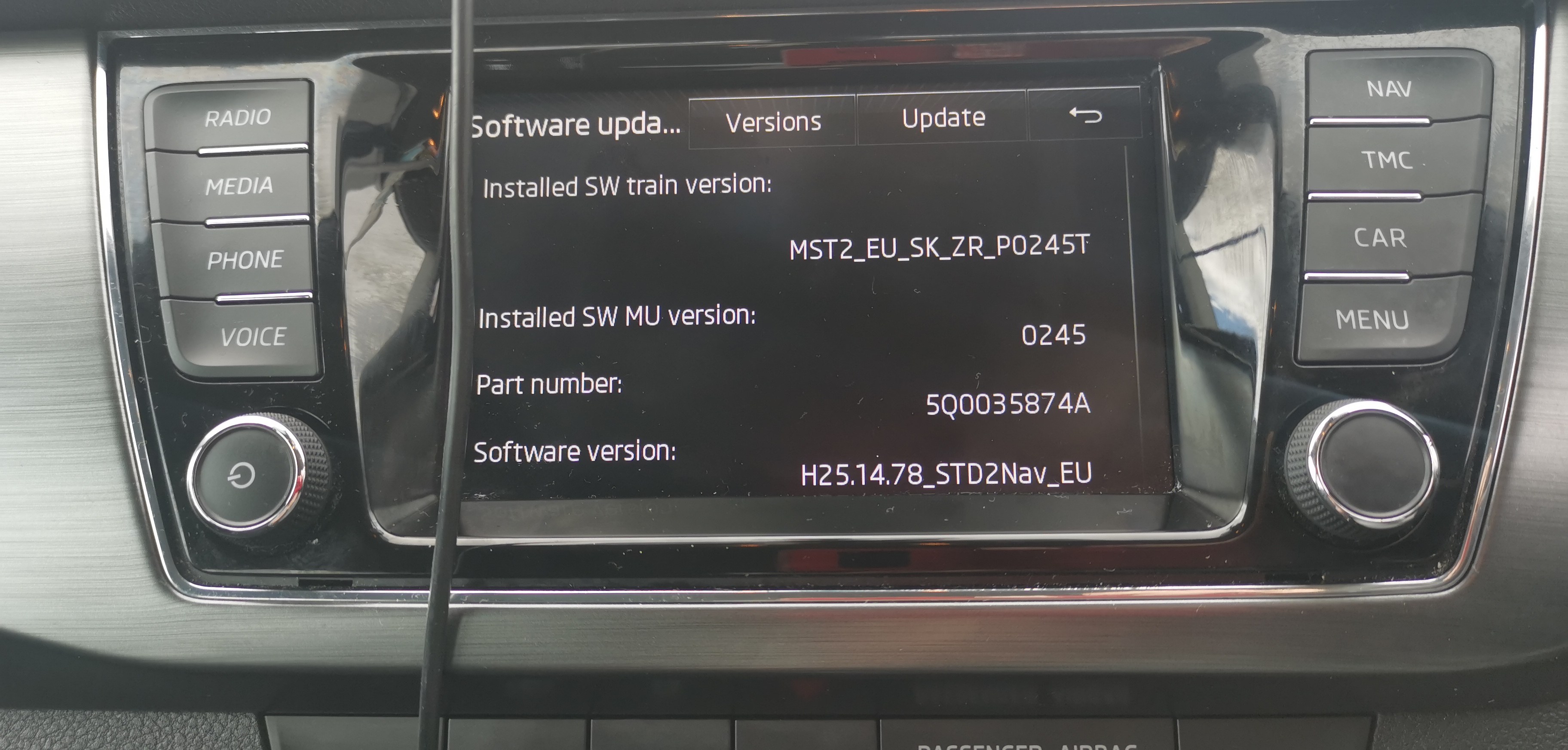
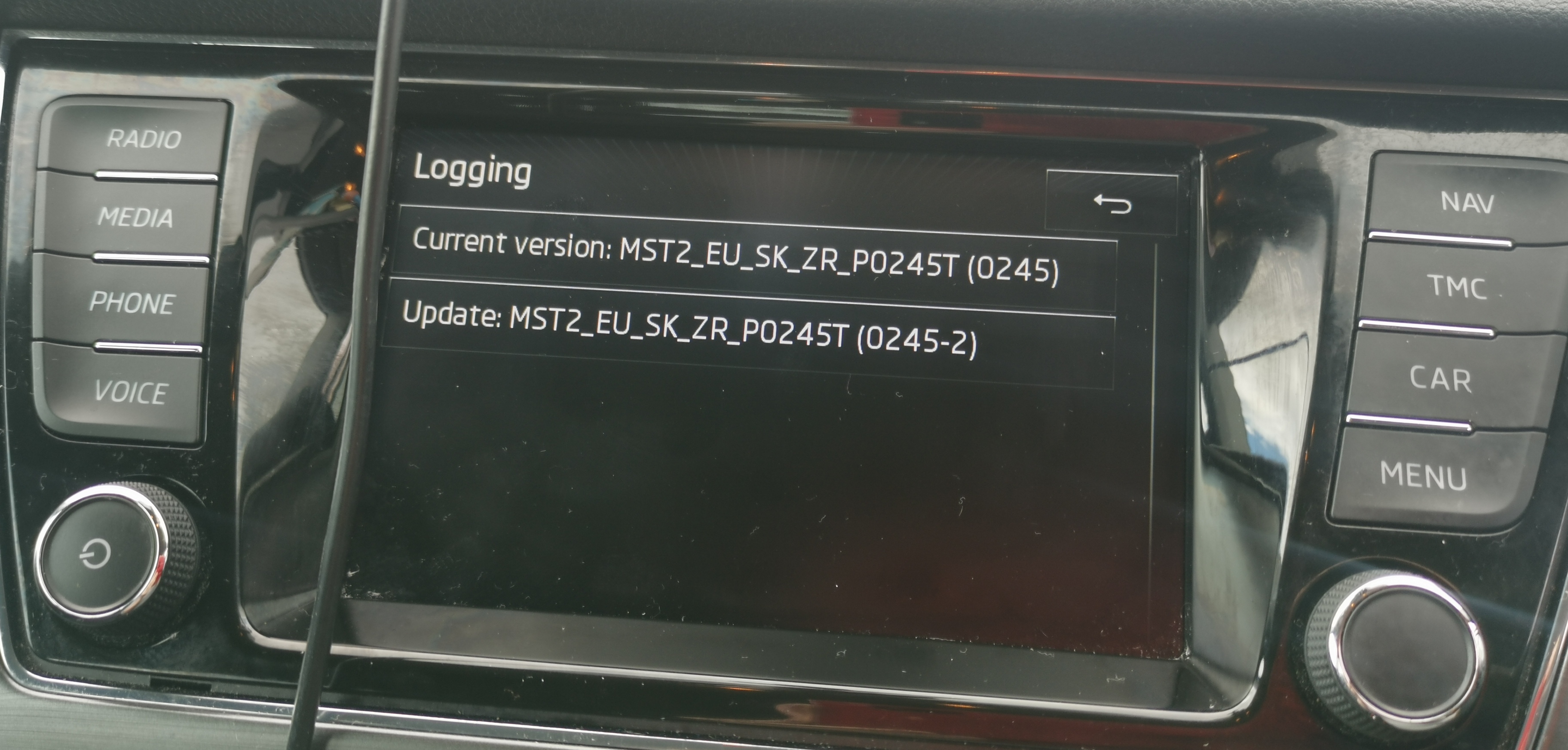
Is anyone able to li k me to the latest update for my amundsen unit (as pictured above)? Is there much difference between it's current firmware (0245) and the latest (0253)?
-
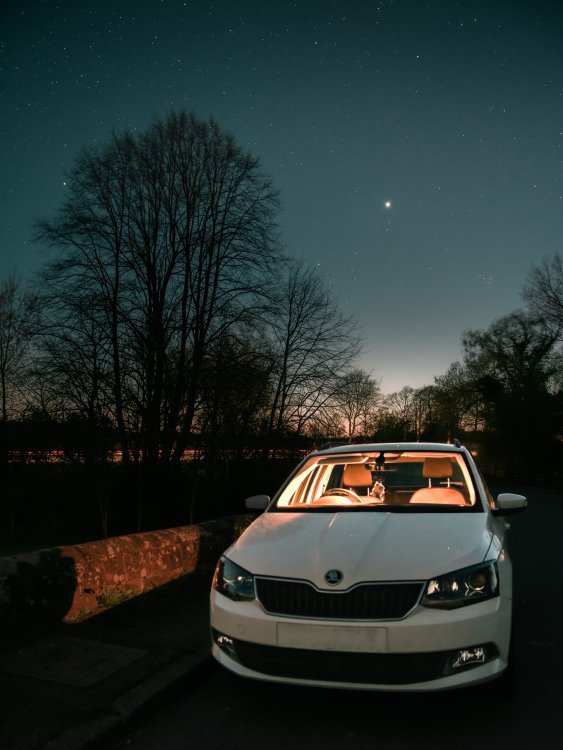
Only had it a month and i'm super happy with it.
-
Stands a possibility
-
When you try to select a media option does it give you an option for 1 or 2 sd cards (one will be greyed out)
-
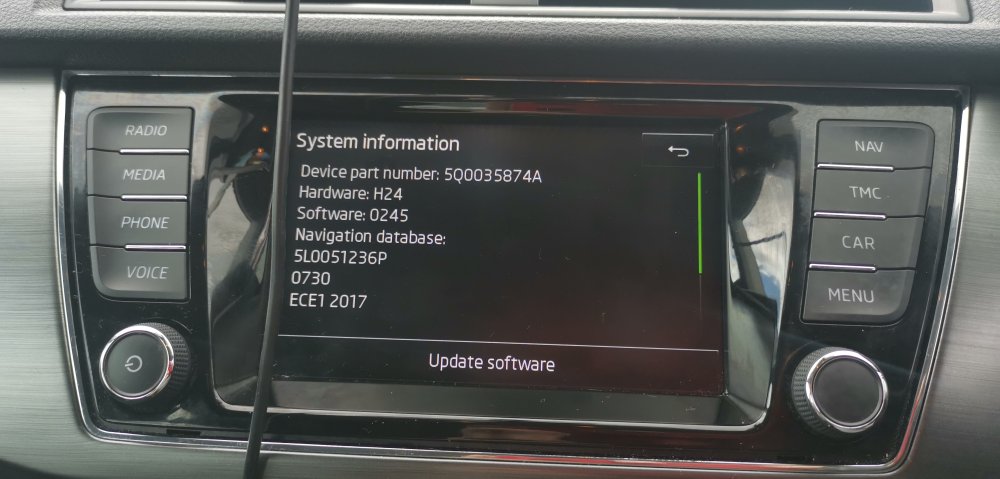
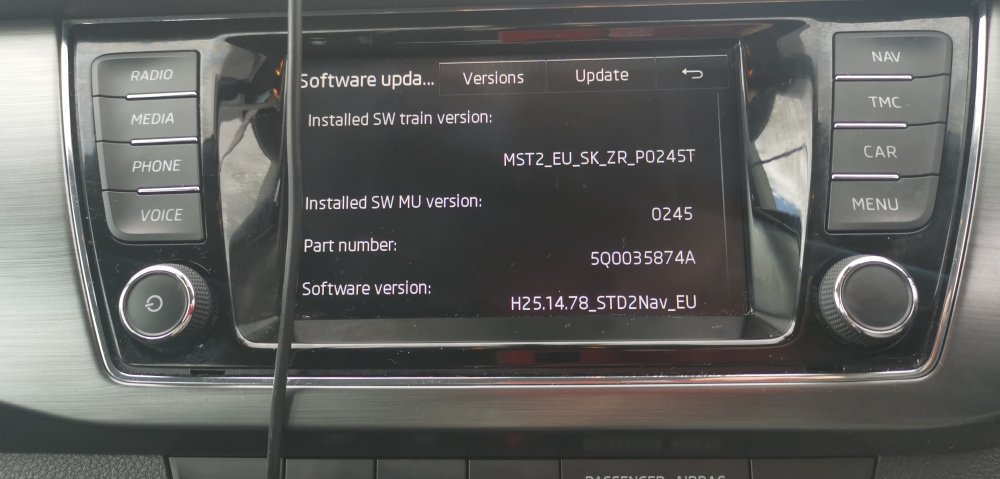
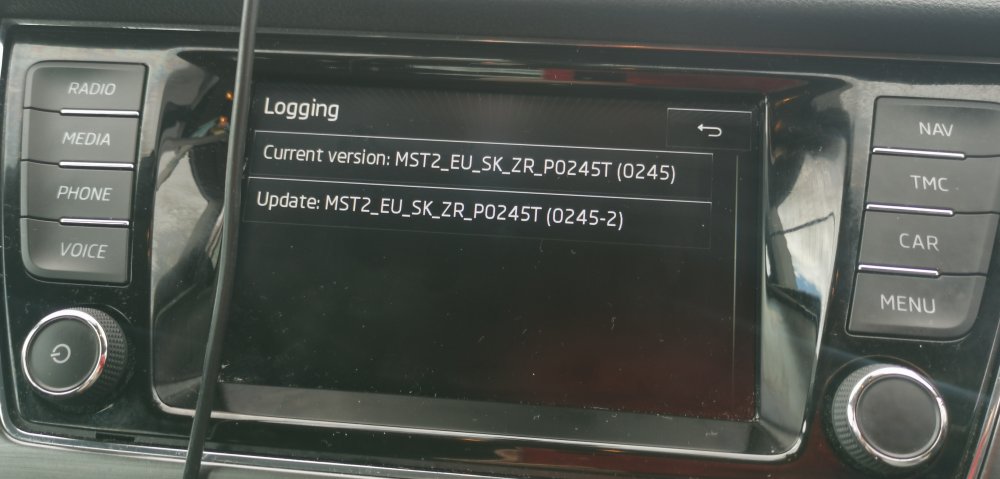
What head unit have you got?
-
As below
-
Is there anyone here based in the west midlands that can do the codes on headunits to activate functions? The only button not doing anything is the voice button and I'd like to activate it.
-
To be fair if you use android auto or apple play then the sat nav can be used on your phone and you could take the nav sd card out and replace it with a music sd card anyway, but i don't like having buttons that do nothing (OCD i suppose), it's bad enough that i have the "voice" button on the head unit but can't use it as that feature is locked.
-
Neither can I to be honest, it's a bit of a strange one.
-
Has anyone fitted 3rd party moulded mud flaps to their Mk3 Fabia before? I've ordered some wind deflectors, and considering mud flaps but I'd like to know if they use existing holes in the arches or do you need to add more holes yourself?
-
I can confirm that both my slots are working, i now have nearly 9999 songs (56gb) in slot one and satnav card in hidden slot 2 leaving the usb slot available for android auto, I'm one very very happy Fabia owner.
-
Not really, took me all of 10 minutes after i had located all the screws holding it in, there's 3 at the top, 1 at the back and 2 underneath