Doraty236
New here
-
Joined
-
Last visited
Everything posted by Doraty236
-
Thank you for the link, but I specifically need the firmware in .frf format. I want to flash my Amundsen unit using ODIS-E and a VAS5054A. The file you provided is meant to be installed via SD card. Unfortunately, I cannot use the SD card method because my display no longer works — it's completely black, and the physical buttons have also stopped responding. This happened after I tried updating my Amundsen via SD card. As I mentioned earlier, my phone connects via Bluetooth, and I can listen to music through Android Auto without any issues. However, I can only control the volume using the steering wheel buttons. Is there any other way to install firmware on my Amundsen without needing the display?
-
@pab567 Hi! I can't send you a private message yet. I’ve bricked my Amundsen (MIB2 STD) head unit after flashing the MST2_EU_SK_ZR_P0480T firmware — now the screen stays black, although Bluetooth and Android Auto are still working. I’m trying to downgrade to a stable firmware version using ODIS-E and VAS5054A. Could you please share a working .frf file for one of the following versions? MST2_EU_SK_ZR_P0471T MST2_EU_SK_ZR_P0478T My unit: Part Number: 5Q0 035 874 C HW: 5Q0 035 874 B SW: MST2_EU_SK_ZR_P0480T H30 Skoda Octavia A7 FL 2018 Any help would be greatly appreciated! Thanks in advance.
-
I urgently need help restoring my SKODA Amundsen MIB2.5 (Octavia III) after a failed firmware update. I installed firmware MST2_EU_SK_ZR_P0480T. Now I have a completely black screen, no button backlight, and no response at all.
-
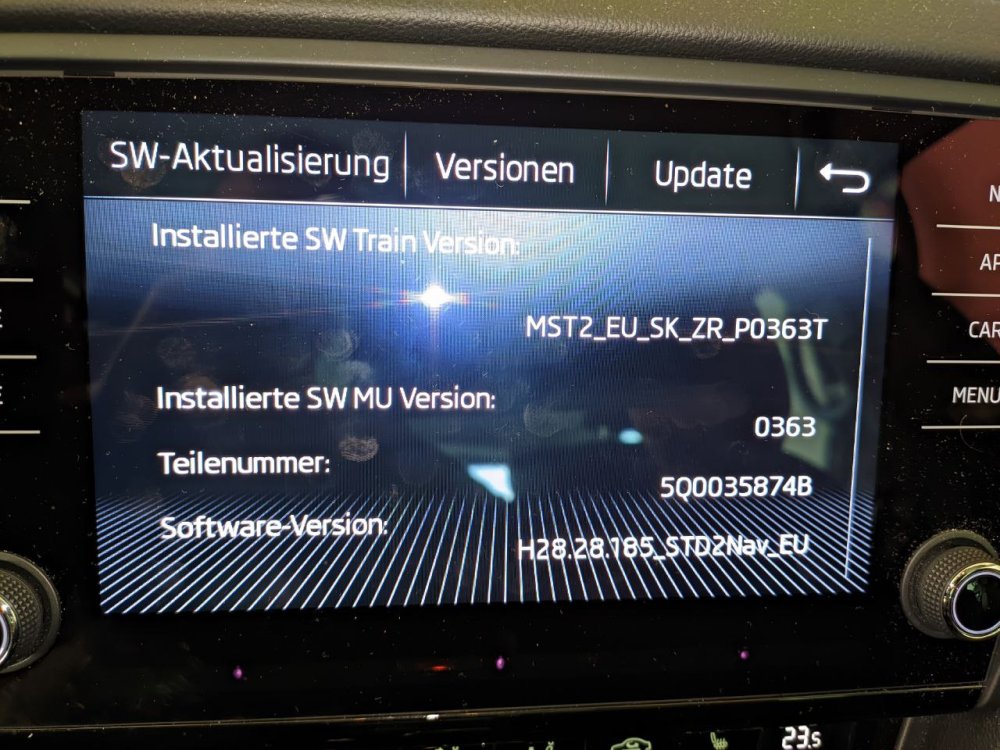
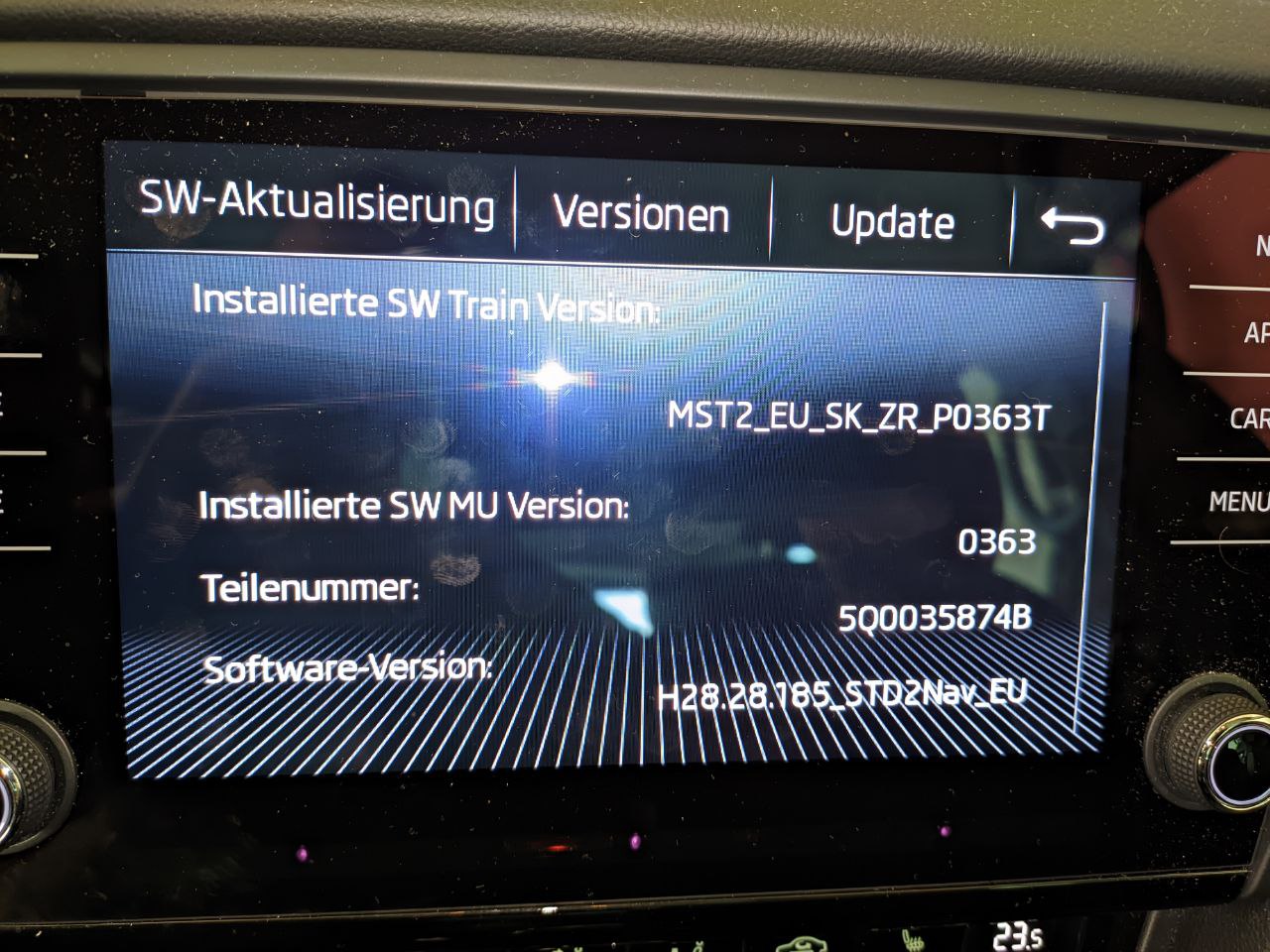
Hello, Not updated Skoda firmware before so please let me know if further info is required, but I would like to know if there is a more up-to-date firmware version available for my unit, and if so would anyone be able to help me out with a copy, please?