Ackie
Finding my way
-
Joined
-
Last visited
-
I just left my stick in and at some point whilst driving it updated. There was no indication that it had occurred. I found out by checking my system details. Hope this helps.
-
-
Success! Thank you so much Exkiwi.
-
Yes! Skoda garage conducted a system software update and all good. 👍
-
Excellent, thankyou. All set to put in car. Will update you.
-
When you unzipped your files did you copy all of them onto your usb?
-
22.12 is my present update. Over the air updates only if you subscribe to Škoda Connect. Free updates via your previously described method. Will wipe usb memory and download maps again. Thanks.
-
Had a full software update and this has solved my SatNav and loading user profile issues. Thanks for everyone’s help and interest. Still though unable to update maps.
-
Exkiwi states exactly what Skoda told me to do but unfortunately no success.
-
Understand what you’re saying but for own satisfaction, would like to update maps regardless. Thanks marineboy👏
-
I have just downloaded a map update for my satnav. I have extracted and pasted files to a usb stick. The info from Skoda says ‘paste the contents, not the entire folder to a usb stick.’ Do I paste all the content? Not sure what is meant by ‘not the entire folder’. Any advice welcomed.
-
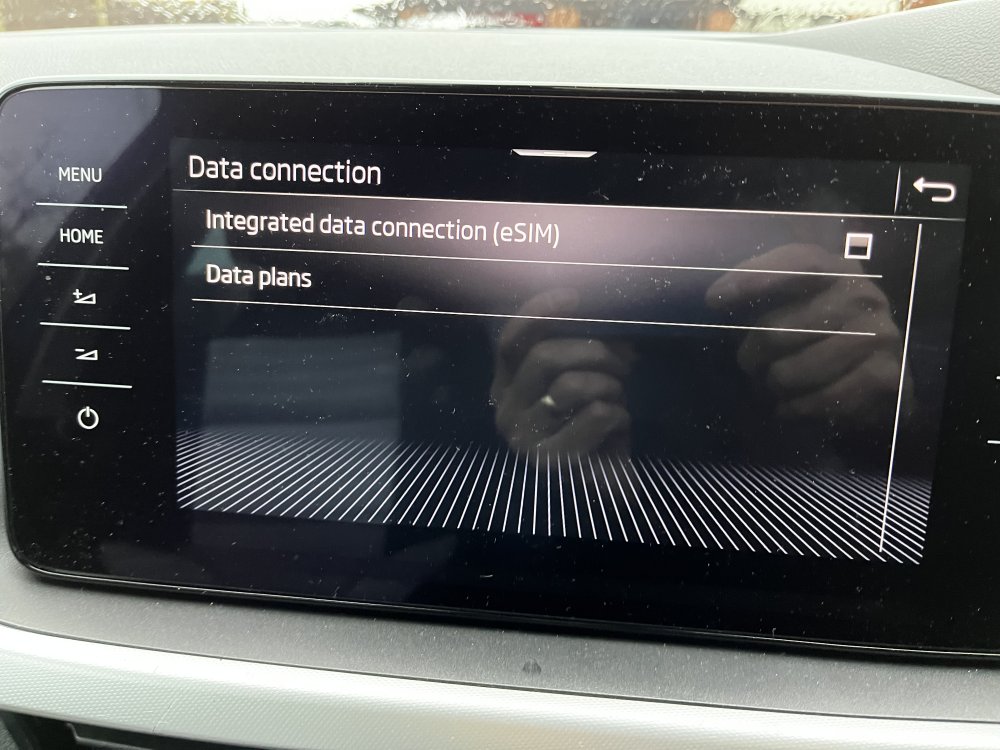
Have switched off integrated data connection to see if that helps. Car into garage on Friday for gps hardware module check and possible software update.🤞
-
Yes, didn’t think about updates and how they might affect loading whilst updating.
-
I’m sure you’re as irritated as me Doofy. Surprised Skoda hasn’t reacted to problem. Is it only a Kamiq issue?
-
Agree, not at every start up but still a nuisance.