2015VRS
New here
-
Joined
-
Last visited
-
Cheers everyone, my mistake! Am looking at replacement units now. Appreciate your help.
-
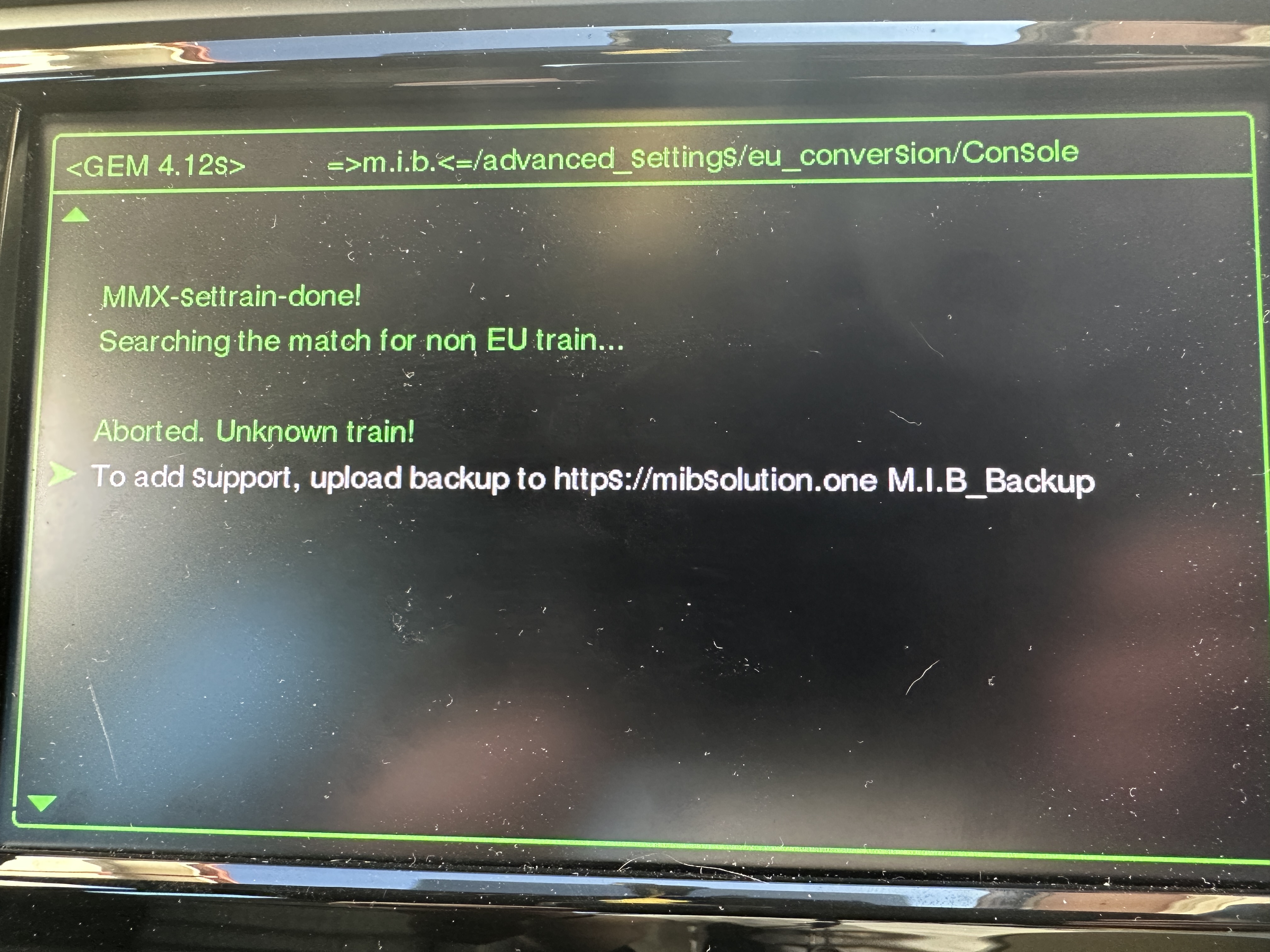
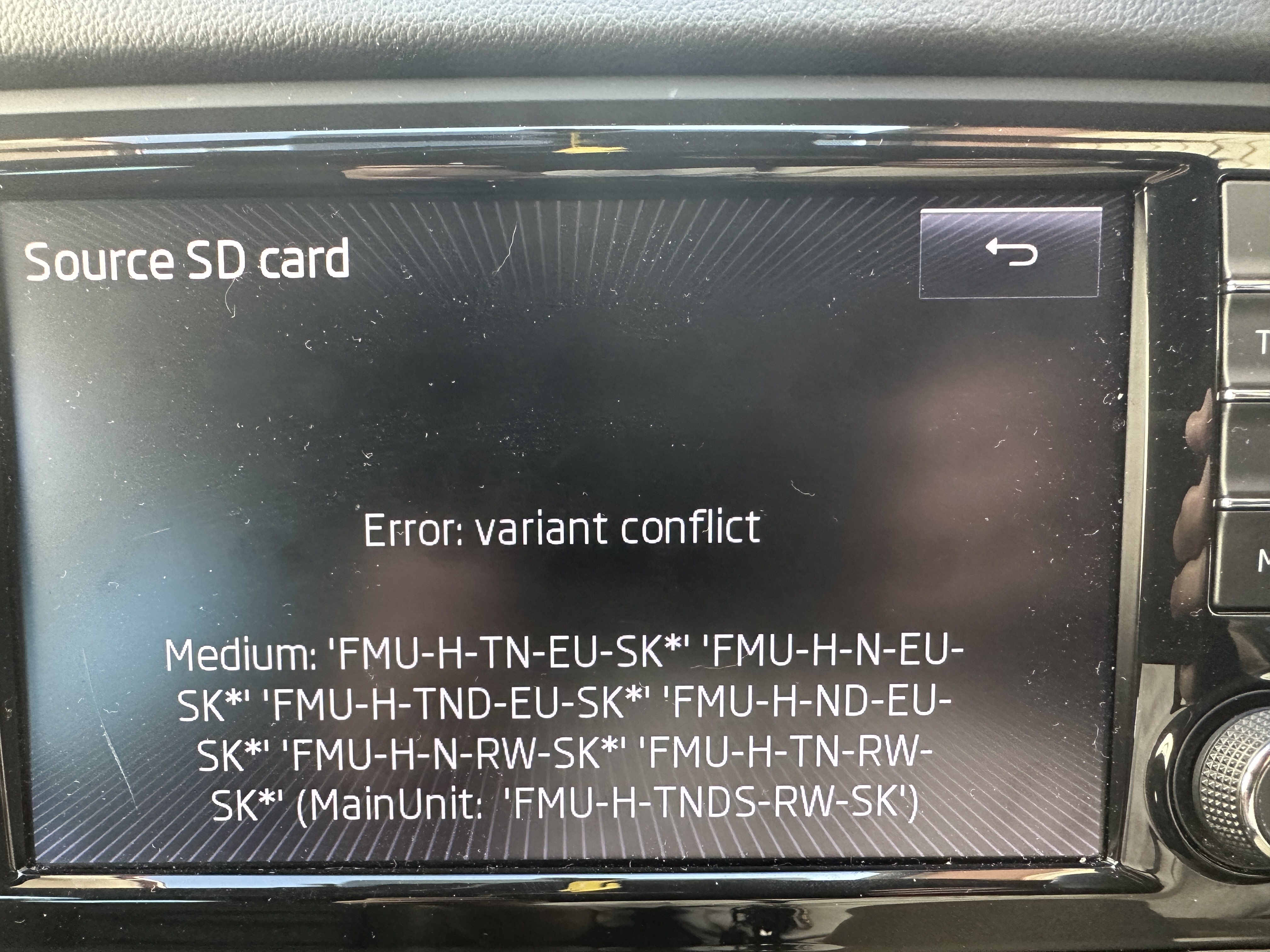
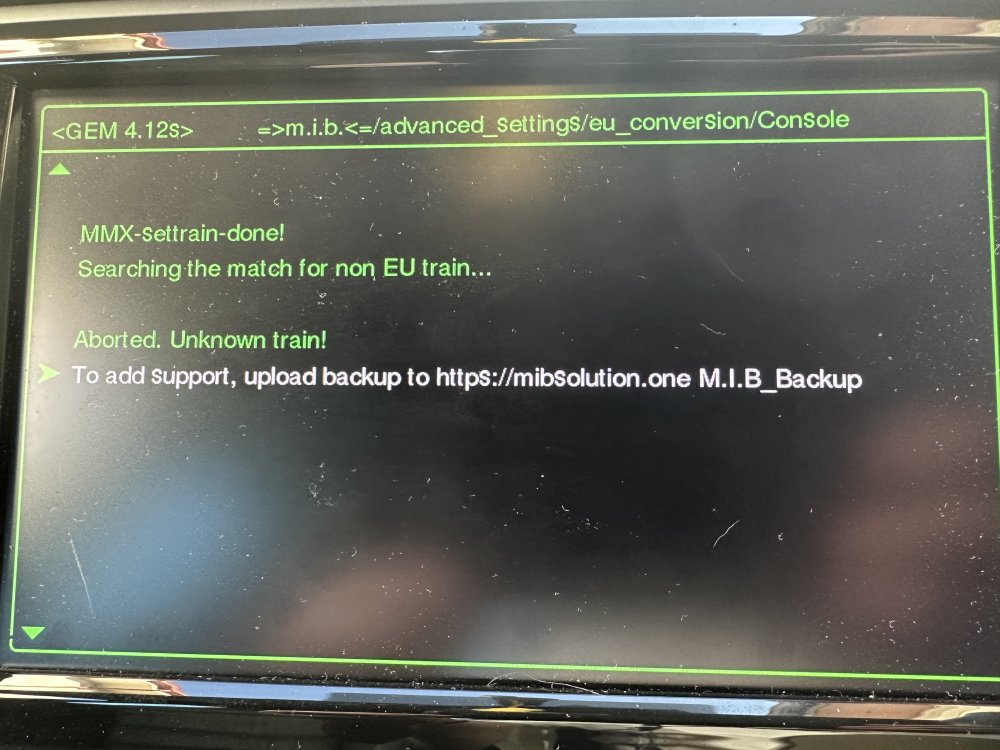
added this missed screenshot for the EU conversation error
-
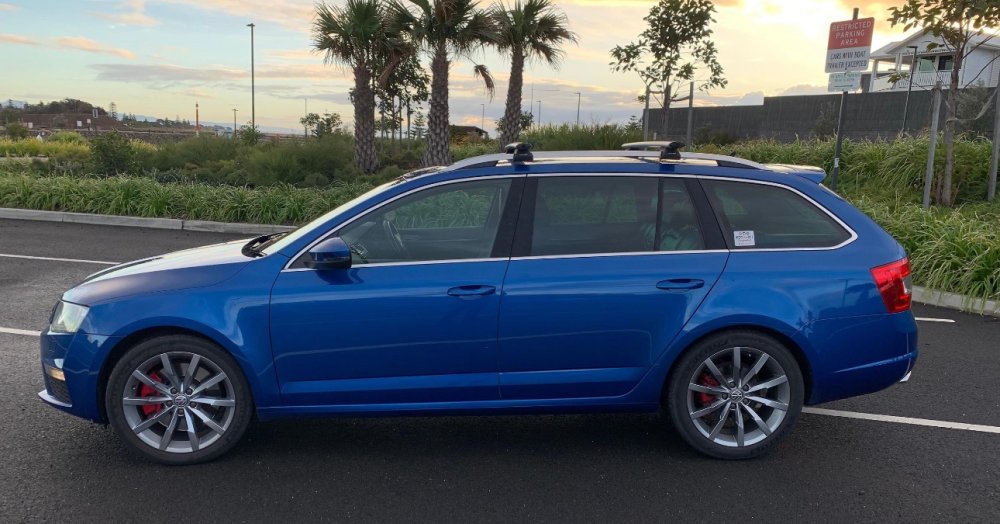
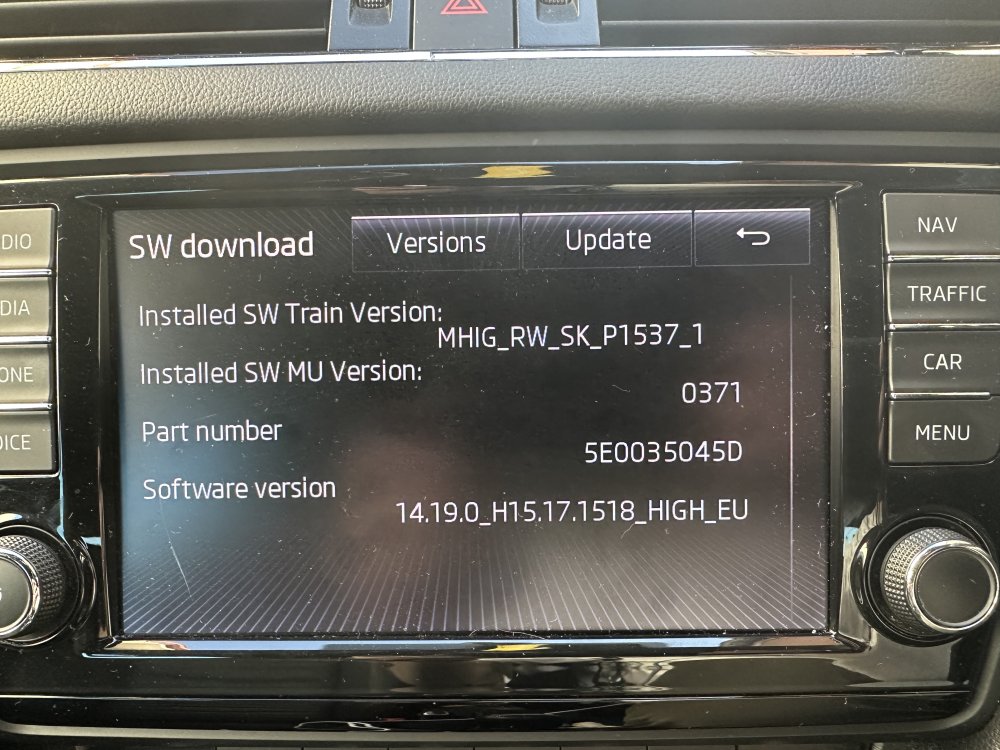
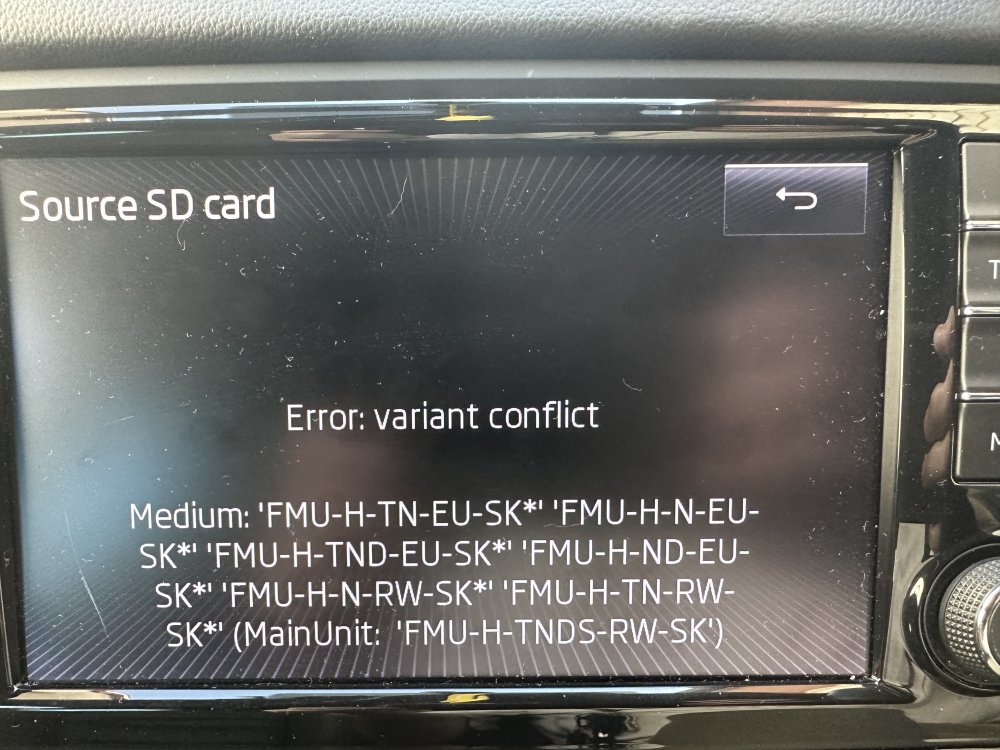
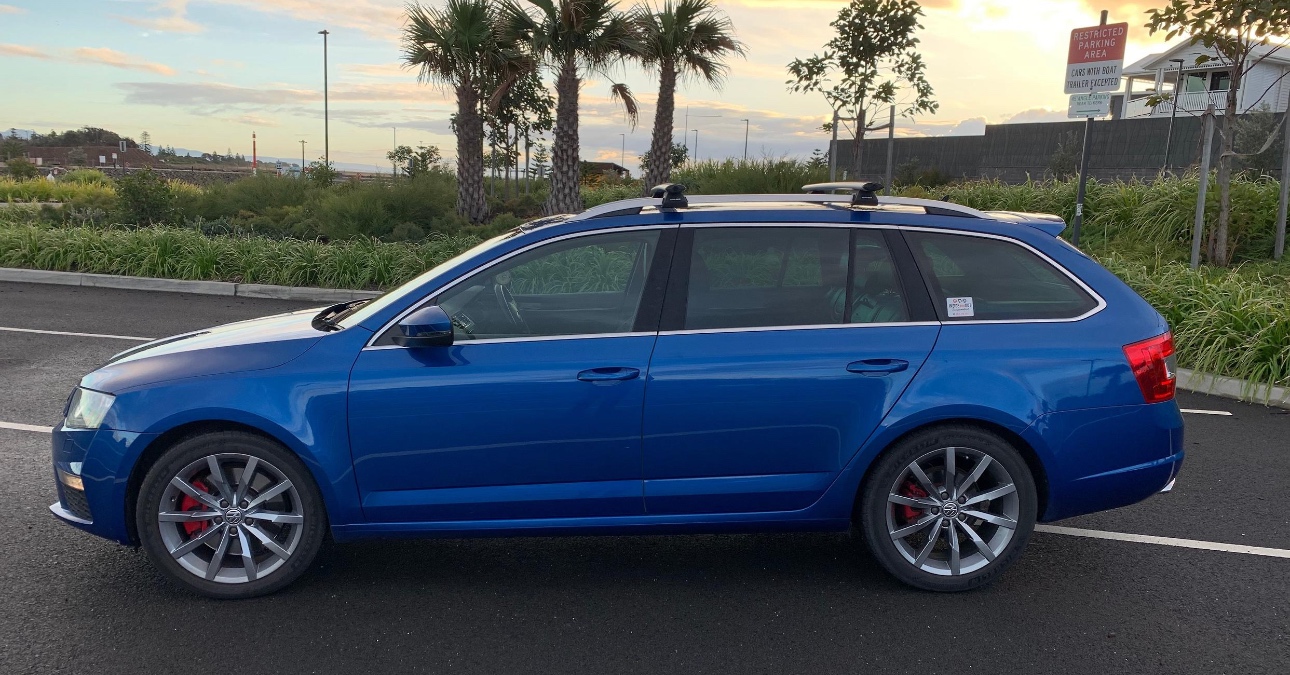
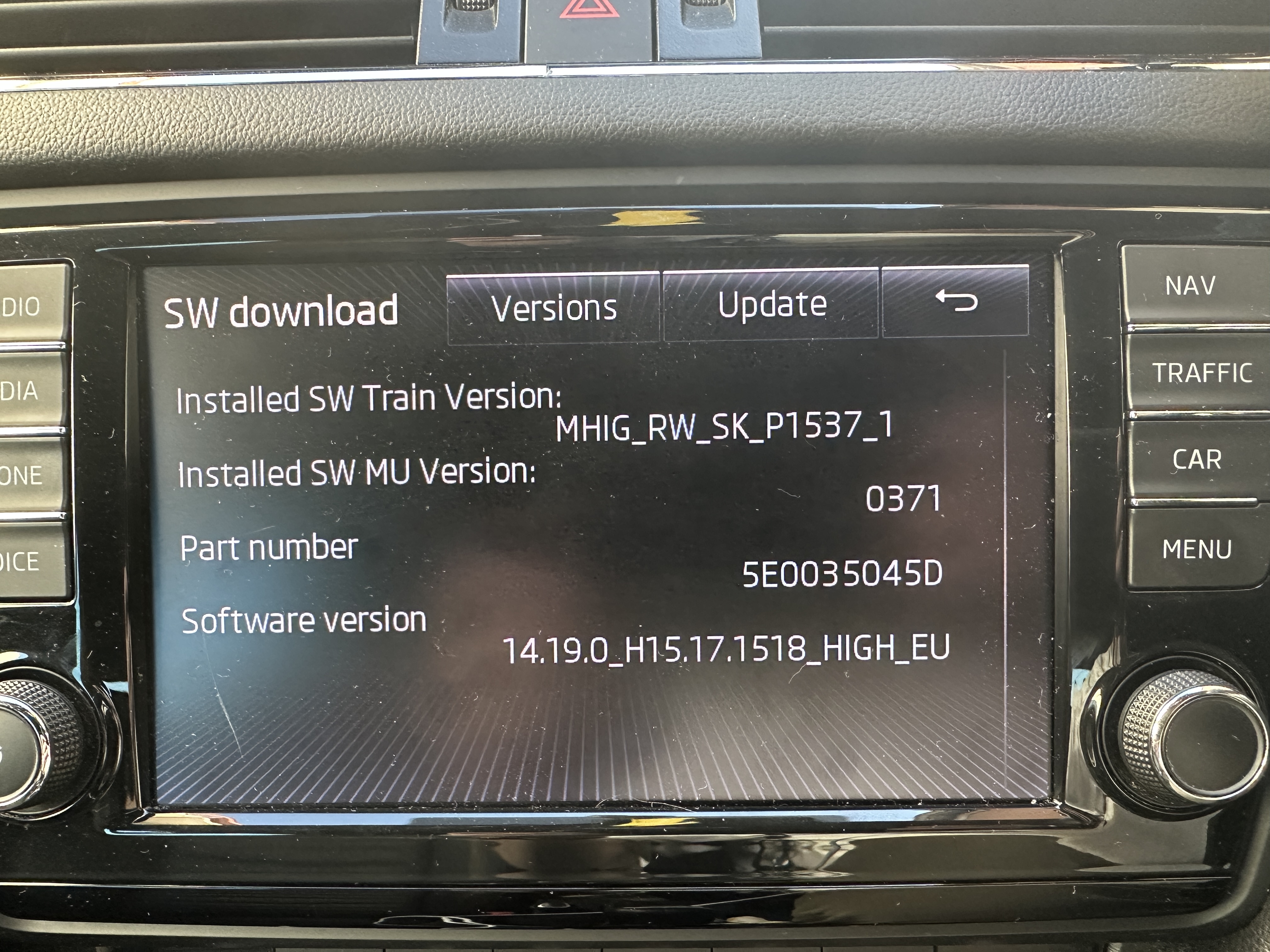
Hello all, I have recently purchased a 2015 Octavia RS Wagon with a pre MIB2 head unit. I am attempting to activate CarPlay for better integration with my phone but am having a few issues. My current train version is MHIG_RW_SK_P1537_1 software MU version is 0371 and software version 14.19.0_H15.17.1518_HIGH_EU I have been digging through this forum and also looking for answers on the mib github discussions page and the mib-one pages. So far I have established that I need to do a conversation to EU in order to flash a patched version, as there are no appropriate patched versions for my existing train. When attempting the EU conversation I encountered error “ Searching the match for non EU train... Aborted. Unknown train!” and since established that I need to update my existing train to a newer version before I can convert. There is one file on mibsolution.one (MHIG_EU_SK_K1552 MU0411) that contains both the EU files and the RW files, however when I attempt to update to this firmware I encounter error “Error: variant conflict Medium: 'FMU-H-TN-EU-SK* 'FMU-H-N-EU-SK* 'FMU-H-TND-EU-SK* 'FMU-H-ND-EU-SK*| FMU-H-N-RW-SK* 'FMU-H-TN-RW-SK* (MainUnit: 'FMU-H-TNDS-RW-SK')” At this stage I found a comment suggesting I need to edit the metainfo of the update file and I have done so, adding “FMU-H-TNDS-RW-SK” to the metainfo txt file. My problem now is that after editing the txt file and reinserting the SD card into the car slot, I then get the “unable to read card” error. I’m assuming that by editing the txt file on my windows pc that I’m somehow screwing things up. Can anyone please tell me where I’m going wrong?? The local Škoda dealers around here don’t want to talk about adding CarPlay to a 2015 model, so I either hack it myself or fork out money for a new head unit plus the installation. Any help will be greatly appreciated, even if just a push in the right direction. Thanks in advance! Cheers, Reg