




Sebby
New here
-
Joined
-
Last visited
-
*Garmin not Garming 🤦🏼♂️ (can’t see how to edit..)
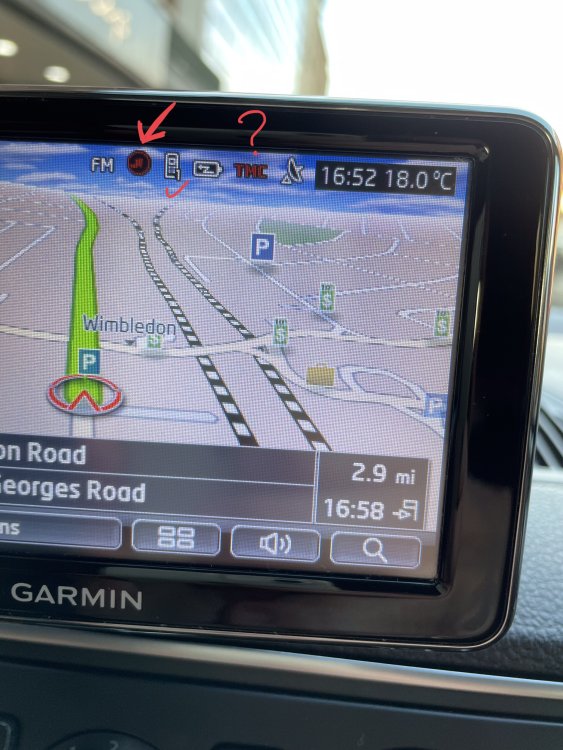 Also to add, I wonder if there is a clever way to use the Garming as my Navigation Screen, and somehow mirror my Google Maps or Waze from my phone? I think this is called Car Play but I guess this car and Garmin are too old to do such a thing.. 🤔Dear All, Am a happy new Citigo owner, but frustrated with a Garmin/Phone issue. I’ve managed to connect my iphone12 to the originally supplied Garmin Move&Fun, no problem. Phone calls can be made and received via the in-car system ✔️ However, despite doing my best to internet search for a solution, I’m unable to turn on the Live function, so that I get traffic updates, traffic jams whilst in the Navigation function of the Garmin. My Personal Hotspot shows as being connected, yet when using the navigation, the Live is set to RED, meaning no live updates, as I understand it. Can anyone provide a solution please? It’s rather frustrating as I’d rather not use Google Maps or Waze given I have the Garmin, but perhaps I should forget about the Garmin and just buy a phone holder and use the phone sat nag apps. I’m yet to check to see if the Garmin is not plugged in, will my phone still be automatically connected to the car system via Bluetooth… hmm Any help and advice re connectivity will be gratefully received! Thanks in advance and best wishes to All 🙋🏼♂️ ps I’ve tried to upload a photo of my Garmin screen but for some reason it shows Upload Failed 🤔 On it, the LIve function shows as RED as does the TMC function.Hello Briskoda Forum! My first ever Skoda was a Skoda Rapid around 25 years ago. Not a good car, with a leak, which caused the footwells to be completely soaked whenever it rained. After all these years I am happy to have recently purchased a 2013 Citigo. Delighted with it so far 😛

Important Information
Welcome to BRISKODA. Please note the following important links Terms of Use. We have a comprehensive Privacy Policy. We have placed cookies on your device to help make this website better. You can adjust your cookie settings, otherwise we'll assume you're okay to continue.