zmijutin
Finding my way
-
Joined
-
Last visited
-
Got it! Thank you @langers2k will try that and followup!
-
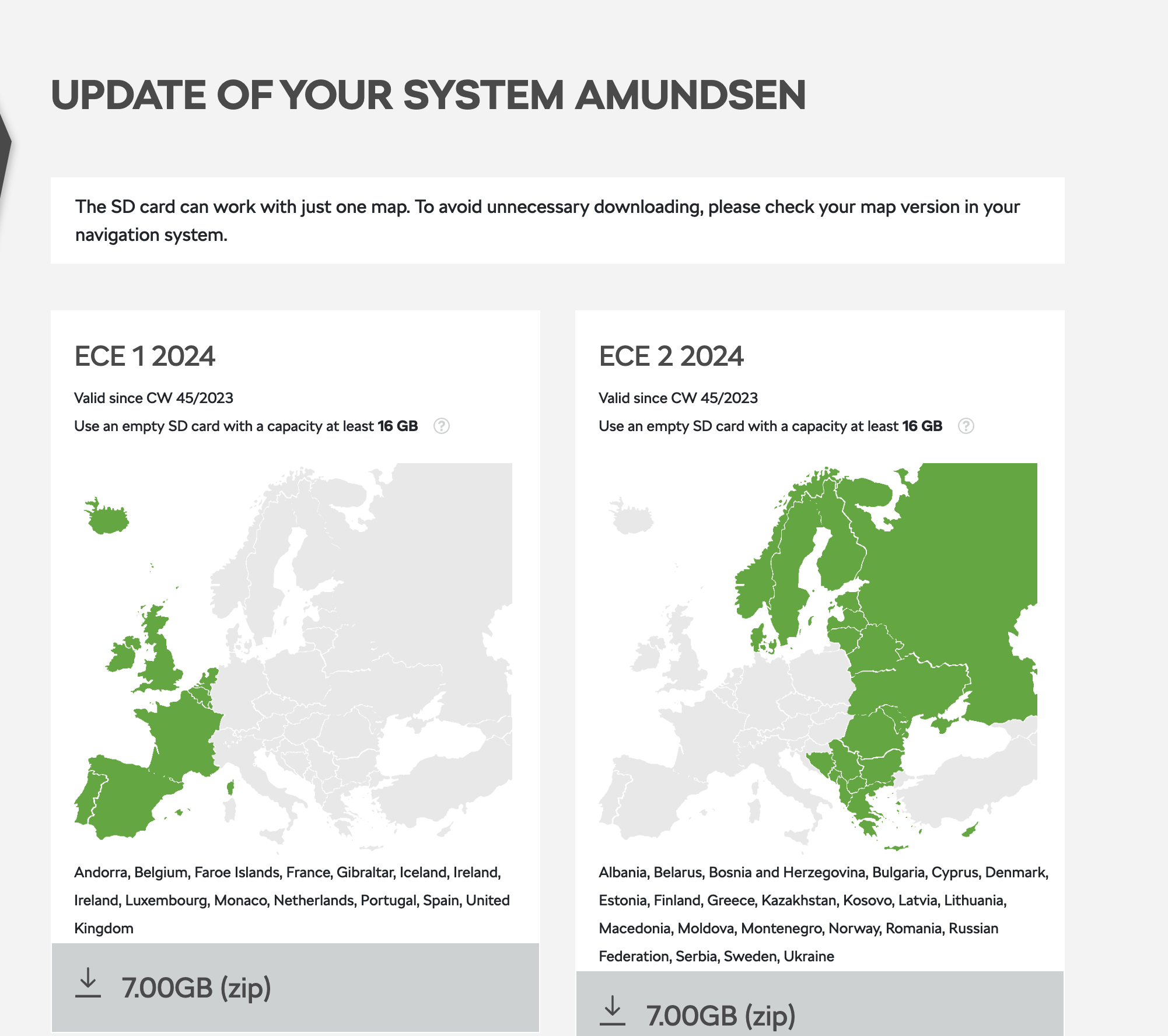
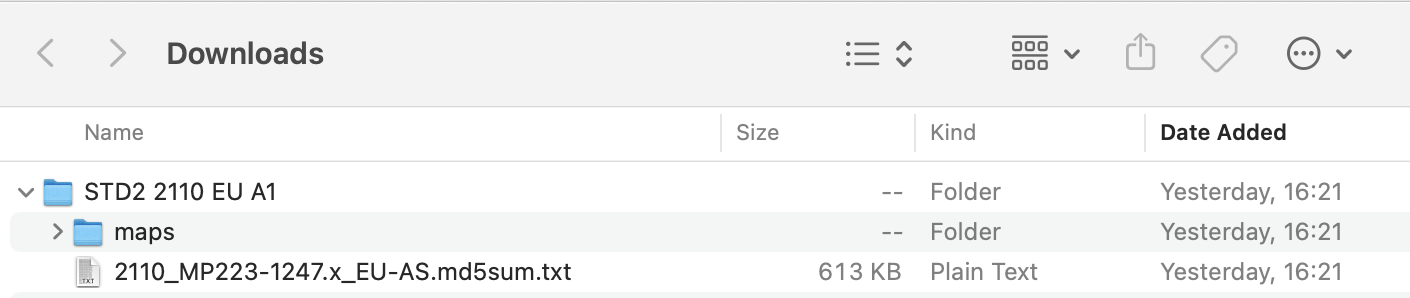
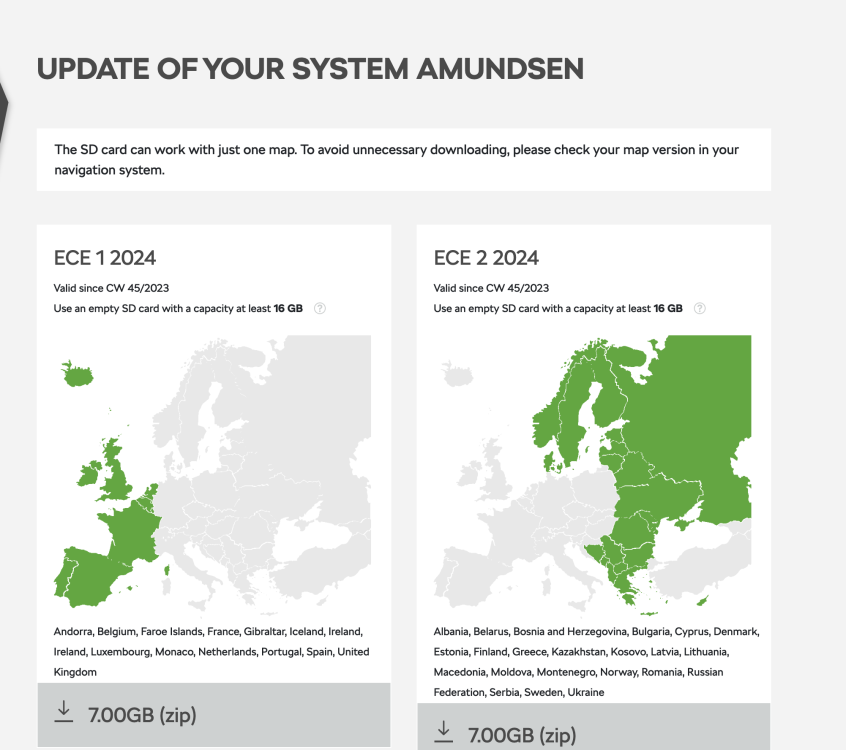
Tried to download different EU segments, but without avail. Same folder structure when I enter my VIN.
-
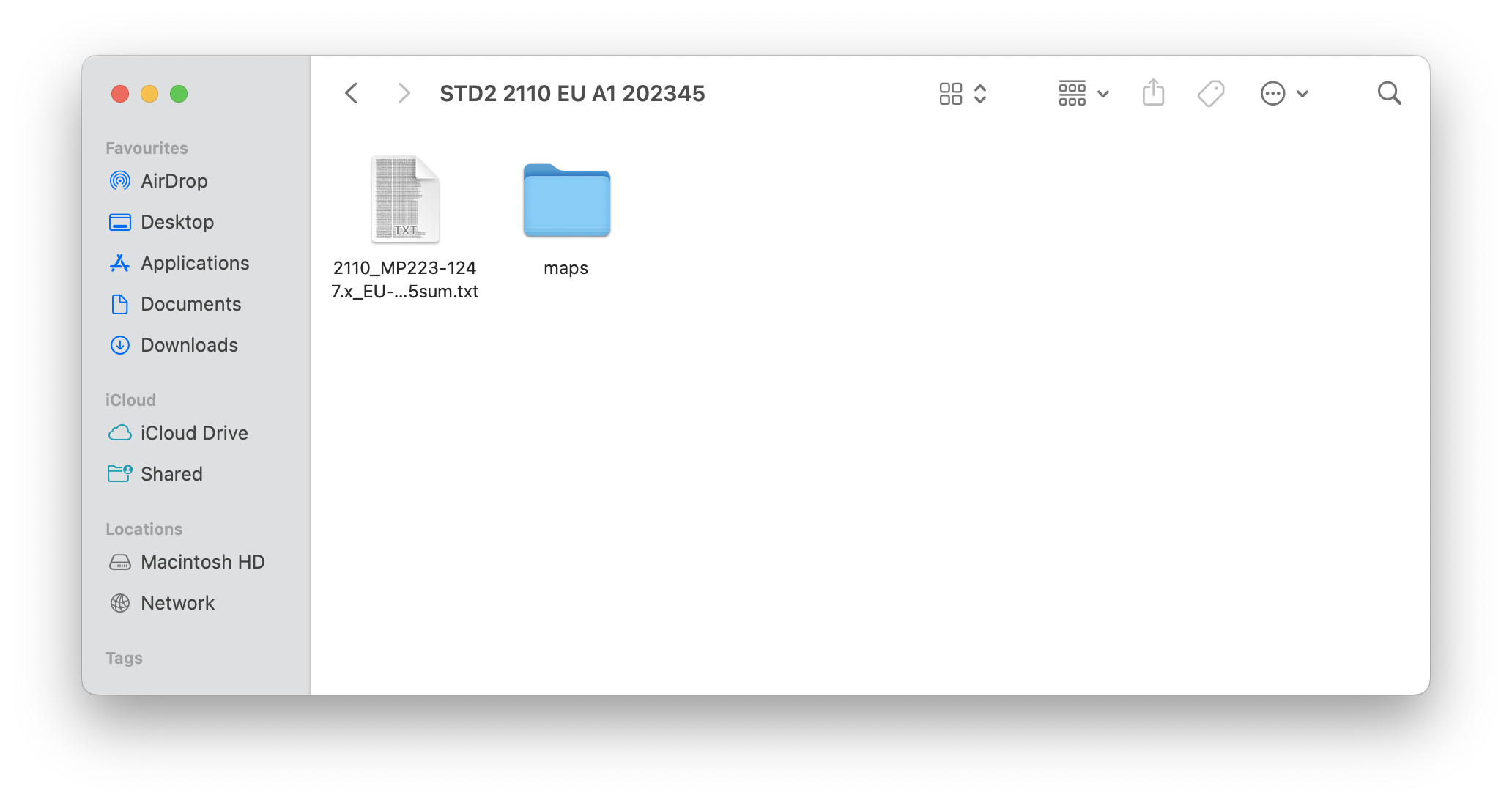
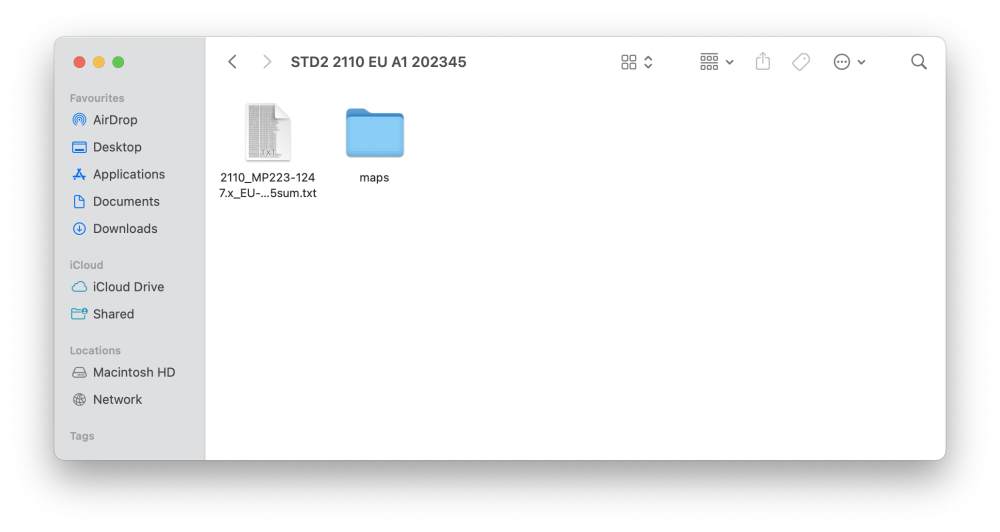
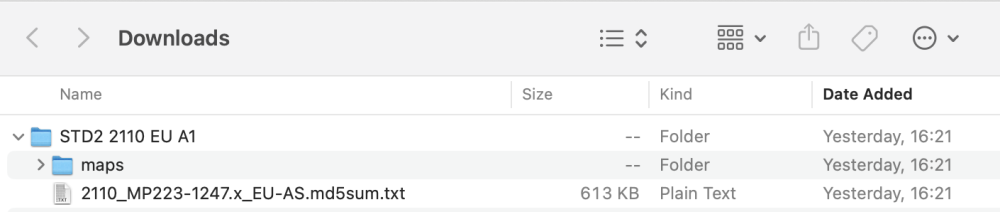
Thanks for sharing. I've followed these instructions but the thing is that the whole Europe zip download might not be suitable because of the folder structure I have outlined. There might be an issue with the download files for the whole of Europe. I'm downloading different parts of Europe now to see if this might be the case.
-
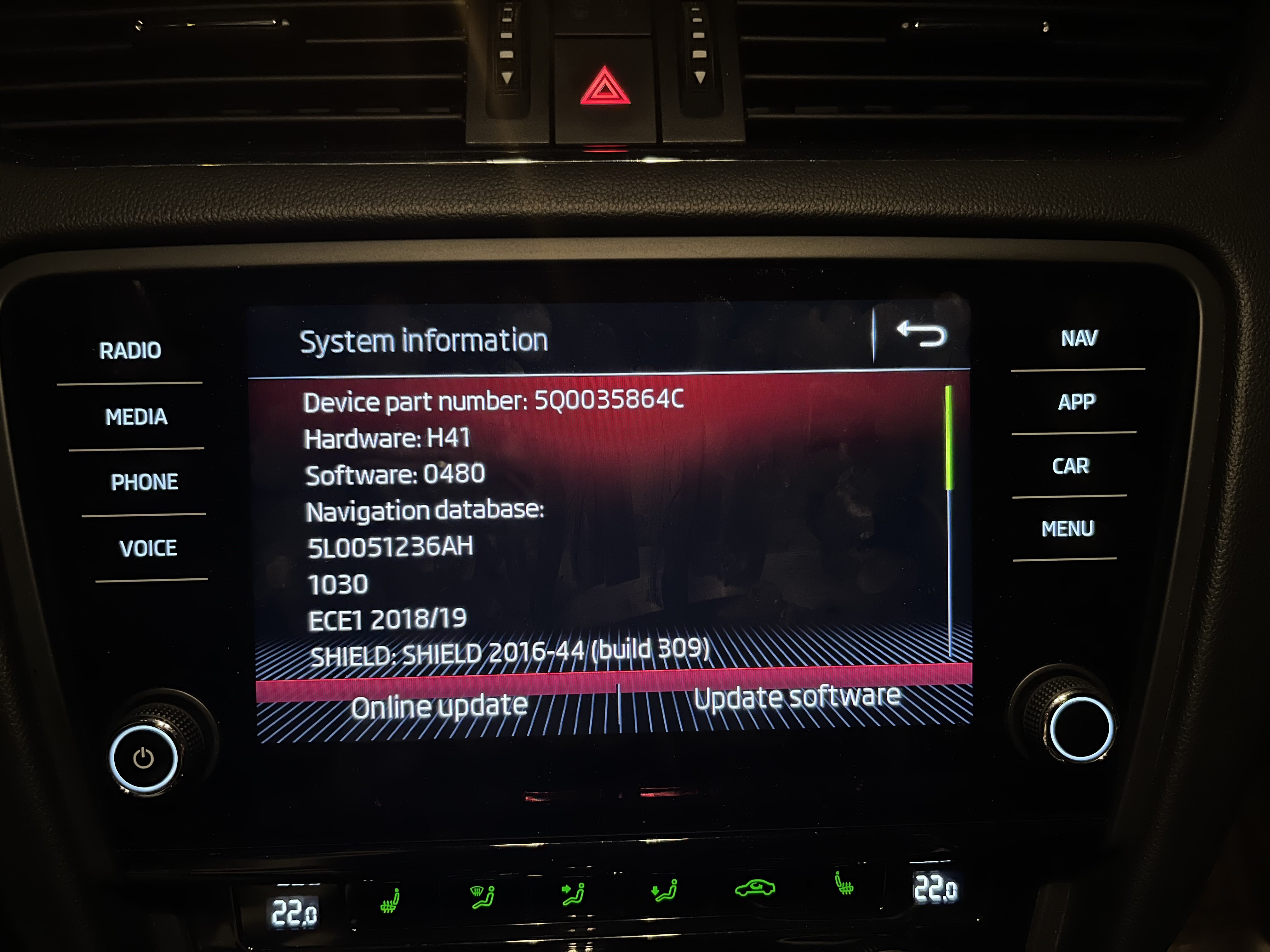
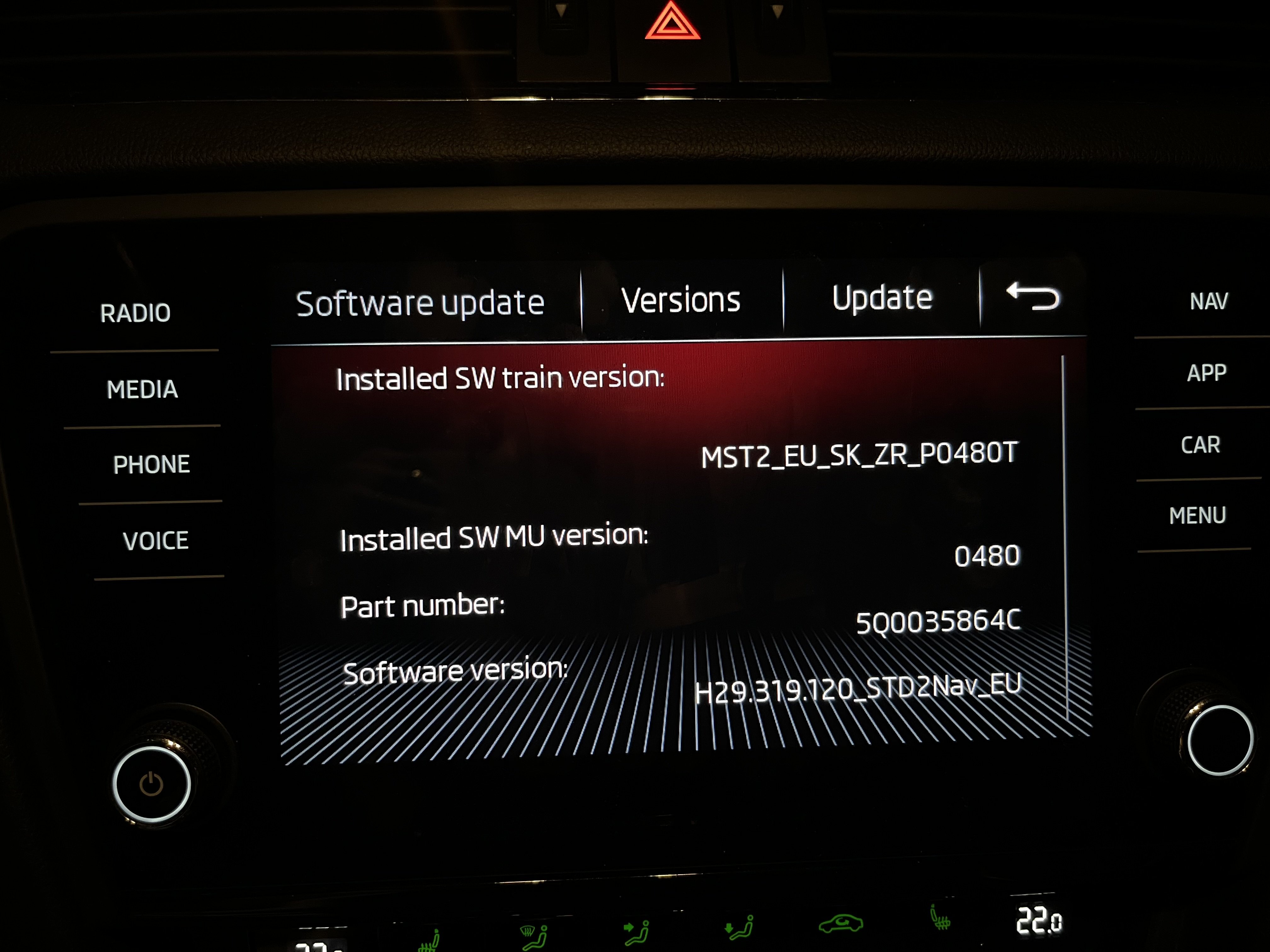
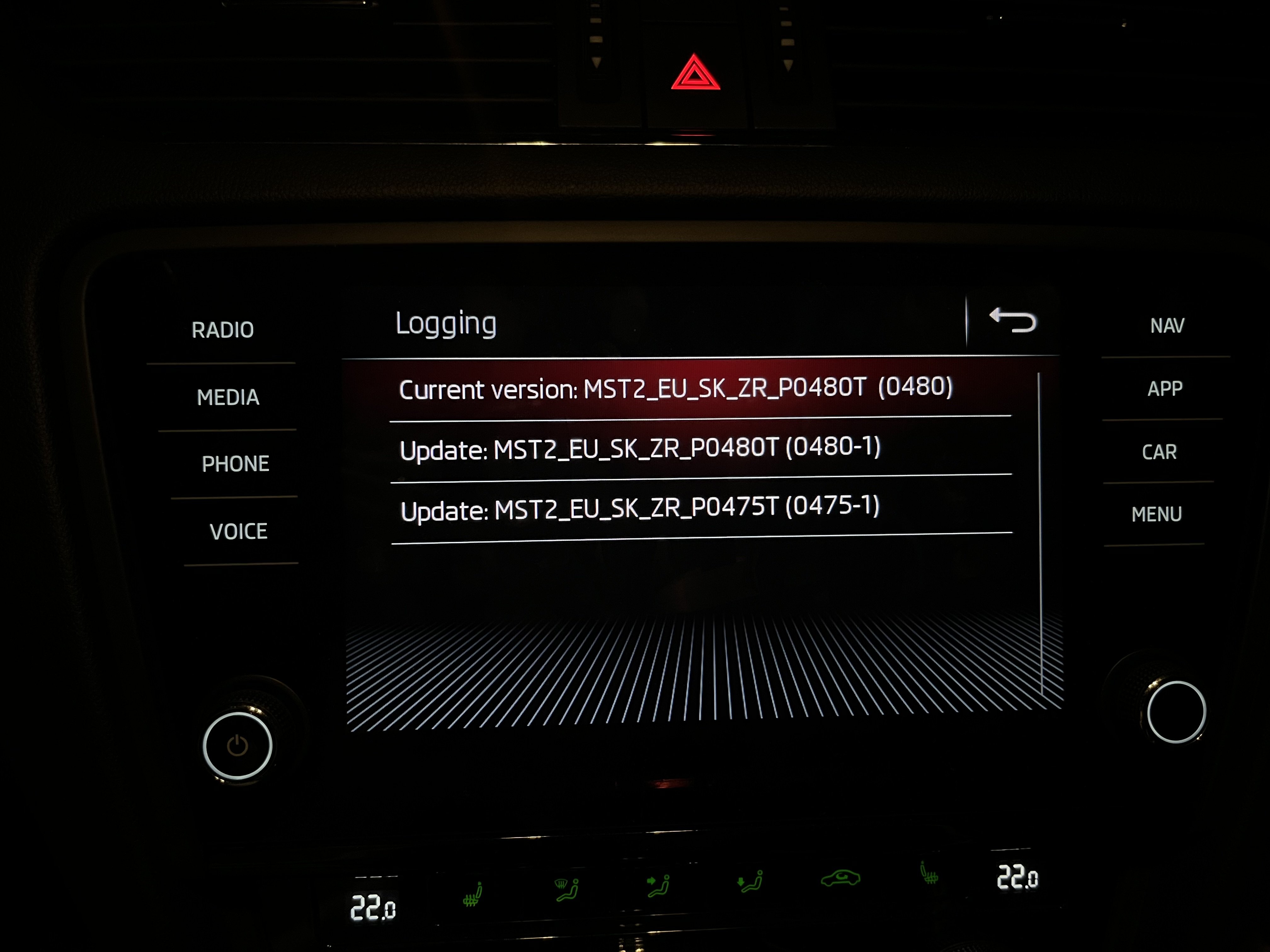
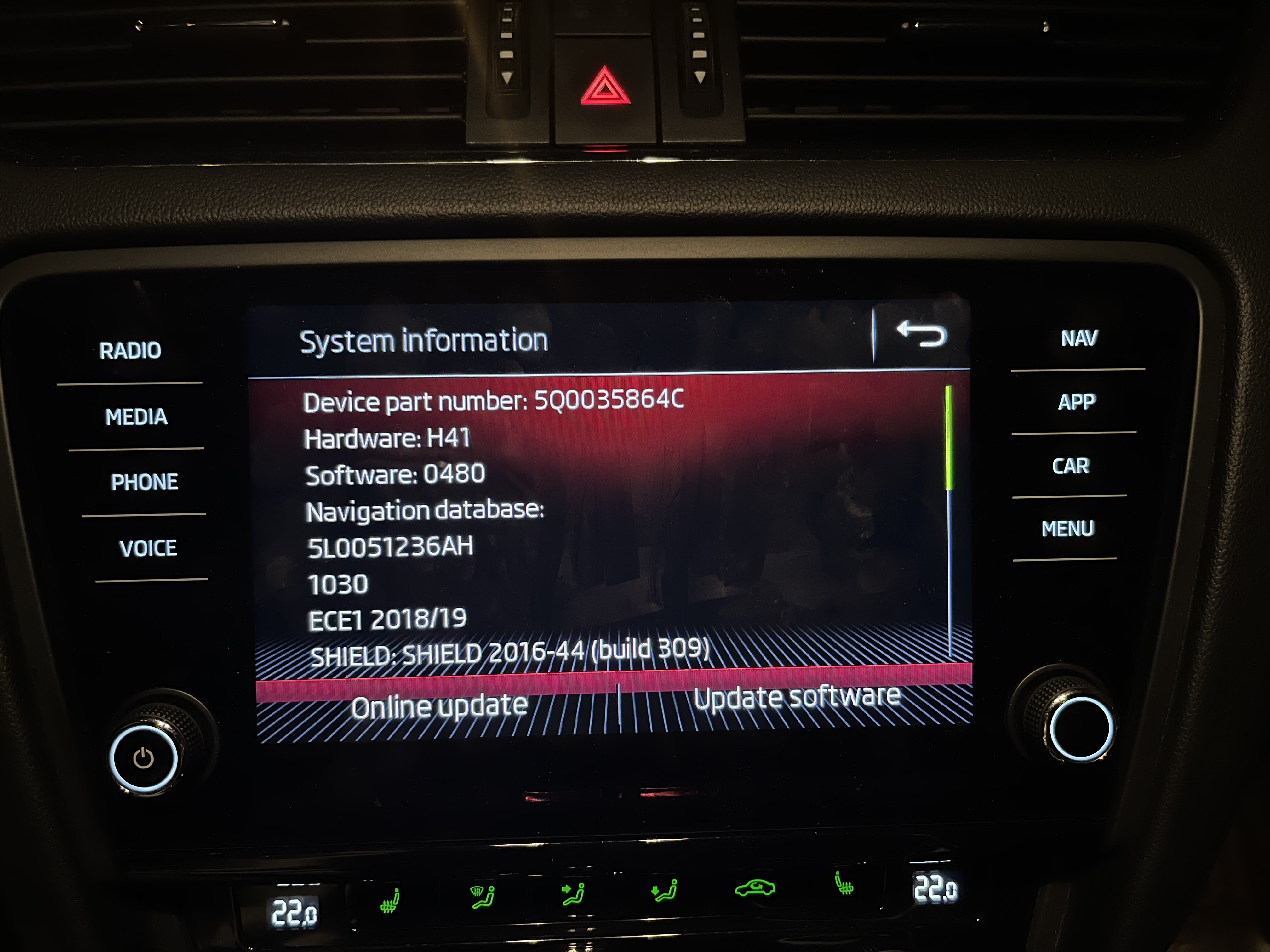
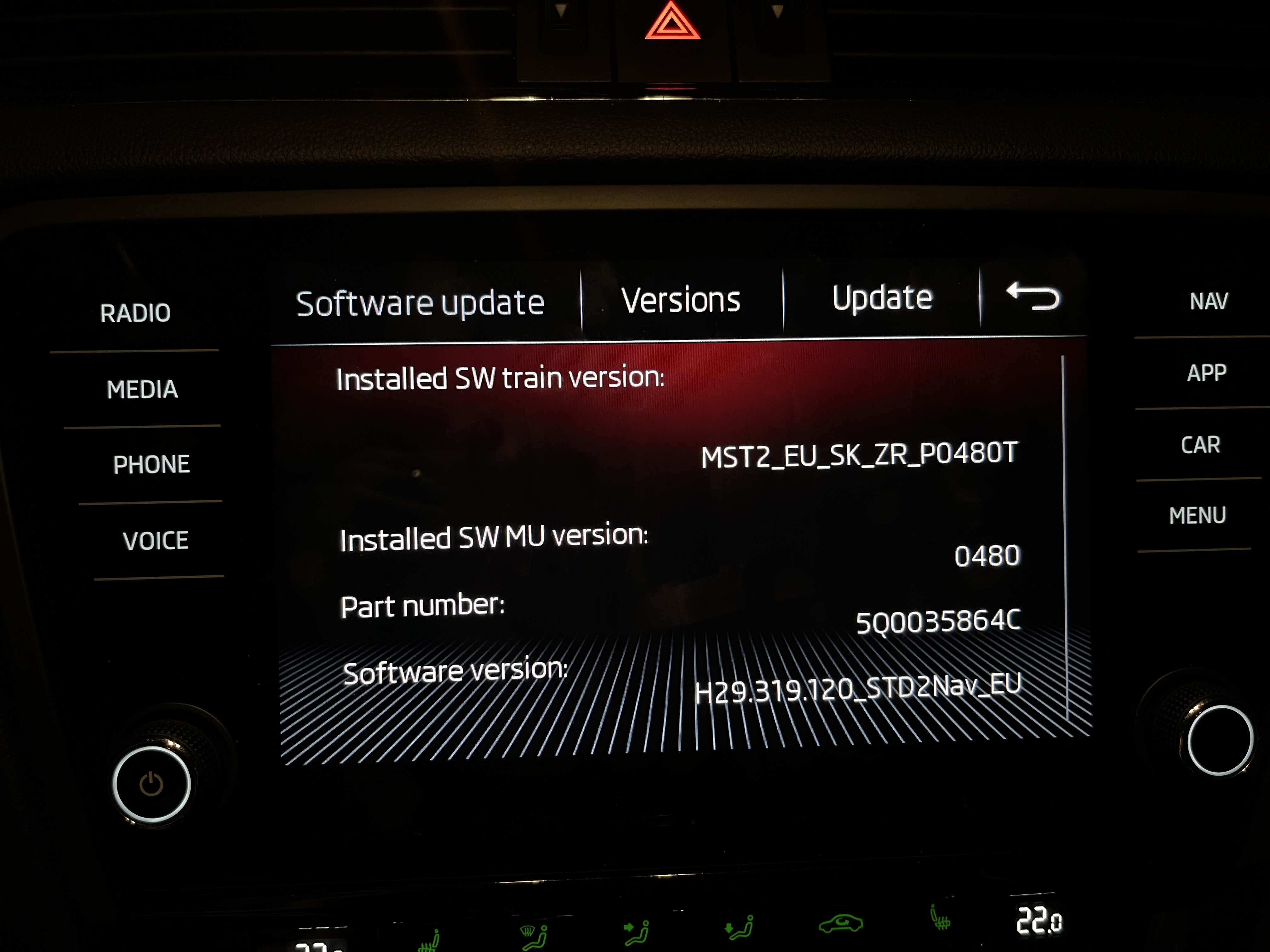
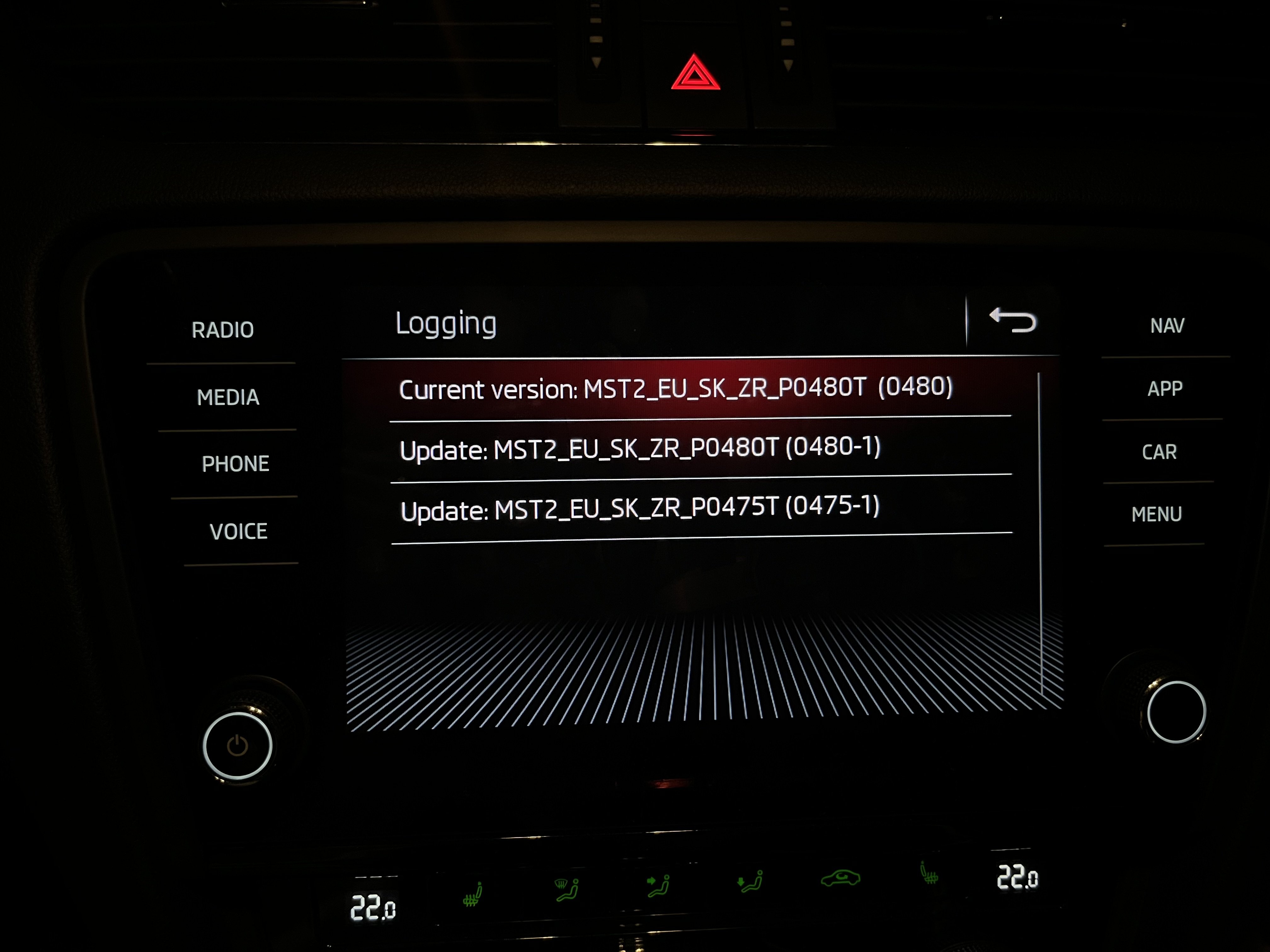
@varaderoguythanks for the reply. Not sure how I can check this at the moment as I'm not close to the car. Maybe this images will be of help? I'll try to download files again but these files were served after I entered VIN to the official skoda page.
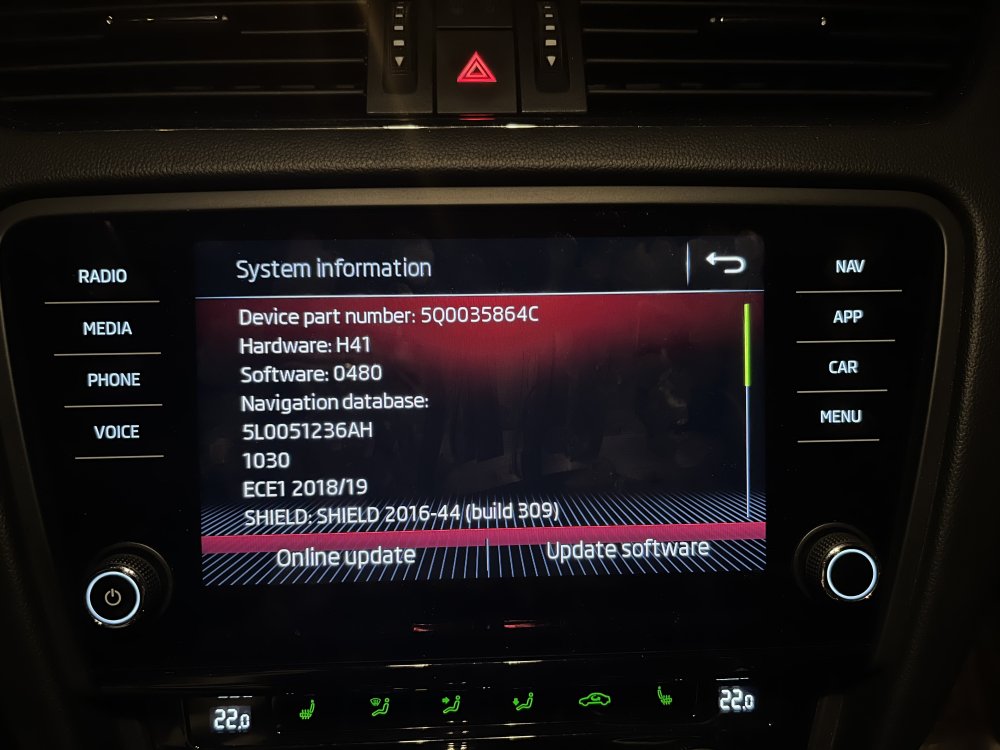
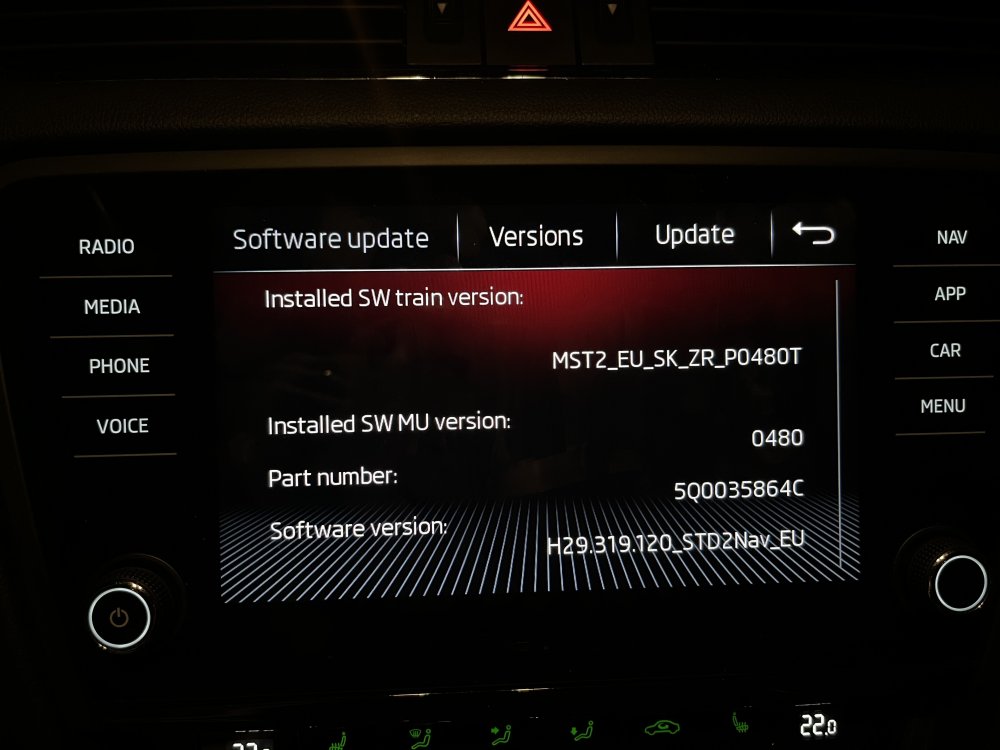
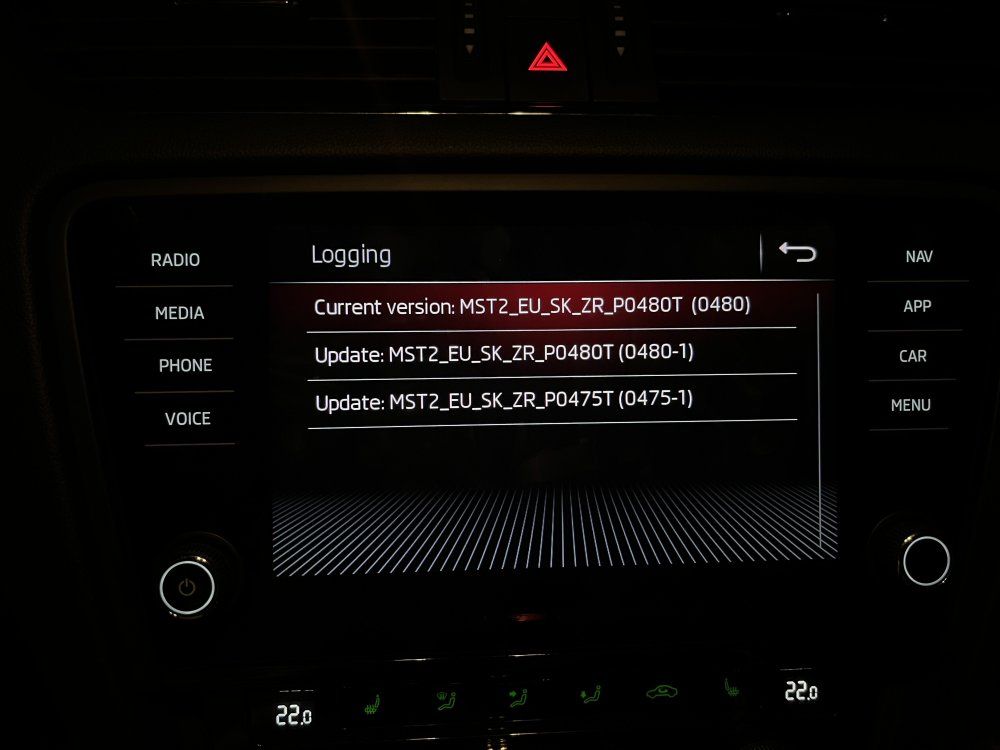
-
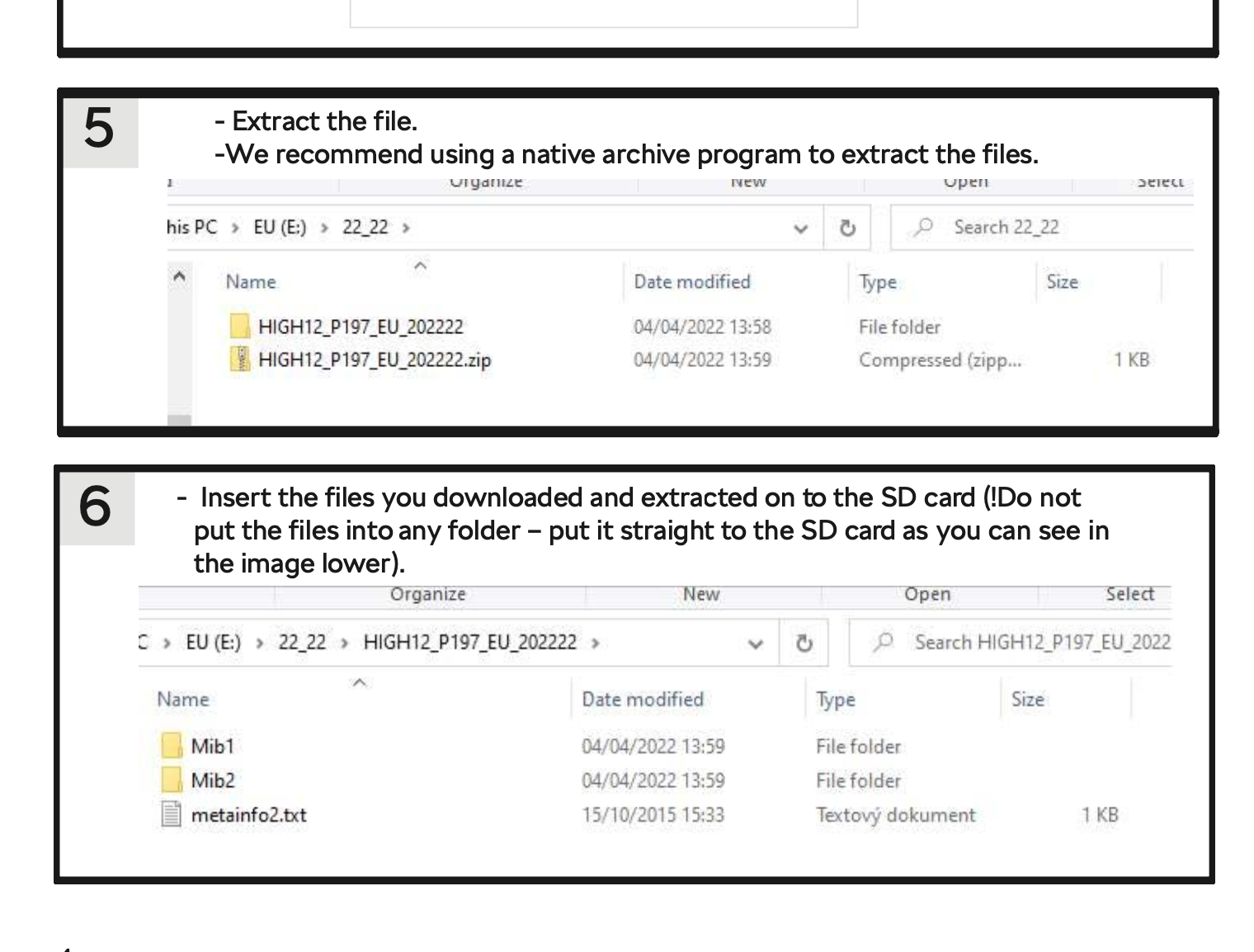
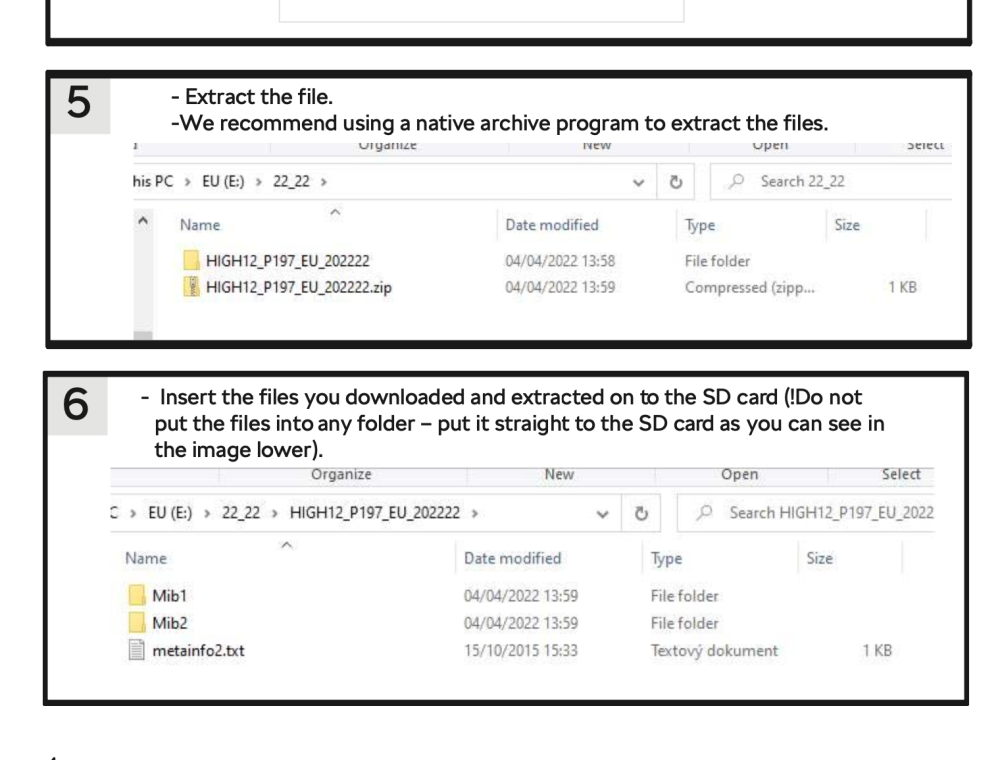
Hi all, I tried to update maps for my Skoda Octavia 2019 but always got the error. I went to the official Navi update page, downloaded maps for Europe (17 gigs), and extracted, c/p to the memory card (32 gigs) but without avail. The only thing that comes to mind now is that the map folder structure looks different in the tutorial and the download. How to solve this? Thanks for the answers, Tom
-
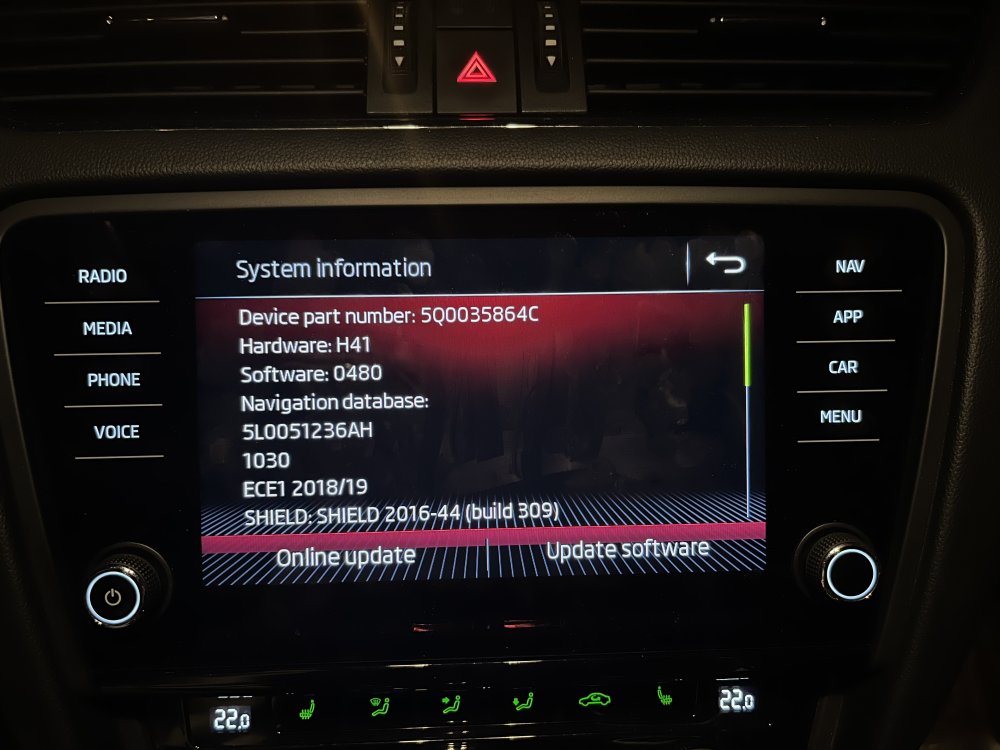
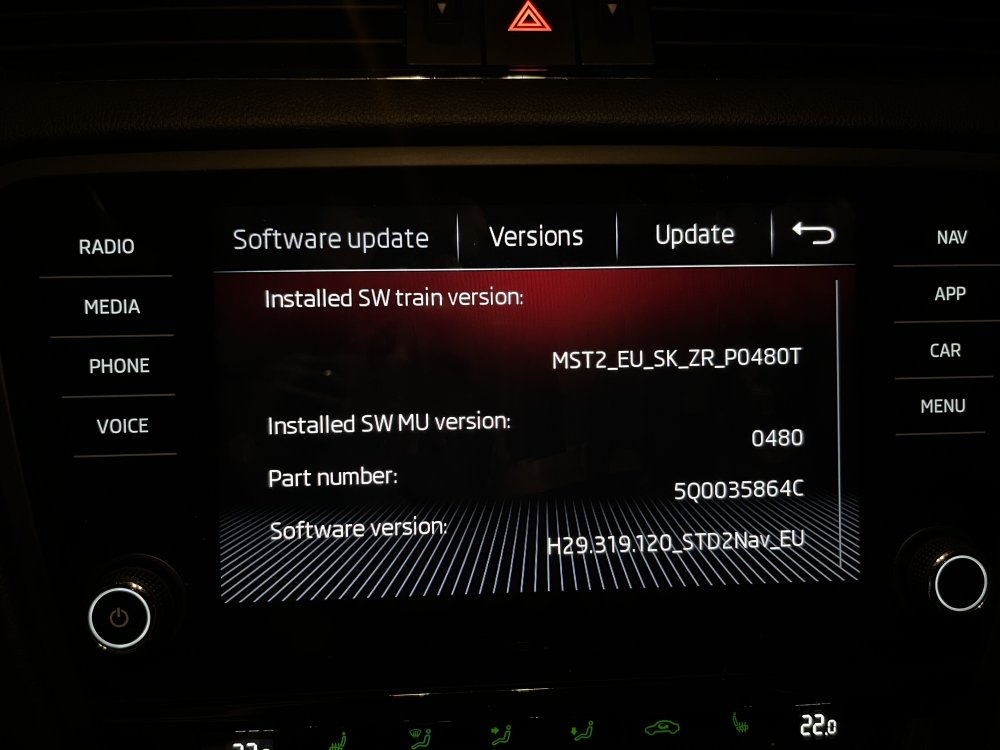
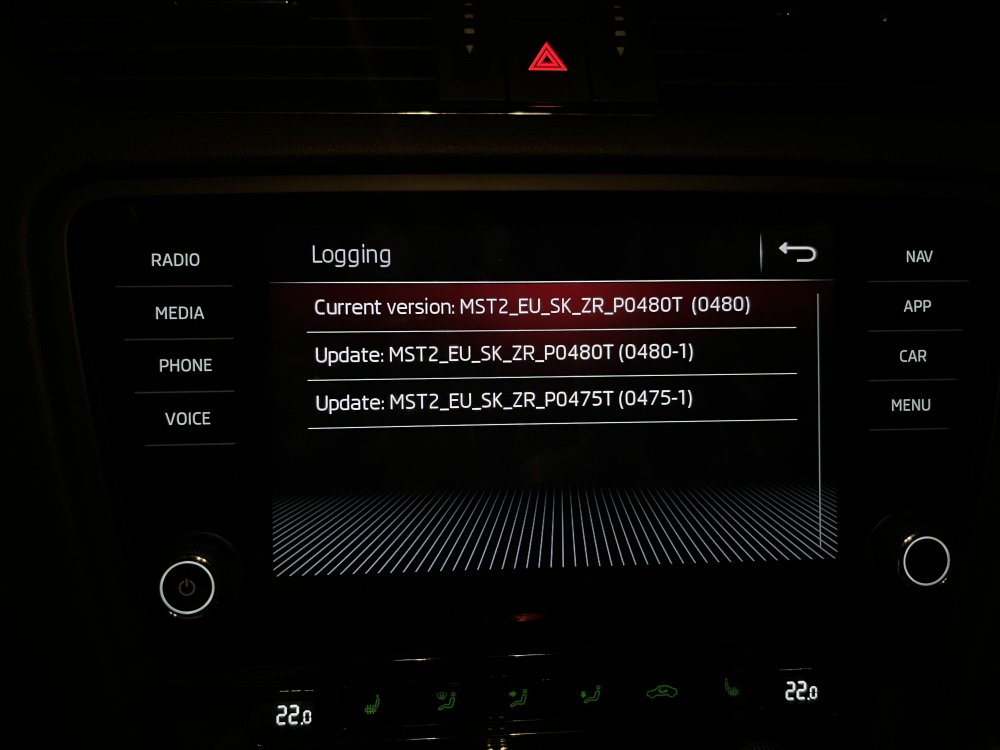
Hi, I was wondering if I could update my infotainment for Skoda Octavia 2019. Thanks for the support!
-
Hi people, I'm new here and wanted to greet you all. Its amazing to see such a vibrant community and I'm looking forward to have a dialogue here. I'm a 2019 Octavia owner and wanted to be in the loop with updates and such. Thank you all, Tom