BelegEthel
Finding my way
-
Joined
-
Last visited
-
Just to update about latest findings about hc_longpress. This is for Audi only. Looks like there is combination switch containing dedicated line assist button.
-
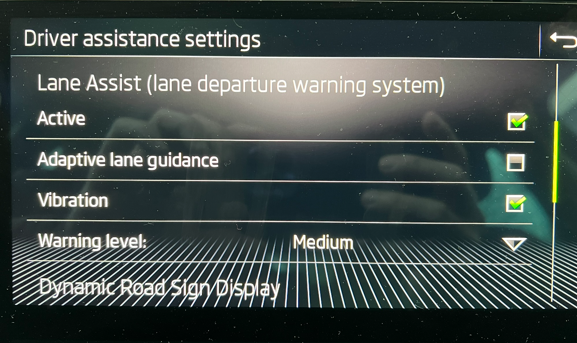
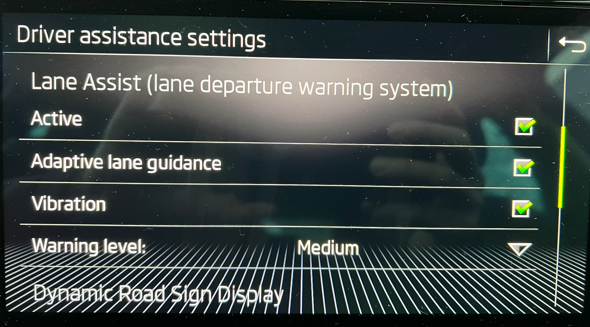
@Bap33 No worries. I will try to explain more precisely. There are different kind of Lane Assist beginning on most basic one which just warns driver about getting edge of lane with acoustic/visual sign. Another is one which warns but also can intervene once get edge (car just bounces from edge to edge) and then the one more advance which is called Adaptive it warns/intervenes but has also ability to keep car in the middle of lane what is called Adaptive lane guidance (if active, one can feels constantly small movements of steering wheel). BTW you was right in other thread this is not autonomous system and driver should always keep hand on steering wheel. To last I refer to. There is option in driver assistance settings menu to switch on/off Adaptive lane guidance. There are situation I don't like it and I found above mentioned coding to get 'fast' access to disable/enable option. However it's not clear to me what should I expect after coding and I would like to be sure before make any changes. Hope this make case clear. @enisz first of all you need hardware so if your car has A5 camera (triangle slot in the top middle part of windscreen) there should be chance but watch out there are some differences between FL and preFL models and also there are different variants of A5 so coding should chosen accordingly. If you use OBD11 you can also check One Click App option (cost 100 credits about 17€ on official web page). As for naming, I believe ID of control unit is the most important, here 5F is 5F remember this video shows VCDS and you refer to OBD11 similar CU 17 can be called Instruments or Dashboard. Moreover it's not always like this e.g. in my car Park/Steer Assist is CU 76 and on video you can find it as CU 10 so depend on model and soft you are using.
-
Hi @Bap33 sorry maybe I have not been enough precise. I know, the one you described is for "whole" Lane Assist - you code it in UC17. I found another coding which I understand on/off only Adaptive Lane Guidance option (this is usually available as option under Lane Assist in Driver Assistance settings. Please find description below. It says about holding down (what I interpret as long press) Lane button on the steering column. But what could one mean by Lane button? Assistant button? Hmm maybe I should just try it
-
Guys, does anyone know which button on pre-lifting steering wheel will switch on/off adaptive lane assist option after coding hc_longpress? Thanks in advance
-
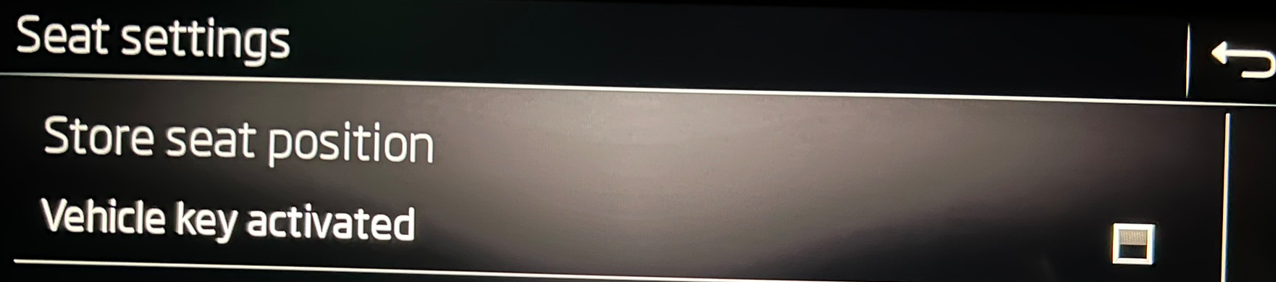
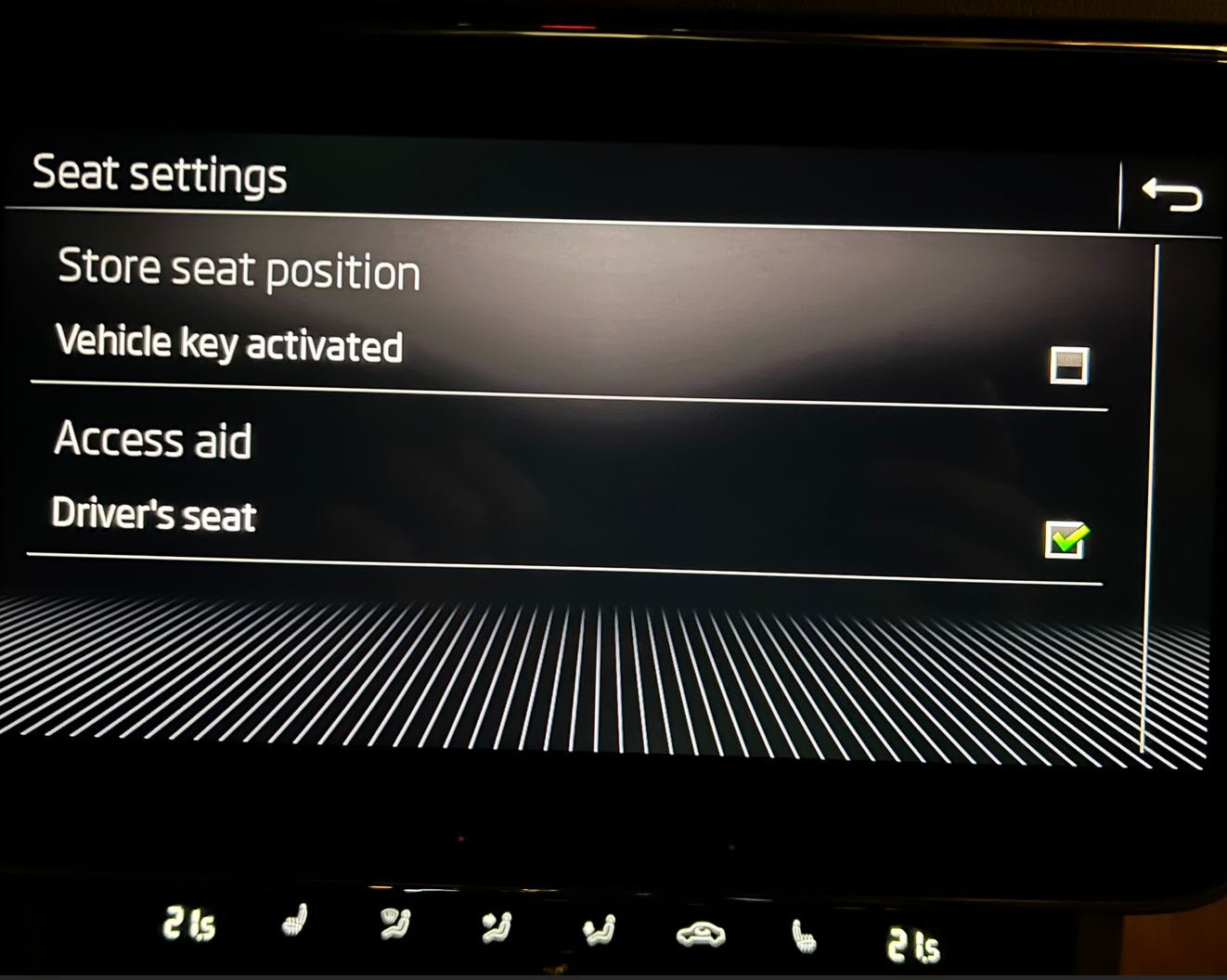
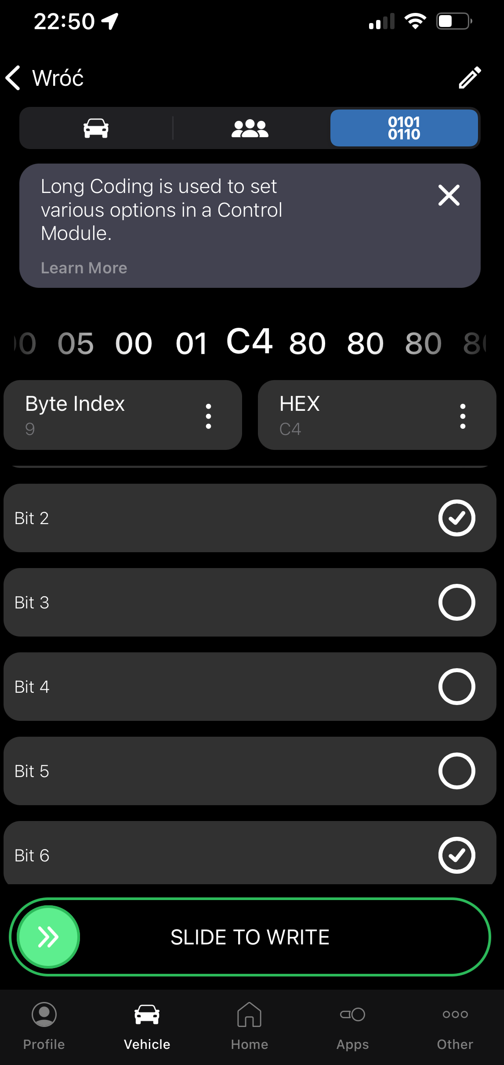
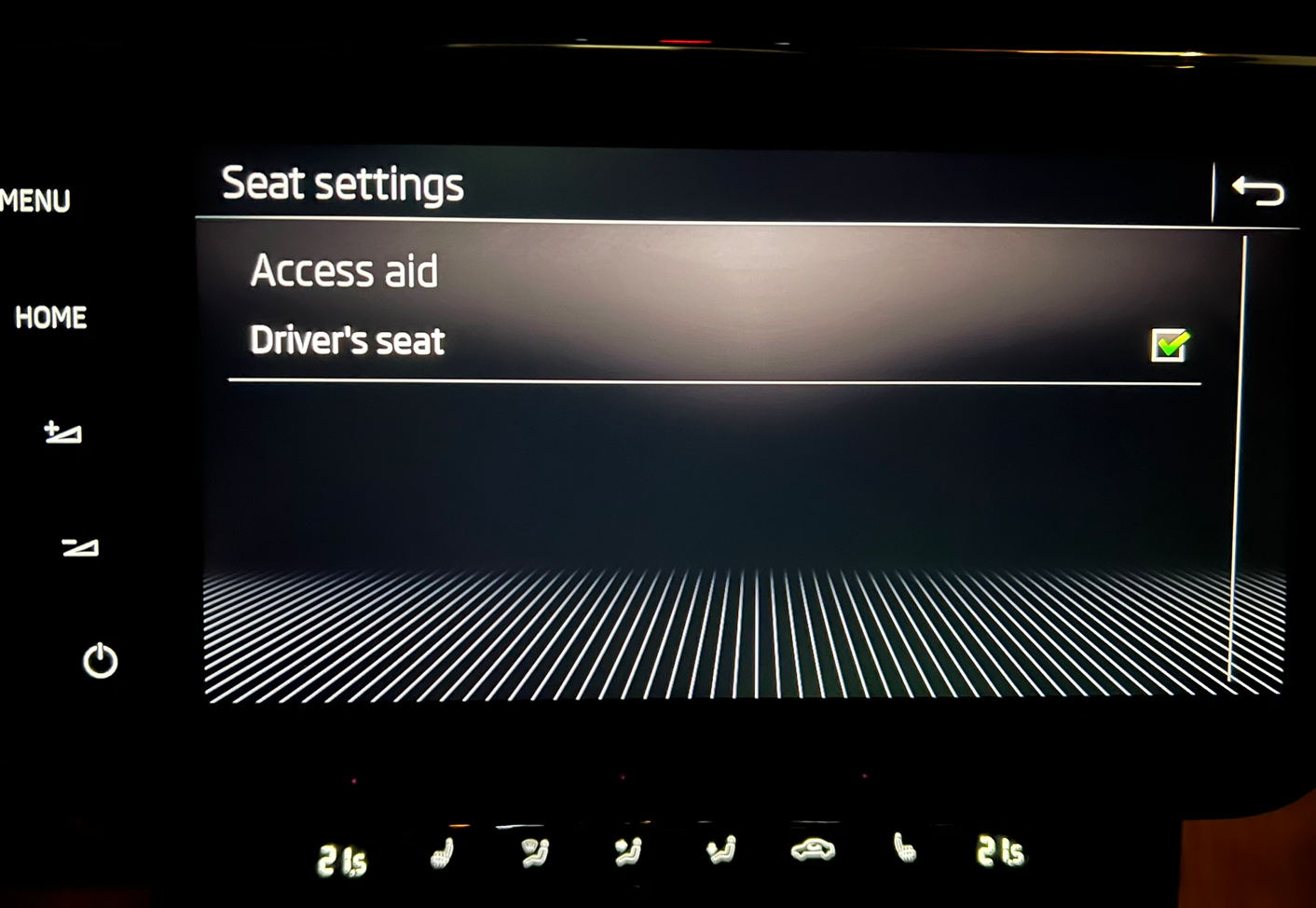
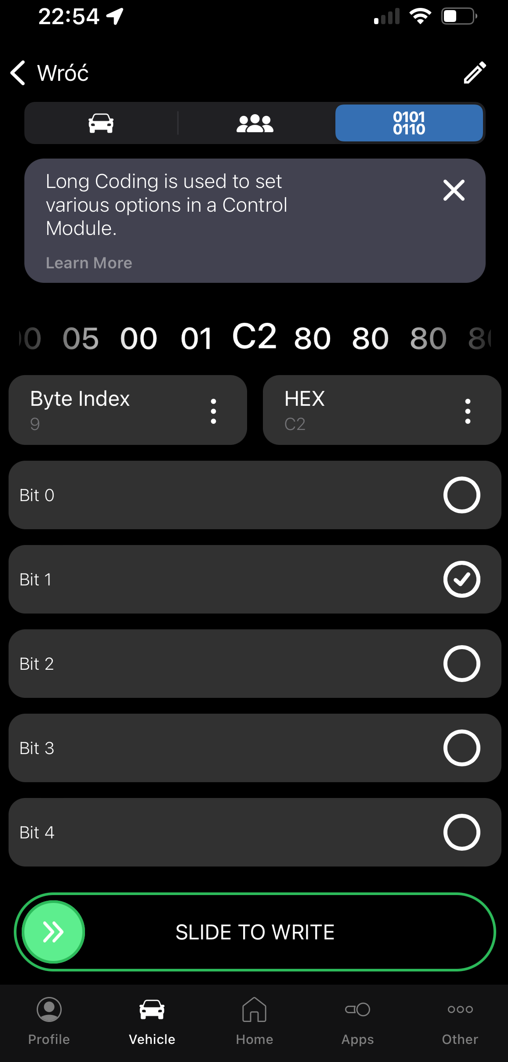
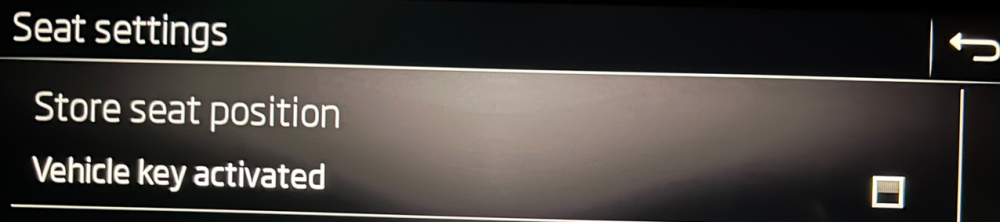
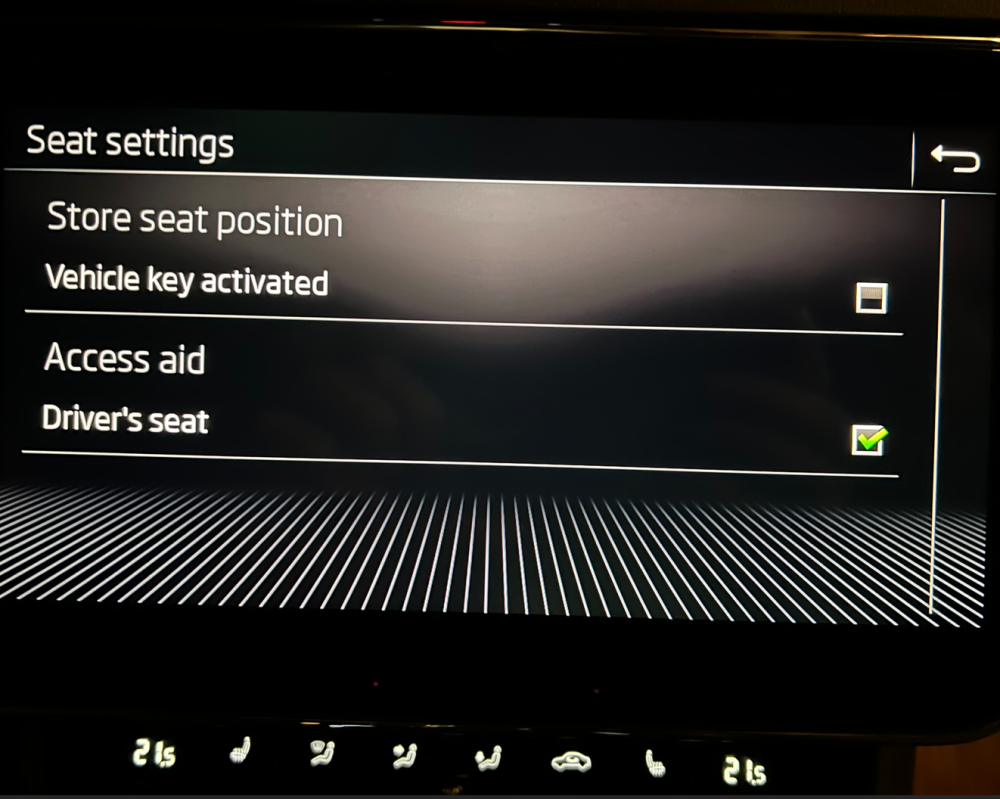
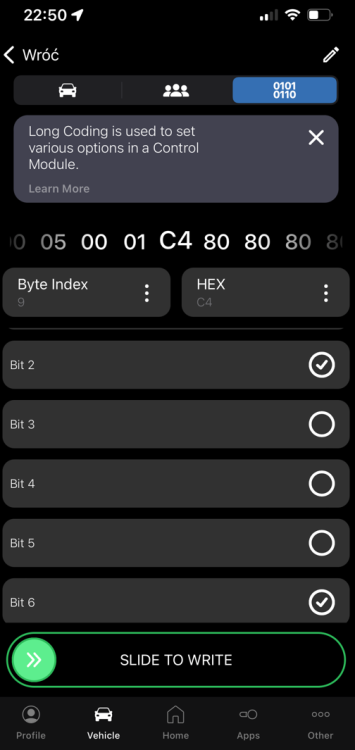
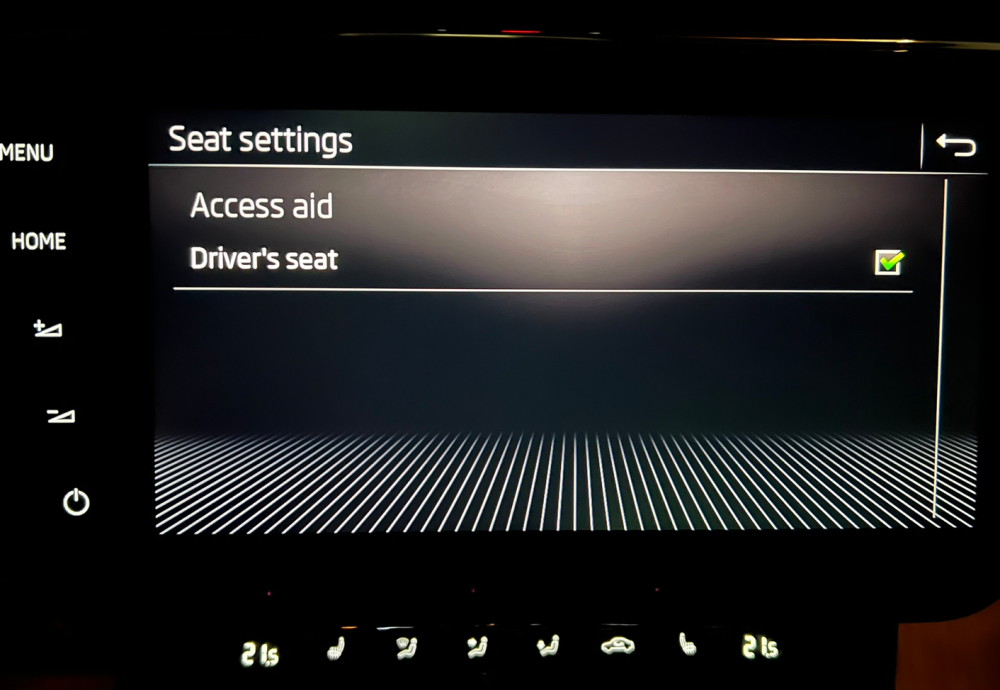
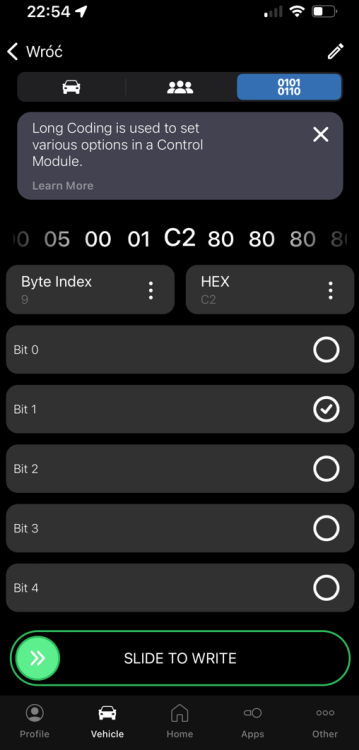
@Bap33 Thanks for above guide, make my life easier. In my case (MY2019 - only driver's seat with memory) 5F have not been needed to be modified as Seats settings has been already visible and includes "Store seat position - Vehicle key activated" option and for CU 36 initial value of Byte 9 has been 84 instead of 82 (what I can see in any other guide) So once Bit 6 has been changed to 1 Byte 9 got a value of C4 not C2. The effect was Access aid appeared in Seats settings but seat did not move even option was enabled Once value of Byte 9 has been modified to C2 seat moves but Store seat position disappeared I use only one key so I don't miss this option but I try to understand if those are mutually exclusive or there is any configuration to get them both. Any ideas?
-
Hi guys, made small upgrade from Octavia 2 Estate FL 2010 to Superb 3 Estate 2019, and looking for ideas of retrofit it Cheers