AlexB7
New here
-
Joined
-
Last visited
-
@kernowboi, as vegarz mentioned, you need to install first the version 308, and then 330. You should not update directly to 330 with your current version. All the links to the required files are available in this thread some messages above. If you would get confused with the update instructions, please ask. I have updated my Kodiaq to 308 about a month ago and decided to wait and see if it will get the next update OTA. Unfortunately, nothing comes OTA to my car (neither with my previous 306 software, nor with 308).
-
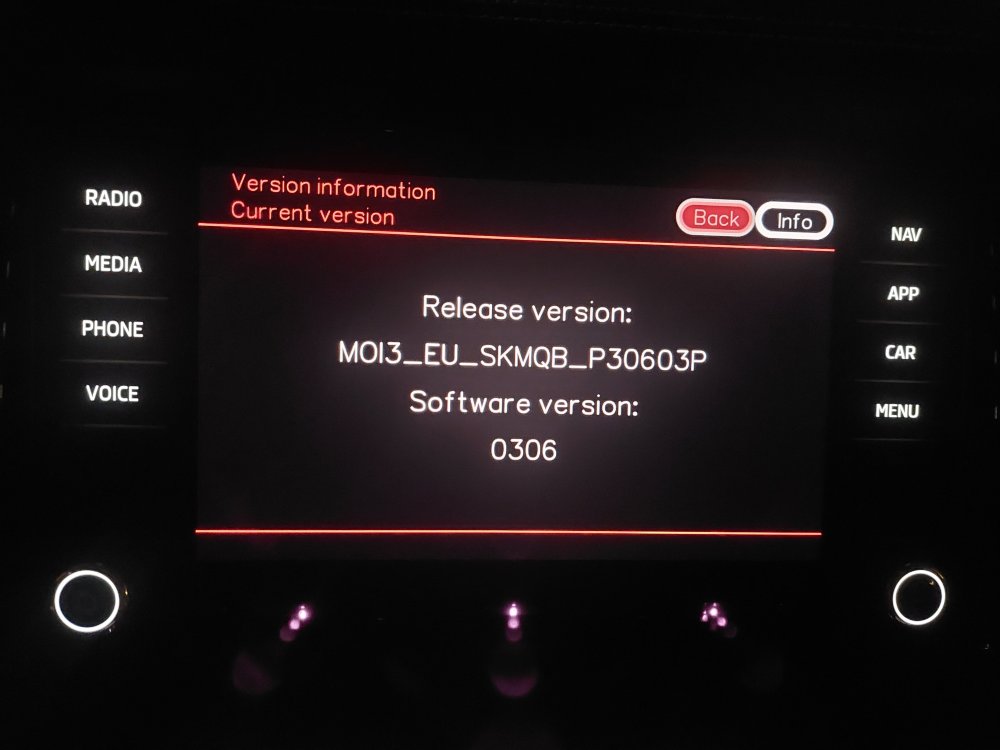
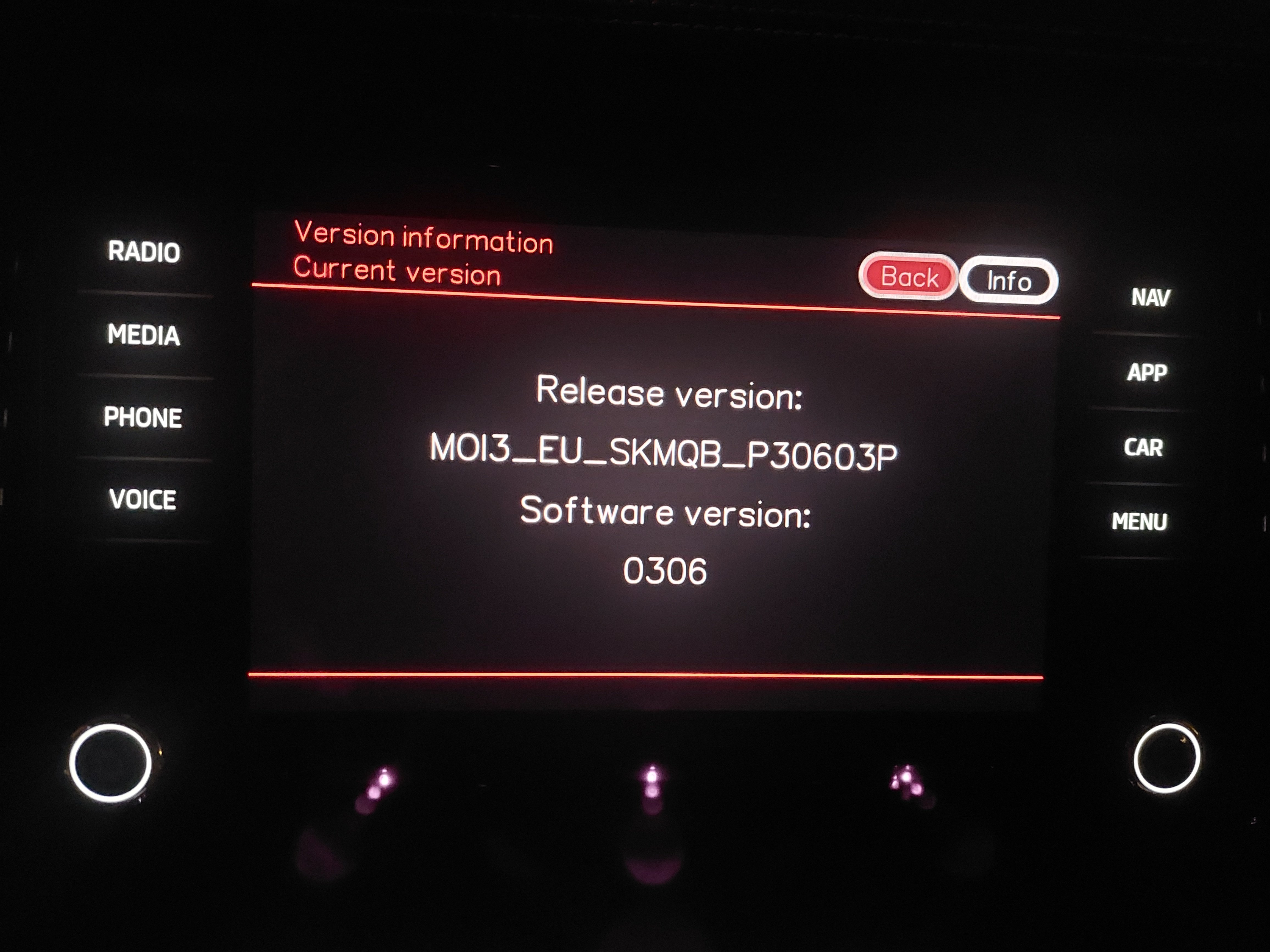
@DaniC have you been able to update your Kodiaq? I have the same issue, but my software version is 306. Same confguration - Kodiaq FL with Amundsen unit. Hardware: H22, Device number: 3V0035820K I have constant issues with Android Auto. If it is ativated and I need to drive backwards (for example from the parking lot), as soon as rear camera switches off, I cannot access bottom menu of Android Auto screen anymore, and navigation (Waze or Google Maps) gets very slow. To fix navigation issue I'm switching on the air conditioning menu and then switch back to Andorid Auto. Novigation screen starts to be responsive again, but bottom menu is shown but not operating. THe screen does not react on tocuh in that menu area. I'm hoping that the update would solve that issue. Do you face similar issue when using Andorid Auto? I also downloaded all the files - 308, 324 and 330 versions. I understood that I cannot update from 306 directly to 330, and I have to update first to 308. I also read that there are package updates of 308 and than 324 in one update file. Does someone here in the forum know if I can simply update 308 first, than probably reboot, and update 330 as the next step?