Sleepy_Nonah
Finding my way
-
Joined
-
Last visited
-
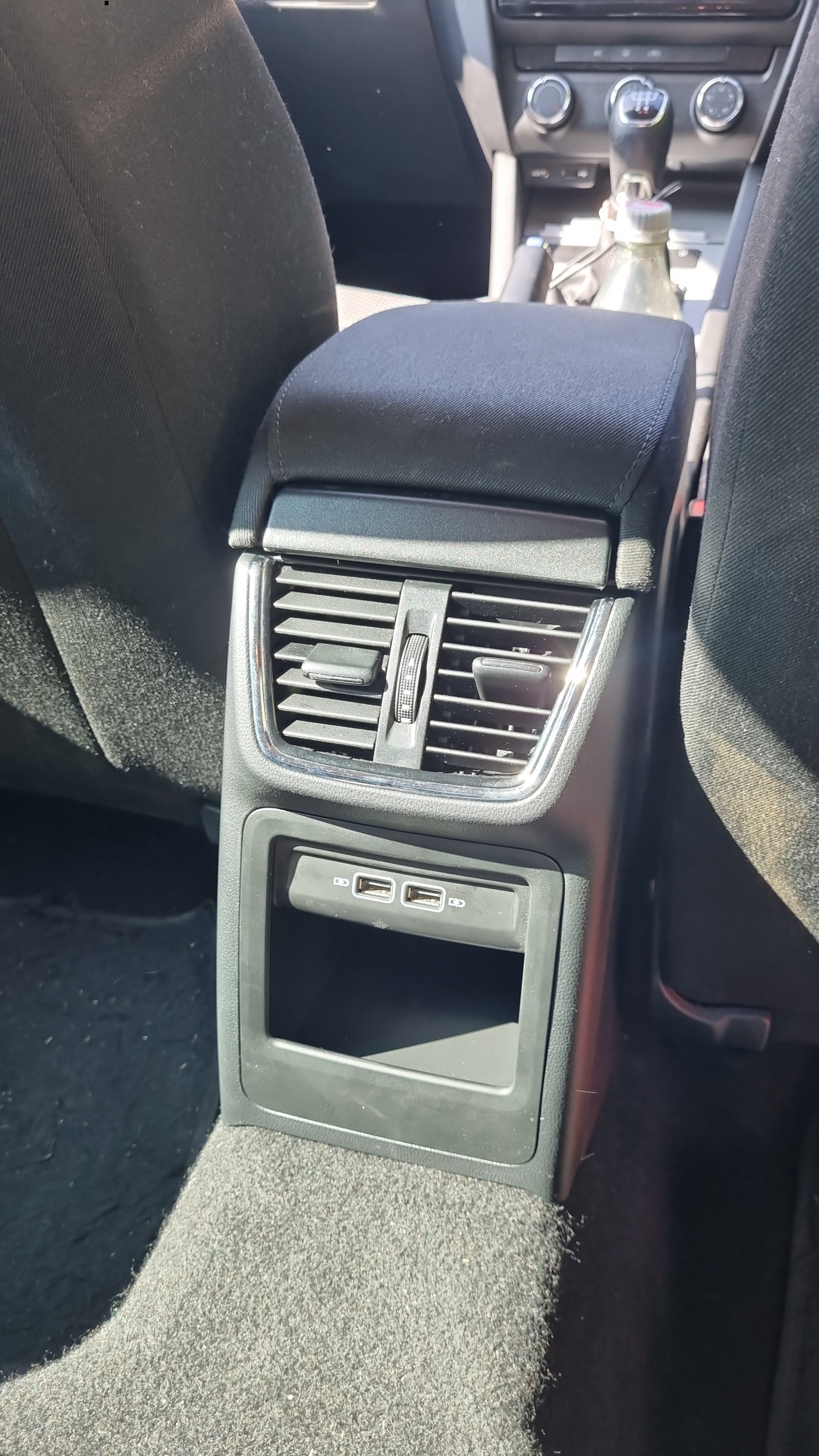
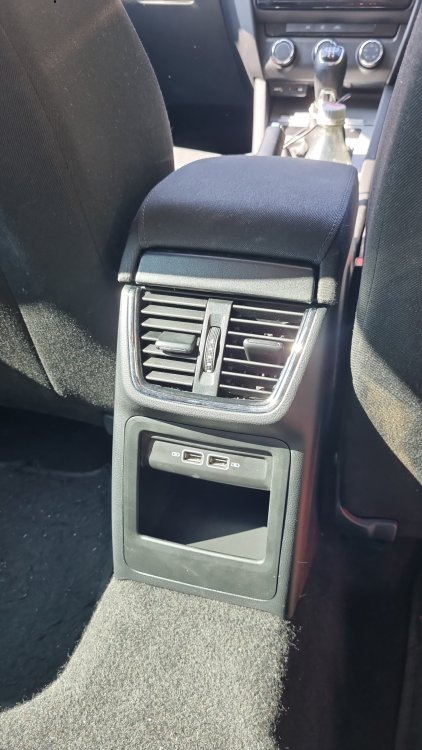
Thanks to the OP and those who've contributed pics. This is a great guide. Just did this with the aliexpress kit in about half an hour on my pre-facelidt Mk3. Just ahead of a holiday to France so the kids will be delighted! As most have commented, the hardest part is removing the cigarette lighter. Couldn't source the tool easily or cheaply so managed it with a couple of phase test screwdrivers.
-
Have the exact same issue. Can hear a noise from the mirror when locking the car so suspect it's a slipped gear / worn out motor rather than a fuse but haven't found any videos or guides online to repairing the issue...
-
Just bought a 2015 Octavia Mk3 and wondering about latest software for the Bolero infotainment system. Are there any worthwhile updates in more recent versions or is it just worth doing regardless? Details from my head unit below: System Information: Device part number: 5E0035819A Hardware: 041 Software: 0421 Media Codec: N/A
-
Hmm, picked out the parts on skoda-parts.com using the part numbers in the original post and after adding the VIN for my pre-facelift 2015 1.2tsi (manufactured in 2014), I'm getting the "This part does not fit your car" warning... is that simply because it wasn't originally spec'd on my car? Because these only became an option on the facelift but still actually fit on the pre-facelift?
-
Has anyone done this recently? I think the cubby hole the AliExpress kit has would be more useful to my kids than an ashtray but the mismatched colours would set off my OCD too!
-
Just bought my first Skoda, a 2015 Octavia 1.2tsi Ambition and signed up here on the recommendation of a friend. Curious to see what hacks / mods other owners have found to improve their cars / enable options that were disabled from the factory!