AndyC13
Finding my way
-
Joined
-
Last visited
-
Hmmmm, I will have to check later then. As I left the house this morning the light wasn’t on the dashcam indicating it was recording. Unless the light goes off when it’s in parking mode. Will look at the footage later.
-
I’ve seen this asked a lot, but never actually seen an answer. Most people are looking for a good switched live. I've wired my dash cam to the rear wiper for switched live, and the horn for permanent live. However, looks like the horn fuse might disable itself after some time. What fuse actually stays live always? On a 2022 Scala if it matters.
-
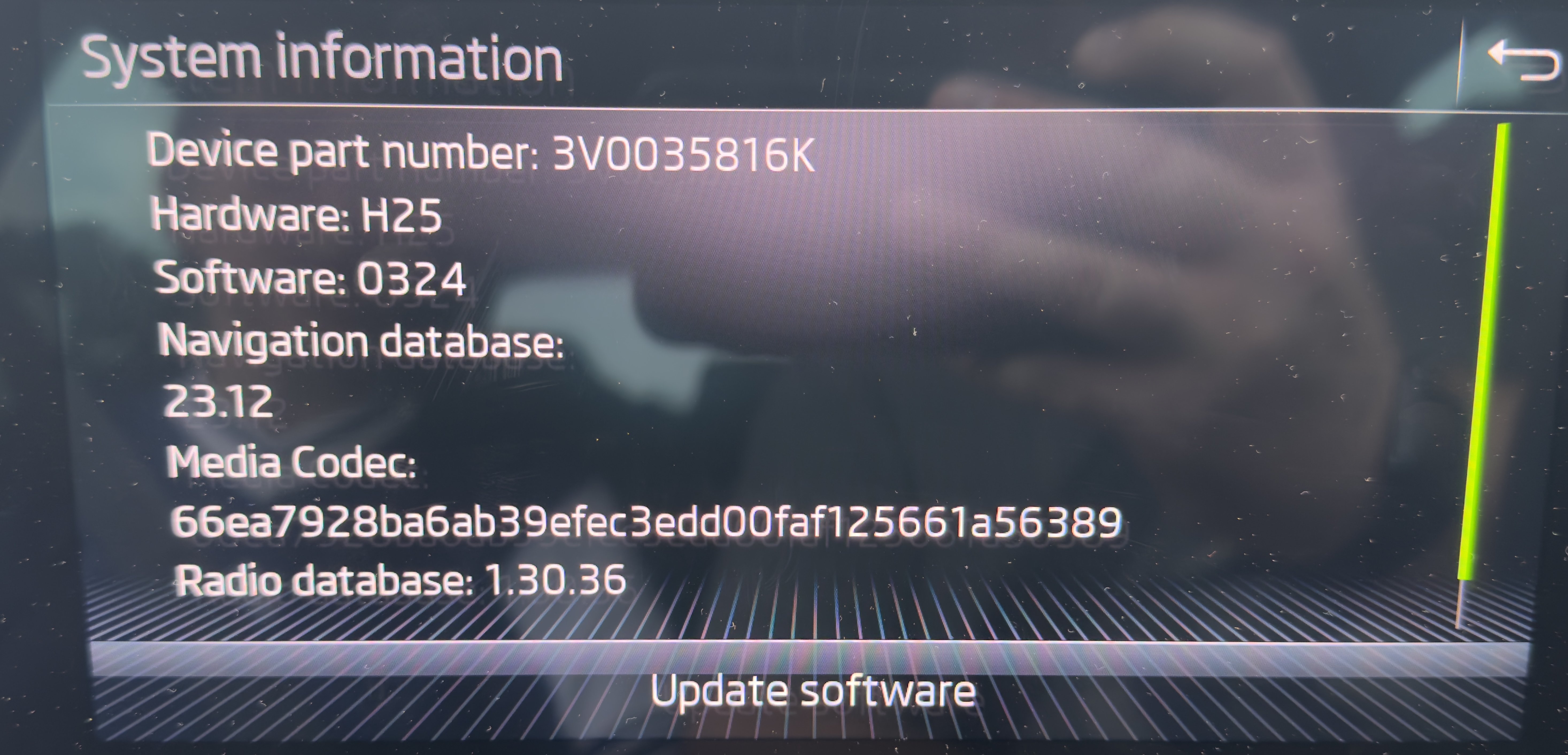
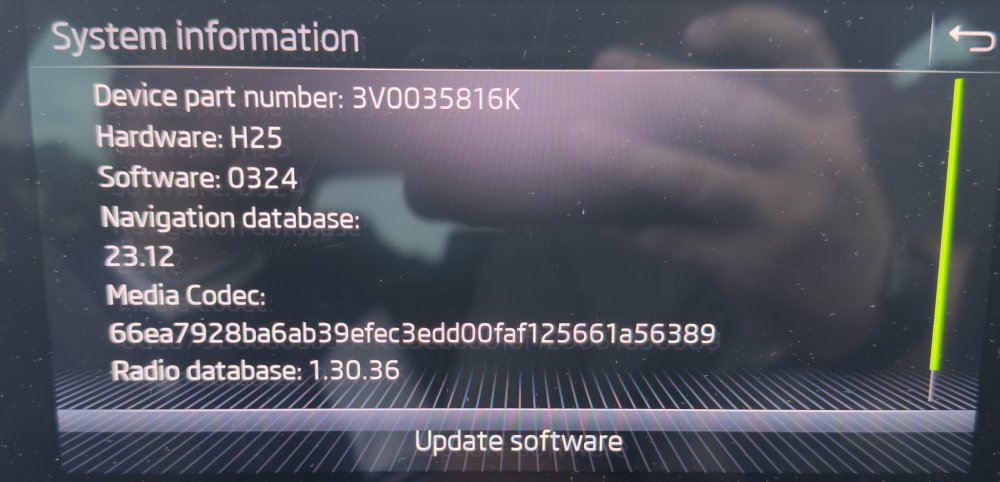
A few times now I’ve realised that when I am using Google Maps via Apple Car Play that the audio (mainly music) can be quite jittery. Initially I thought it was a data bandwidth issue, caused by using Google Maps and Spotify at the same time. But actually the same issue can be replicated on DAB. Anyone else notice the same? Photo shows the current software version.
-
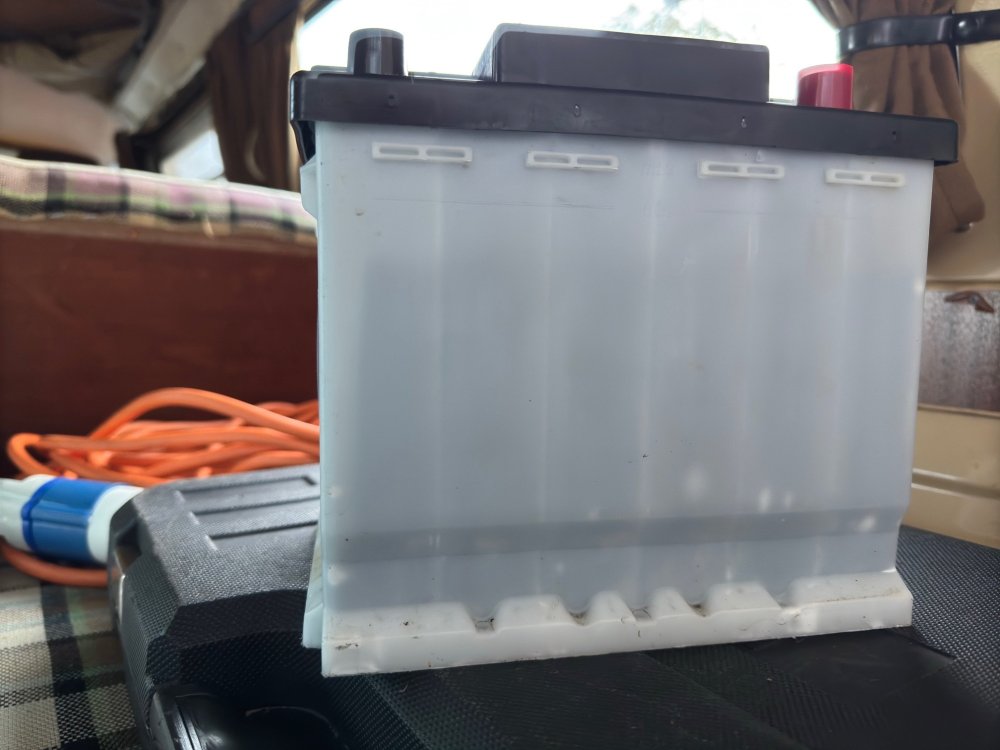
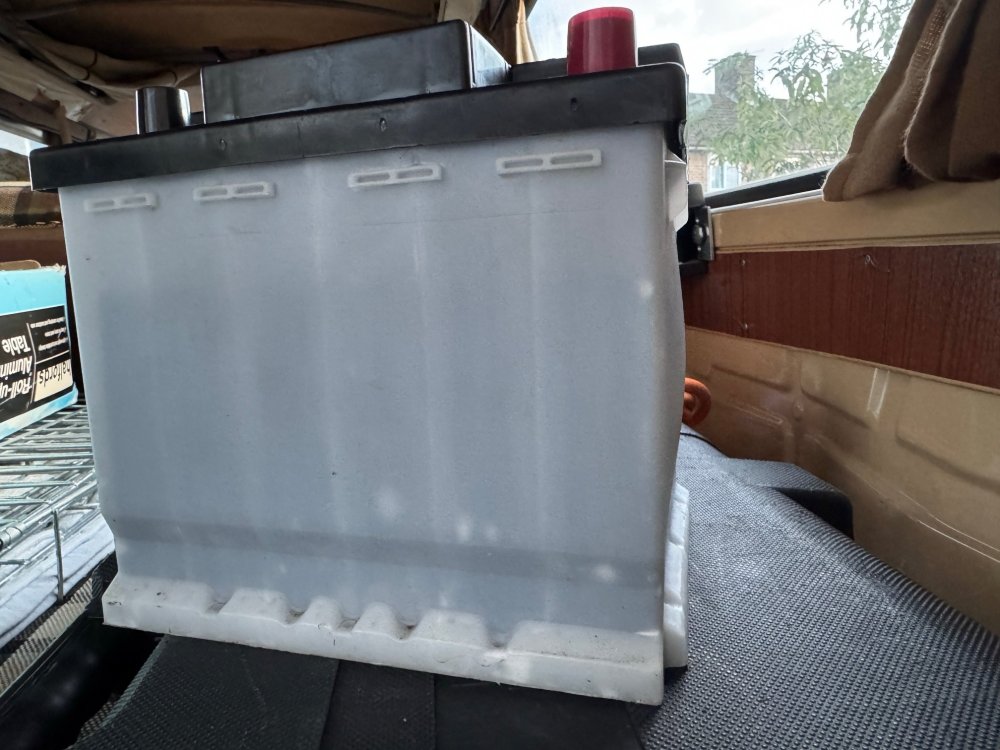
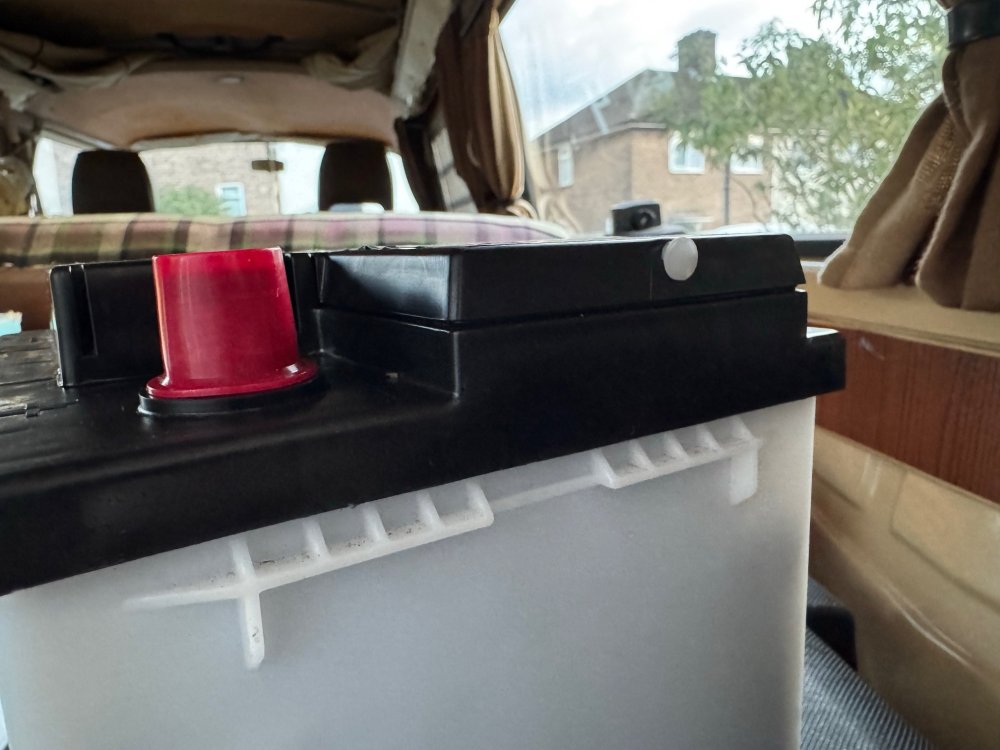
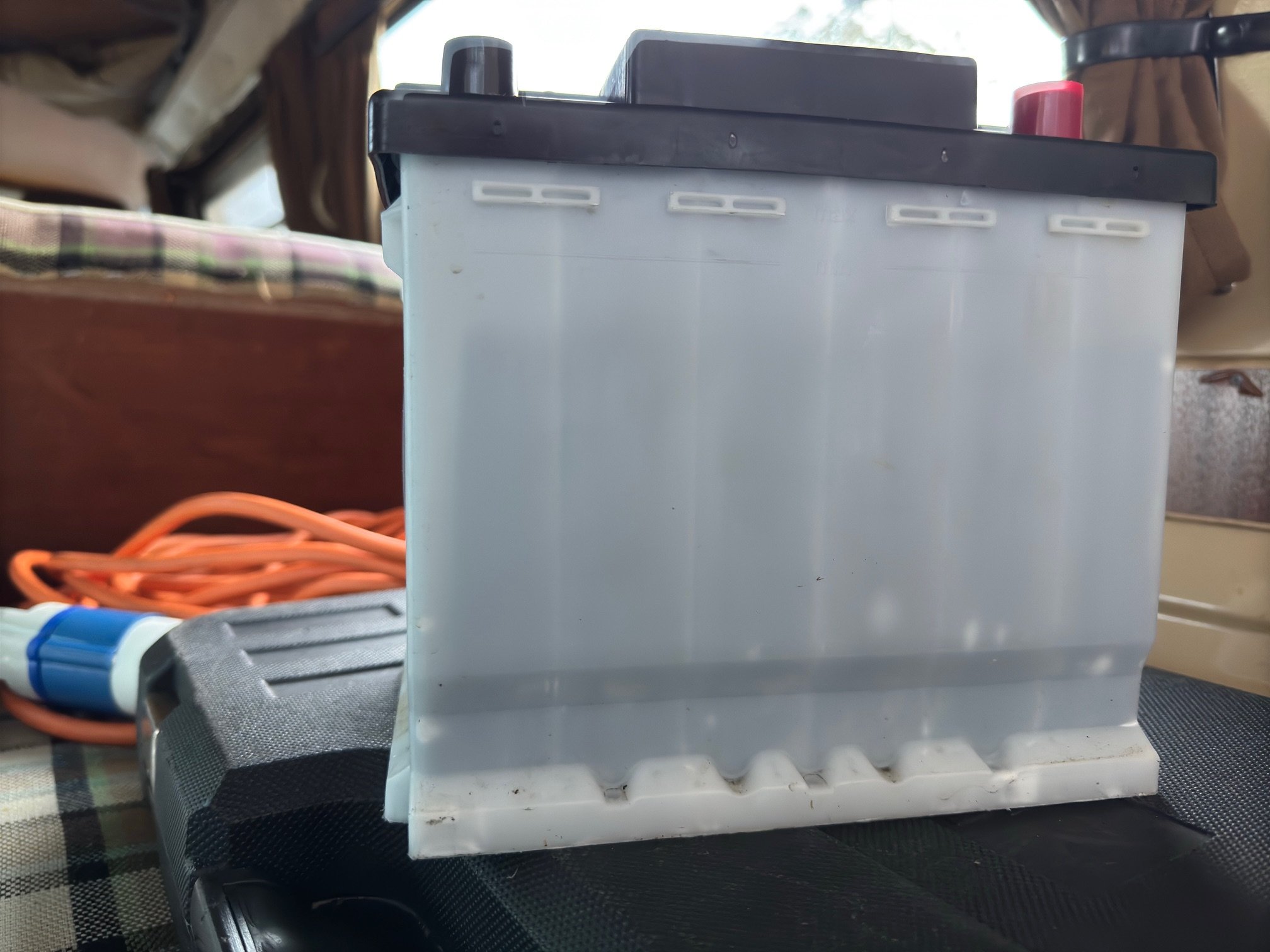
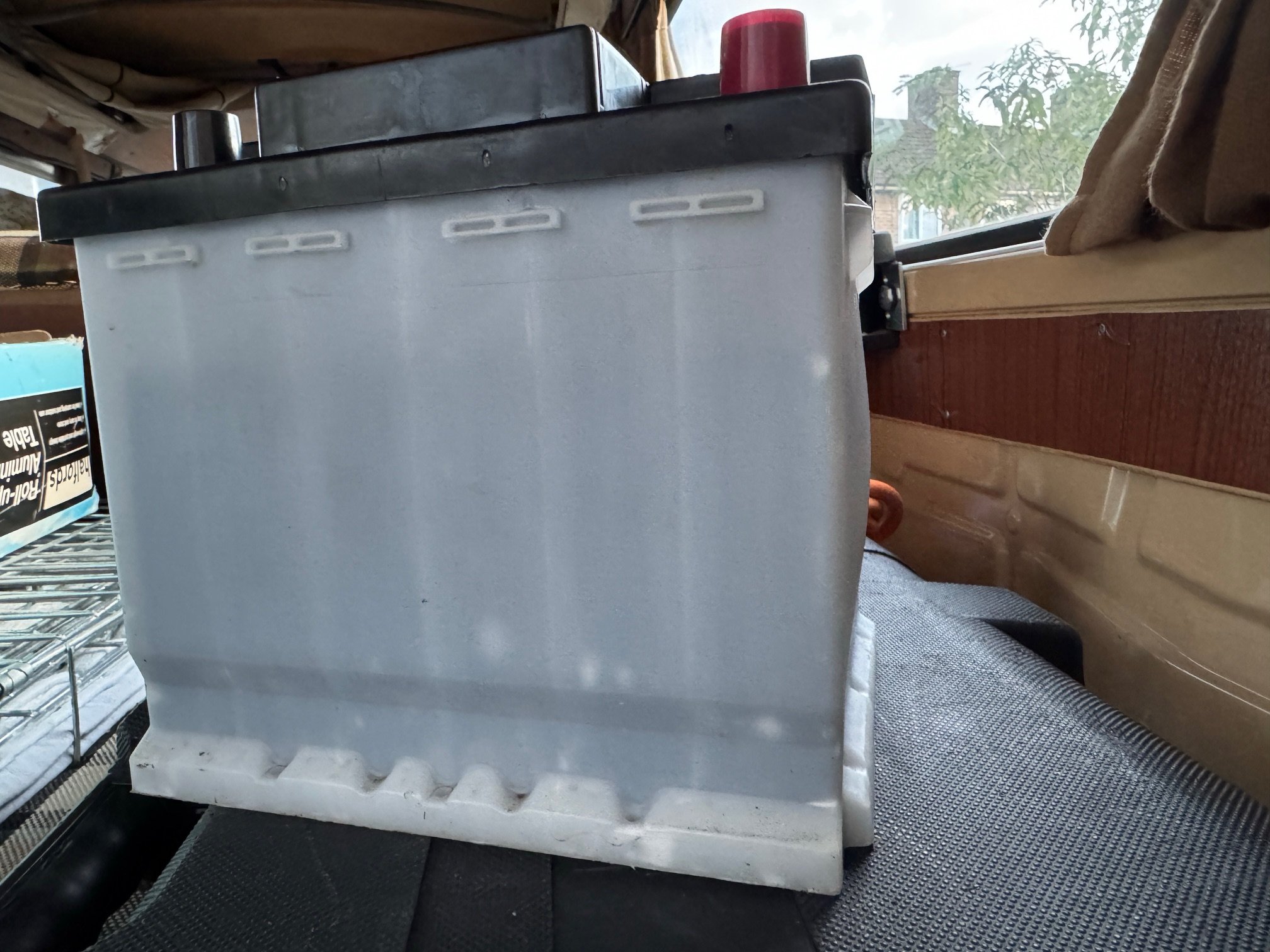
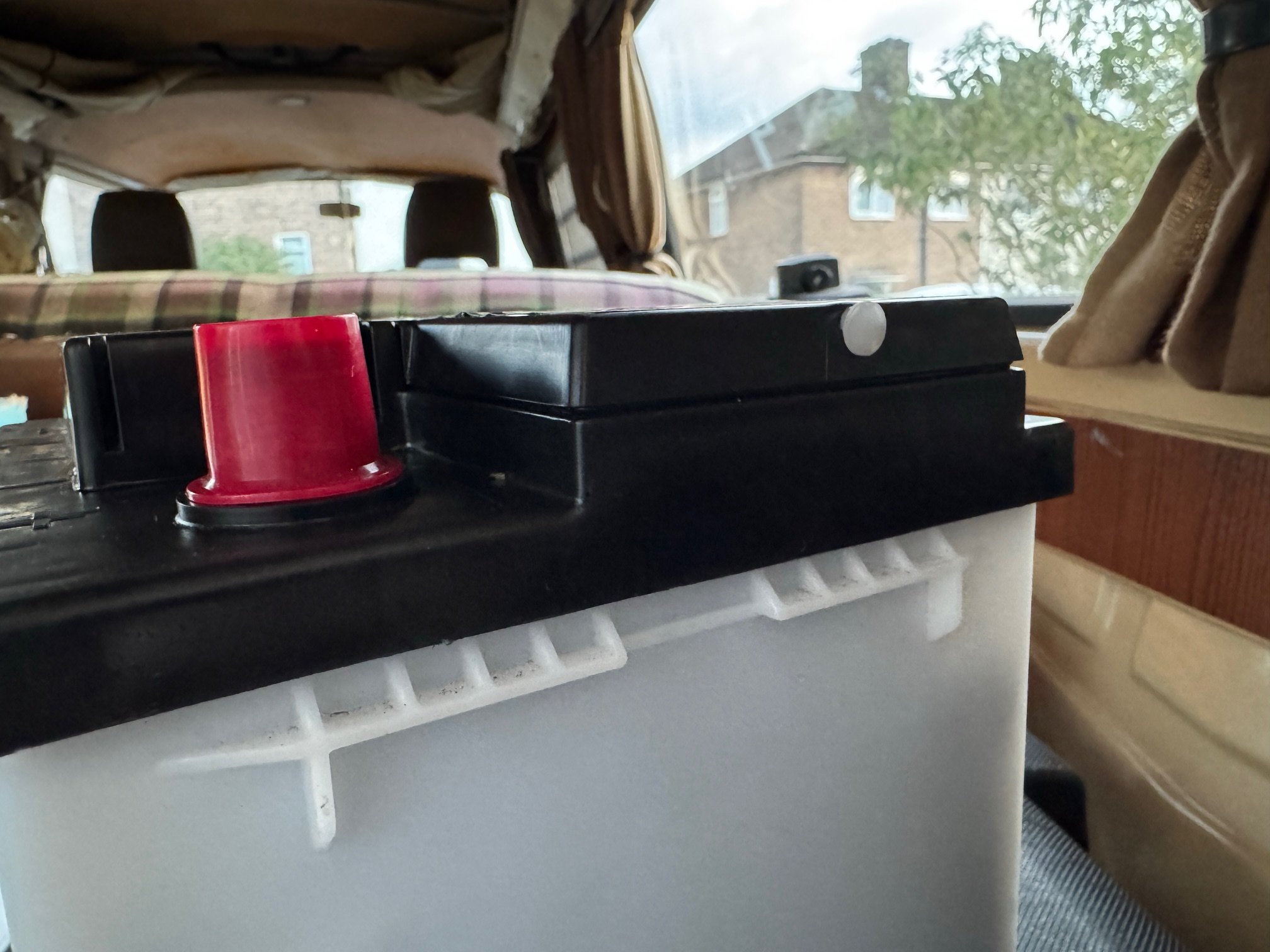
The vent plug was well seated, so maybe hasn’t blown out like it should have. Instead, the side of the battery itself has blown out and bulged.
-
The battery could be anything from 4 weeks to 2 years old. When the vehicle was purchased last month, second hand, a note on the service history says there were problems starting the car. So either the battery was already faulty and was jump started, or the battery was replaced last month. The battery seems new and is relatively clean, but it’s a low mileage car so hard to ascertain the age.
-
For anyone wondering whether battery vent plugs should or shouldn’t be removed upon installation, here’s some photos. This battery is possibly only 4 weeks old. It has done less than 500 miles in that time. One of the vent plugs was left in, one was removed. Not by me, I should add. By a main Skoda dealer. You can tell by the bulge of the battery what side the plug was left in!