




Lukaspictures
New here
-
Joined
-
Last visited
-
Yes, you are right. It seems that everything should be allright, car shows 0 problems and on paper everything should work, however it's not. Dealer garage tried another cruise control stalk and nothing. Car is still at the dealer so I can't test anything myself. What I was told is that they tried to contact skoda manufacturing plant itself for more info about this. Let's hope they will get some kind of answer soon.
-
That's when they saw erorr codes for that cooling system valve thus they replaced everything. Now there are no erorr codes, no orange light but cruise control still doesn't work.
-
I used to see orange error light like this and nothing else happened. Odometer did flip over, however I was not able to engage and set the speed. Official garage told me that there was some problem with coolant system which they fixed. Apparently my coolant was leaking from time to time and this magnetic valve with couple of cables were needed to be replaced. https://www.skoda-parts.com/spare-part/4h0121671d-magnetic-valve-skoda-29838.html Somehow this valve is important for proper system condition and after this according to the official garage all erorrs in car's computer disappeared and cruise control should have started working again, however it's still not working.
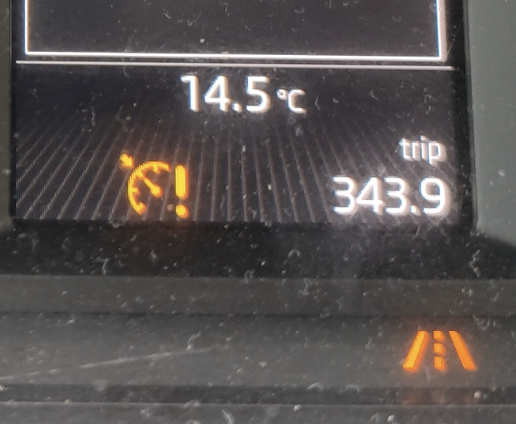
-
Hi, after couple of years I have decided finally to try to find a problem and fix my cruise control on 2013 mk3 Octavia 1.8 TSI. Official skoda garage tells me that they can't find a problem because car computer doesn't show any error codes and seems that everything is allright. Any ideas what could cause such strange behaviour? Thanks.