Saby
Finding my way
-
Joined
-
Last visited
-
Thank you Peter , you are amazing
-
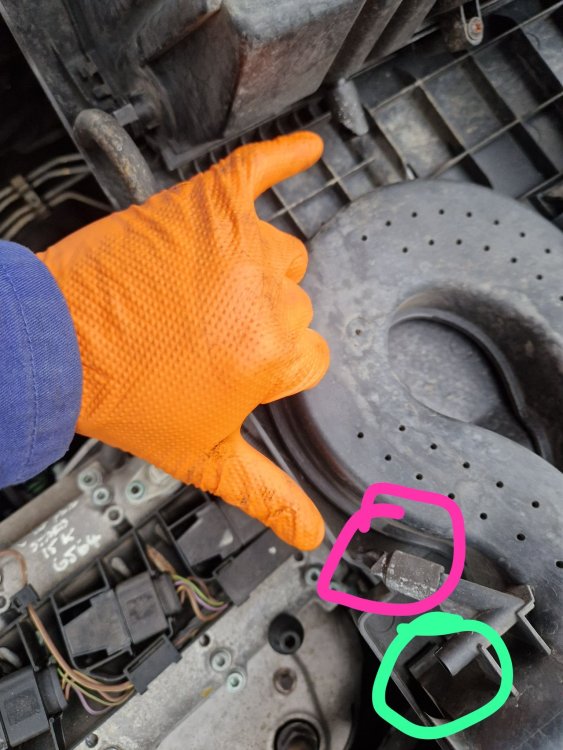
I see , it’s strange and is ther any issue or warning signal ? As far as I understand from this picture, one connected to EGR and other one is closed ?
-
Thanks Peter will try doing the same if the air is sucking in or not , what should be ideal situation ?
-
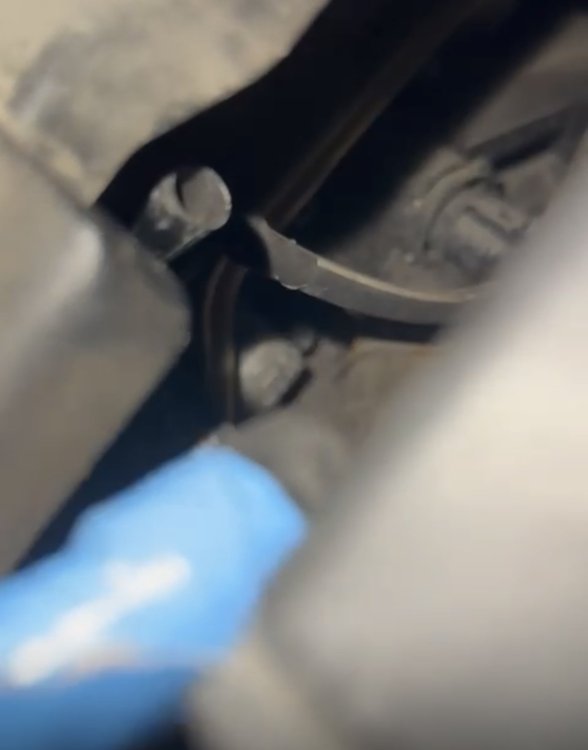
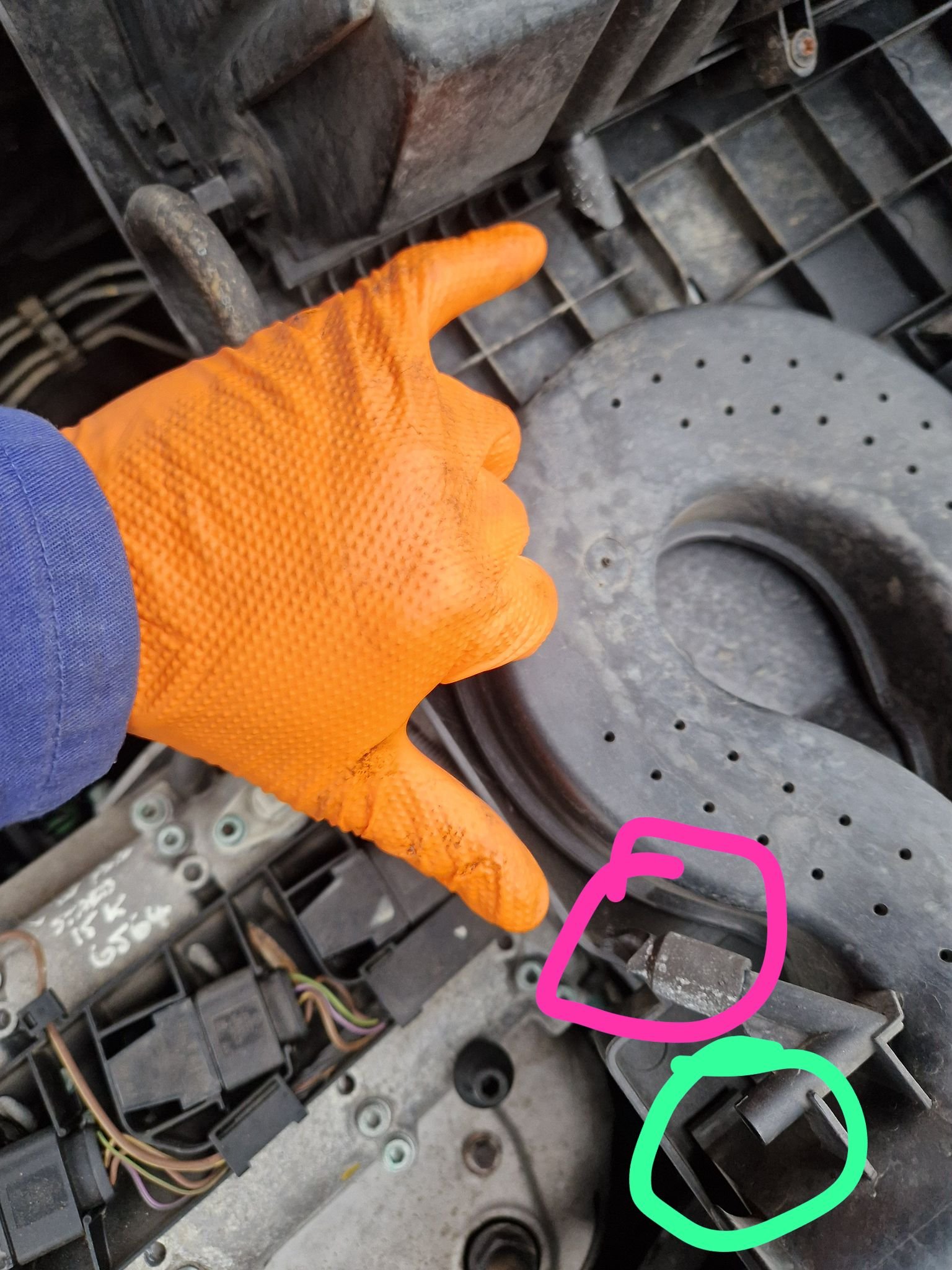
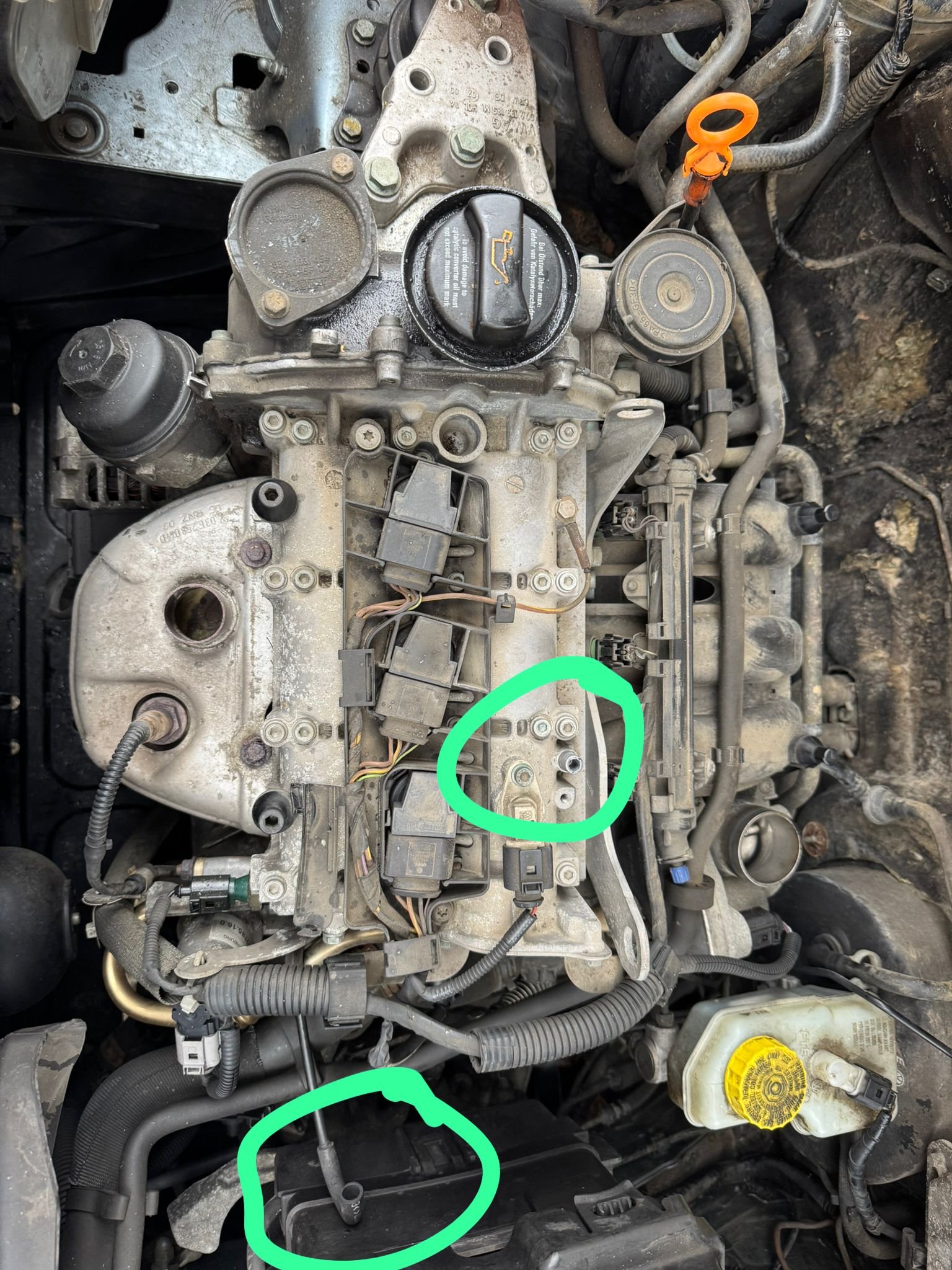
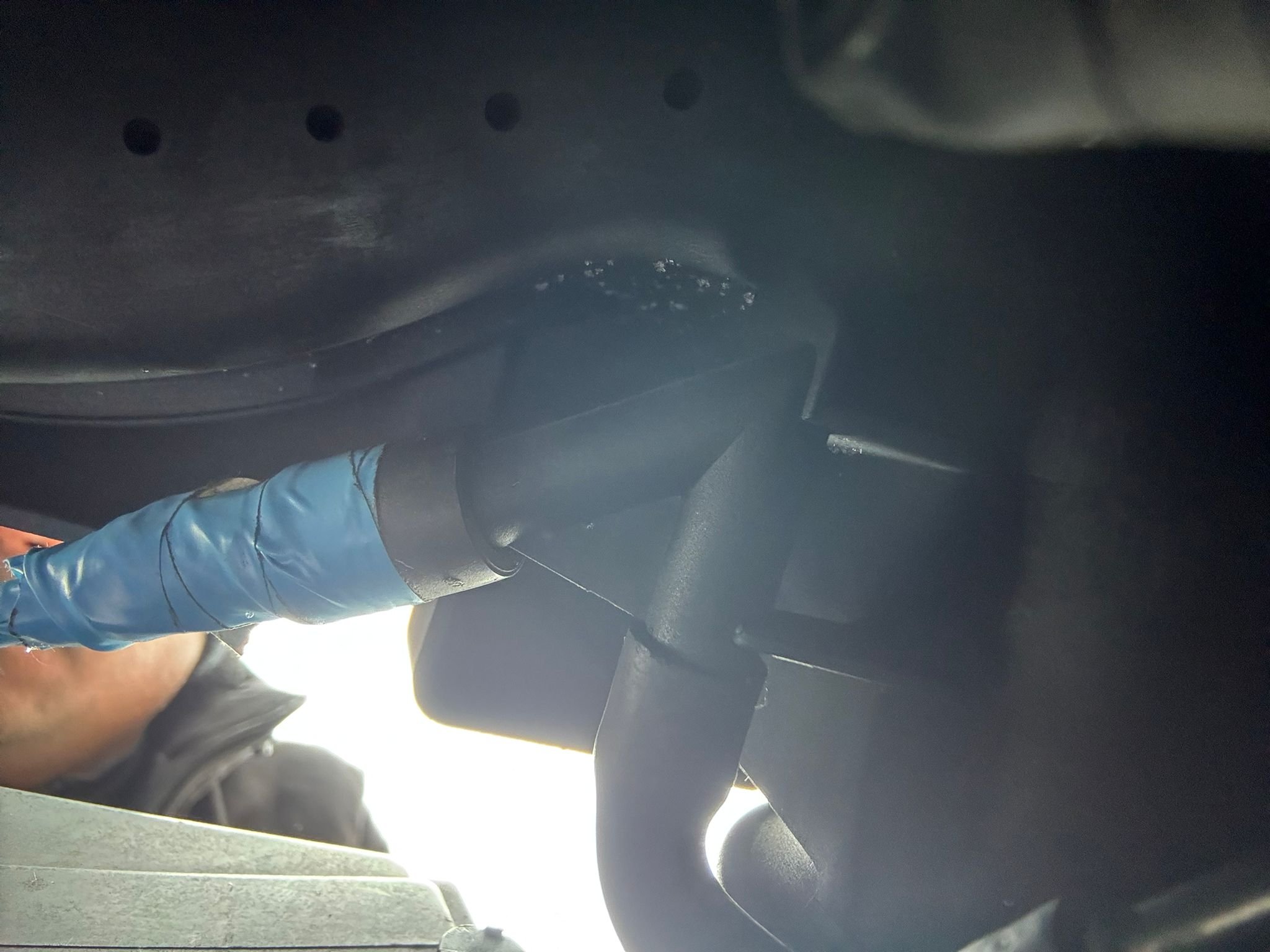
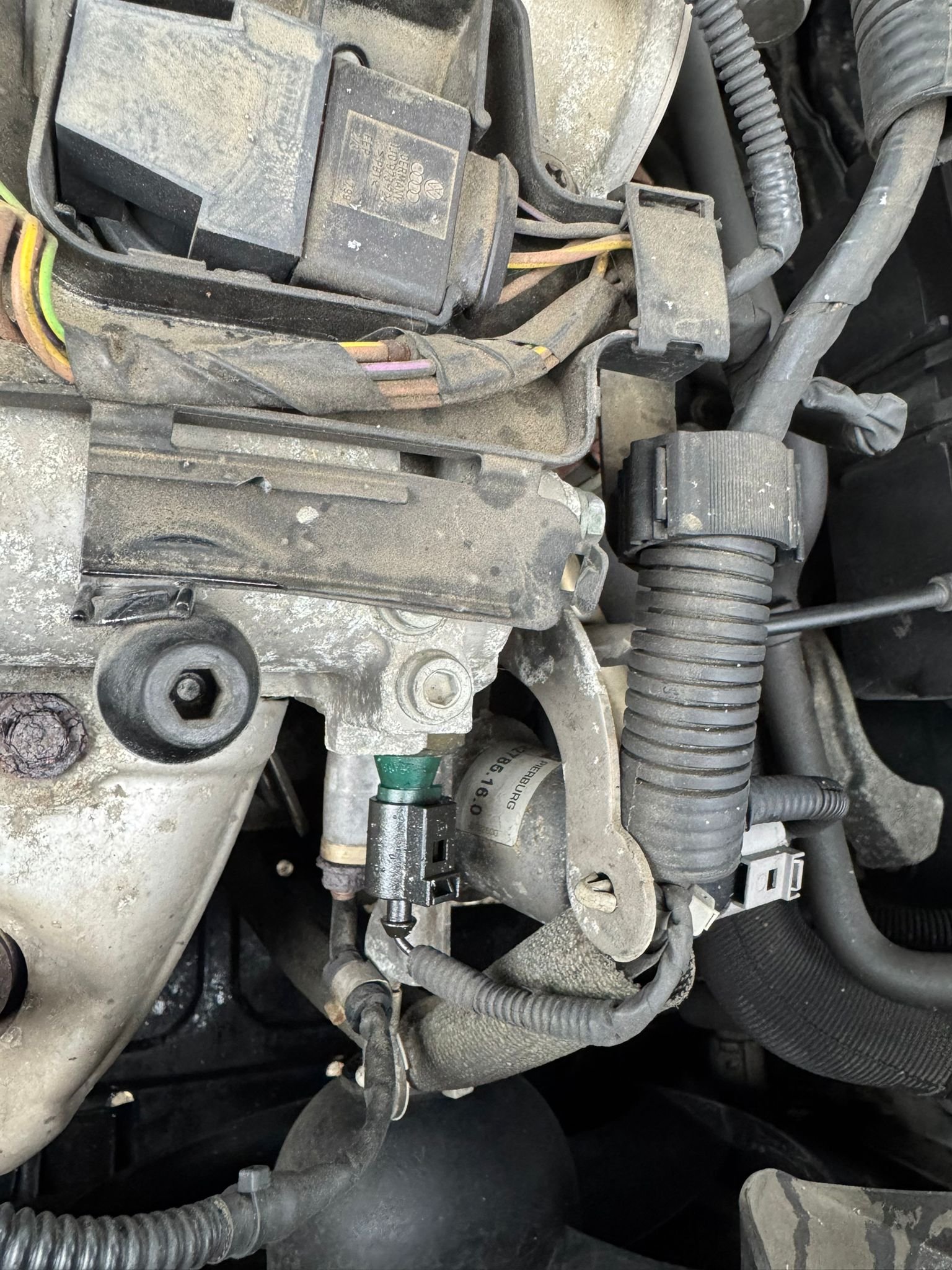
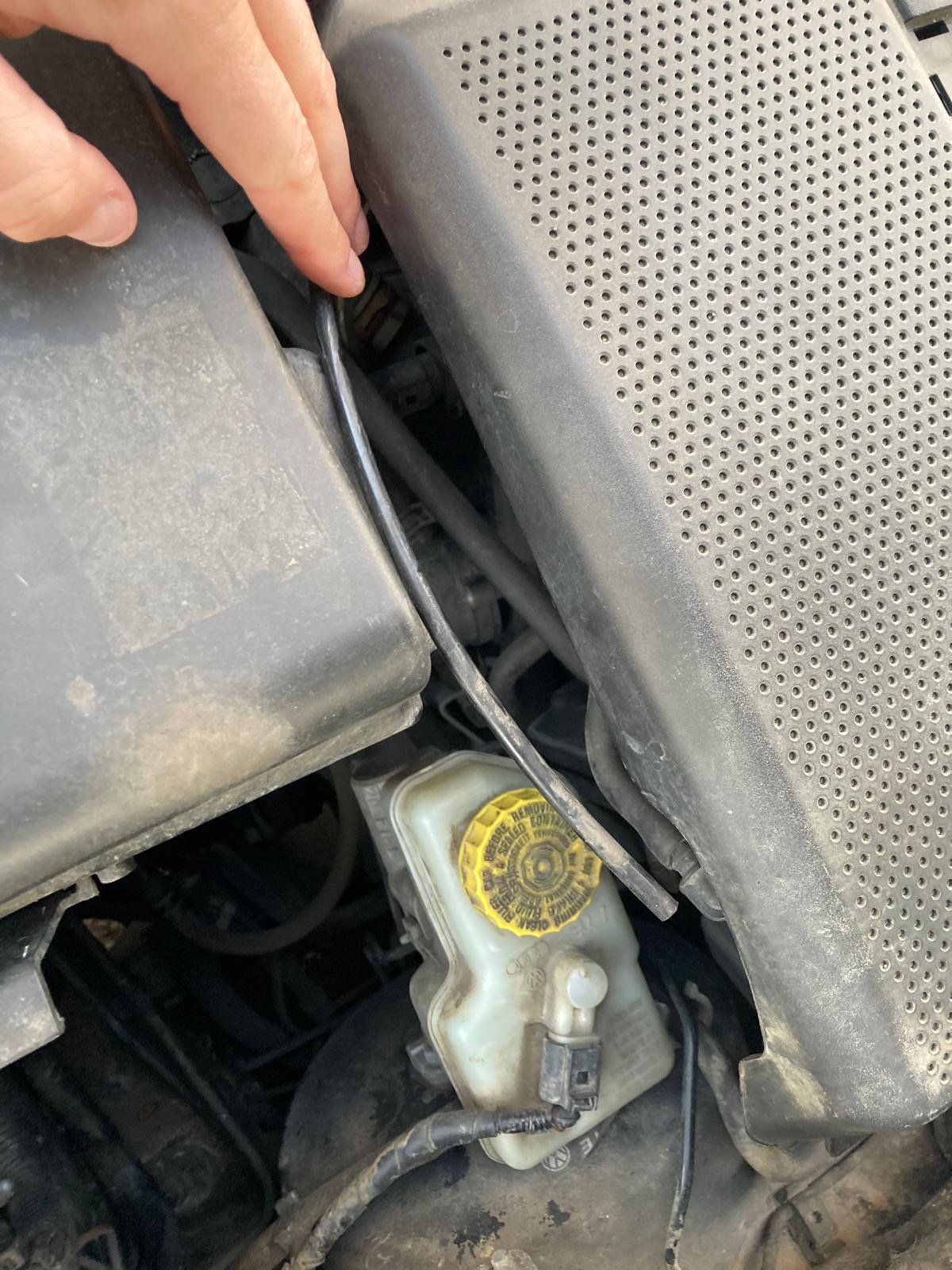
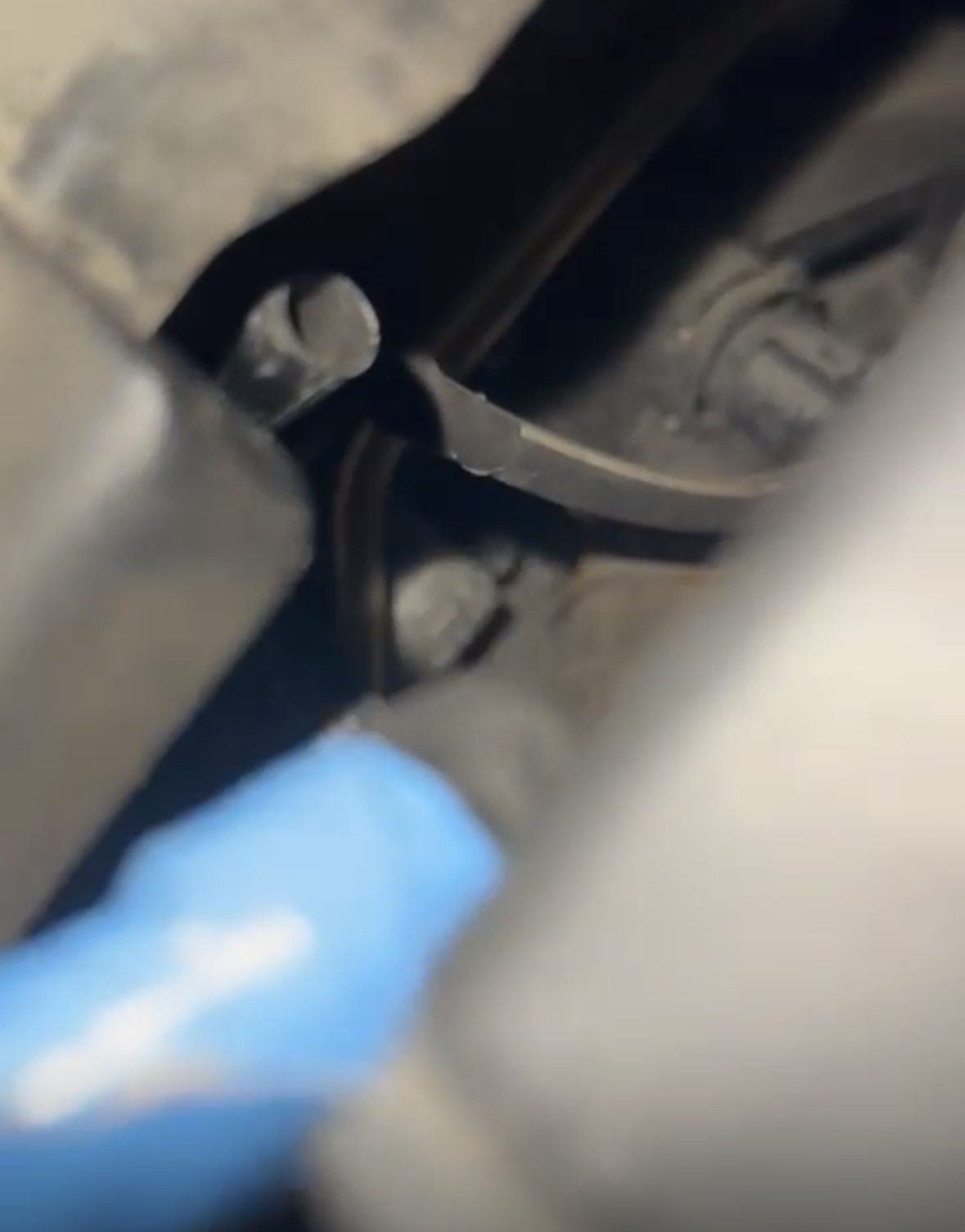
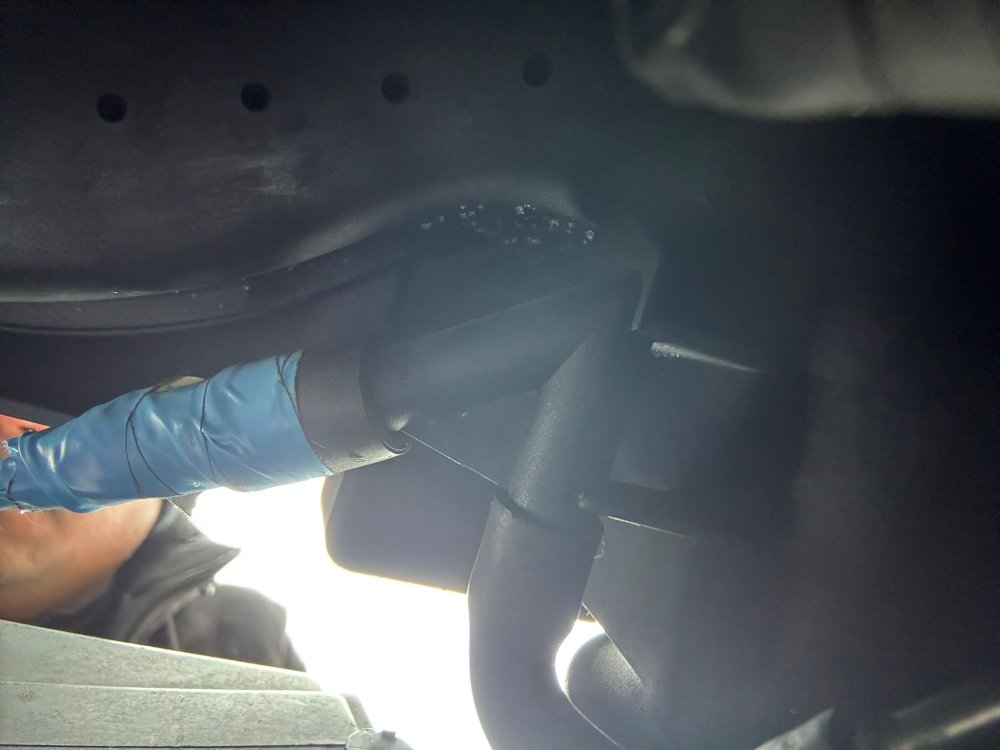
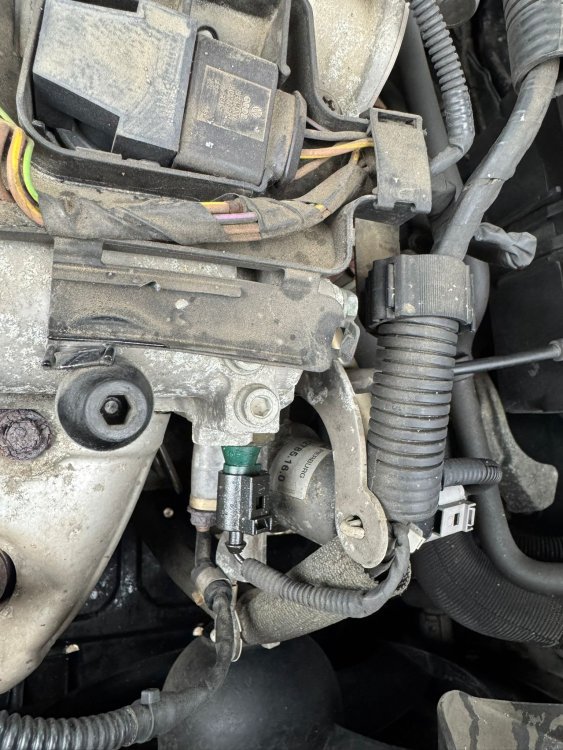
Thank you, Peter. I’ll proceed with replacing the oil pressure switch, as you suggested. I’ve checked and confirmed that all the connections you described are properly in place. However, my concern is with the V-shaped vent connector. One side of it, where the pipe with the blue tape is located, appears to be sucking in air, but I can’t find where it should connect. The red square to red square (pressure equalizing feed to the EGR valve) is properly connected, but the other side of this V-connector has a 15 cm pipe that seems to be drawing air with no connection point. From my understanding, all pipes should be connected in a closed loop, and there shouldn’t be any fresh air intake through these pipes. Could you confirm if this is correct or if I’m missing something?
-
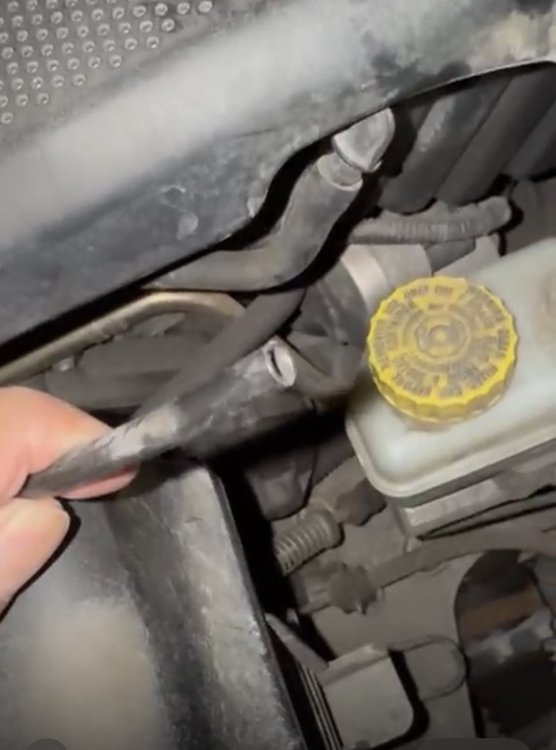
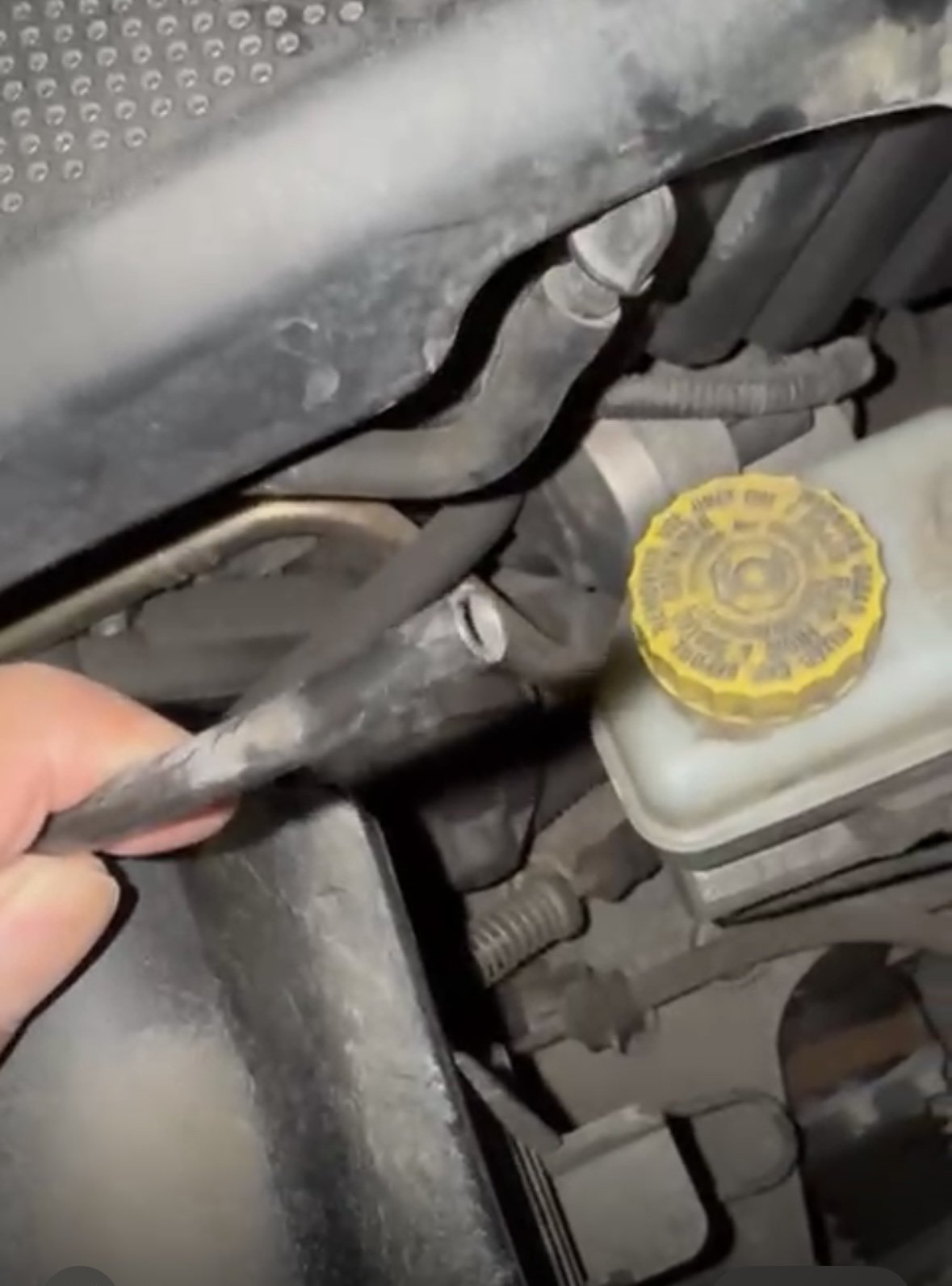
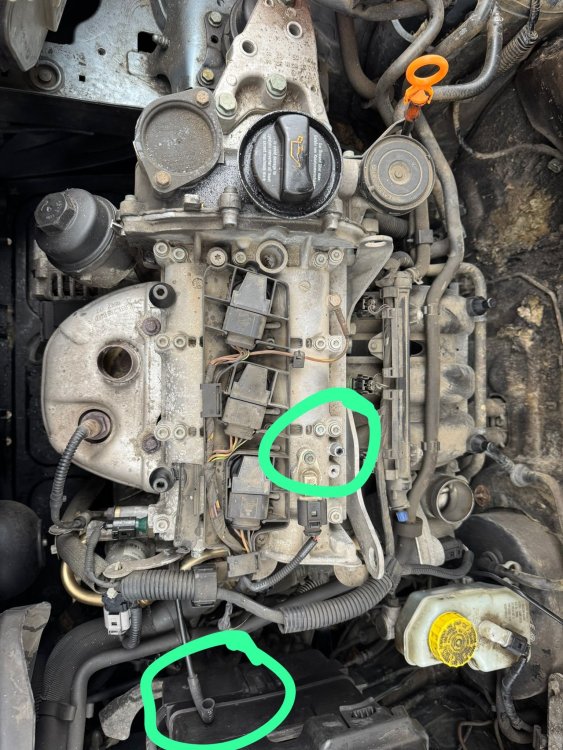
I see red sign of oil , which pops up and goes off. Attached the v shape vent pipe - one goes to pressure switch which is marked in one of the upload and secured and no leaking, the blue tape connection was worn off and its just taking air inside while you switch on the engine and no where to see get connected. Posting the view of engine (ignore the engine sound as its from the next car.
-
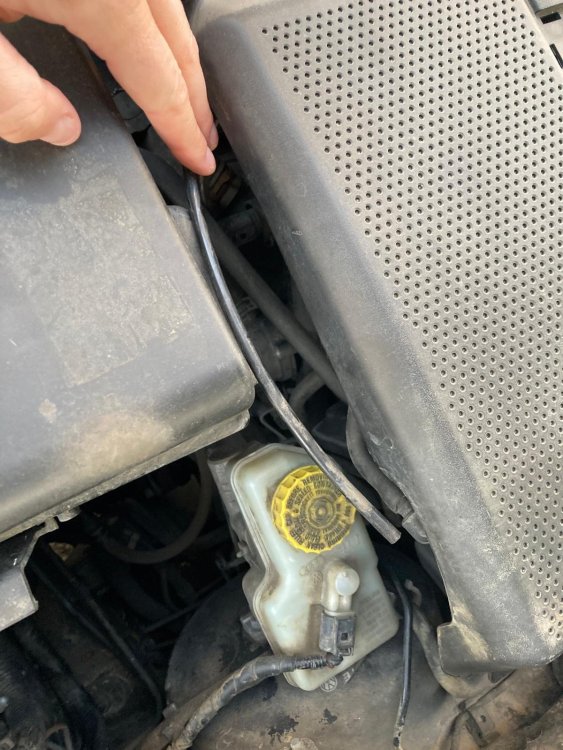
Hello Experts, I need some help regarding the reference images. I was driving a 2002 1.2L Skoda Fabia when I noticed the oil light blinking. The oil was changed two months ago. Upon inspection, I found a disconnected black vent pipe but couldn't locate where it should be connected. I started the engine and noticed that air is being sucked in, which suggests it might be an air inlet. I’ve attached some pictures for reference. Manual Gear, EU Added a Youtube Short - Saby