karp
New here
-
Joined
-
Last visited
Everything posted by karp
-
Thank you. I have also found that with the maf unplugged the whole egr system does not work and the P200200 code does not appear. Also, I have measured the MAF flow with EGR systems on and it looks like it should be lower with the Low pressure EGR in operation, hence probably the low pressure EGR radiator is clogged again (
-
Thank you, I have performed the adaptation procedure, but it does not help. Some leak could be a reason. I need to check for leaks, though I think it would have introduced itself by other faults.
-
Thank you very much for your reply. I have checked the sensor. In fact I tried replacing them and tried few others. No difference. Concerning the EGR valve. What valve are you referring to? Low pressure EGR or high pressure EGR? Could you please be more specific on the vacuum problem?
-
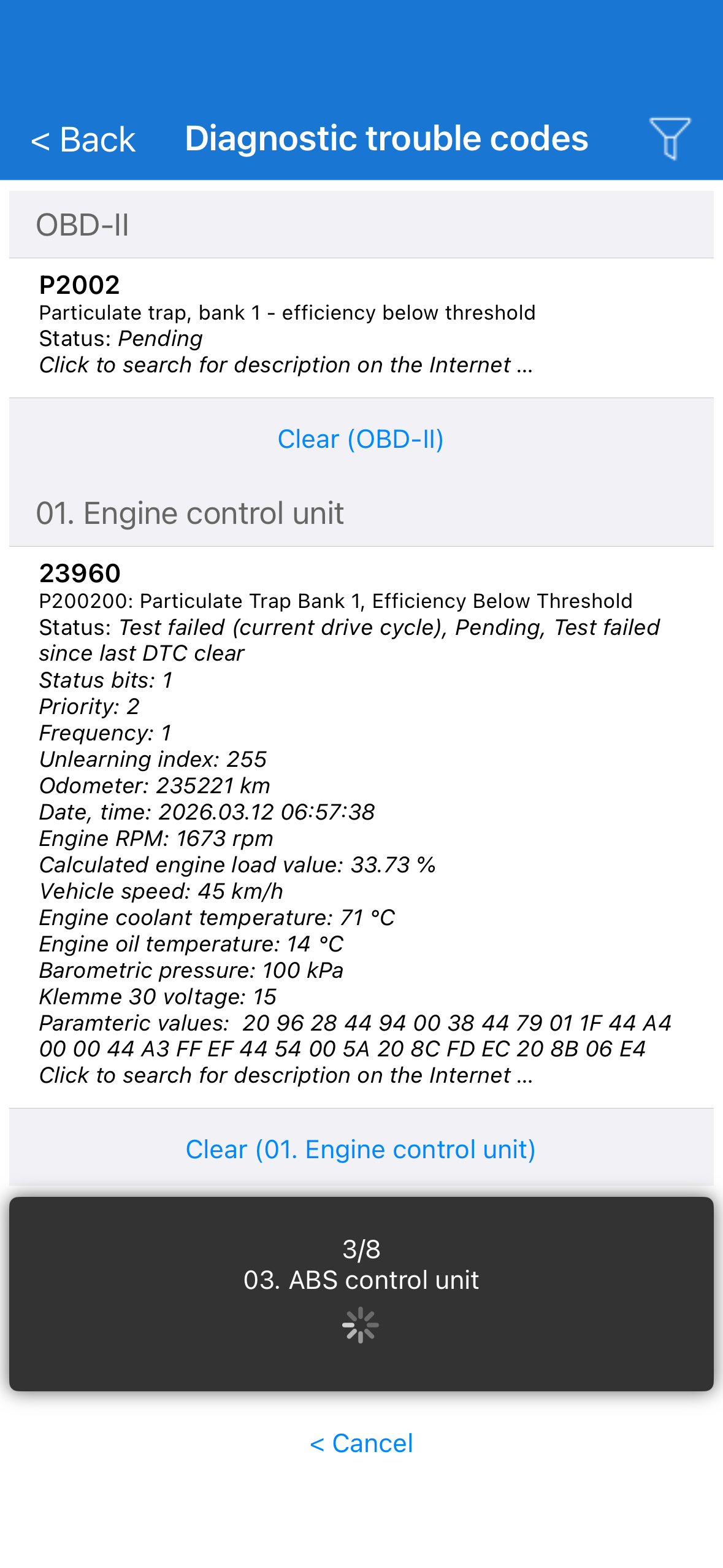
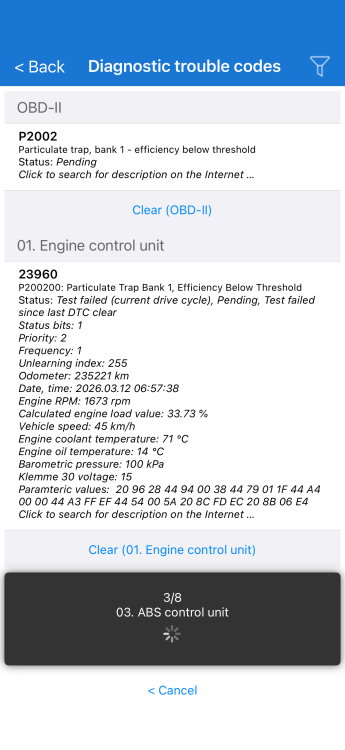
Hello to you all. I have got a persistent problem of getting the P200200 when the engine is cold after start. My car - Skoda Octavia 1.6TDI CXXB. Mileage 145k miles. It looks like it appears only after start and then if I clean it it does not reappear again. It triggers the EML light after some time or after the second start. What has been done: Low pressure EGR cooler assembly (cooler and valve) replaced by myself to a new MAHLE one. DPF filter was taken from the car in the garage and professionally cleaned at a dedicated equipment off-car. The high-pressure EGR valve was cleaned by me. The throttle body was cleaned by me as well. I have checked the fuel injector time deviation and it is within the limit as well. What is left? Glow plugs? Maybe someone has already encountered something like this? I don't know where else to dig. P.S. I also use VCDS to diagnose my car, not just the carscanner. But it doesn't help. Thank you
-
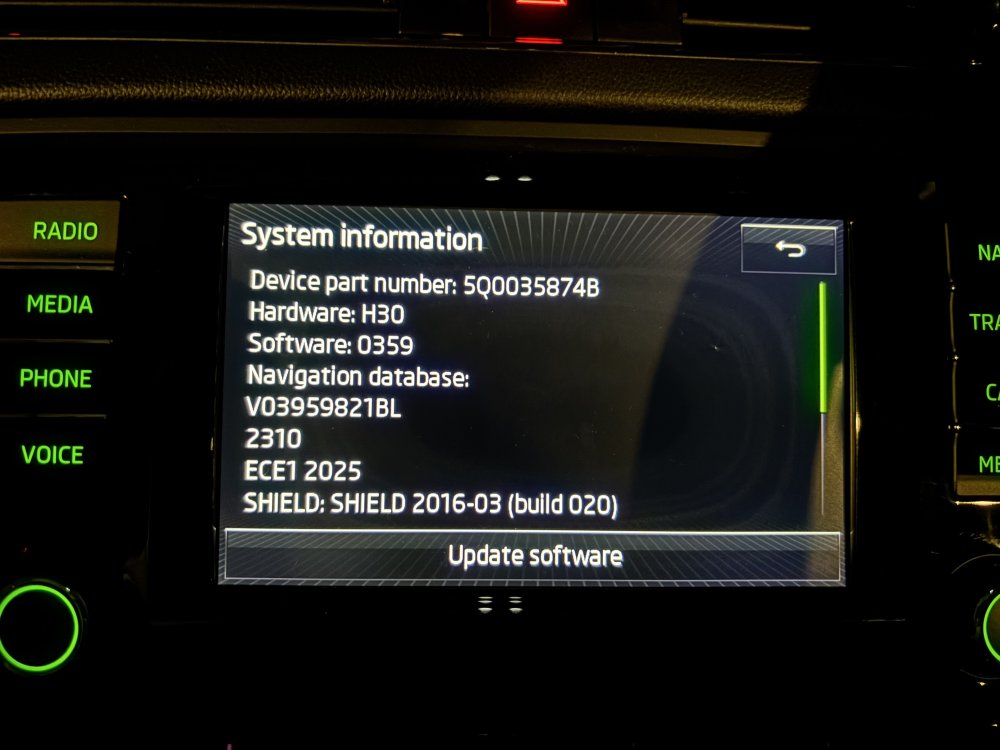
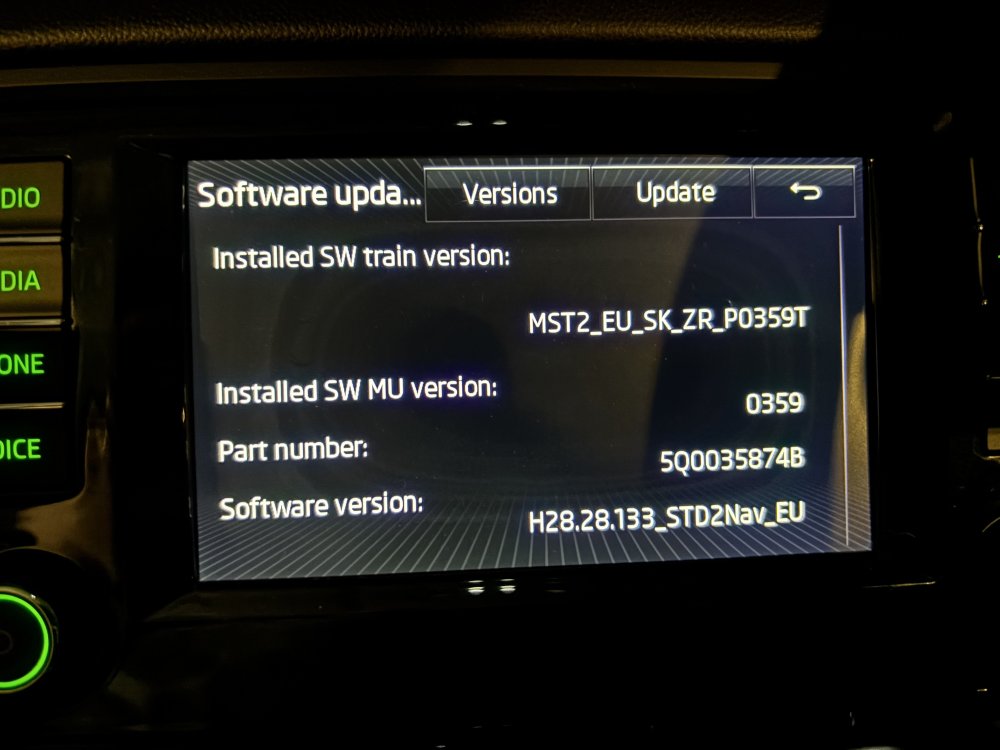
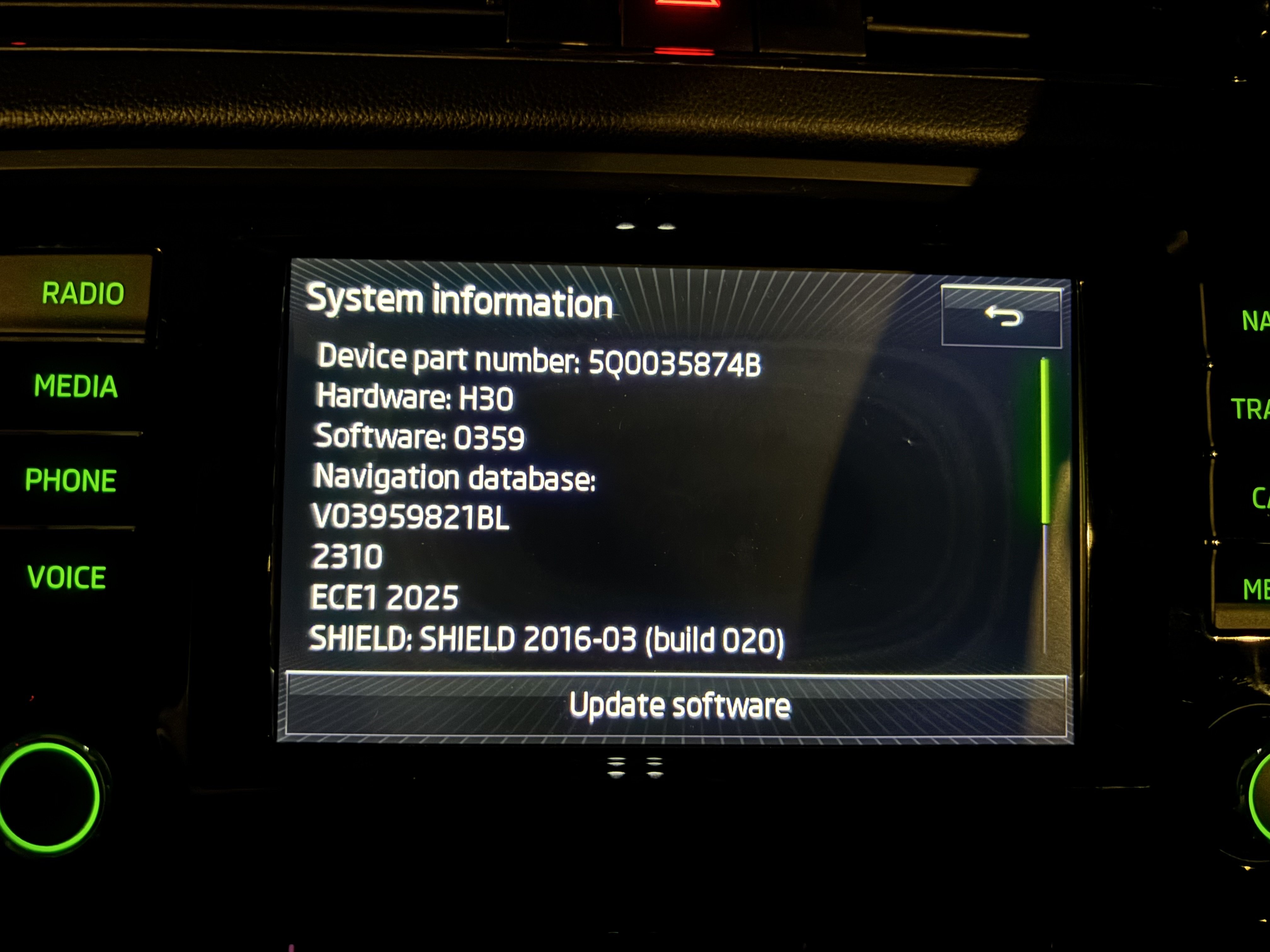
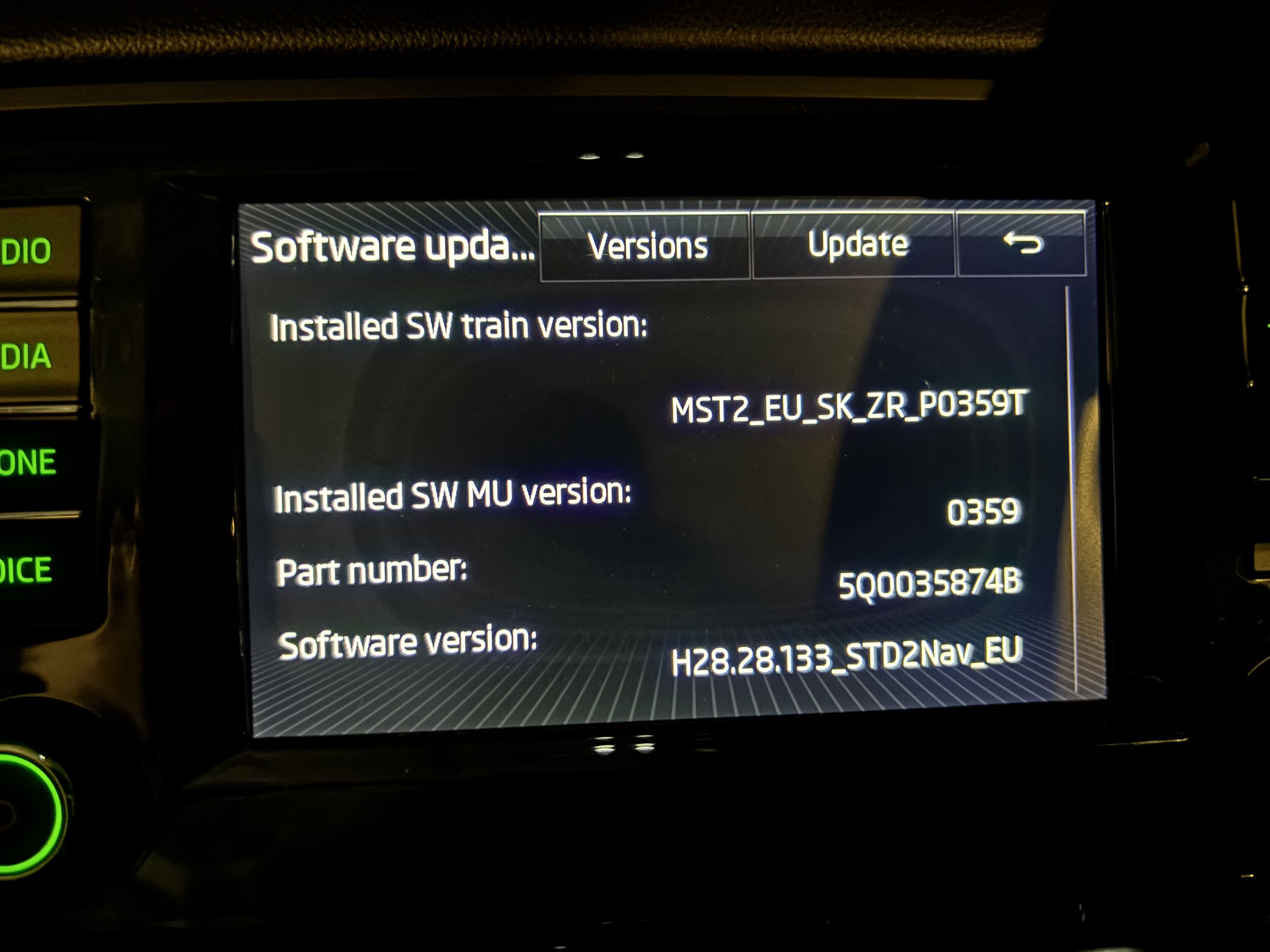
Hello. I am new here. Could you please help me with a software update ?