Mepanda
New here
-
Joined
-
Last visited
Everything posted by Mepanda
-
I have sighed around and I believe my vehicle was manufactured Jan 2020.... Please let me know how to activate the road sign recognition, I have odb11 device, would that be OK to use to activate the road sign recognition? How do I get a SWaP code for it? Is there a guide or videos or anything that I can follow? Really appreciate your help guys :)
-
Hi there, my car is a 2020 SE L model, I hope that helps
-
Hi there, Can you help me with the TA button please? Regarding the SWaP codes, can you help me with that? Regards,
-
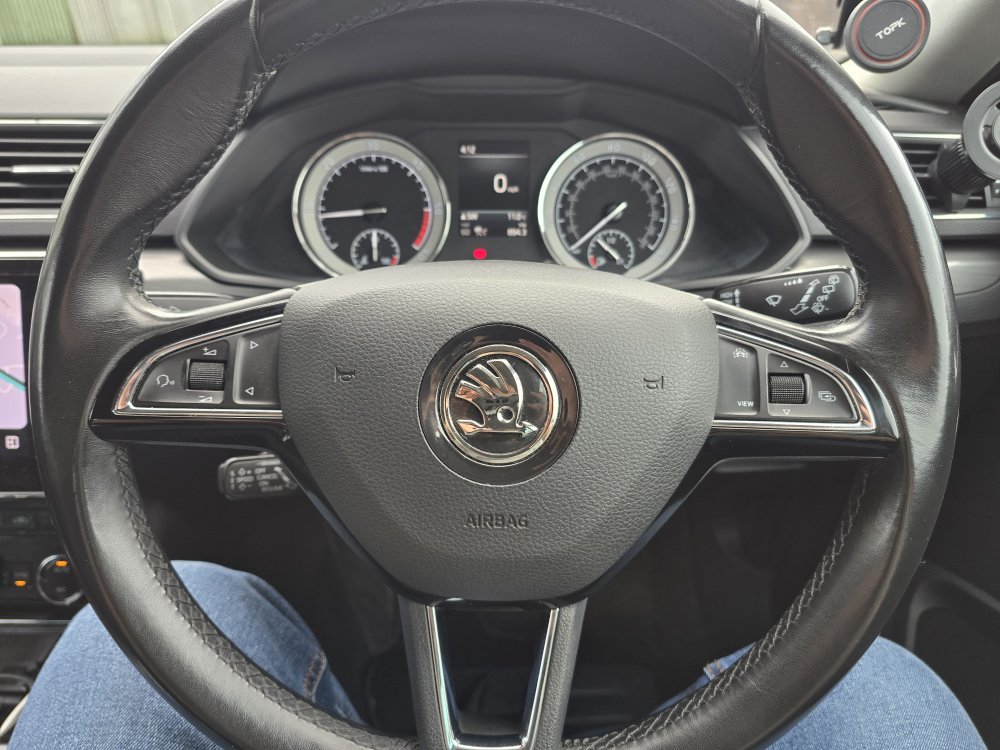
Hi there and thank you for replying. I have attached a picture of my steering wheel. Do you have the guide you used to activate the feature? I would be extremely grateful if you can share anything with me to active the feature :)
-
This is my 1st post, please be kind 😀 Hi all, I’ve been trying to enable Lane Assist and Travel Assist on my Skoda Superb SE L using OBDeleven, with help from someone experienced in VAG coding. Here’s what I’ve done so far: A5 camera module: 2Q0 980 653 Infotainment (5F): MIB2 Standard – MU-S-ND-ER (J794, software 0478) ACC (Adaptive Cruise Control): Working perfectly Used OBDeleven to manually code Lane Assist, steering intervention, and vibration on lane departure (Byte 09 set to 1D in A5) However, I’ve hit two snags: Lane Assist isn't working at all (no intervention, no warning — even though it’s coded) Tried enabling Dynamic Road Sign Display, but I'm getting “Error: Dynamic Road Sign Display” on the dash From what I’ve read, I might need a FEC/SWaP activation code (or patch) to unlock these features properly in the infotainment. I have OBDeleven Pro, so I'm happy to test/code things myself — just not sure what else to try without unlocking it properly. Any advice, or can anyone recommend someone who does remote FEC activation or patching for Skoda? Thanks a lot in advance!