Pollocedrone
Finding my way
-
Joined
-
Last visited
-
-
Hello, everything is clear, thanks for the response. In the 'main.mnf' of the firmware I have installed "MEN3_EU_SK370_P3355L", I find under the 'Variant' section: 'Variant': [ 'FM3-E2---SK-MQB-PA-*'" So, if I understand correctly, if I don't find this variant in the 'main.mnf' of the logo database update package, the update will definitely not start. I have no way of manually adding this variant to the 'main.mnf' because the file is digitally signed by the creator of the package using dedicated tools
-
Hi, I currently have this firmware installed: MEN3_EU_SK370_P3355L MU1800, and I have the zip archive saved on my PC. Where can I find this "component code"? And once I find it, what should I do with it? Keep in mind that in the radio menu, I can't find the version of the radio logo database listed anywhere clearly. While exploring the secret menu, I found this info: "tunerdb_device 1.30.22", but it is very hidden. Hi, I also have a Skoda Kamiq (Montecarlo 2023), and I just updated the firmware to version 1800. Hidden in the secret menu, I found this: "tunerdb_device 1.30.22". Have you managed to update the radio logo database?
-
No way: I can't figure out which version of the database is installed on the radio; moreover, I tried all the packages available on the first page, but none of them are recognized as an "update" by my radio (I used a USB-C stick formatted in FAT32, and extracted the various archives directly onto the root of the USB stick, not inside subfolders).
-
-
I used a 32 GB USB-C stick, and using the Windows Disk Management tool (WIN + R, diskmgmt.msc), I first deleted the existing partition and then created a new 4 GB one formatted in FAT32. At that point, I downloaded firmware version 1800 from mibsolution.one (though the link hasn't been working since yesterday). I extracted the downloaded file and found two folders: META and DATA. I created a folder called FW on the USB stick and copied the two folders inside it. Then I went to my car, turned it on, removed the USB stick I usually use for music, inserted the one with the update, turned on the radio, waited about a minute, and the update process started
-
Great, thank you! That was the answer I was looking for! I confirm that by copying DATA and META into a folder named FW, the radio recognizes the USB stick and the availability of the update! 👌👍
-
-
Hi, I tried to delete all the partitions of the 32 GB USB stick, created a single 4 GB partition in FAT32, copied the DATA and META folders to the main directory, but the radio still doesn't recognize it. Any other ideas?
-
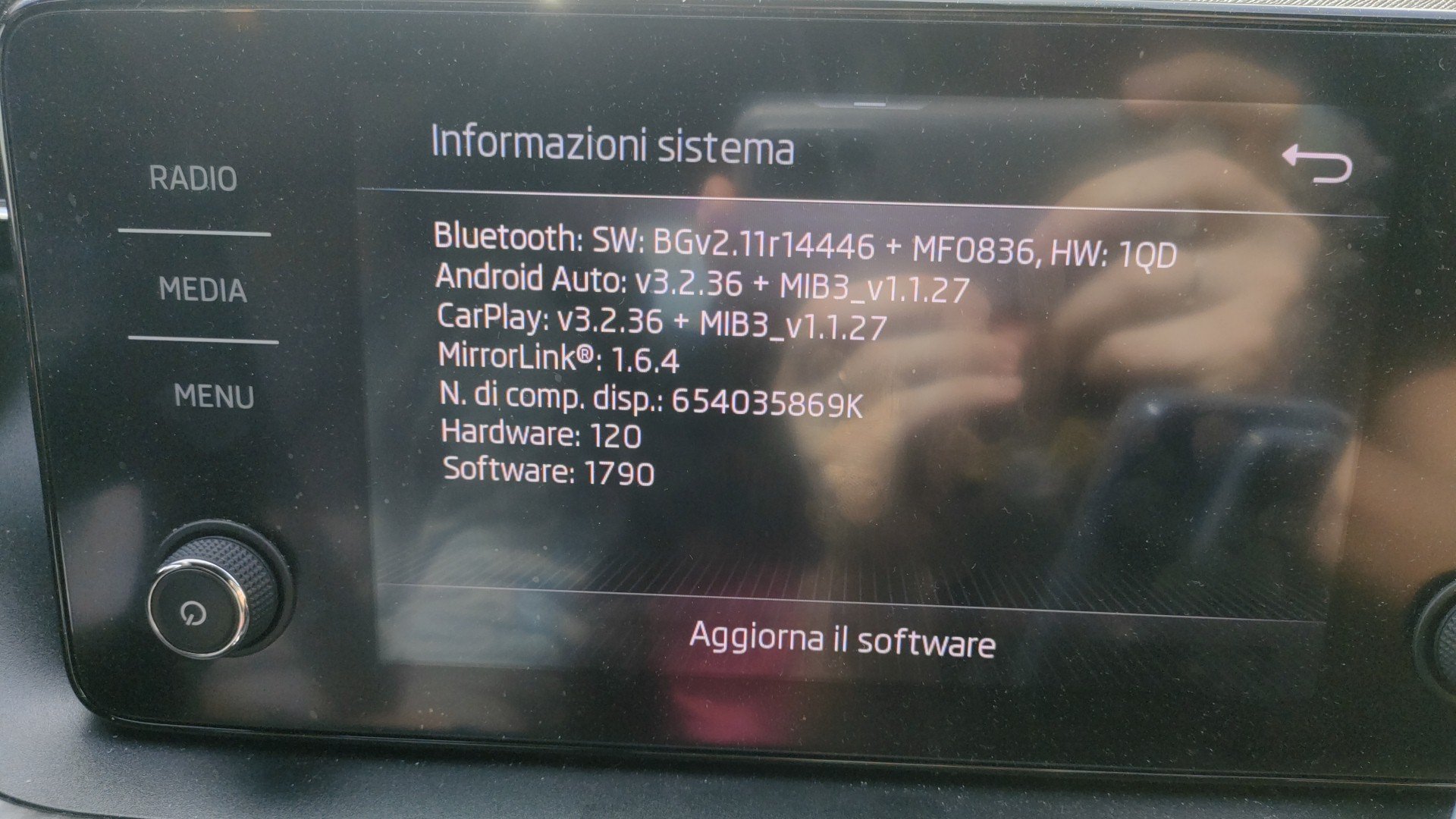
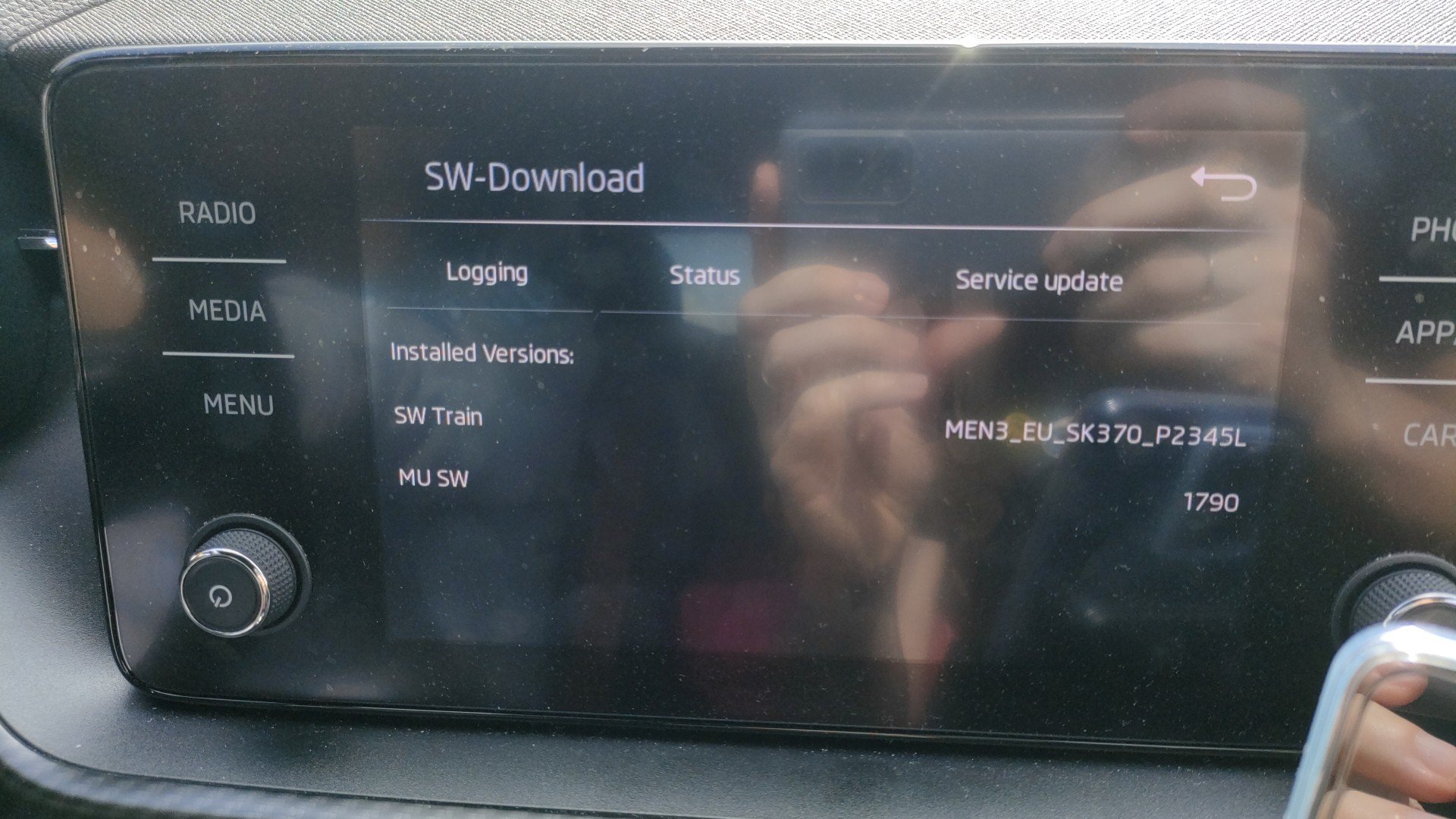
Hi! How did you solve the problem with the USB-C device not being recognized? I have the same firmware as you (MEN3_EU_SK370_P2345L_1790) and I want to update to MEN3_EU_SK370_P3355L_1800, but my 32GB USB-C flash drive is not being recognized...