kampang
New here
-
Joined
-
Last visited
Everything posted by kampang
-
Hi All, I just double checked and now the map is 2025 version... So, I fixed the issue. Thank you brothers.... Best regards, Kampang
-
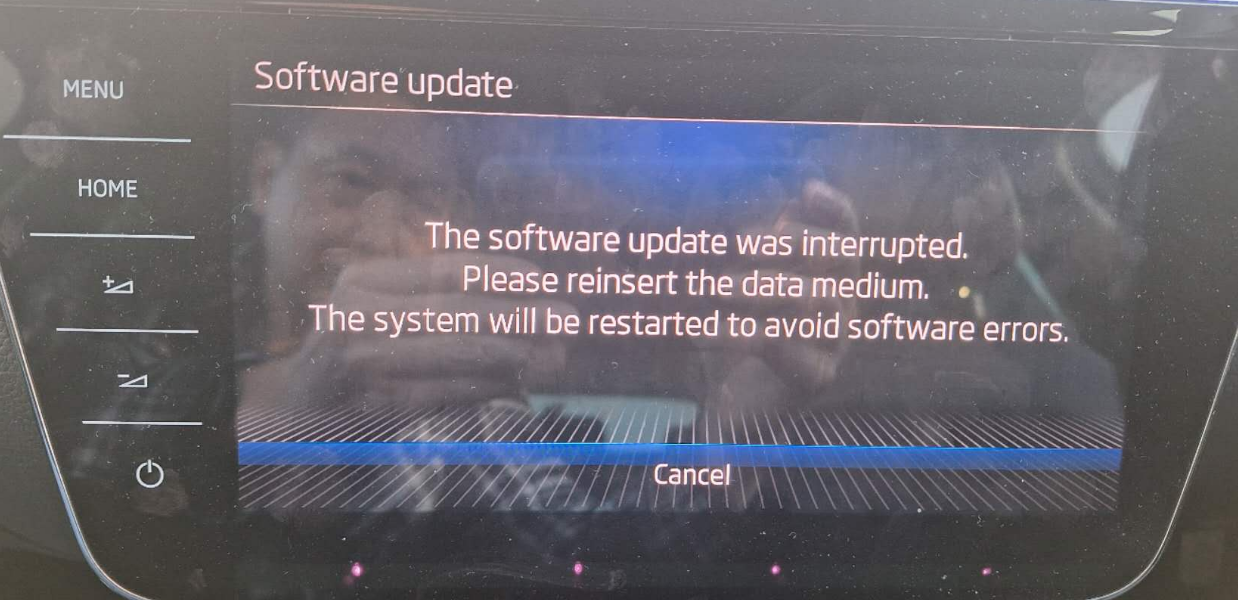
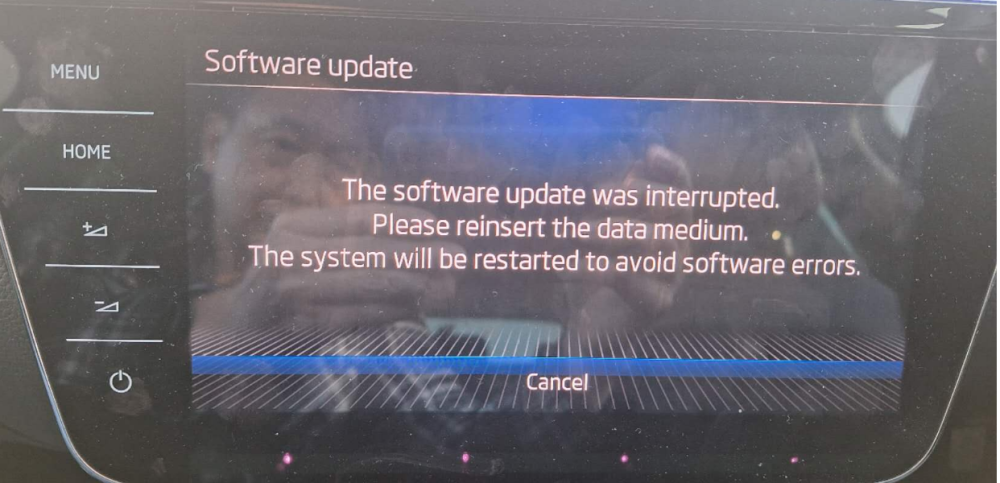
Dear , Yes. My car can read my SD card finally. Thank you. I can update the map. However, the update process is not successful. During the update, below screen prompted out. How should I reinsert the data medium? Anyway, I will download zip file and unzip the file and try again.. Best regards, Joseph
-
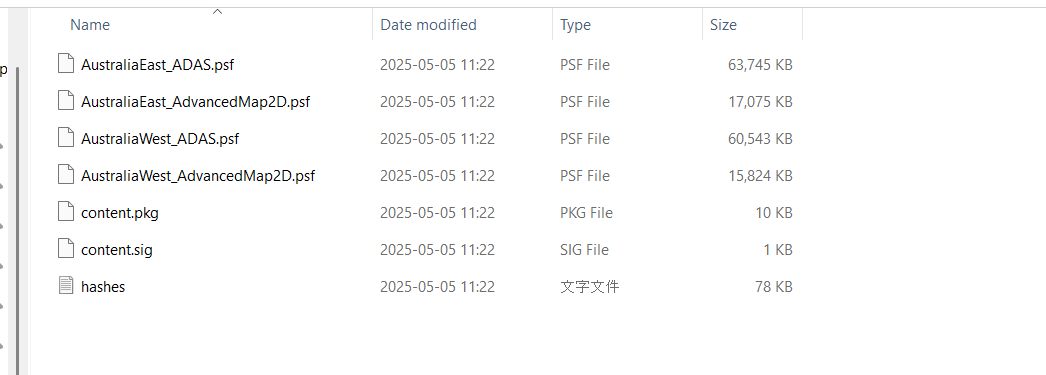
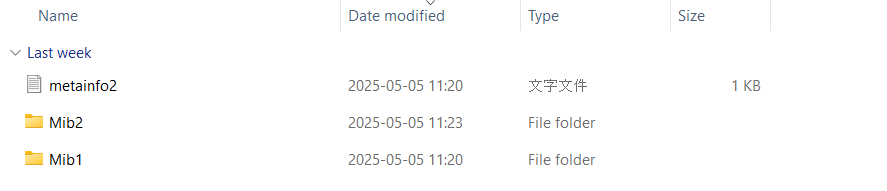
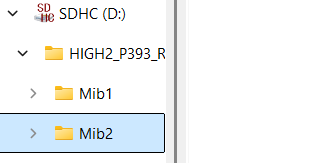
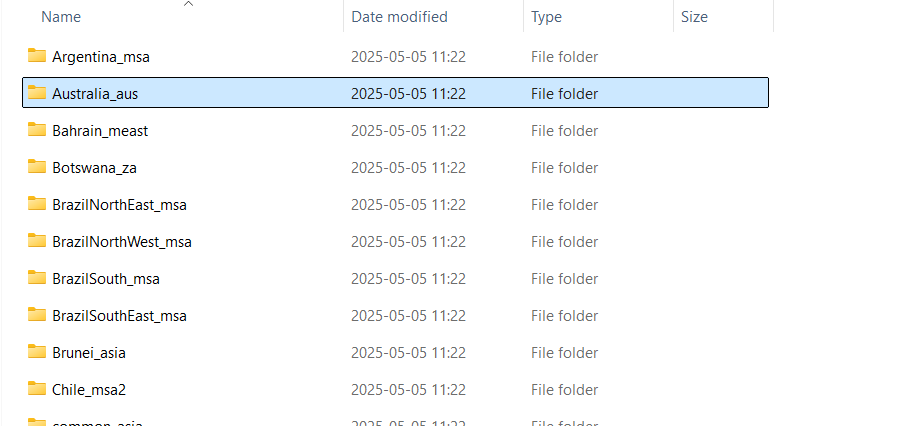
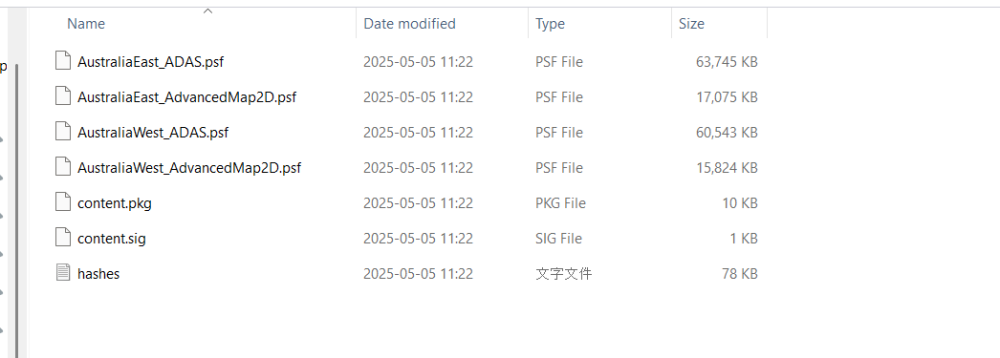
Dear Sir, should I copy the .PSF file into the root file as below step ? enter click click click Click Click Copy all files and put them on root file. Then, I can update.. Am I correct ? Best regards, Kam Pang



-
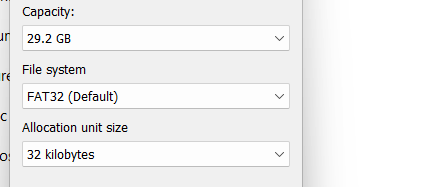
Dear , I did follow the instruction to format the SD card first. File system to FAT 32. Then, I download the zipped file into my computer and then in my computer, I unzipped the file. Next step, I copy the whole unzipped file from my computer to SD card. In Unzipped file, there are two files. Then, I insert the SD card into the the car. Best regards, Kampang

-
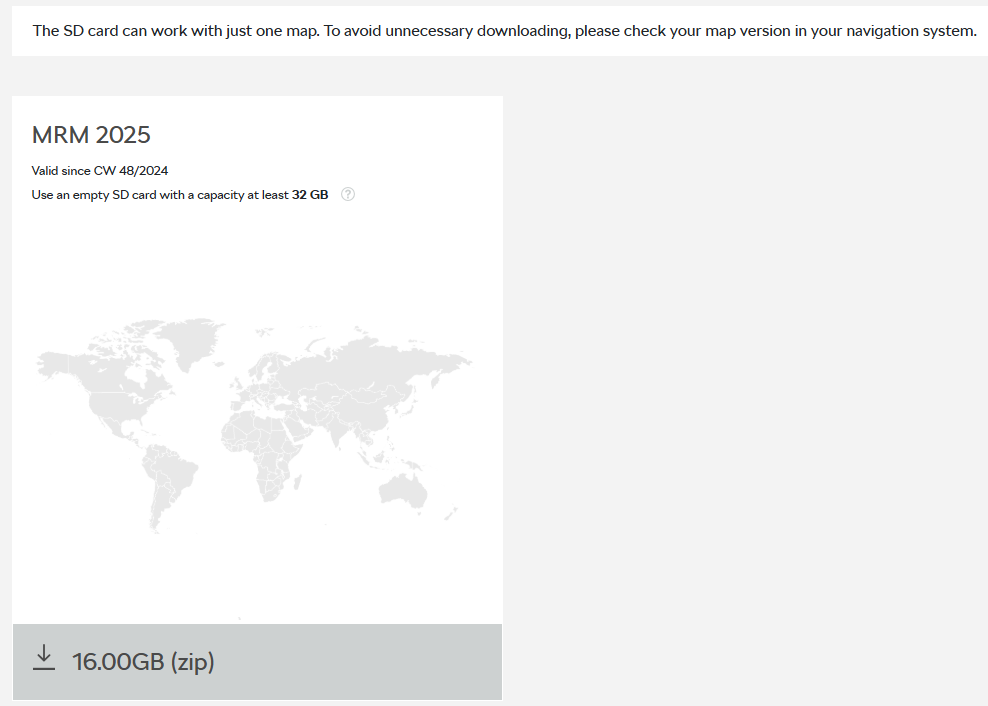
Dear All, My superb is 2019. The GPS map is 2019 version. I tried to update the infotainment / Map by following the step on the website. 1) Down loading MRM25 2) insert the data into a 64GB USB/SD card 3) I follow the map update manual 4) Insert the SD card into my car 5) Click update button. Finally, system show that there is no data to update. Did anyone face the similar situation. I would like to update the Map. I call to Skoda help center, they ask me to use app WAZE to replace the GPS Anyway, see if any one face the similar situation and can solve it and update the map to 2024 version by themselves. Best regards, Joseph