Getouttamytree
New here
-
Joined
-
Last visited
-
I got a response today from Skoda: “We hope this email finds you well. We have received an update from our technical team. We identified possible cause of the issue, and we would like you to schedule an appointment with your preferred service partner. We apologize for the inconvenience this matter may have caused. In order to completely resolve the issue in question, a visit to the workshop is required. Please make an appointment in any convenient way with your preferred service partner, and share with us in your email response: – the name of your service partner; – their contact details (phone number or email); – their physical address; – the time and the date of your appointment with them. With these details, we will ensure our local support team forwards the correct technical solution to the right mechanic. Thank you for your patience and cooperation. ”
-
-
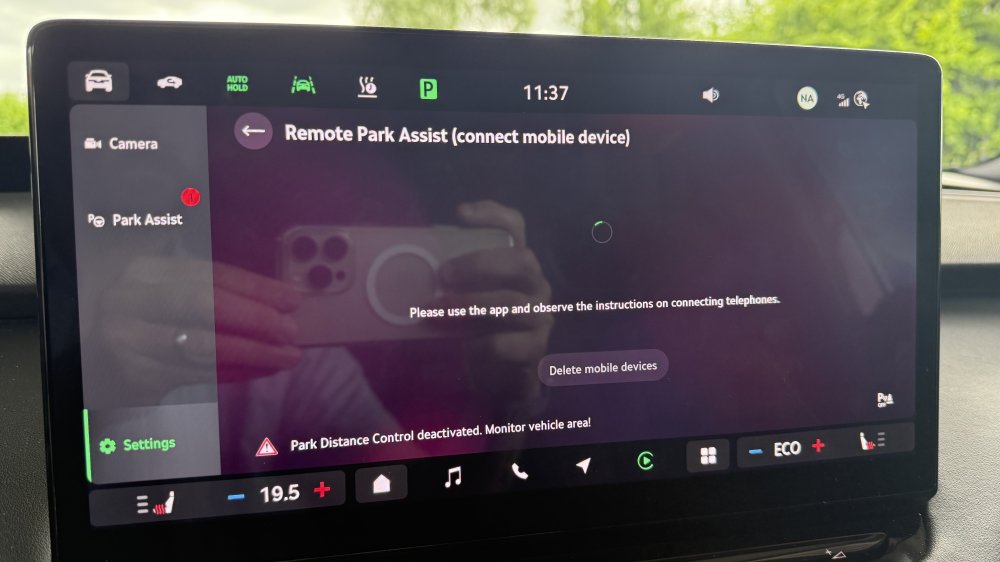
So, I am trying to pair the Skoda app with the car to utilise the remote parking assist. However when it gets to the part to scan the QR code nothing happens (see picture, it stays like this indefinitely). The car was previously paired but then removed. For information I have already tried resetting the app in my phone and I have restored the whole infotainment to factory settings and the set everything up again. The rest of the functions are paired with the app and working. I also don’t believe it is a connection issue as everything else requiring connection seems to be working fine.l, but who knows. Any ideas or suggestions are most welcome. Thank you in advance.
-