eduarddinu
New here
-
Joined
-
Last visited
Everything posted by eduarddinu
-
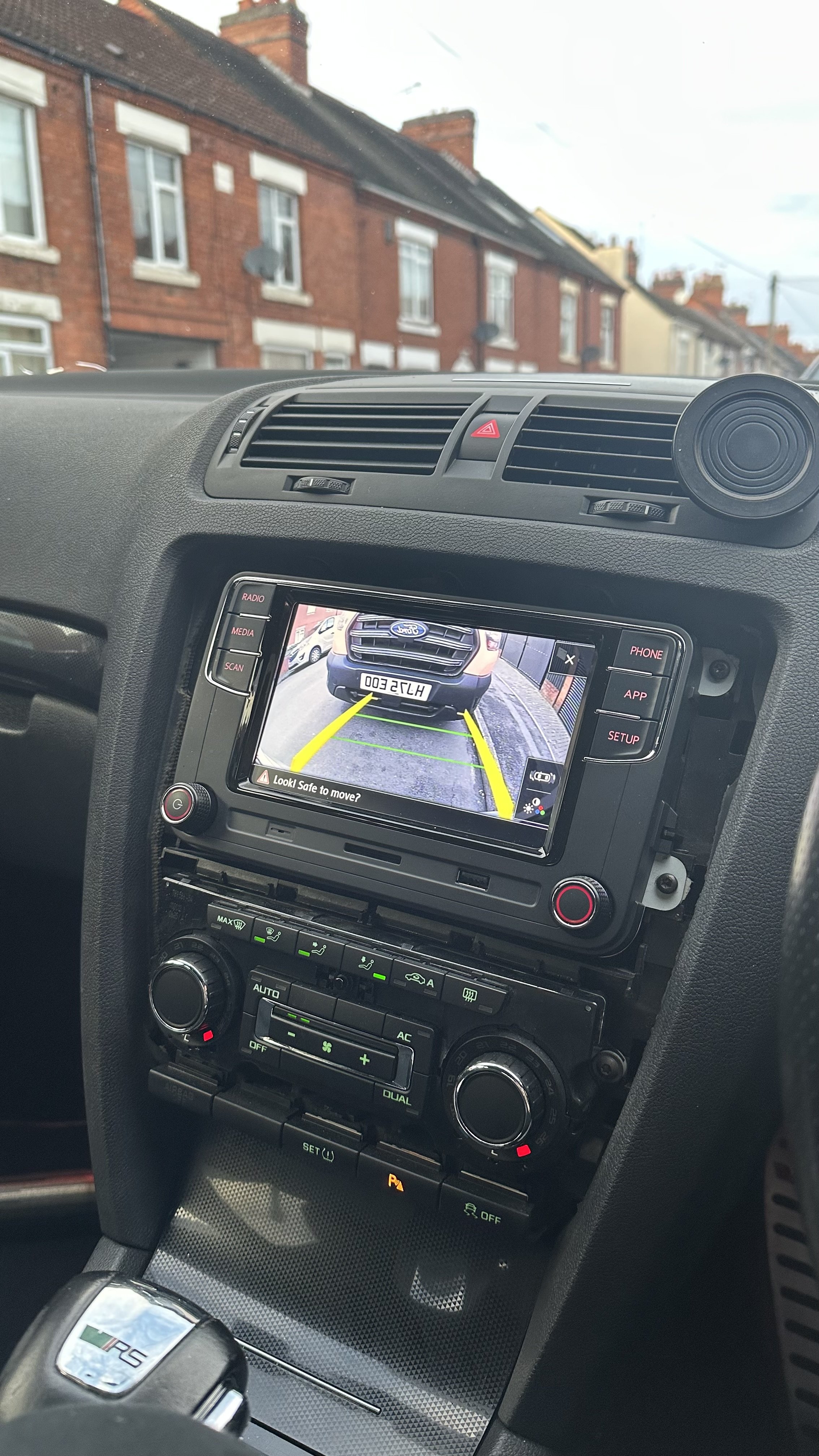
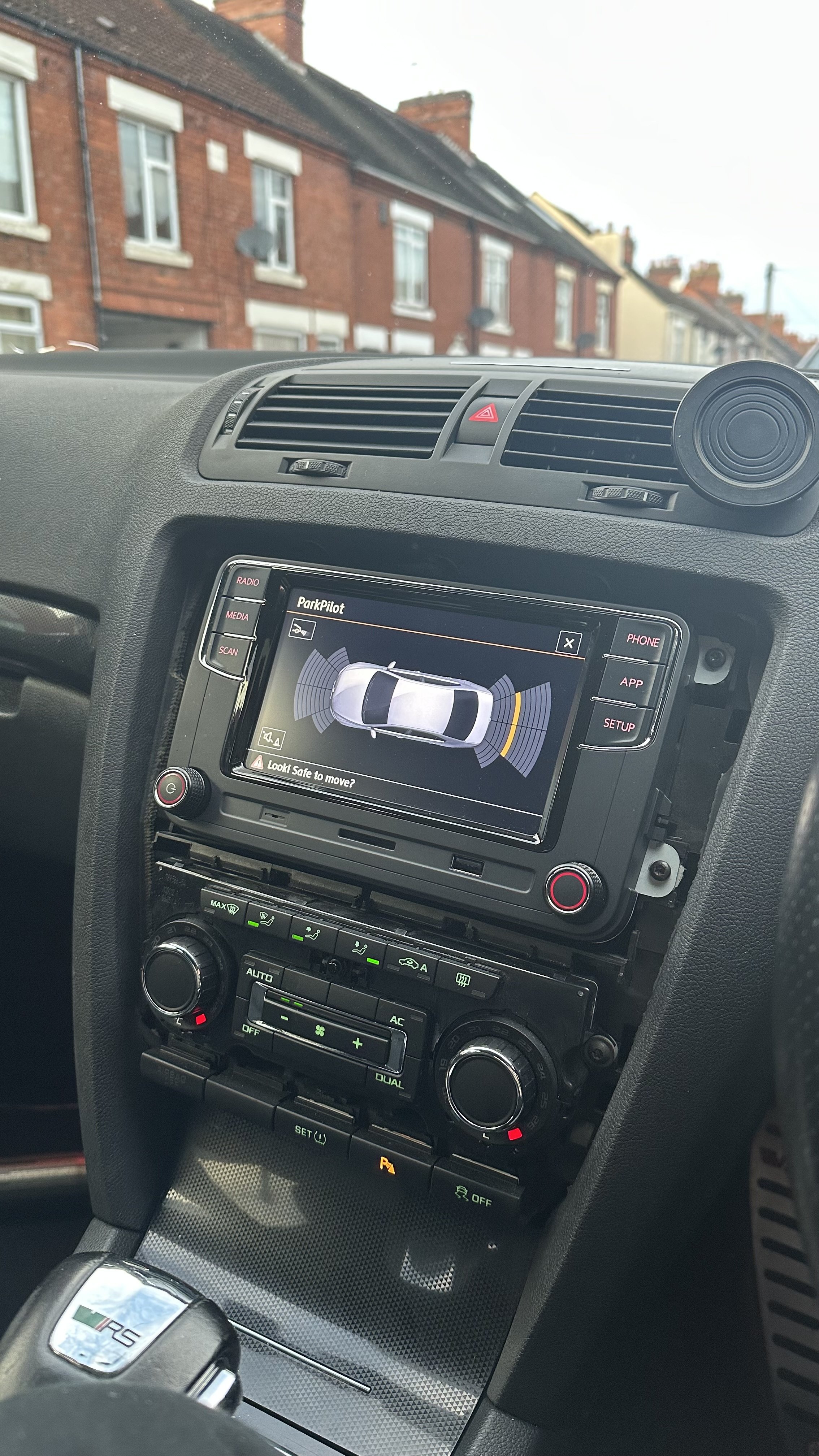
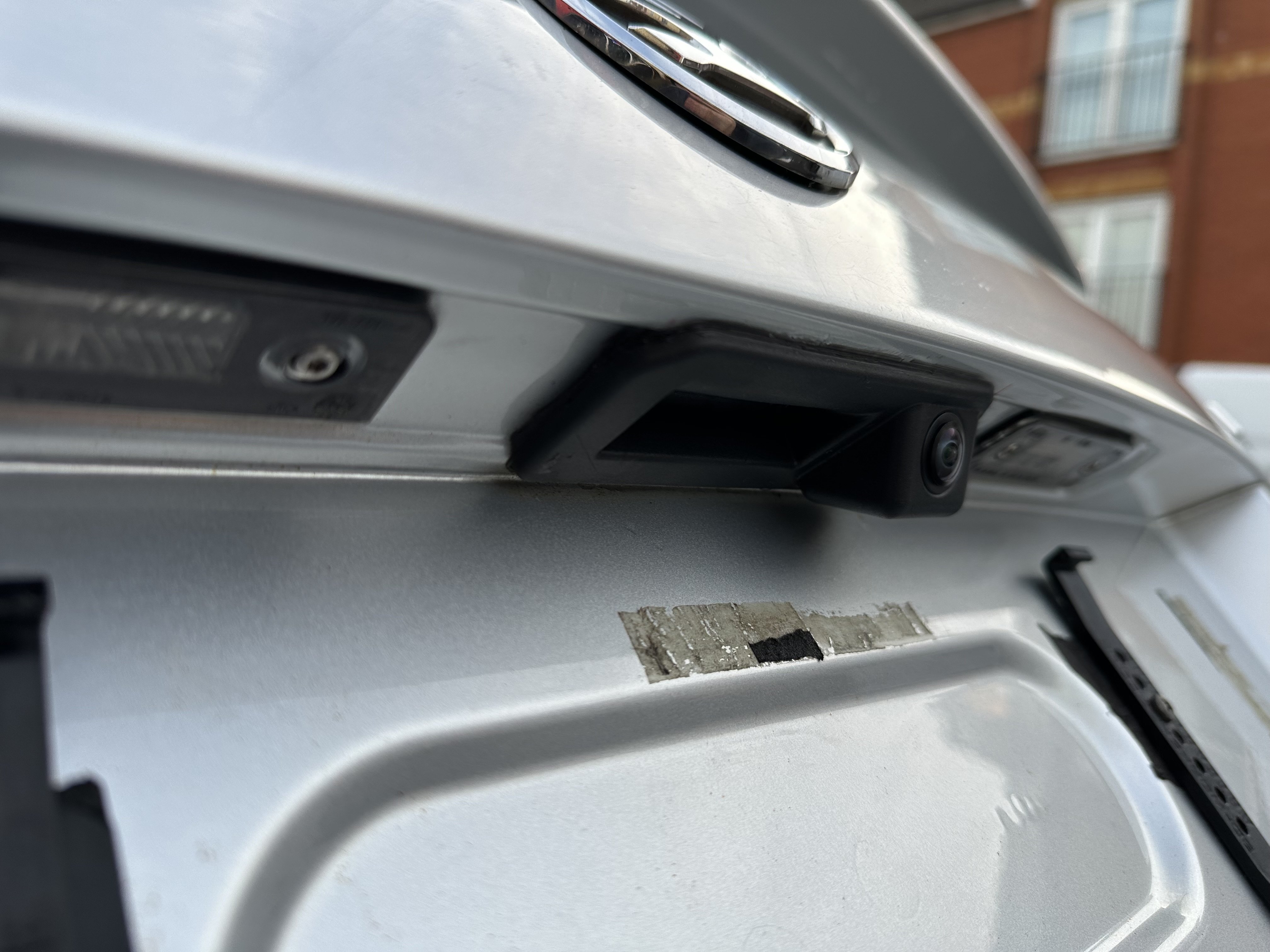
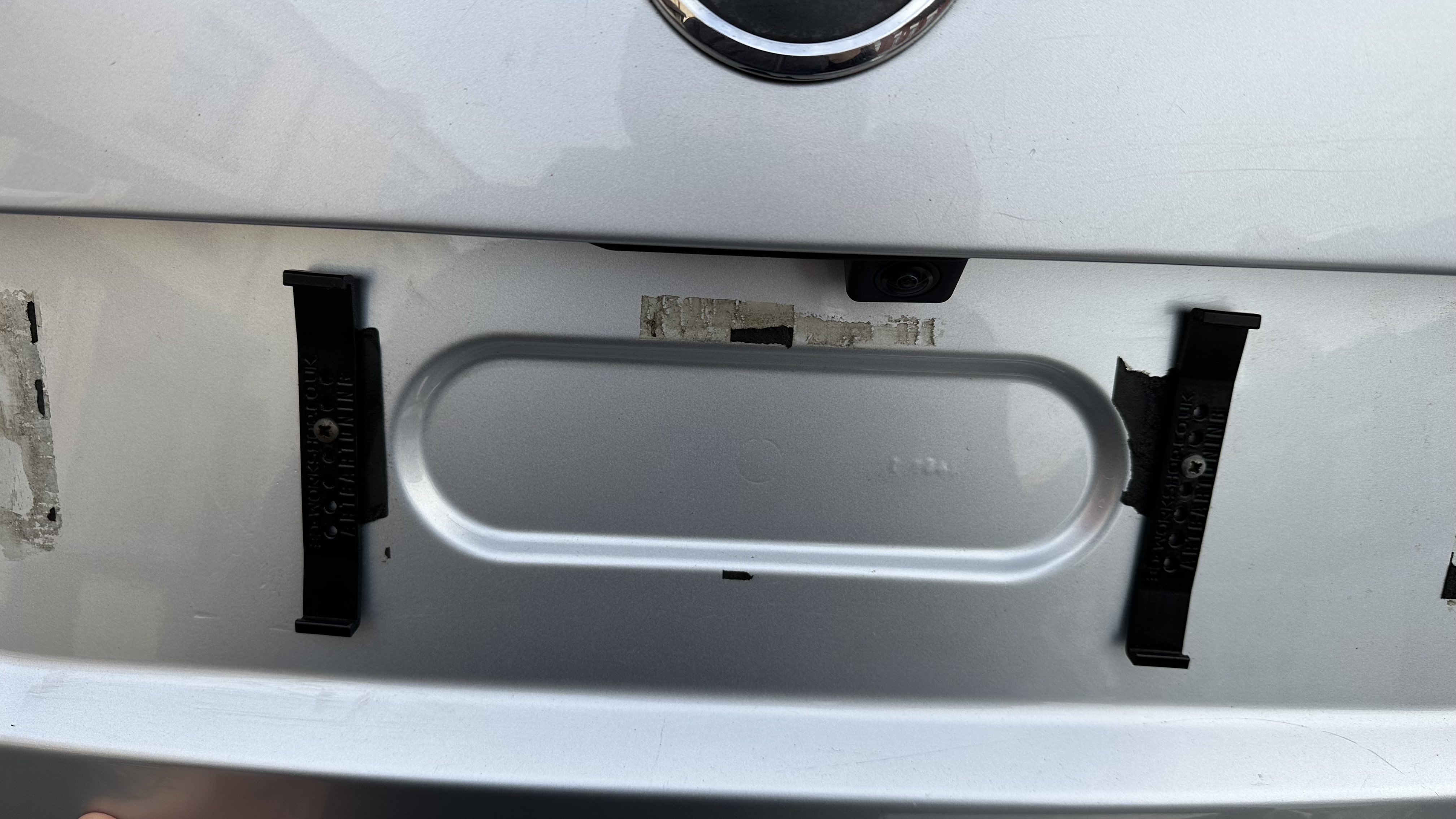
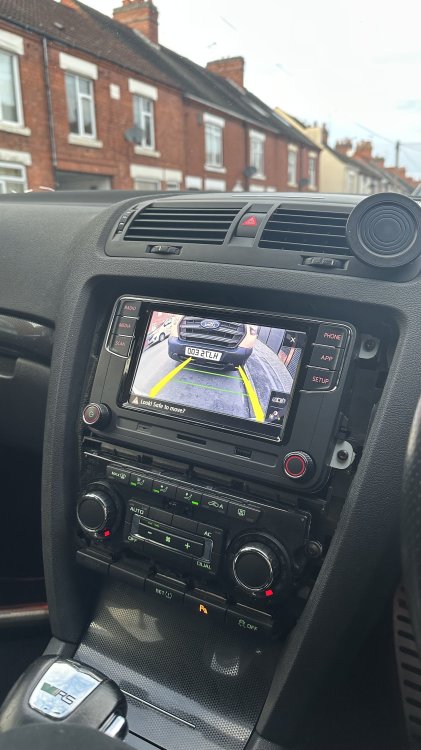
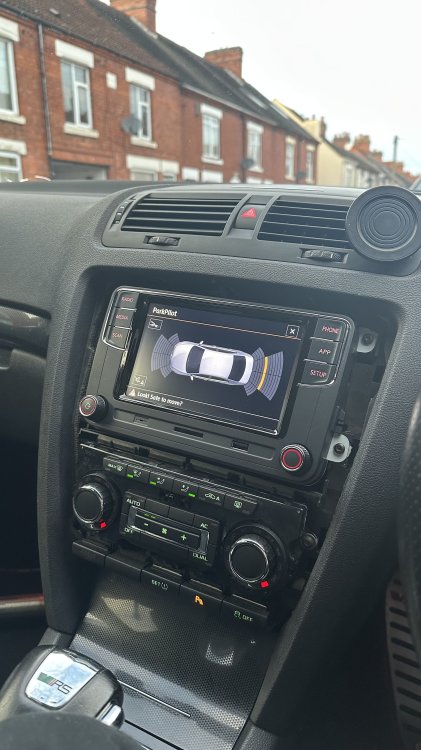
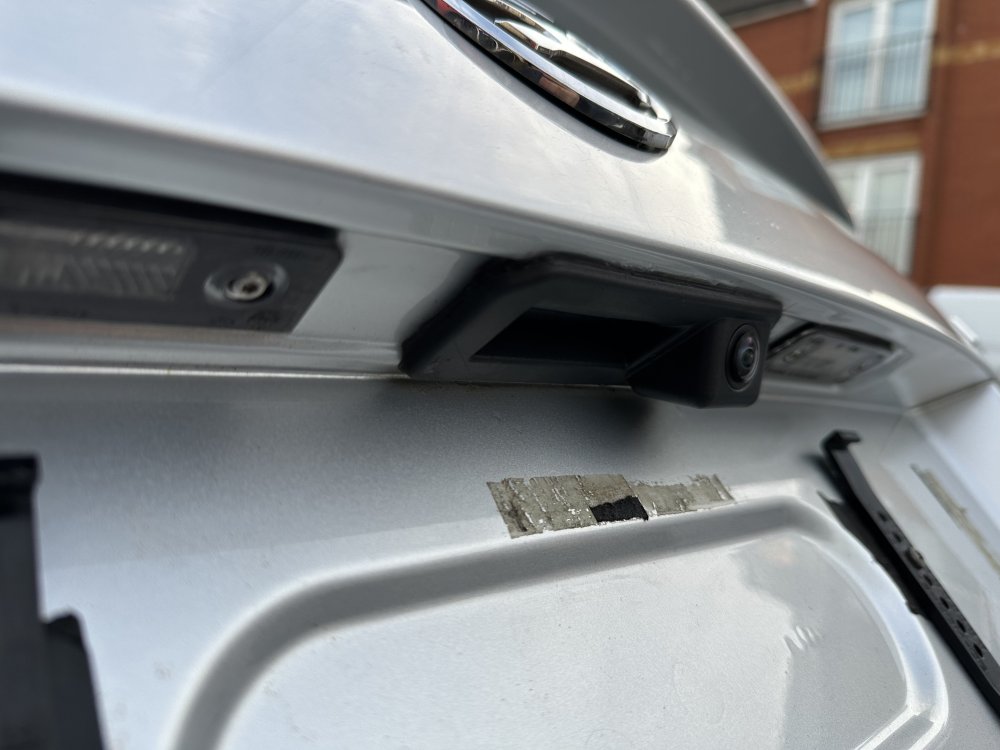
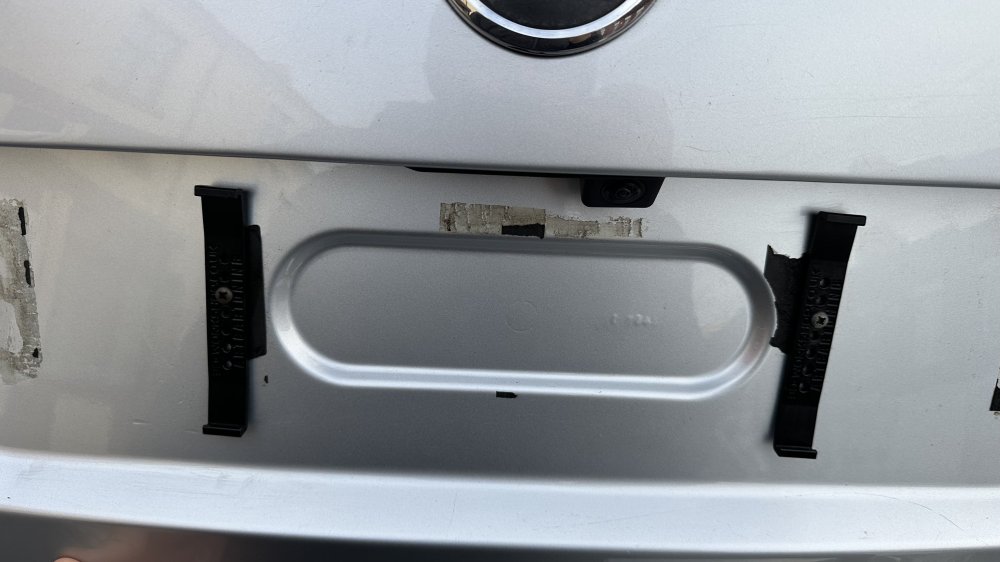
Hi guys, so I was able to retrofit an audi/vw rear view camera on my 2012 Octavia Vrs, as I didn’t like how the aftermarket one made for this car looked as it was covering the number plate underneath, I also have a Vw RCD360 Pro 2 which supports rear camera and 8k Ops parking sensors. If anyone has any questions regarding this retrofit please ask as I am happy to help! After doing all of this, I am struggling to find the right piano black frame around the stereo, does anyone know where I can get one in Piano Black or the original carbon effect? Thanks
-
Hi Jack, I might be a bit late to ask this but I also want to do the heated seats retrofit to my 2012 vrs, I have read all the posts so far so I kind of have a clue of what to do, my biggest issue is finding the correct wiring diagrams, if you could maybe point me in the right direction that would be awesome!
-
-
-
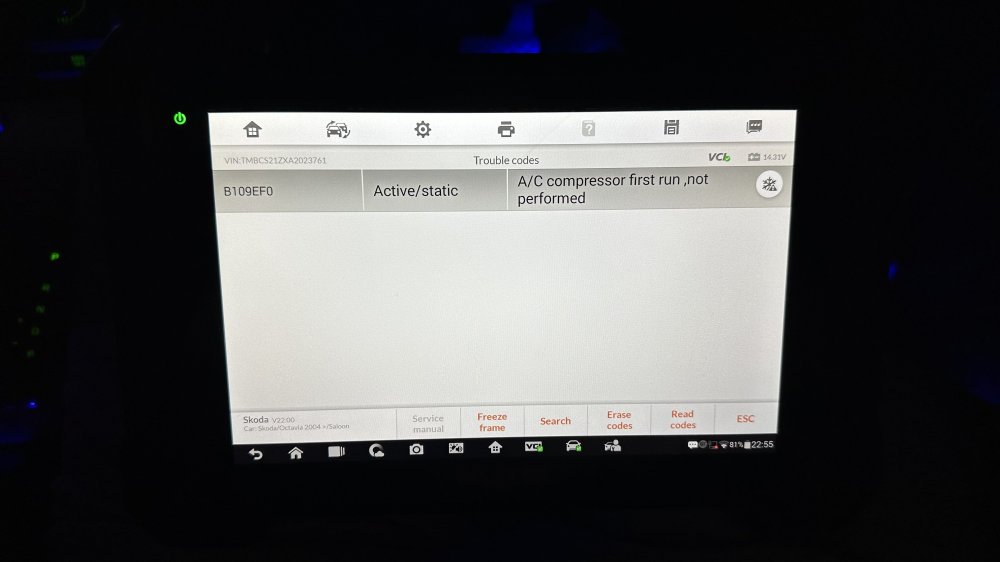
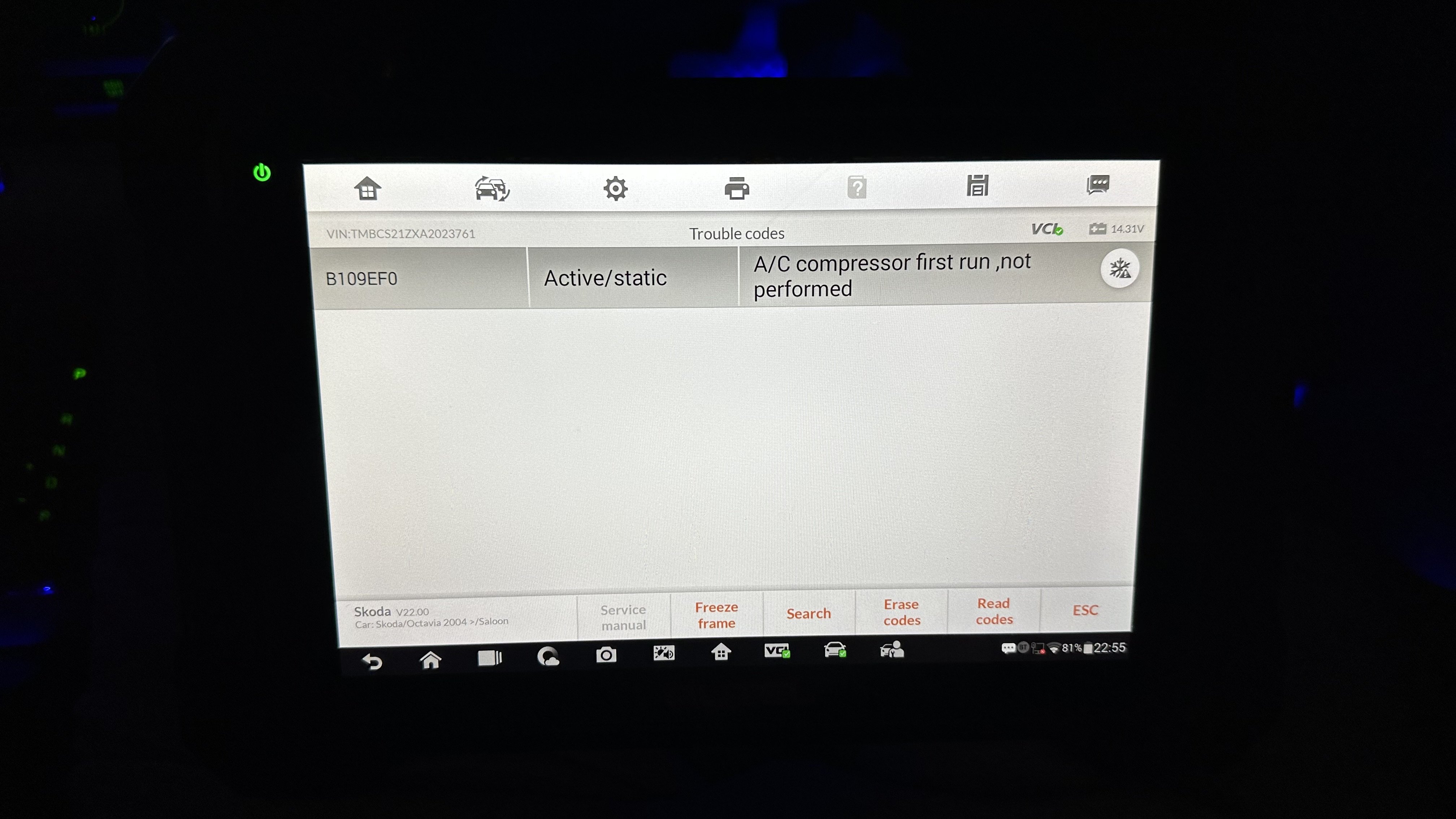
For the past few months i’ve been troubleshooting my AC system on my 2010 Octavia, as I can’t get it to work, I’m not sure what the issue is anymore as I have replaced all of the following: -Ac Compressor -Ac compressor Valve -Re-gassed 2 times at 2 different shops -Changed the Ac Control Panel Buttons (I have the basic Climatic one) -Ac Pressure Sensor -Front Radiator Cooling Fans None of this helped solve the issue I honestly run out of options as I don’t know what’s wrong with it, It keeps showing the error code B109EFO but every time I do the basic procedure of ‘AC Compressor First Run’ the procedure fails at the end! Please let me know if you have any suggestions as it’s very frustrating to have no Ac!!