tiedot
Finding my way
-
Joined
-
Last visited
Everything posted by tiedot
-
Thanks man! Made it work... and saved me alot of money!
-
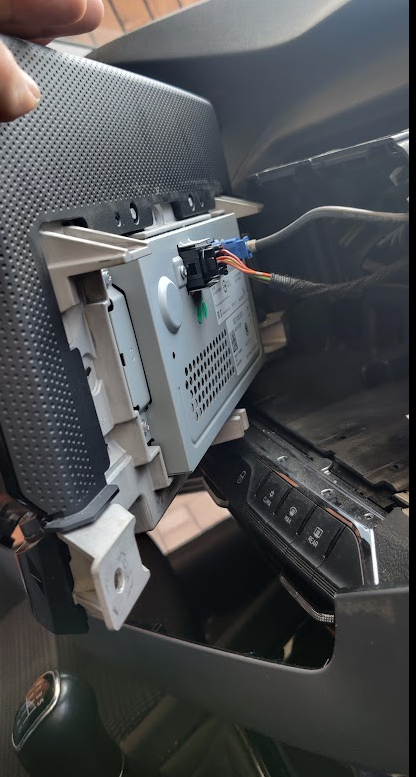
I finally managed to open the damn thing, but I see no flat cables here... Can someone help me out which screws need to be opened to see them? And can I disconnect those 2 cables to do this outside my car?
-
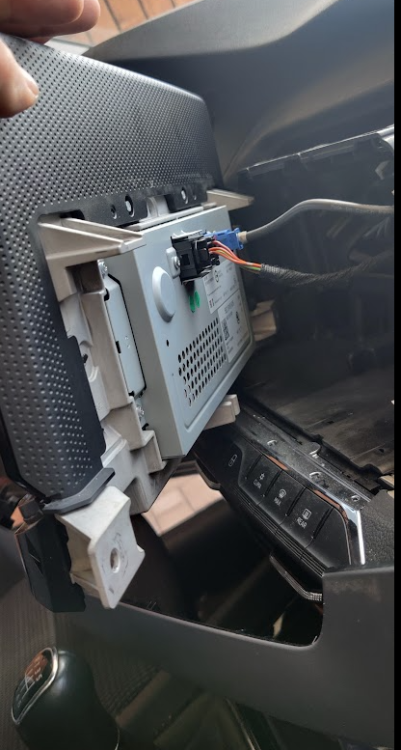
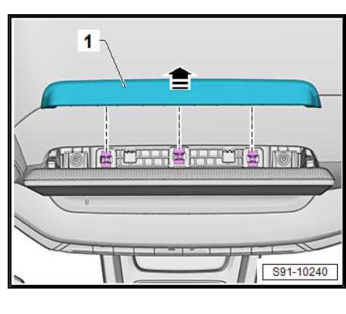
got the front plastic removed with my hands, and the screws are off too, but this plastic part at the back won't come of: any idea where to pry open exactly? I'm afraid to break the plastic
-
Ok, it's driving me nuts and my dealership is not willing to just disconnect the cable for me as a workaround. they can replace the infotainment unit which will cost me 1300€ without man hours. That's not happening. I will try and open it up myself. Tell me, what do you mean with the above statement? Do I need to make sure to have the infotainment turned on when disconnecting that flat cable? Or do I also have to have the engine running?
-
Yeah, real shame of Skoda. Other than that ****, it's just a great car. I might go for the workaround solution myself, if I can find a video of some sort on how to remove those the interior parts. I'm just not a handy man, so I'm afraid to break something.
-
Hm, not sure if I want to go that way, what if for "some obscure Skoda reason" it turns off the infotainment system and I need to start it again fysically... I'm not going to open up my car myself. I was thinking about asking the dealer to either do this for me, or replace the unit to version H49 which also seems to resolve this issue (but is probably very costly?). Car has already been in for a full day for a software update and it doesn't resolve this damn issue.
-
Can you still use the "power on" button next to the volume touch bar if you disconnect that cable? Or is there another way of turning it on and off?