
ejude1986
Finding my way
-
Joined
-
Last visited
Everything posted by ejude1986
-
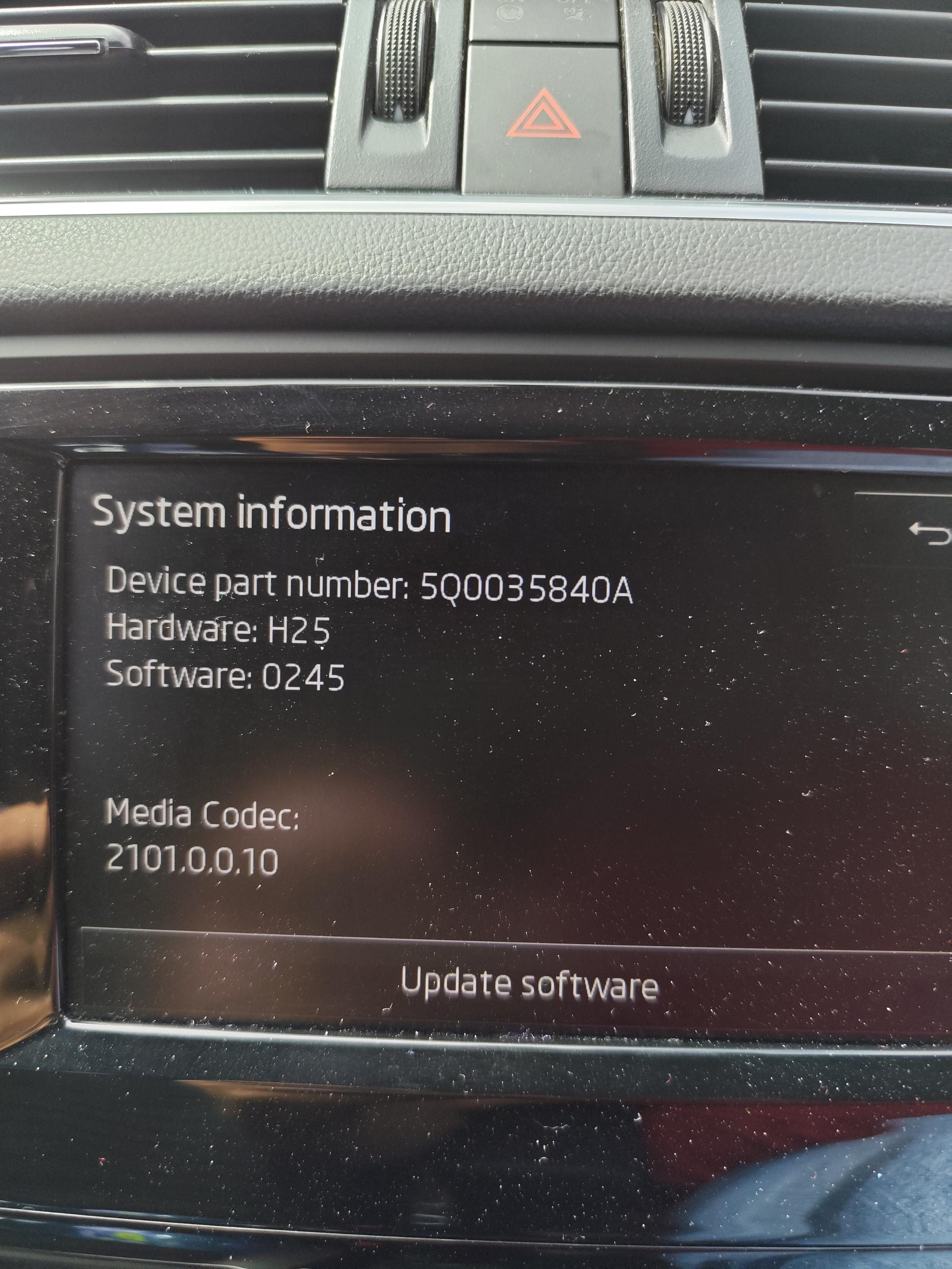
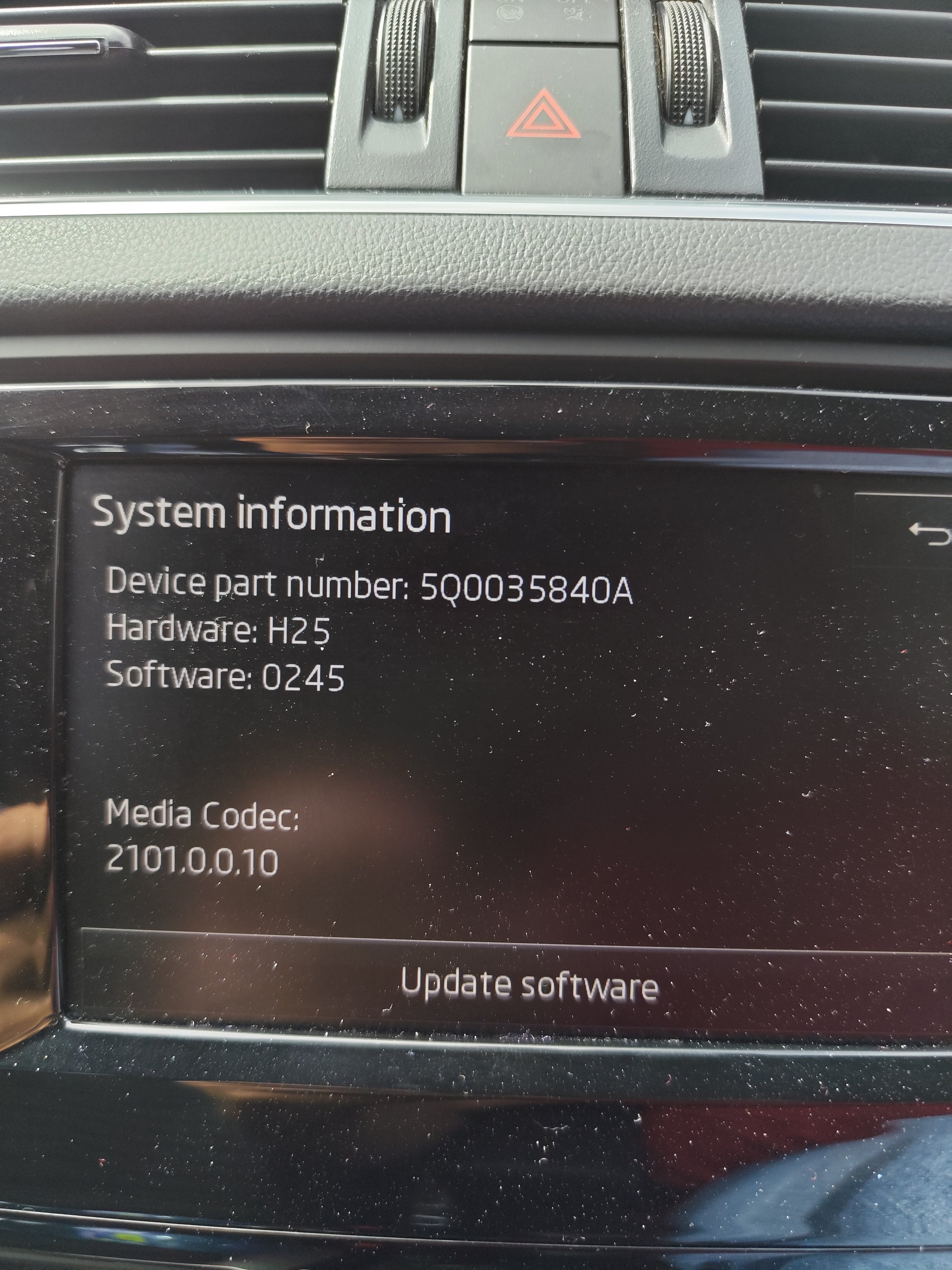
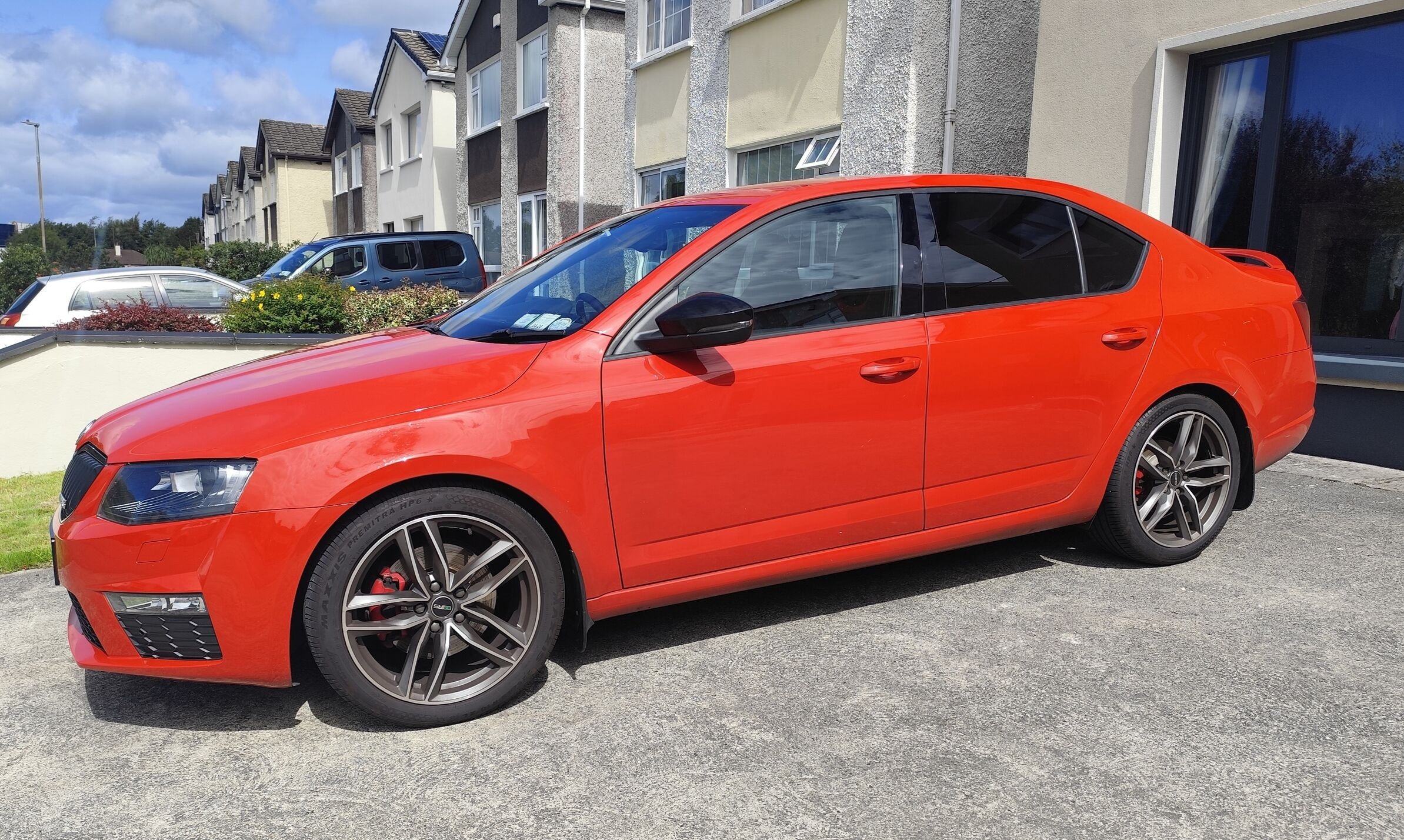
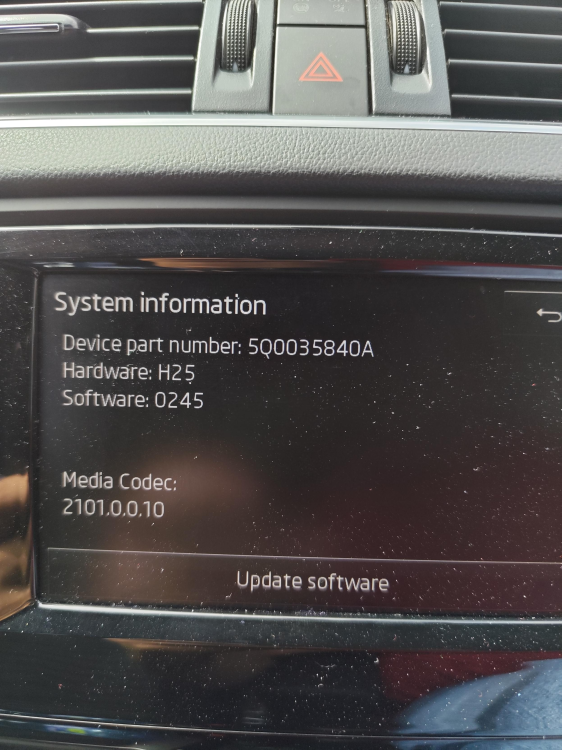
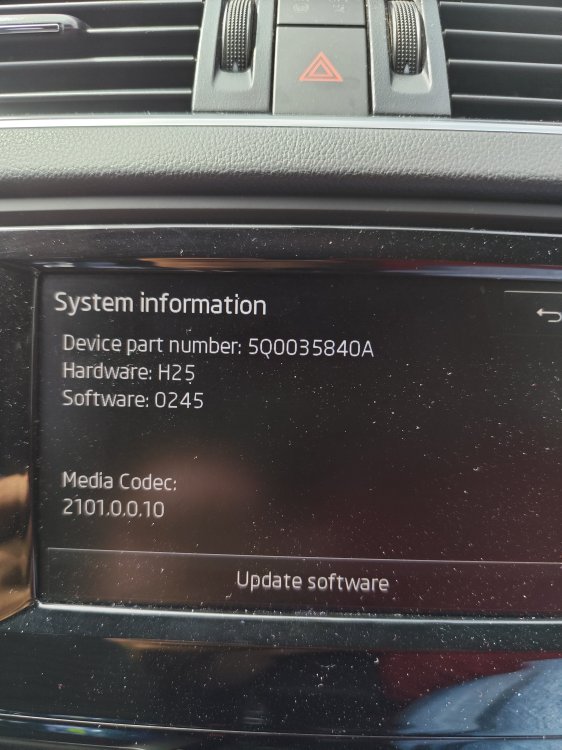
I bought a wireless android auto USB Dongle for my 2016 Octavia VRS. It worked for a day and now I cannot get Andoid Auto to display on the screen at all. I tried my new USB dongle in my wife's 2022 Hyundai Tucson and my phone connected straight away. She also has a wireless USB dongle (different brand) and my phone connected to it in her car straight away, but when I used her USB dongle in my car, the same issue again, it would not display on the screen. I get a message sometimes saying "reading USB device", but Android Auto doesn't appear on my screen. Once i plug a cable into my phone and plug it into the car's USB port, it boots straight into Andoid Auto. Eventhough it worked on the first day, is it possible that my car doesn't support wireless display? I have gone through all the settings on my phone and "WIRELESS ANDROID AUTO" is ticked, but anyway, it works in my wife's car, so my phone is not the issue. Would there be a particular dongle that is compatible? See my radio info below
-
Perfect. Thanks @pab567 for taking the time to clarify that for me.
-
Thanks @pab567 can you just explain a little more what exactly "SW at least MY17 (03xx)" means?
-
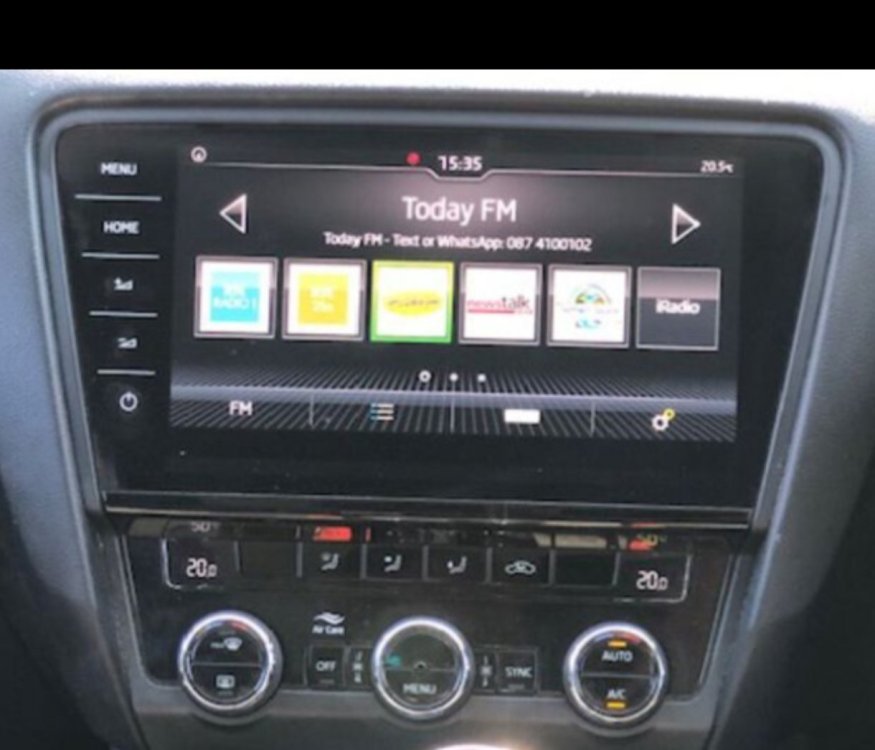
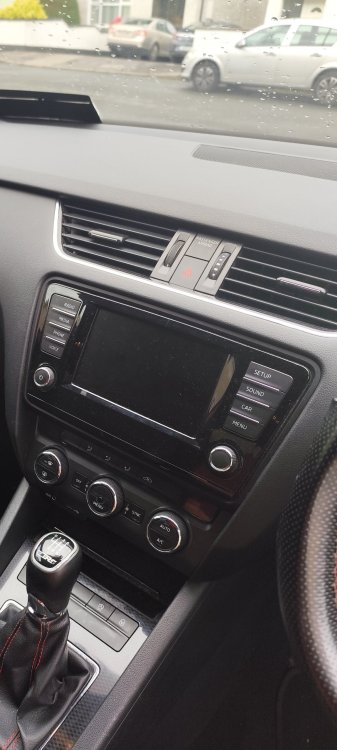
@pab567 @SashaGrace I currently have this setup below. It's a MIB2 with android auto and I have no NAV. I'm looking to update my screen with model number 5E0919605N. Can you tell me if this will be just plug and play?
-
Ok. Looks like I've tracked down a 9.2" screen and the glovebox unit from a breakers. Will these need coding to my car?
-
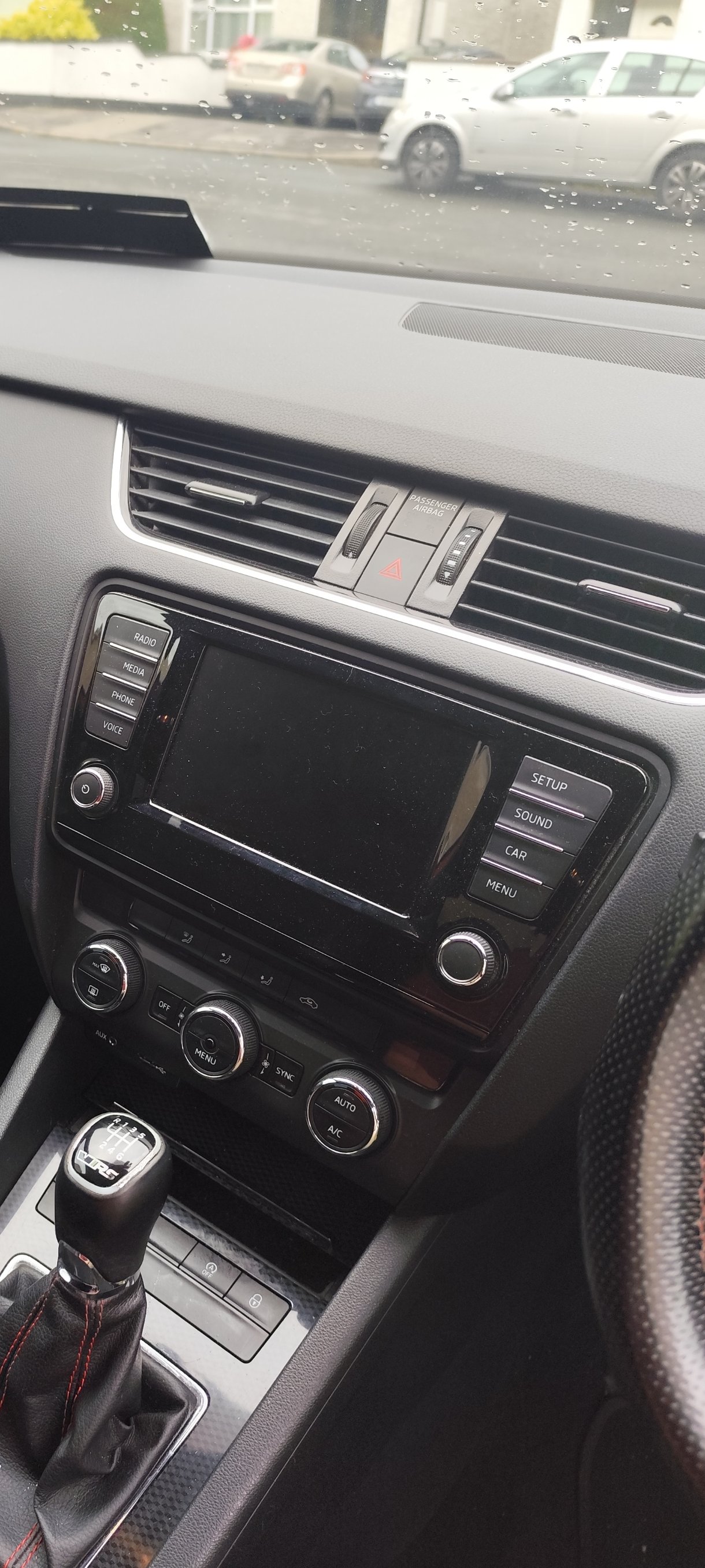
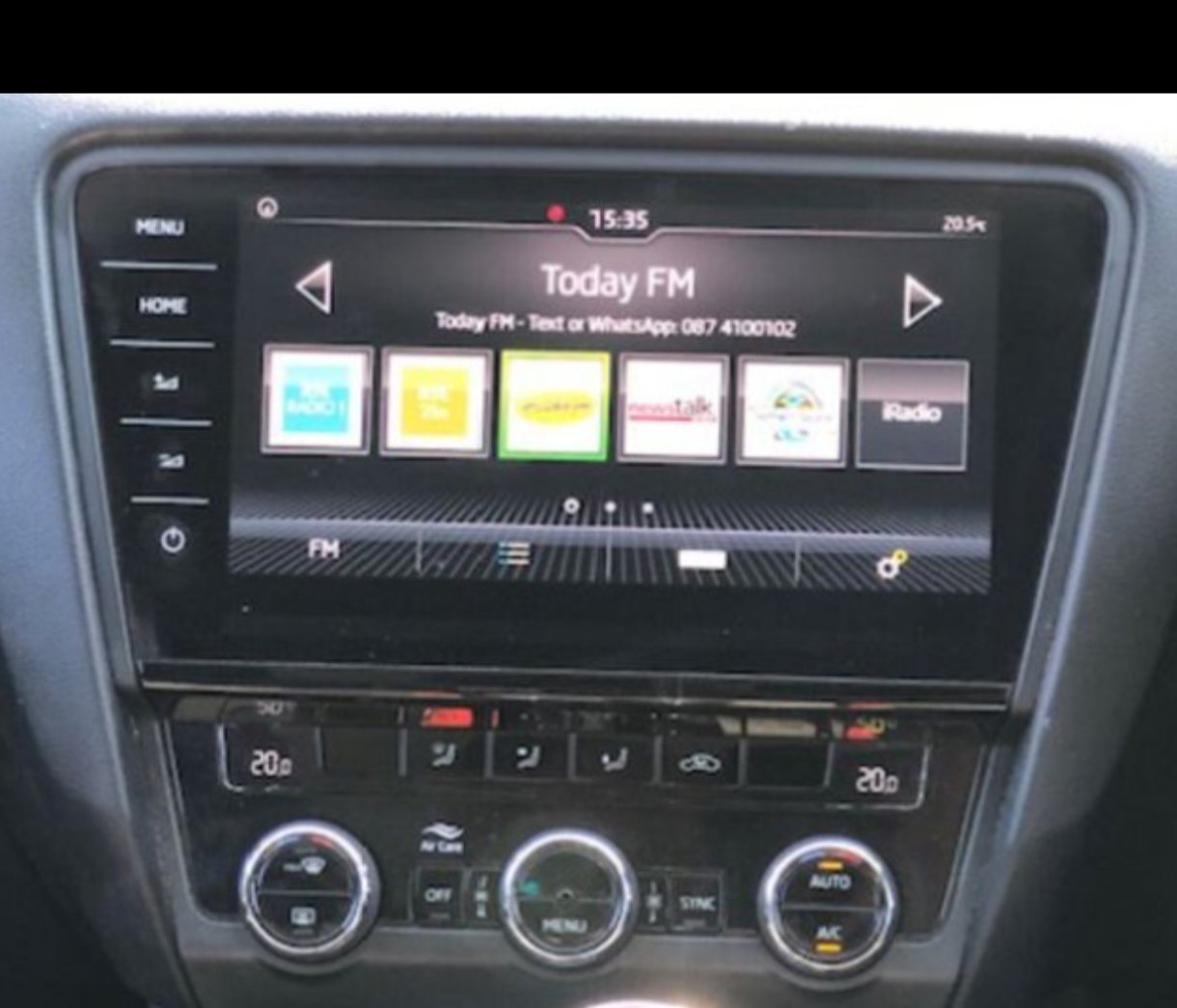
Hi, I'm looking to upgrade my current Display Screen. Currently have this MIB2 system below with Android Auto. I'm looking to upgrade to the screen in the third picture. Just wondering is it just plug and play or do I need to code the new screen to my own head unit?