Jon_
New here
-
Joined
-
Last visited
-
-
-
-
-
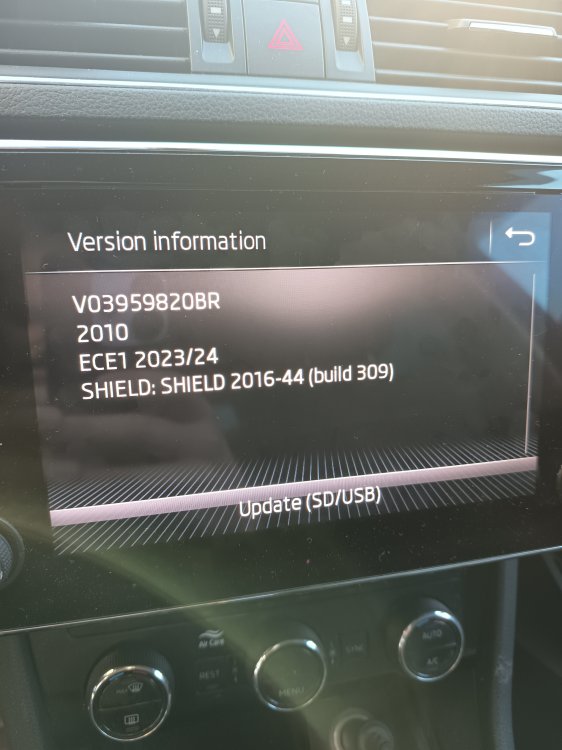
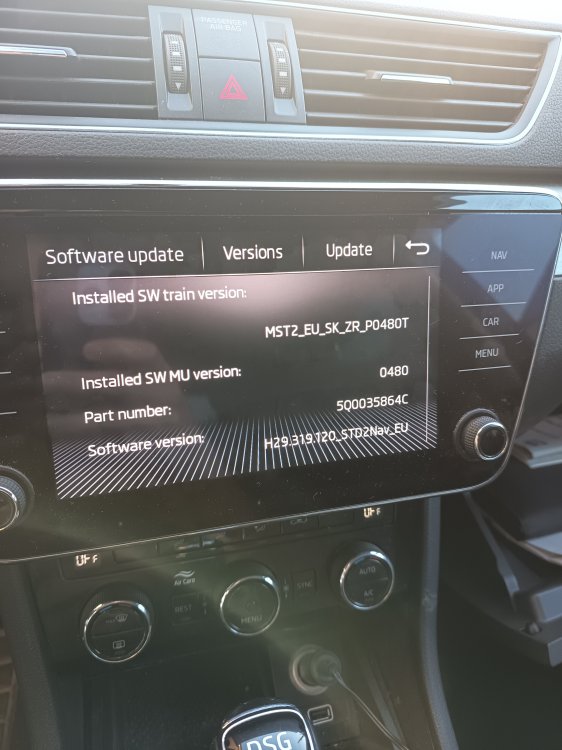
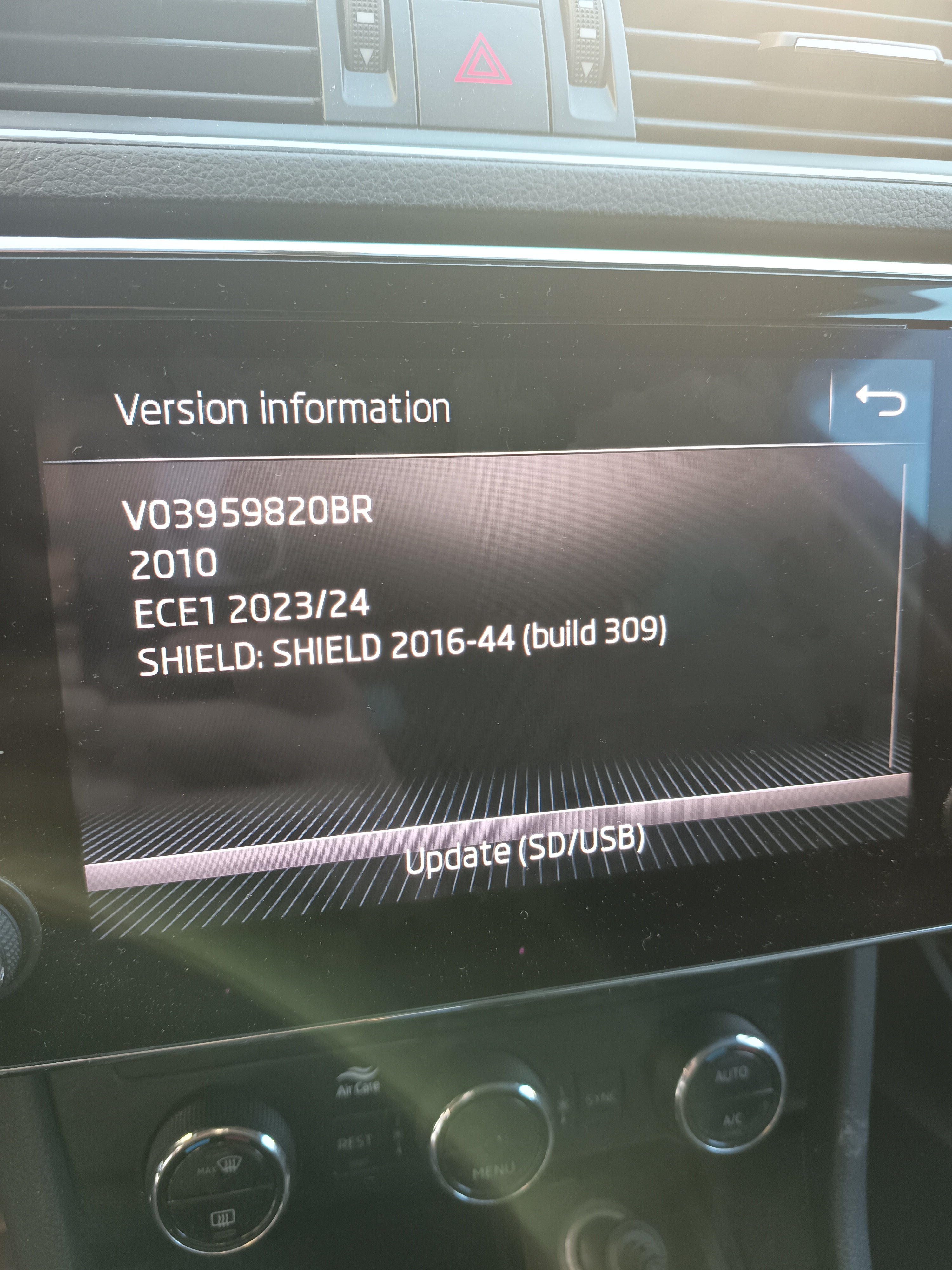
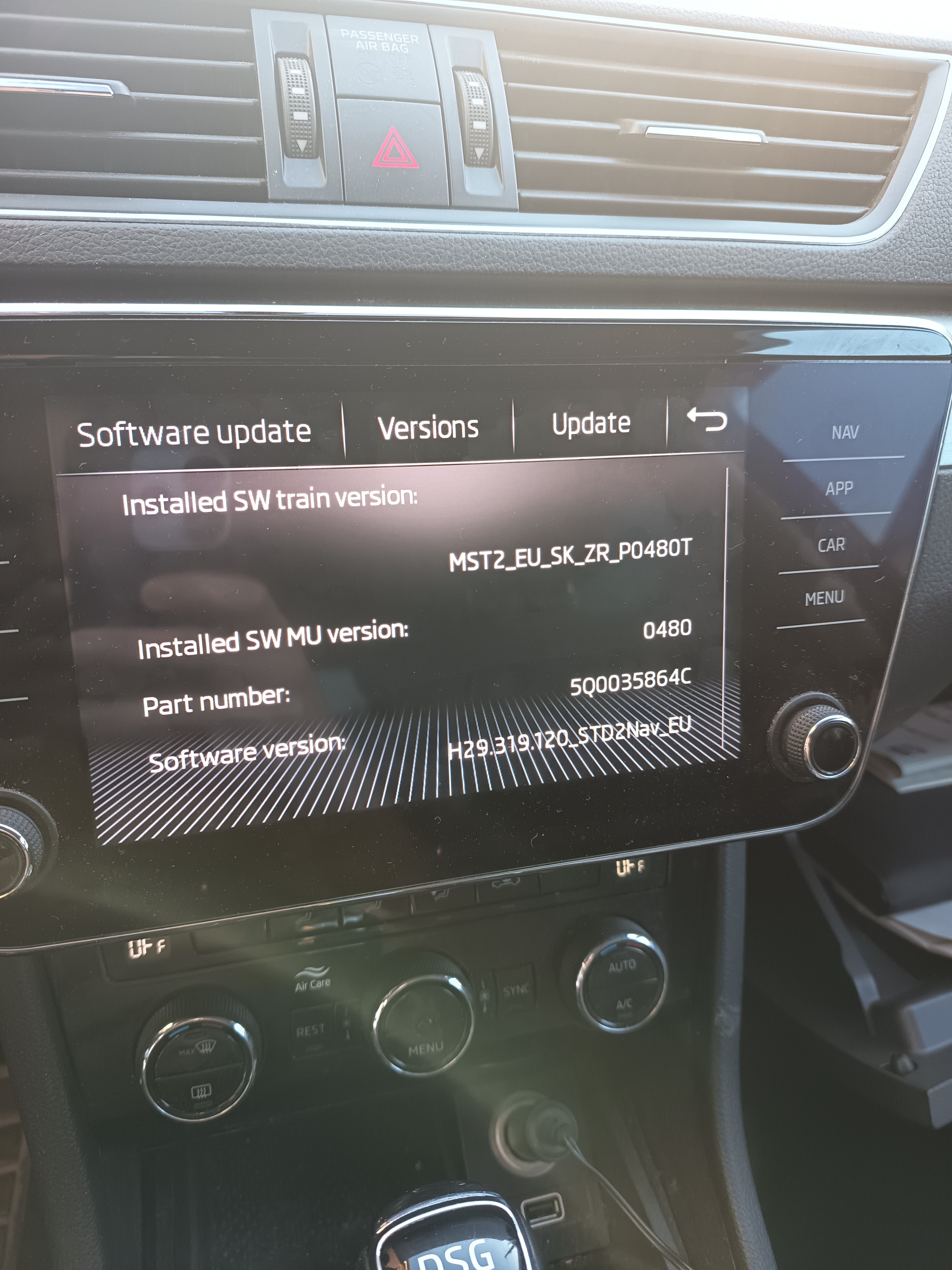
Hi, I've spent my afternoon trying to update the map on my car, but no luck sofar. I want to get the full europe coverage as I travel a lot and I always find useful to get a backup sat-nav in case android-auto fail or something goes wrong with my phone. Currently, I'm using the ECE 1 2023/2024 version. Attached are the version of my current navigation, and the general firmware info. Here is what I've done : Download the map from skoda update portal (STD2_2610_EU_AS_2026), unzip it and put the files on a SD Card (not the original one that was in the system). Card formated in exFat, 4096 allocation. Card is 64GB. When I put it in the system, it's not recognized as an update, nor a proper navigation dataset. I then update the whole MIB unit, with that same SD Card from P0475 to P0480T without any issue. Tried again the map, doesn't work. Tried with the ECE1 from 2026, doesn't work either. Tried formatting the SD Card in FAT32, same issue. Tried with a USB stick that is recognized by the unit (it usually have my music on it), doesn't work either. So, what is preventing me from updating the maps? I really don't want to pay for an OEM card when I can do the update myself.