




QuentinG
Finding my way
-
Joined
-
Last visited
-
Hi, I have a similar issue. With mine a message comes up on the screen on the lines of The Optical Parking Aid is not currently available as well as the long beep. It's only on the first start of the day so far though, thereafter it works fine. Hope we find a solution! There are no obstructions on the sensors or visible damage. Mine is a 1.6 diesel Elegance estate 61 reg.
-
Finally I managed or got around to getting a diagnostic done and a code B10BE07 Fresh Air Blower - Front Mechanical Malfunction - was found. The error has been cleared so now it is a matter of seeing whether it recurs.
-
Many thanks for that info, it backs up what I was thinking. Now I need to find a suitable place to test it. Of the two garages I use, the local one fitted the new motor and the one I have used for many years said I must have had a 'soft start' motor fitted by garage 1. I think I'll try the VAG specialist up the road. Thanks again
-
Many thanks for replying, yes the outside temperature is fine and consistent. I have not got it on recirculate, very rarely use that function, should I have? Once the fan is working, it feeds through all four vents and the screen outlets, I haven't checked the rear footwell vents.
-
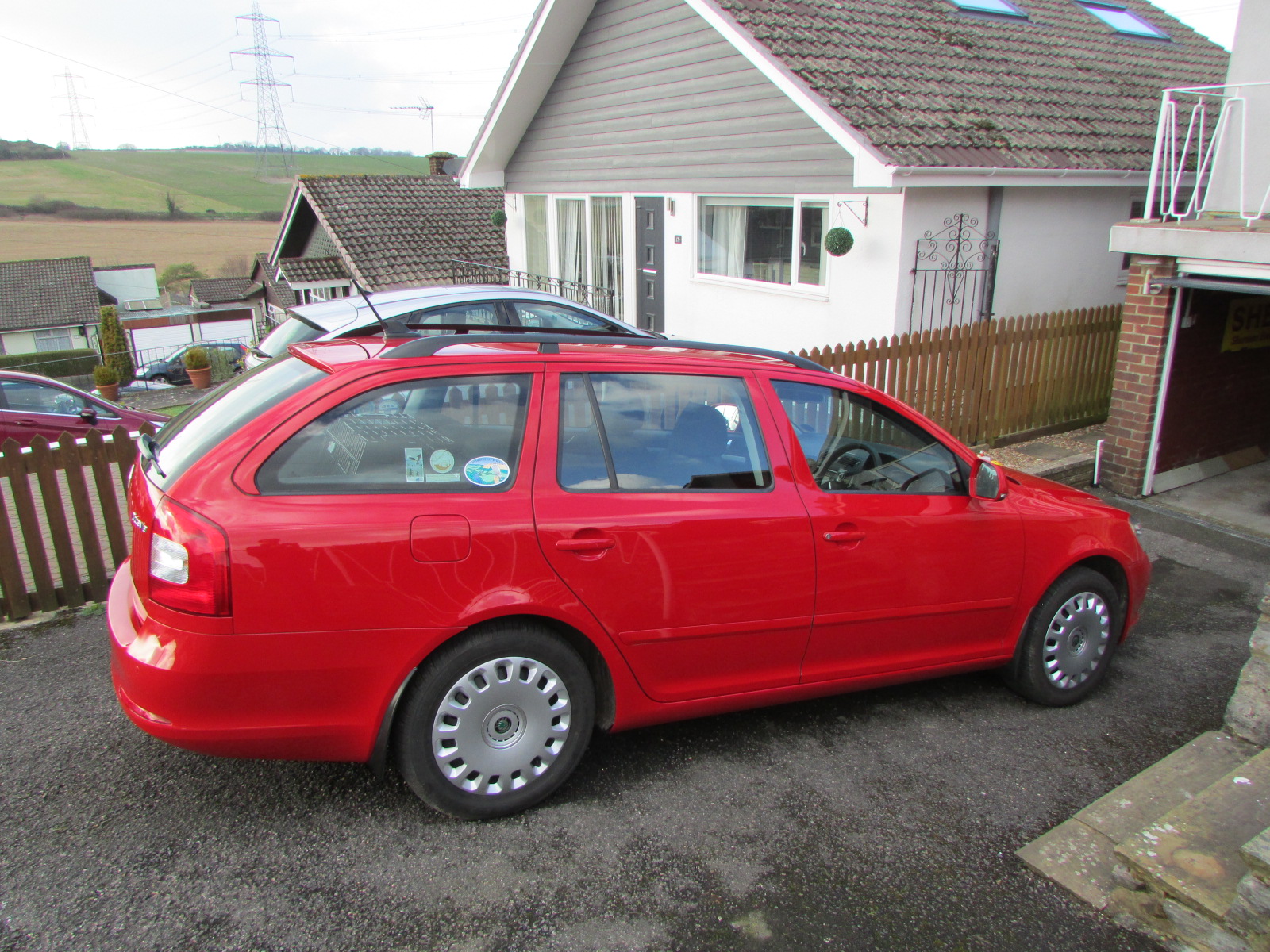
Hi, could I ask for some advice relating to my otherwise very reliable 2011 Octavia 1.6 TDI Elegance estate please? The problem is that the fan, particularly but not exclusively on the first start of the day, takes between 3-5 minutes to start operating. After that it behaves normally until (maybe) the next restart. All the controls and lights work normally, just not the fan. I first had this problem some months ago and I thought it had packed up altogether. The heater motor was replaced but to no avail. Any advice would be appreciated, it's been more noticeable recently due to the frost and temporary loss of my garage.