



Skip to content

Parking sensors show on dash or radio?
Featured Replies

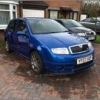
Needed the paint code for my Fabia when finding replacement parts so went to the boot and lifted up the floor and found the full wiring loom for parking sensors, but no sensors plugged in.

I'm going to get the sensors and fit them in the Monte Carlo bumper that's currently fitted but just wanting to check what other people's do.

My girlfriends new golf show up on the radio with the distance etc but my older mk1 Fabia they just beep.

What will my 2008 Fabia 3 do when I wire them in?

Thanks

It will show up on your stereo.

It will show up on your stereo.

On a 2008? Didn't think they did.

What type of radio unit do you currently have?

  • Author

Not sure of the name, just a standard thing, nothing fancy. Will check what's writen on the front tomorrow.

Doesn't matter that much, if changing to a different radio will show the sensors that's fine, I'll be upgrading to a decent satnav unit soon.

Not sure of the name, just a standard thing, nothing fancy. Will check what's writen on the front tomorrow.

Doesn't matter that much, if changing to a different radio will show the sensors that's fine, I'll be upgrading to a decent satnav unit soon.


Dance?

  • Author

Yeah, that's the one.

It flashes on for a second when you put it in reverse but since it's got no sensors plugged in it goes straight off.

  • Author

What other radios will fit my Fabia?

Was thinking Columbus...

What other radios will fit my Fabia?

Was thinking Columbus...

Tried the Columbus myself and wasnt impressed. Sold it after about 3 weeks. It was the slowest thing on the planet and the sound was crap compared to the Swing i had in as standard. I've got a Zenec ZE2015 in at the moment and love it! 


Ross will be able to say for sure, but I'm not sure if your car will be effected by the battery drain issues that some are. So maybe keep an eye on that if you do change it! :)

  • Author

Thanks for the heads up! :)

Create an account or sign in to comment

Recently Browsing 0

  • No registered users viewing this page.

Important Information

Welcome to BRISKODA. Please note the following important links Terms of Use. We have a comprehensive Privacy Policy. We have placed cookies on your device to help make this website better. You can adjust your cookie settings, otherwise we'll assume you're okay to continue.

Account

Navigation

Configure browser push notifications

Chrome (Android)
  1. Tap the lock icon next to the address bar.
  2. Tap Permissions → Notifications.
  3. Adjust your preference.
Chrome (Desktop)
  1. Click the padlock icon in the address bar.
  2. Select Site settings.
  3. Find Notifications and adjust your preference.
