doggy007
Finding my way
-
Joined
-
Last visited
Everything posted by doggy007
-
I find it strange too, but if it works it's OK. When you have time you can revert those channels only to see if cornering will work after .
-
after I tried to code all channels that contain "Nebellicht rechts/links", the cornering is working. Thanks guys for help.
-
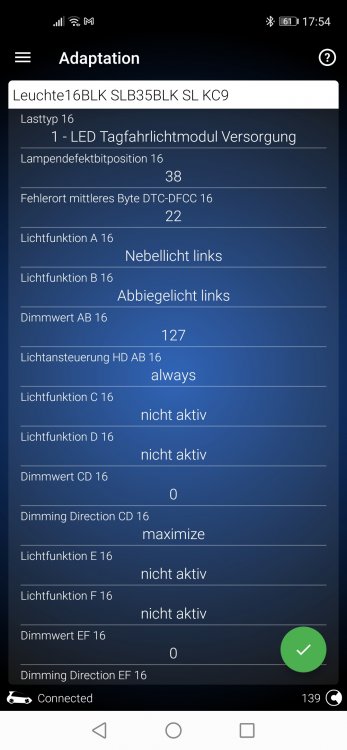
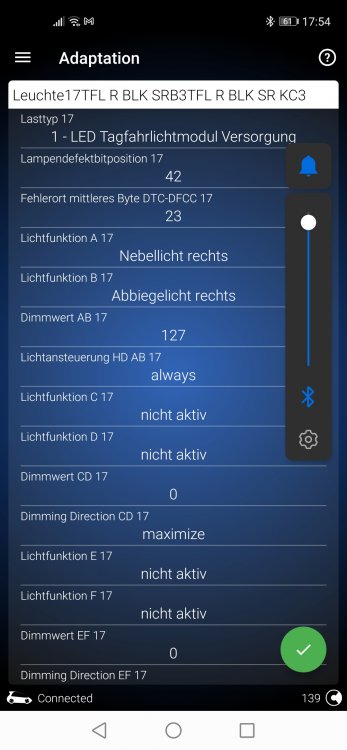
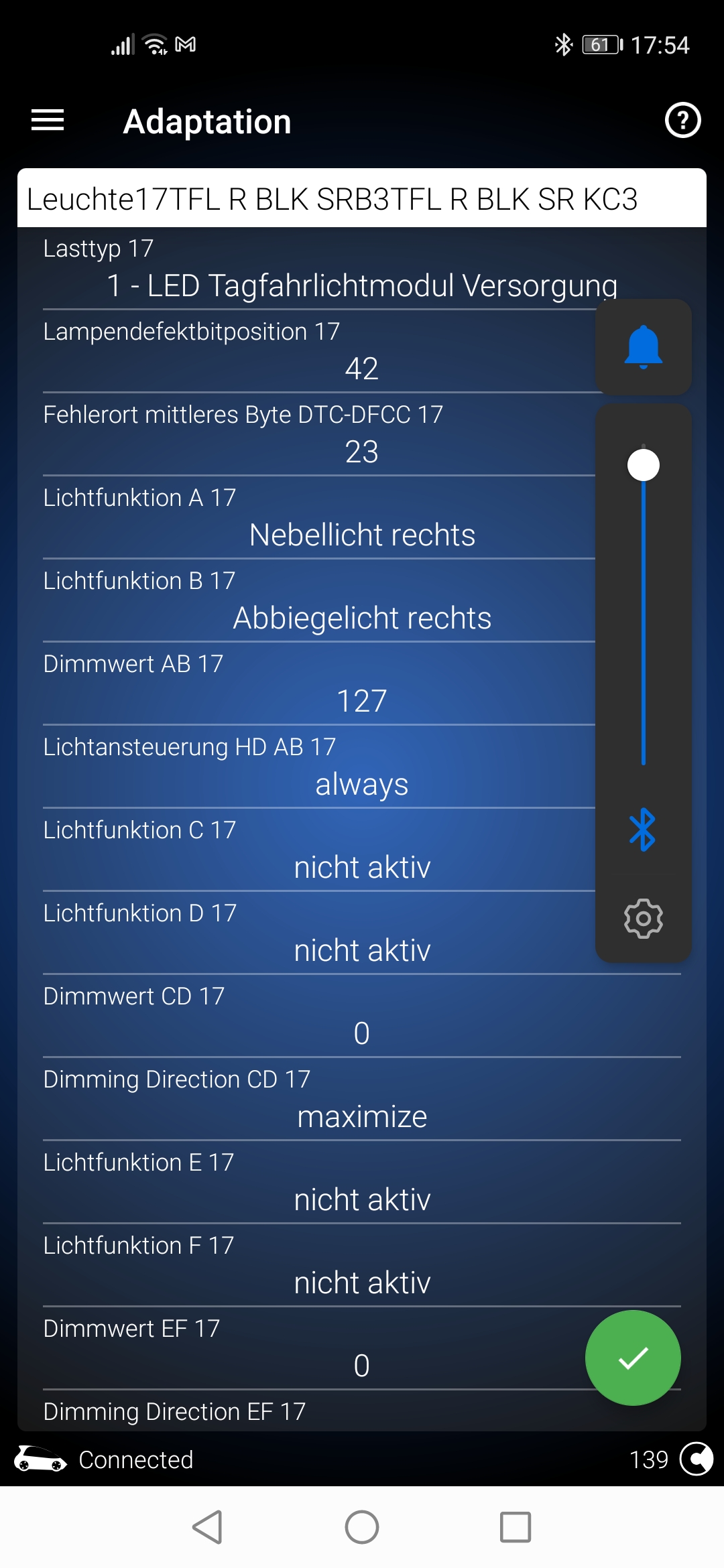
@langers2k as you see in the screenshot attached "Nebellicht links" and "Nebellicht rechts" were available on Leuchte16BLK and Leuchte17TFL(I didn't change those, were present before coding). As you say, modifying Leuchte16BLK and Leuchte17TFL, cornering on fog light should be working? I saw that you said above "Keep the existing changes you've already made." it is necessary to code and Leuchte12NL and 13NL? I searched in all the channels and "Nebellicht links/rechts" are available on 4 channels :Leuchte12NL /13NL and Leuchte16BLK /Leuchte17TFL. I will try to code all these 4 channels together to see if it works. @Philps I don't understand what you mean instead, in the above screenshots I already changed Leuchte16BLK and Leuchte17TFL channels and the cornering on fog light didn't work.
-
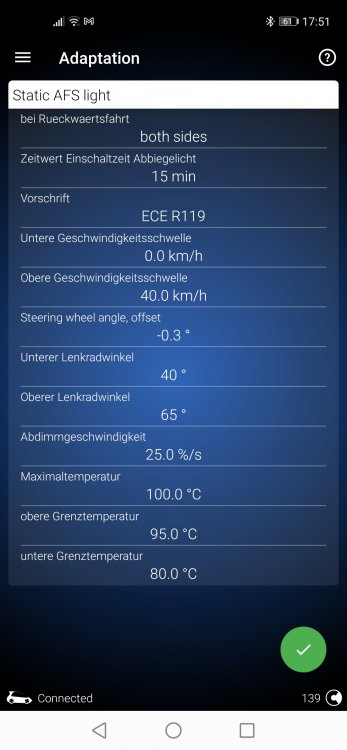
Hello guys, I have an Skoda Superb 2020 FL and I've been trying for a while to activate cornering fog light. I have tried to change Leuchte12NL, 13NL; Leuchte2SL, 3SL, 4TFL, 5TFL but without success. I saw here that @Philps was able to active cornering on fog lights. I will attached few foto with the code that I've changed(I will say the same as @Philps), but didn't work. Could you please take a look on my photo and guide me? Thanks in advance