



Skip to content

xmancz

Finding my way
  • Joined

  • Last visited

  1. I have a engine sound generator unit (J943 retrofit) and according to the diagram it is supposed to be connected to the powertrain CAN-BUS, can I connect this unit to the suspension CAN-BUS or the comfort CAN-BUS? Skoda Kodiaq. Thank you
  2. Problem solved, I just setup Vehicle project to VW48X and upload succesfull.
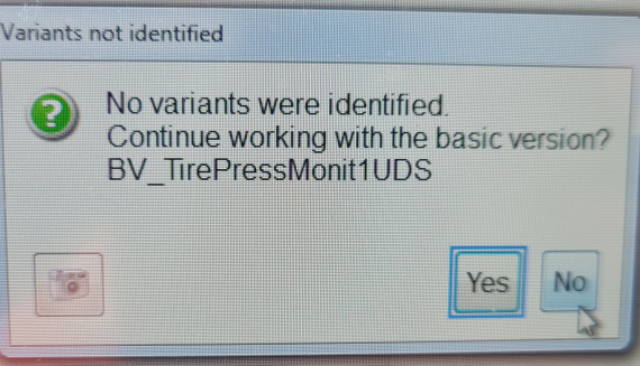
  3. Hi can you help me with upload xml file to unit over ODIS-E (version 12.2.0) 010-Data Transfer - 010.01 Write data set I try upload xml generate over link github and still have error ODS6922E. (Kodiaq SK37X) in ODIS-E disable EXPECTED-IDENTS and setup in 009 - Diagnostic Session to EOL and Perform Can you help me? only one step is different, when I select 010.01 Write data set pops up this message Please can you help what I do wrong?? Thank you
  4. Anyone know, how coding change blinker with DRL stripes???
  5. https://youtu.be/181RhmNptc4
  6. Hi, I try do it "version 2.0" I used Polymorph Pellet from Alliexpress and rubber pad. If you cut, is better longer and grind after.
  7. Anyone know, how activate anti thef alarm without original factory alarm? https://www.youtube.com/watch?v=rb2RLmMpr0Y I tried this coding, but not working on Kodiaq 2019. I can´t activated Bit 0 on Byte 12 😞 Activate anti thef alarm 1 - Module 09 - Electronic control unit. Code (31347) 2 - Extended coding (bytes) 3 - Byte 12 4 - Activate Bit 0 (Anti-theft system installed / active) 5 - Adaptation 6 - Submenu - Anti-theft protection 7 - DWA Alarmverzoegerung (Change value to "door contact thatcham driver") 8 - DWA Camper Modus (Change value to "enabled") 9 - Ueberwachung Innenentriegelungshelbel (Change value to "activated") 10 - Akustischer Alarm Signalhorn (Change value to "enabled") 11 - Submenu - Answer Signals 12 - Akustische Rueckmeldung global (Change value to "enabled") 13 - Akustische Rueckmeldung Signalhorn (Change value to "activated") Anyone help???

Important Information

Welcome to BRISKODA. Please note the following important links Terms of Use. We have a comprehensive Privacy Policy. We have placed cookies on your device to help make this website better. You can adjust your cookie settings, otherwise we'll assume you're okay to continue.

Account

Navigation

Configure browser push notifications

Chrome (Android)
  1. Tap the lock icon next to the address bar.
  2. Tap Permissions β†’ Notifications.
  3. Adjust your preference.
Chrome (Desktop)
  1. Click the padlock icon in the address bar.
  2. Select Site settings.
  3. Find Notifications and adjust your preference.