
Mutl3y_UK
Finding my way
-
Joined
-
Last visited
Everything posted by Mutl3y_UK
-
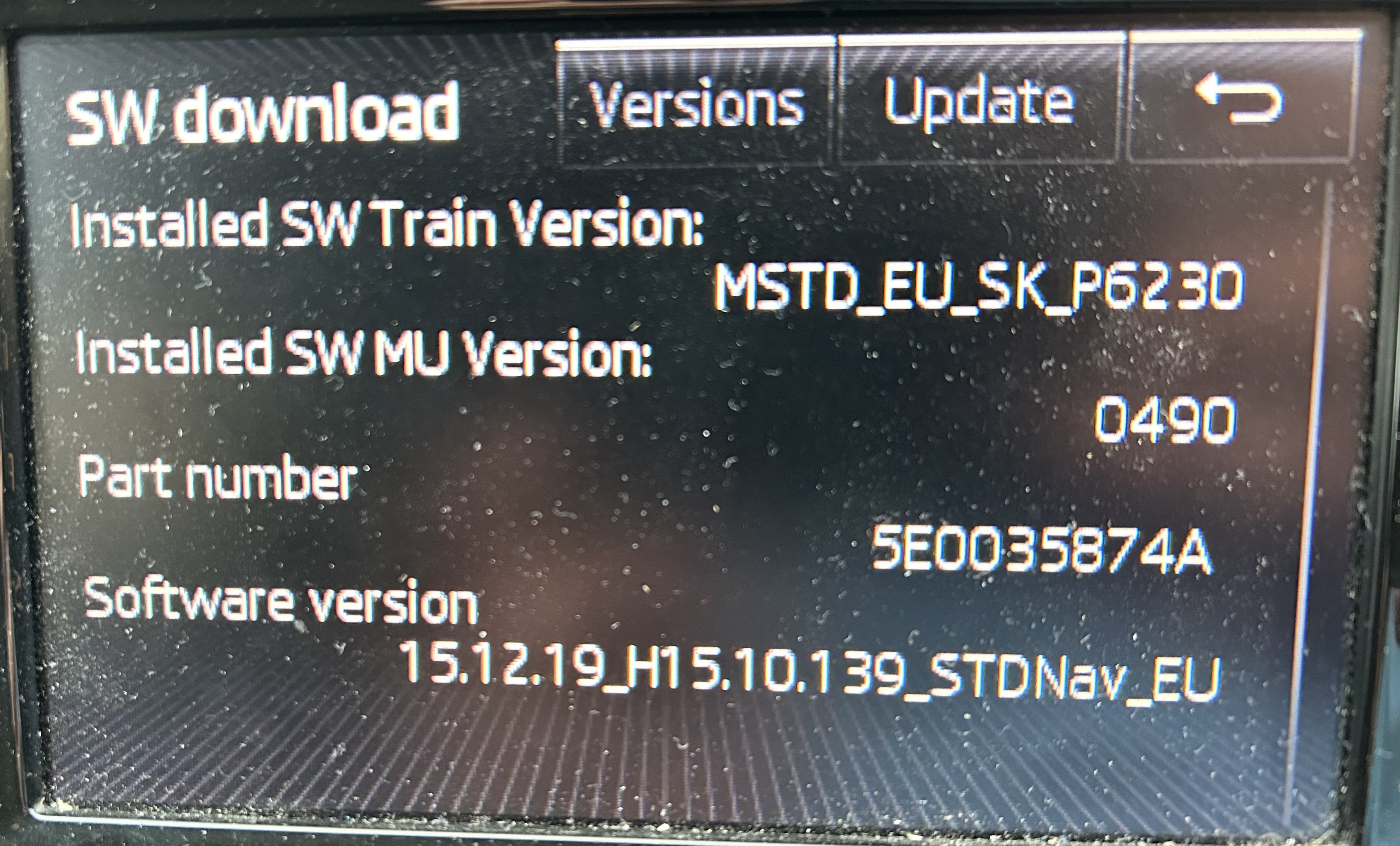
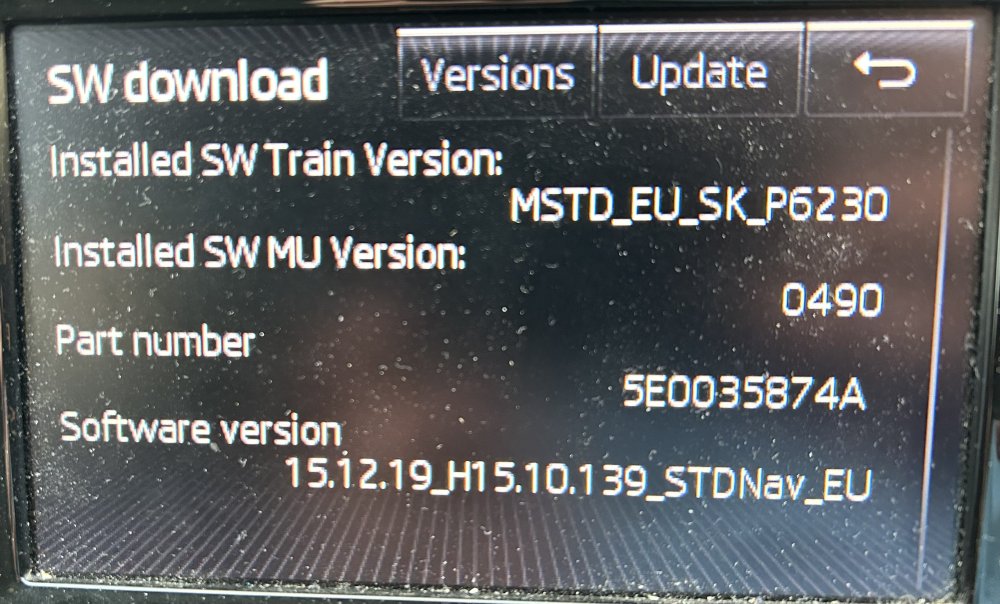
Hi 👋 Update since my last post have updated the software all OK, and now just looking to source and retrofit a rear camera, looking still on AliExpress there hundreds of them but can’t tell what is compatible with my head unit, Does the software update mean I can fit a high line camera like this? 🤞🤞 https://a.aliexpress.com/_EQPKgMy Or is this my only option. https://a.aliexpress.com/_EGnW3gu
-
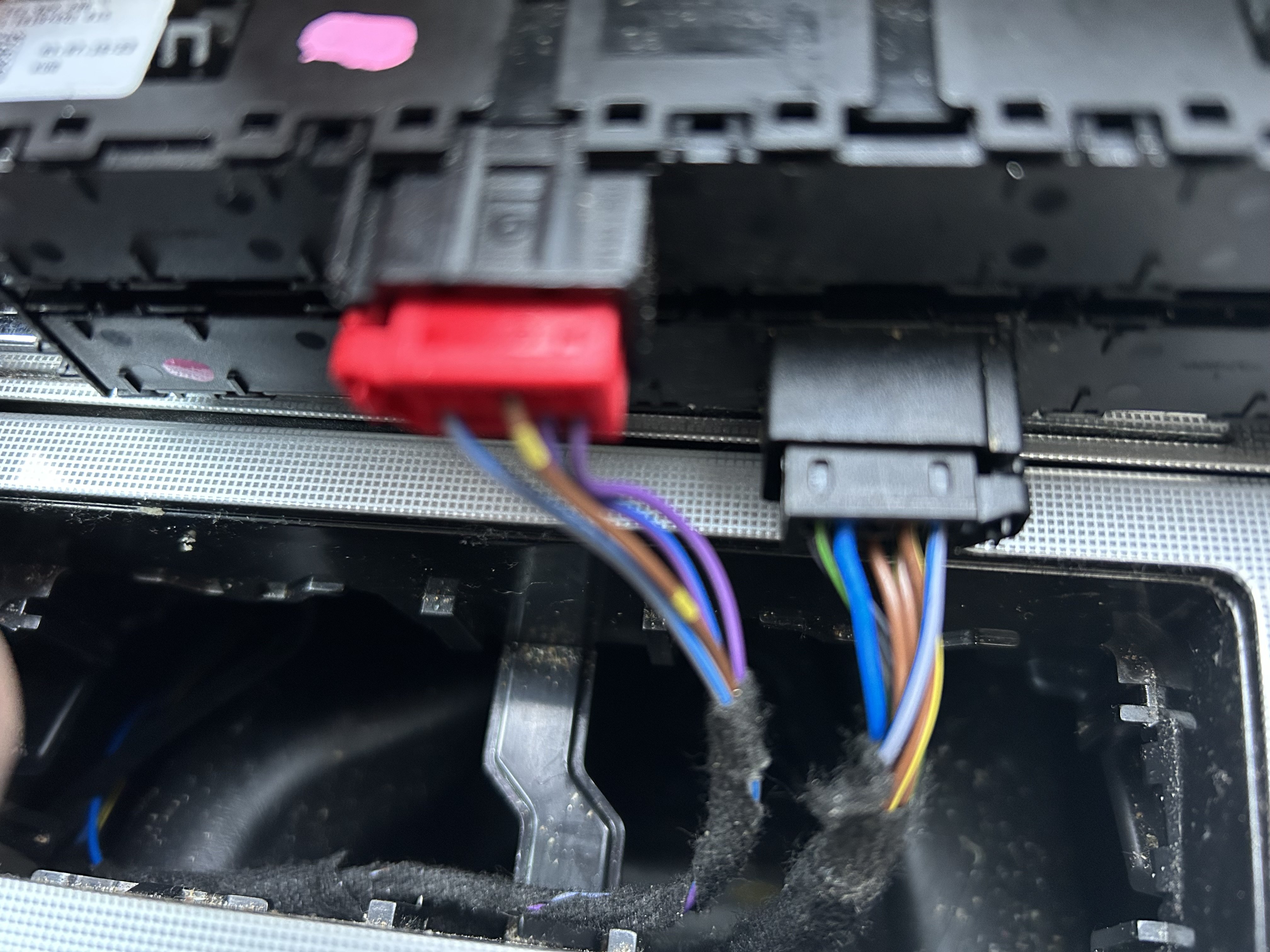
@langers2k I can’t thank you enough for this! 👍 Really appreciate you taking the time to find these for me! This is exactly what I needed, and confirms the pin connections on the T10r connector was wrong! Haven’t come across erWin before but will definitely be paying the site a visit, this would have saved me a few hours of googling and scratching my head!
-
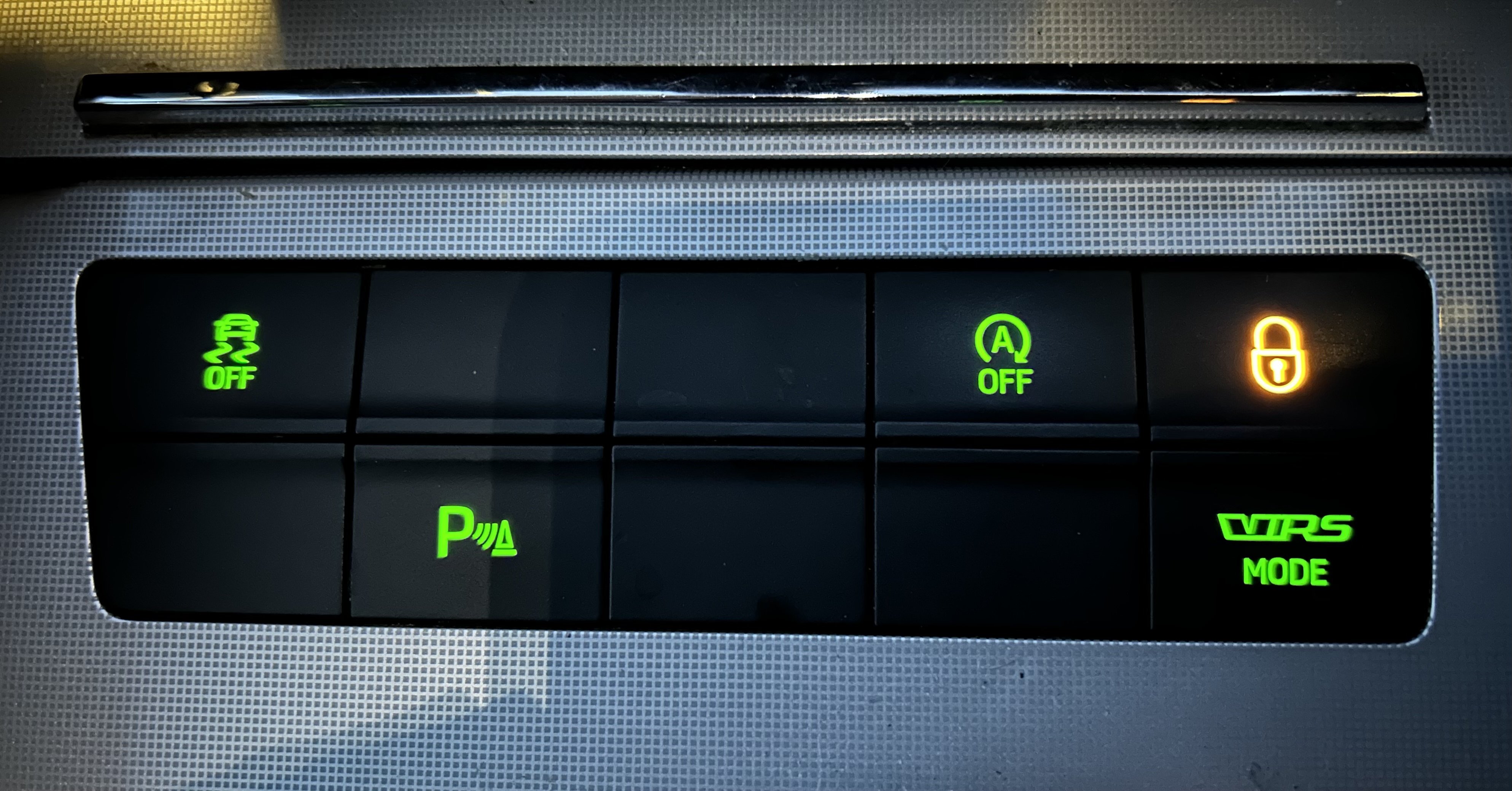
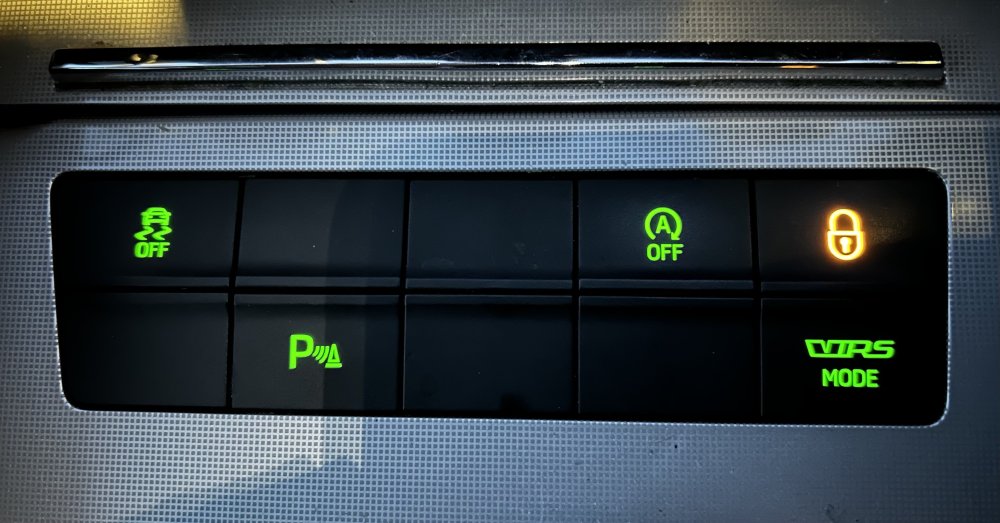
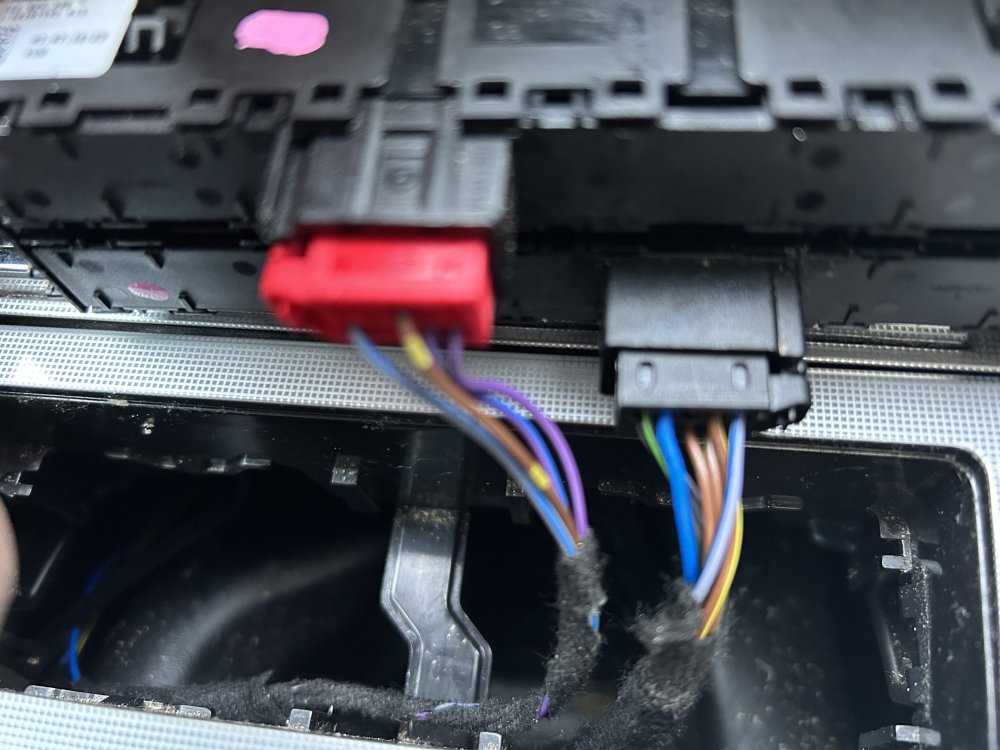
Hi all, I have today been playing with my car and attempting to wire in the required wires for these two additional buttons, honestly I don’t need the extra buttons but doing a number of other small upgrades / retrofits and I don’t like so many button blanks…. So we’ll Why not? The Mode, Auto and central locking buttons all work as they should (had these already) Appreciate any help on this, thank you in advance! 👍 ESC / ASR button From reading elsewhere the only similar guide I could find for this was for a Golf M7, on the face of it the seems very similar or the same, however after adding the missing link wire, the button is still not working. So far I have established there is a wire from the ABS unit to the TIUL Coupling Connector T17d, I have run a wire from pin 5 on Connector T17d to the Black Switch Block connector (T10ks ??) Pin 9, The guide states also adding another wire to pin 10 with a 12v supply, but my connector already has a wire in that pin. I am guessing here that there is a difference between the Golf and Octavia from this side, so looking for advice on the pin out for the button blocks. Additionally I have checked / updated the coding on [03-ABS Brakes] coding - 07, Long coding and then byte 29 from 02 to 09 09 = ESC & ASR ON / ASR OFF / ESC SPORT (GTI & R) ParkPilot Button I haven’t attempted to do this one yet, but my research so far implies I need to run two wires, from the red button block connector Pin 3 to T26 pin 16, and Pin 6 to T26 pin 17 of the OPS Module, again I am not 100% confident on this as I am struggling to find a reliable guide/information.
-
Many thanks guys, appreciate the info, sucks a bit but really glad I asked before wasting a lot of money, Based on this I don’t think I will bother as it will be 3x the cost just for a slightly larger screen. So for now I will just update the firmware version.
-
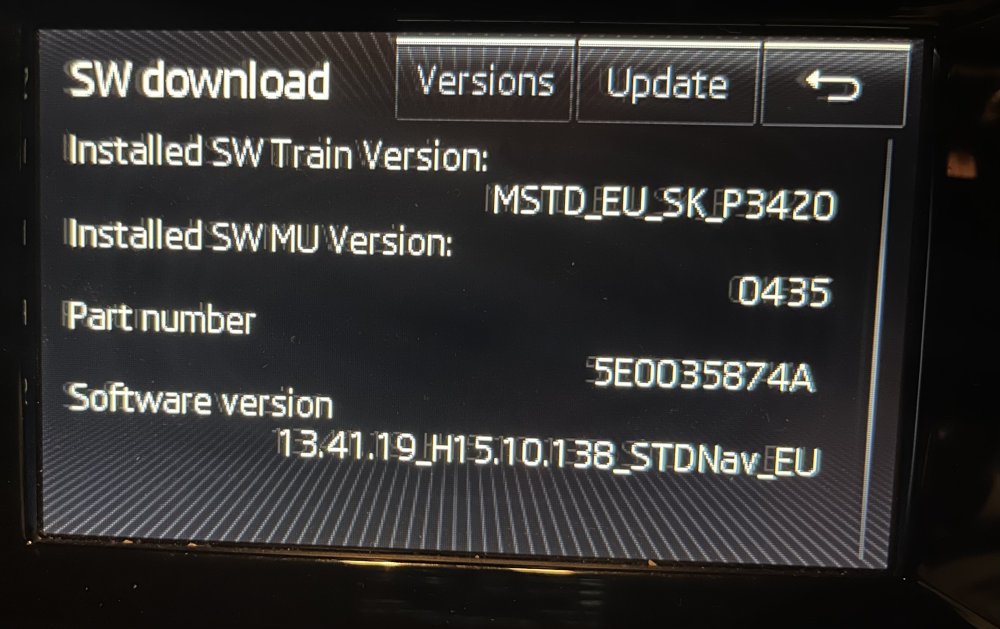
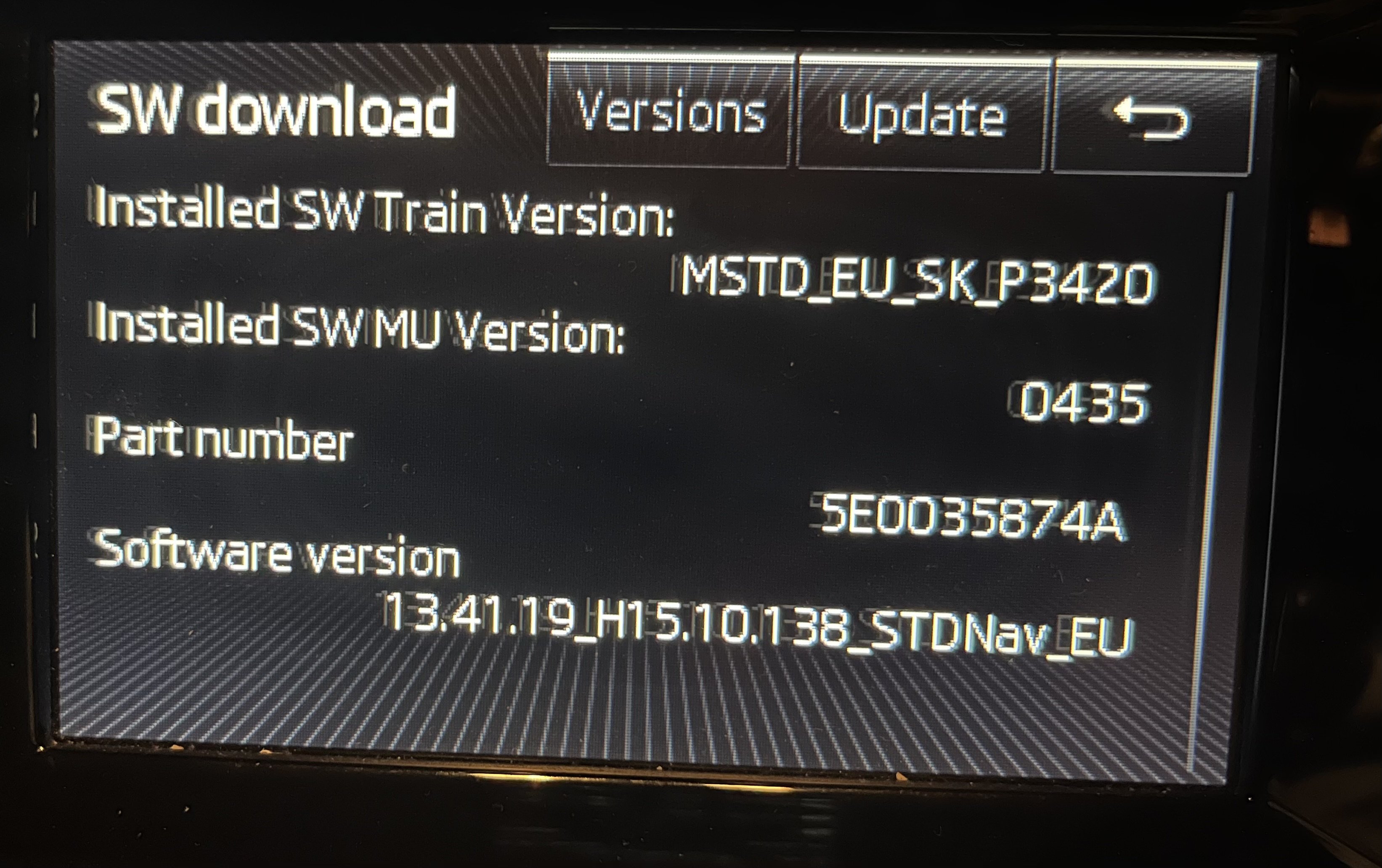
Hi all, has been a while since my last post but looking to do a couple of upgrades on my newer Skoda Octavia MK3 Estate, it’s a 2015 1.6 TDI and already has factory rear parking sensors, but looking at adding a reversing camera too, my preference is to do it properly and have been reading the forums about the various kits available on Aliexpress. I assume once programmed the two will work together. i was looking last night at my existing Headunit etc and will be doing the firmware update soon as it’s very old, looks like I have a MIB1 with PN 5E0035874A (photo attached) So wanted to check, if this one is suitable as it states it’s for a MK3 Octavia but doesn’t really confirm compatibility with the headunit. Also not sure what is meant by Highline? https://www.aliexpress.com/item/4000788170108.html At the same time it would be nice to upgrade to a larger screen, looking on another thread the following PN 3V0919606 appears to be what I need, but again before I purchase I wanted to check if it’s compatible and a straight swap, it’s looks the same just with the larger screen. I have got access to VCDS if needed but would prefer a simple swap if possible. Any advice / Tips / confirmation on the Screen and Camera I am looking at is gratefully appreciated, many thanks ☺️