rooflessdriver
Members
-
Joined
-
Last visited
Everything posted by rooflessdriver
-
-
I thought I’d add a post in case it helps anyone else. I searched the forum for the file layout to import playlists on my L&K spec Columbus head unit but didn’t really find much. So a bit of digging on the interweb and found a great free utility called mp3tag. I used this to edit the id3 tags on a bunch of tracks in a folder, “selected all” and then “create a playlist” (Remove the file path c:\ bits) so it’s myplaylist.m3u and saved it in the same directory as the .mp3 files. Transferred to an SD card and imported them to the jukebox. Worked first time.
-
-
-
-
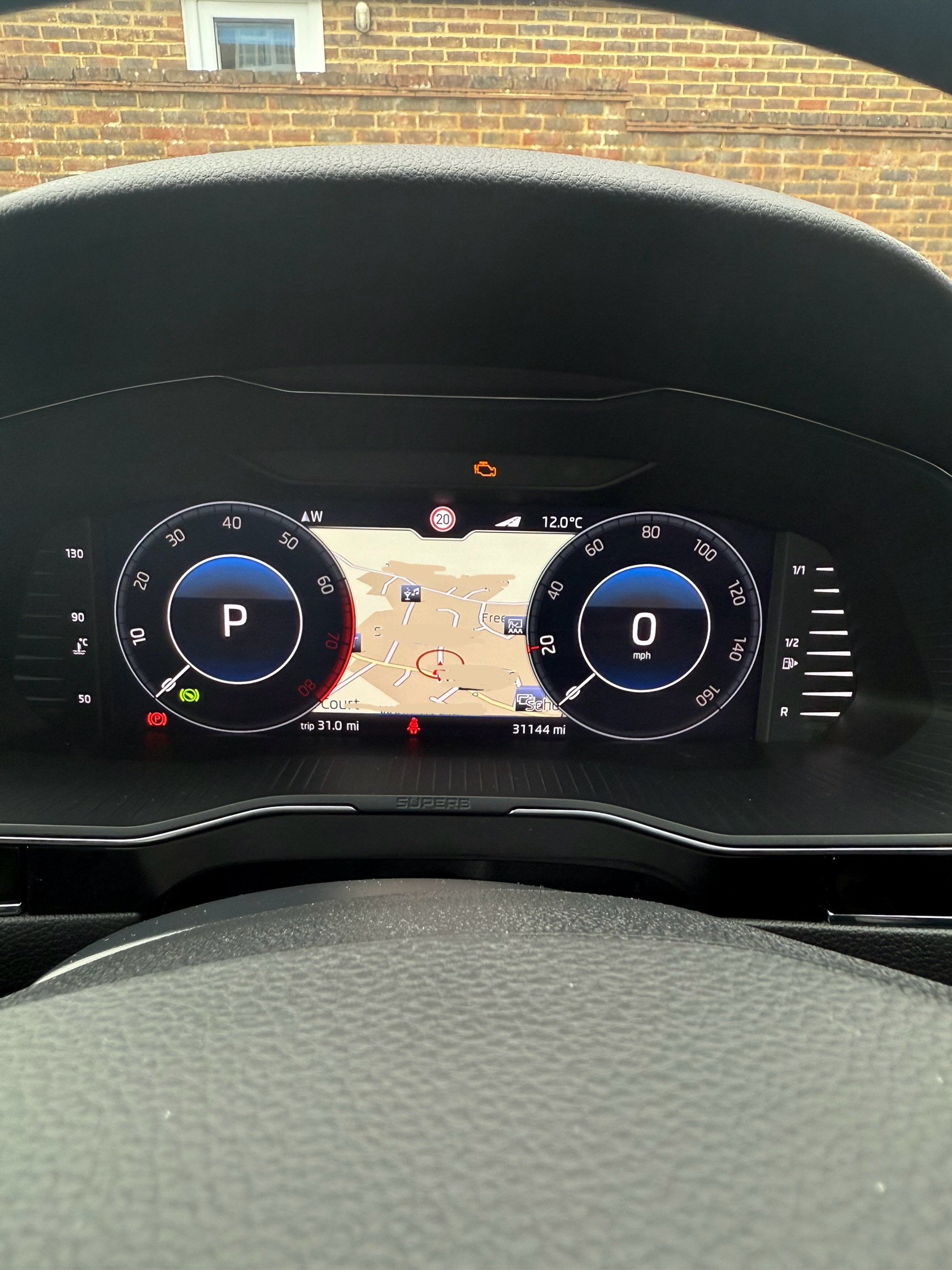
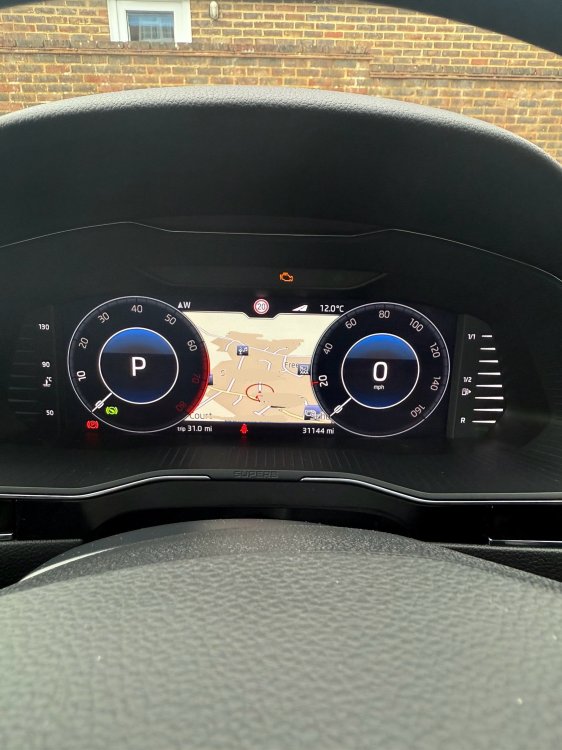
Hi all, I traded my 17 plate Fabia mk3 for a 69 plate Superb L&K last week and very happy with it. However, whilst playing with the inbuilt Navigation, the Nav screen is now showing on the virtual cockpit, which it wasn’t before. I’ve scrolled through the different views but can’t seem to go back to the blank bit between the dials. Any help would be appreciated as I like the two dial view shown below, without the Nav map.
-
Hi @JGrindel, do you still fit these cameras? I’m near Horsham in West Sussex and thinking of getting a reverse camera for my 2017 Fabia. thanks.